Omron V-TS Teaching Manual.pdf.pdf - 第244页
2.17 M ass-Produced PCB Image 2-2 17 2.18.3 Updating Inspect ion Program 1. Select the inspection pr ogram in the Select PCB scree n and click [Update Data]. 2. The data update starts, and the progress is s hown in the p…
Chapter 2 Inspection Programming
2-216
4.
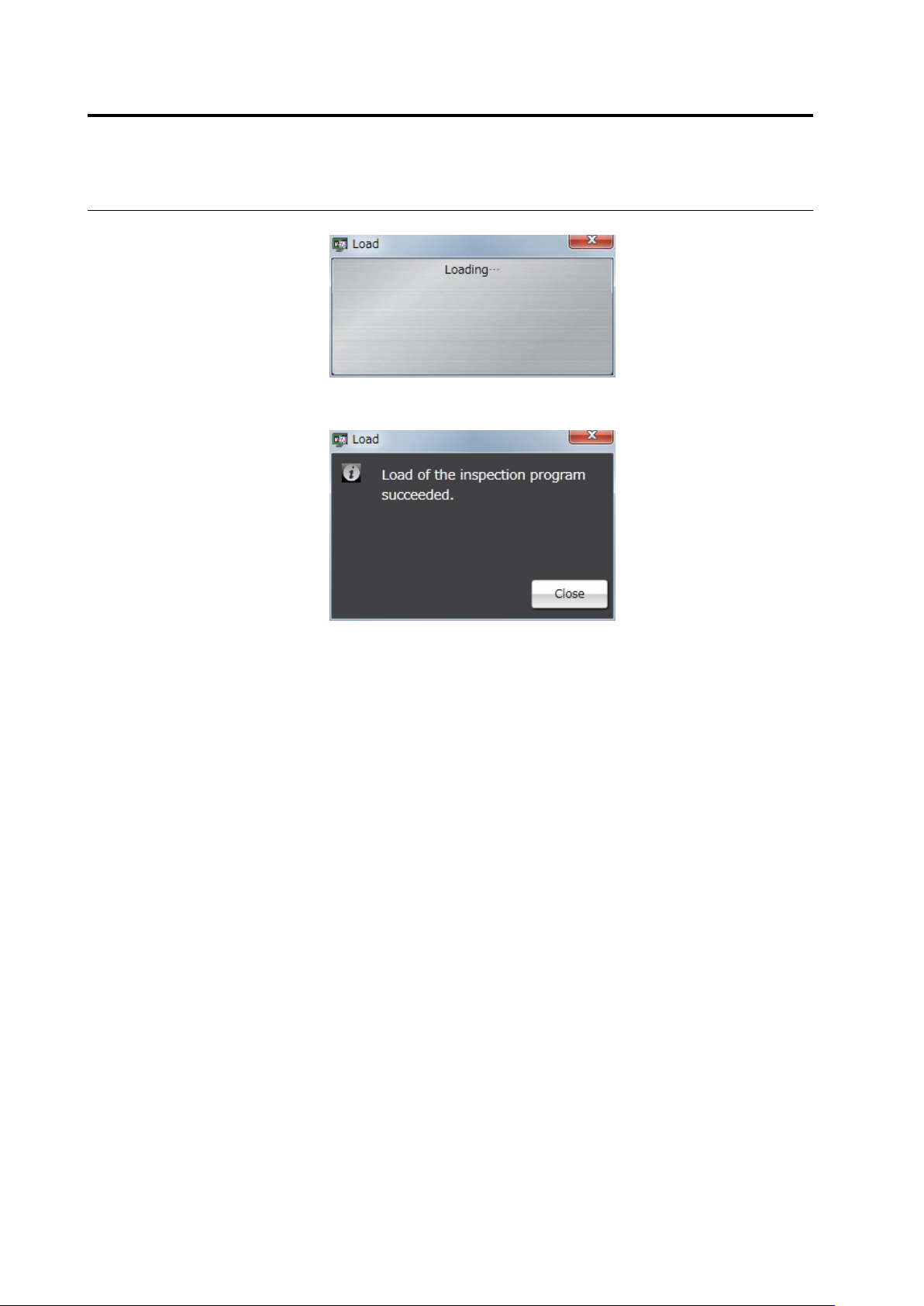
Inspection program reading starts.
The following dialog is displayed if the file is successfully read. Click
[Close].
If the reading fails, an error dialog appears.
When reading only the inspection program with the image captured
without presence of a capture image, a data mismatch occurs,
causing an error. Click [Close] to close the error dialog and select
the image and read the file again.
2.17 Mass-Produced PCB Image
2-217
2.18.3 Updating Inspection Program
1.
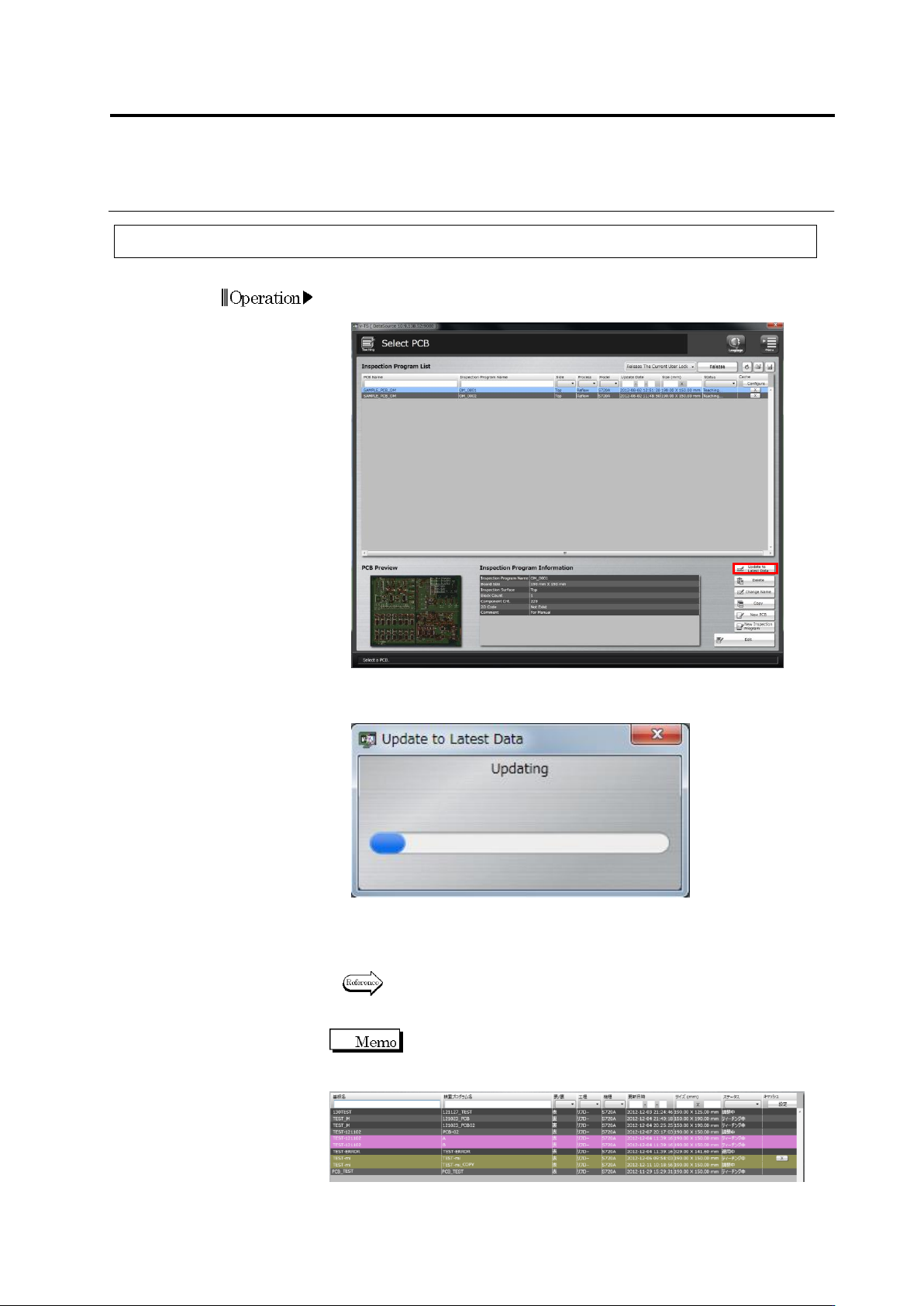
Select the inspection program in the Select PCB screen and click
[Update Data].
2.
The data update starts, and the progress is shown in the progress
bar.
The dialog closes when the update is complete.
Check that the update date and time of the inspection program is
updated in the Inspection Program List.
Refer to "2.3 Opening an Inspection Program" for the procedure when
the inspection program is opened in a state not updated.
If teaching of the latest product number is not completed
when the operating inspection program is updated to the latest data, the
status is shown by a pink band as follows.
In this case, open the inspection program and release the program
again after teaching of all the product numbers is completed.
Chapter 2 Inspection Programming
2-218
2.18.4 Deleting an Inspection Program
1.
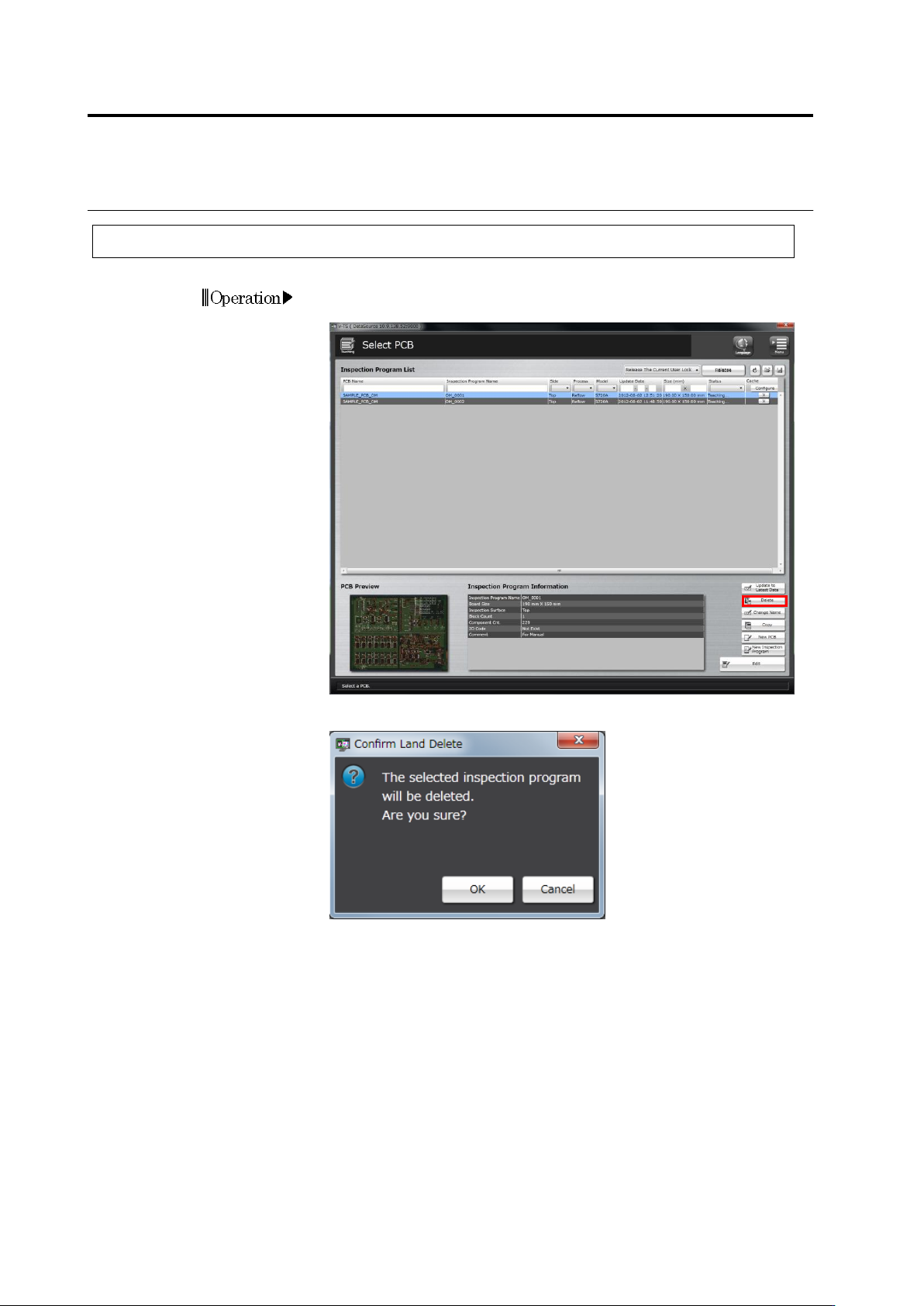
Select the inspection program to delete in the Select PCB screen
and click [Delete].
2.
The following confirmation dialog appears. Click [OK].
・Click [Cancel] to abort the deletion and close the dialog.
Operation