Omron V-TS Teaching Manual.pdf.pdf - 第165页
Chapter 2 Insp ection Progr amming 2- 138 Refer to "2.6.1 Criteria Setting (Product No.)" for the procedure up to selecting the inspection item if [Criteria Setting (Product No.)] is selected, and "2.6.2 C…
2.15 Modifying an Inspection Program
2-137
The characteristic parameter values are common within the ranges specified below:
Common
with comp.
No.
Common
with PCB
Component color
Yes
Component extraction mask
Yes
Component difference color
Yes
Polarity difference color
Yes
Component bottom side color
Yes
Missing component excluded color
Yes
Electrode color
Yes
Lifted electrode color
Yes
Electrode side bend color
Yes
Electrode color (oblique)
Yes
Land foreign object color
Yes
Abnormal land color
Yes
Abnormal land color (oblique)
Yes
Missing component mask
Selectable
Position adjustment color (oblique)
Selectable
Fillet excluded color
Selectable
Land exposed color
Selectable
Solder ball/bridging mask
Selectable
Peripheral foreign object mask
Selectable
Land color (oblique)
Yes
Solder color
Yes
Solder bridge color
Selectable
Solder bridge color (lead shoulder)
Selectable
Solder ball color
Selectable
PCB color
Yes
Solder ball/bridge color (oblique)
Yes
Position adjustment color
Yes
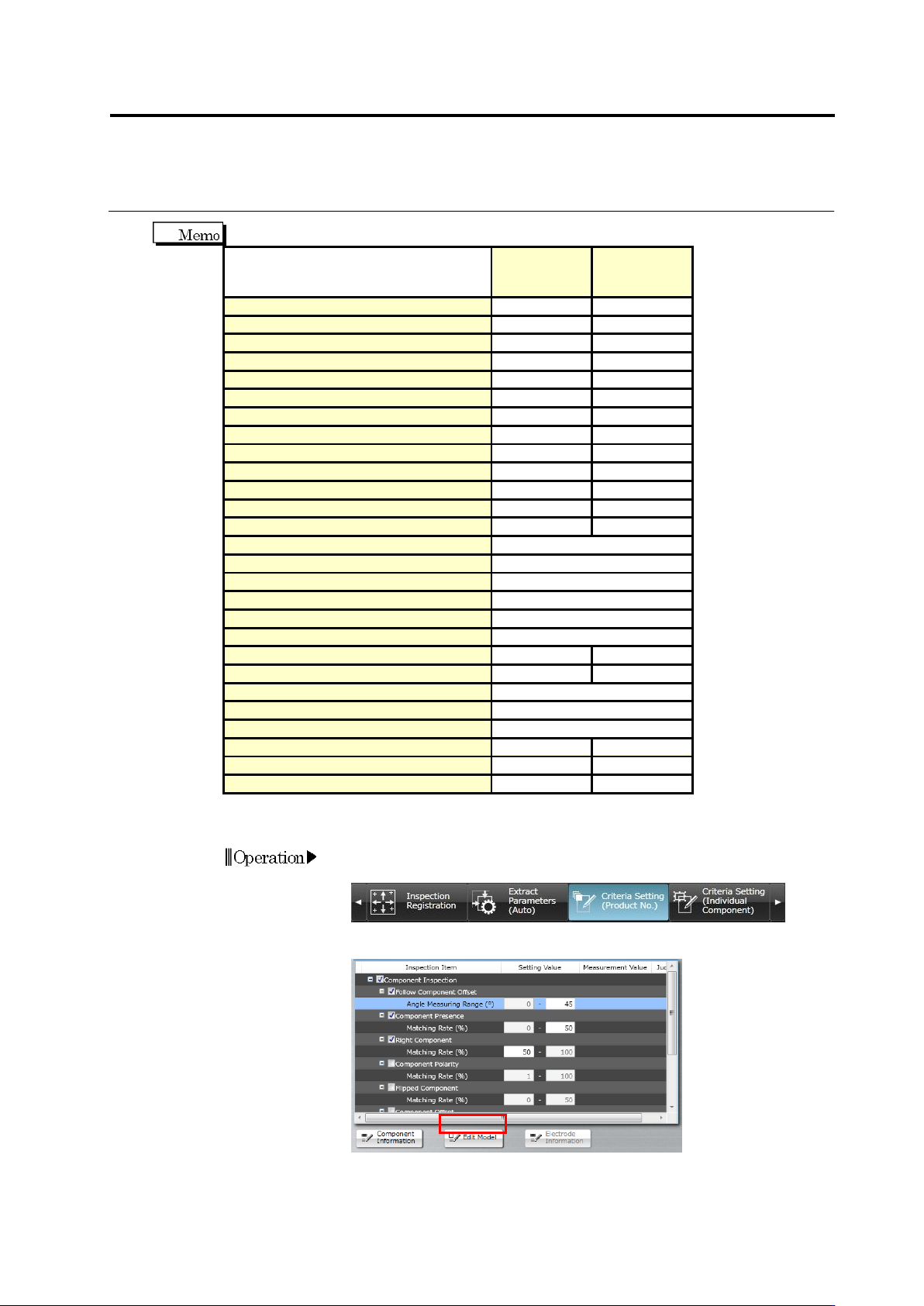
The following description explains the model editing procedure.
1.
Select the [Criteria Setting (Product No.)] or [Criteria Setting
(Individual Component)] tab.
2.
Select the inspection item to edit and click [Edit Model].
Operation
Chapter 2 Inspection Programming
2-138
Refer to "2.6.1 Criteria Setting (Product No.)" for the procedure up to
selecting the inspection item if [Criteria Setting (Product No.)] is
selected, and "2.6.2 Criteria Setting (Individual Component)" for the
same if [Criteria Setting (Individual Component)] is selected.
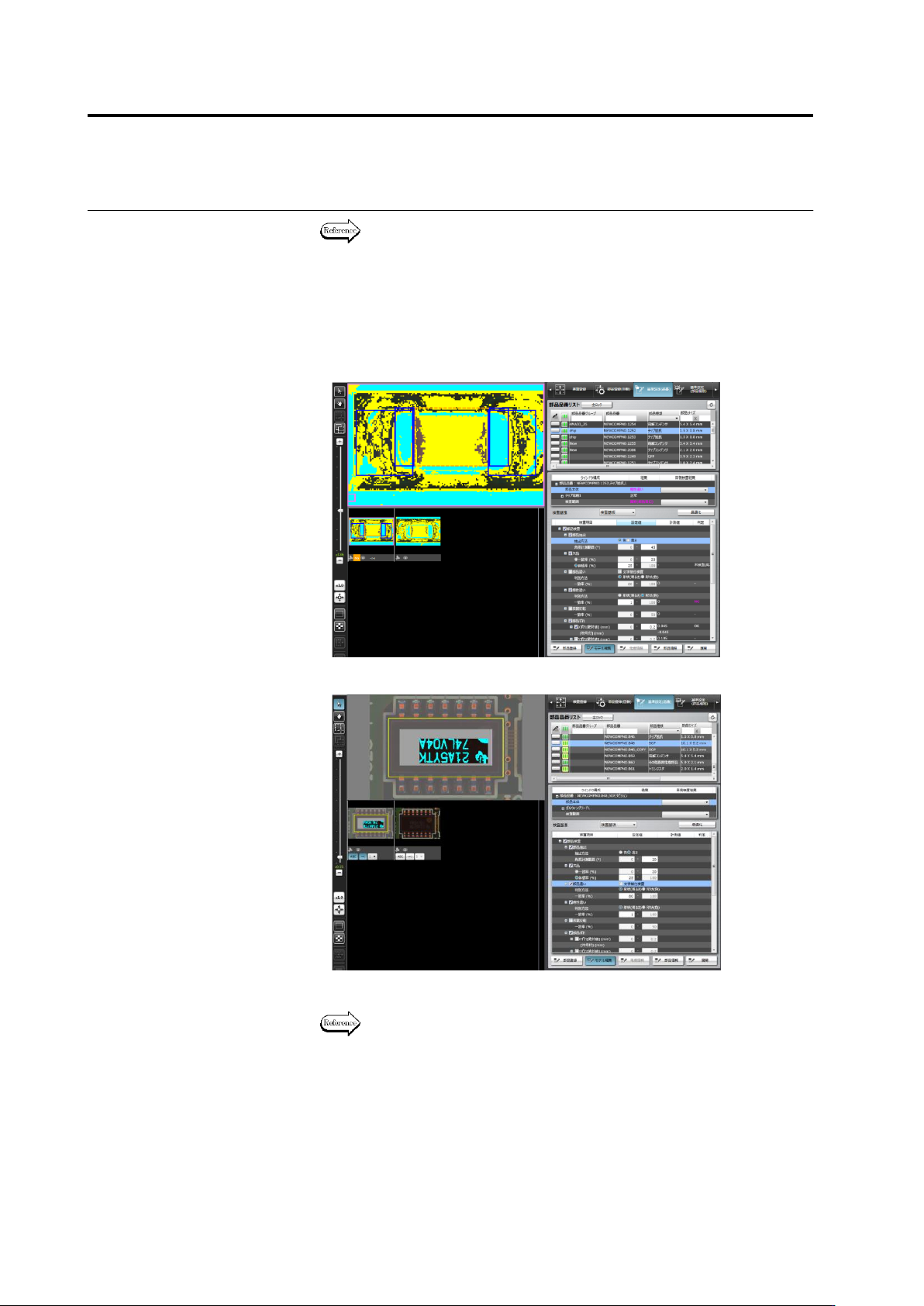
3.
A different model editing screen is displayed depending on the
characteristic parameter to edit.
・
Color Characteristic Parameters
・
Mask Model Characteristic Parameters
4.
Edit the characteristic parameters.
The operation method of the model editing screen is described on the
next page.
5.
To continue the editing of other characteristic parameters, click any
of the inspection items allowed for model editing.
The Model Editing screen closes if [Edit Model] is clicked.
2.15 Modifying an Inspection Program
2-139
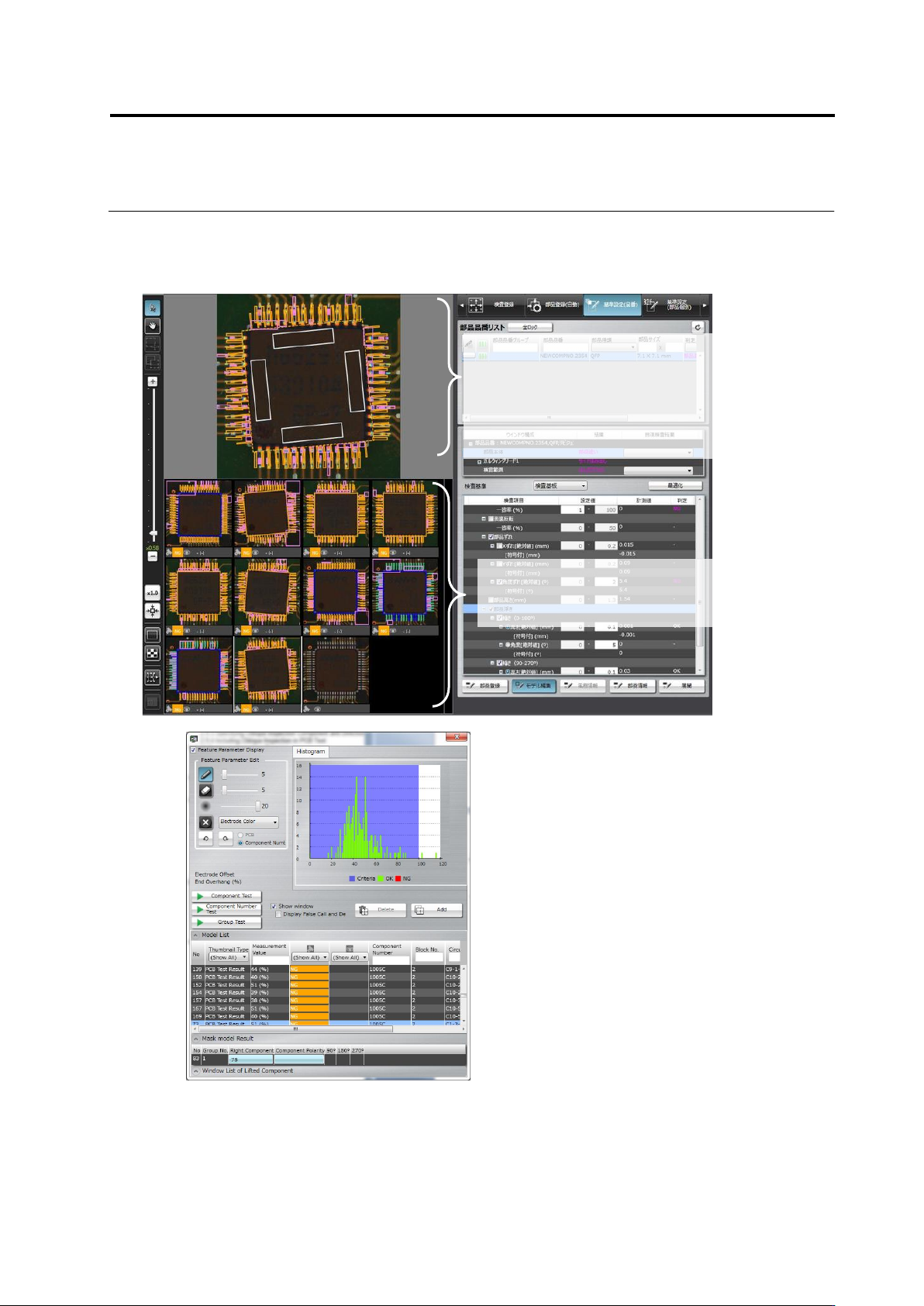
Model Editing Screen Operation
When a logic selected on the inspection item column is changed with the model editing screen
open, the tools of the model editing screen are also changed.
Shows a thumbnail list of the
component registered in the
library.
Displays a magnified view of the image
selected in the component thumbnail list
at the bottom of the screen.
Operate this component thumbnail to edit
the model.
(13)
(12)
(3)
(4)
(5)
(6)
(7)
(8)
(9)
(10)
(12)
(1) ①
(2)
(11)