Omron V-TS Teaching Manual.pdf.pdf - 第47页
Chapter 2 Inspection Programm ing 2- 20 Change Window Size W hen adjusting a w in dow, set the display magnification to 1.0 times or higher. 1. Click (Select W indow) or (Create W indow) button in the Image Operation t…
2.1 Basics of Teaching
2-19
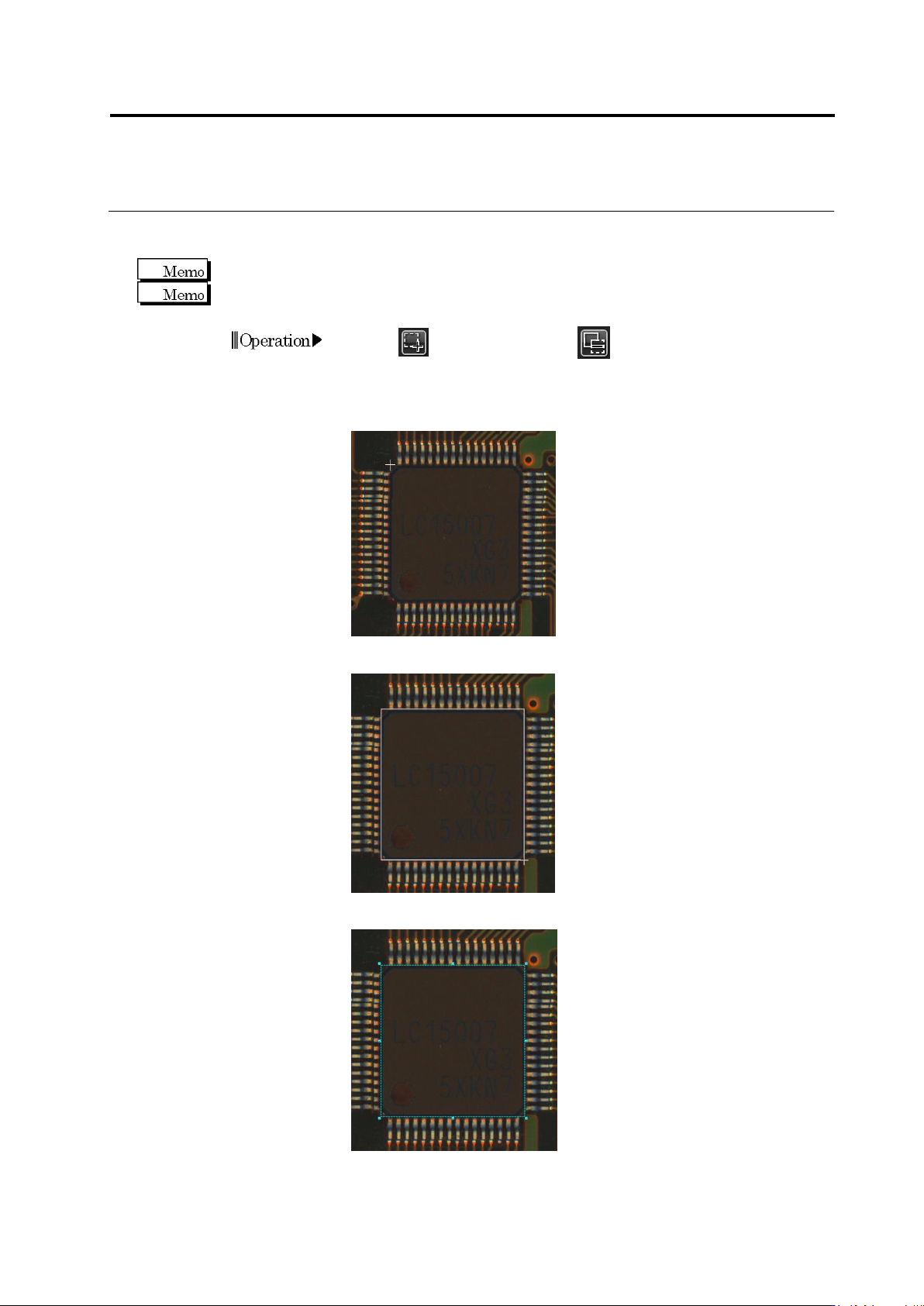
Create Window
When creating a window, set the display magnification to 1.0 times or higher.
A window in a size smaller than 0.1 mm × 0.1 mm cannot be created.
1.
Click (Create Window) or (Create Mask Window) button
in the Image Operation tool bar.
2.
Move the mouse cursor at the top left corner of the window to
create, surrounding the relevant location e.g. component or land.
3.
Drag the cursor from the left top point diagonally to the right bottom.
4.
Drop the cursor. The window is formed.
Operation
Chapter 2 Inspection Programming
2-20
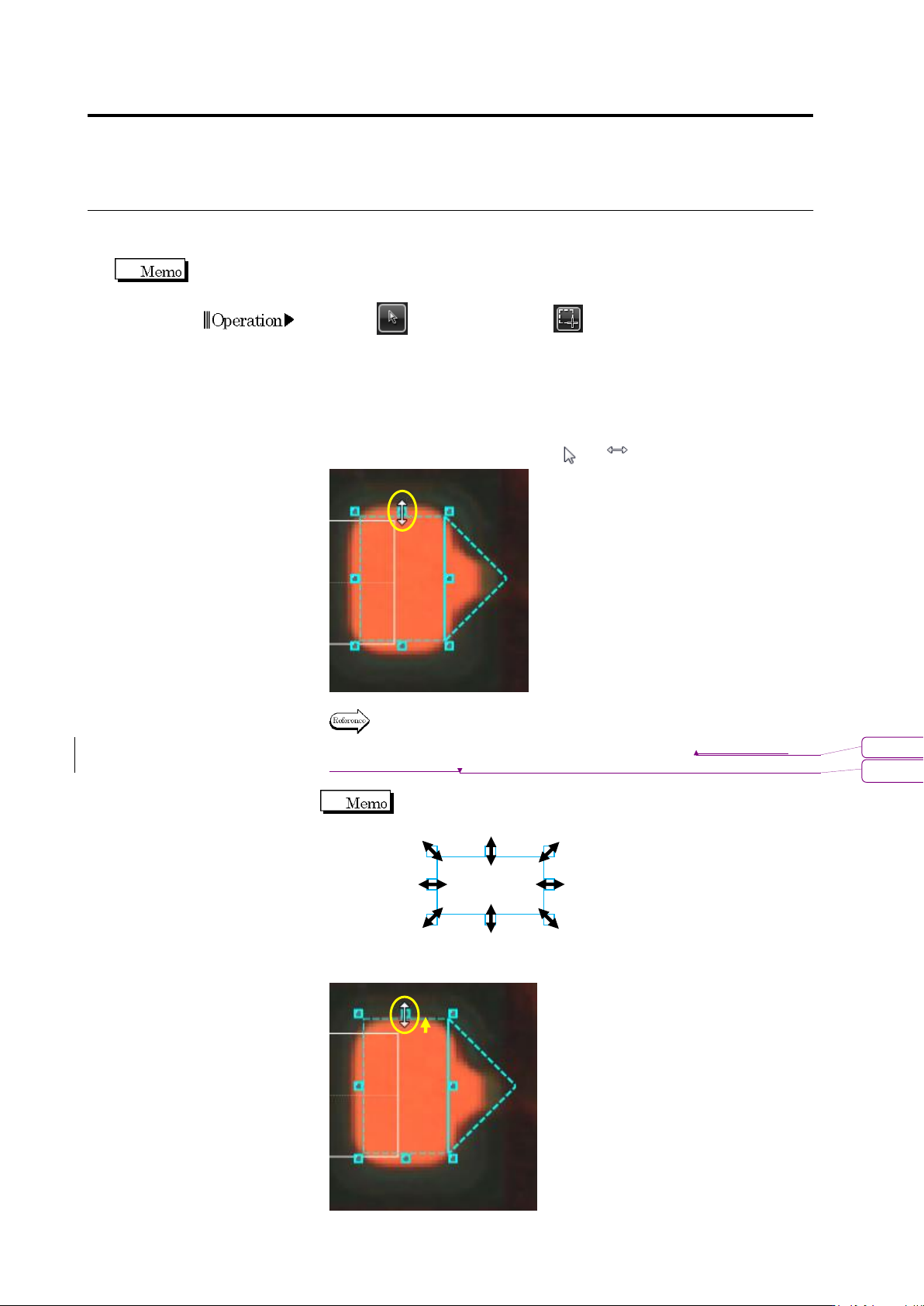
Change Window Size
When adjusting a window, set the display magnification to 1.0 times or higher.
1.
Click (Select Window) or (Create Window) button in the
Image Operation tool bar.
2.
Click the window in the image display area to resize.
3.
Position the mouse cursor on an operating point (shown in a small
square) on the window.
The mouse cursor changes from to .
The window which can be resized or moved is different
depending on the screen. For details, refer to 2.15.1 “Modifying an
Inspection Window.”
The direction of the mouse cursor changes depending on the
operating point to choose, as shown below:
4.
Drag and drop the selected operating point in the window to resize.
Operation
書式変更: フォント : Arial
削除: Modifying an Inspection Window
2.1 Basics of Teaching
2-21
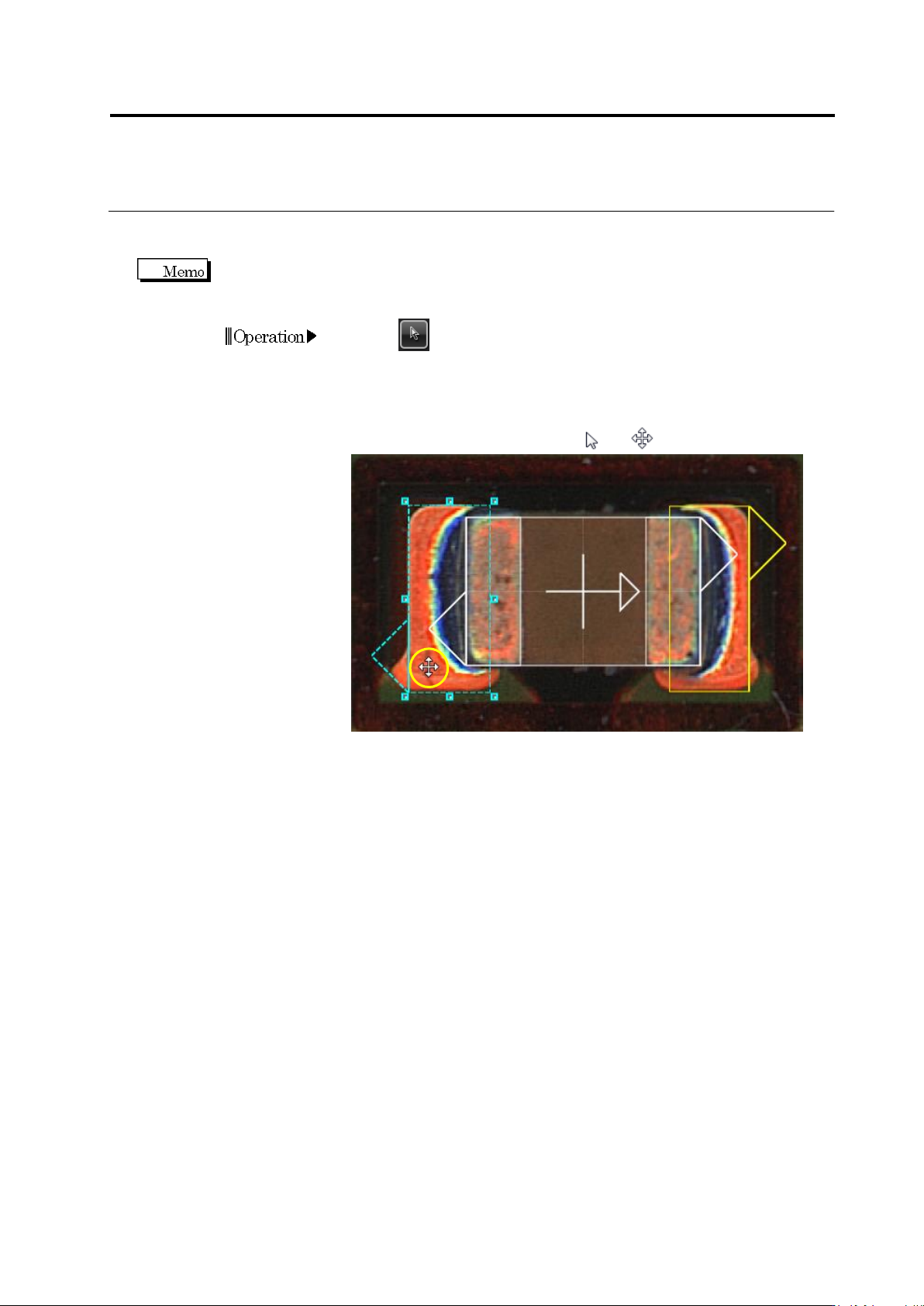
Move Window Position
When fitting the window position to the PCB image, set the display magnification to 1.0 times or
higher.
1.
Click (Select Window) button in the Image Operation tool bar.
2.
Click the window in the image display area to move.
3.
Position the mouse cursor inside the window.
The mouse cursor changes from to .
4.
Drag the window to move and drop it at a desired position, where
the position is fixed.
Operation