Omron V-TS Teaching Manual.pdf.pdf - 第245页
Chapter 2 Insp ection Progr amming 2- 218 2.18.4 Deleting an Insp ection Program 1. Select the inspection pr ogram to delete in the Select PCB s creen and click [Delete]. 2. The following confirm ation dialog appears. C …
2.17 Mass-Produced PCB Image
2-217
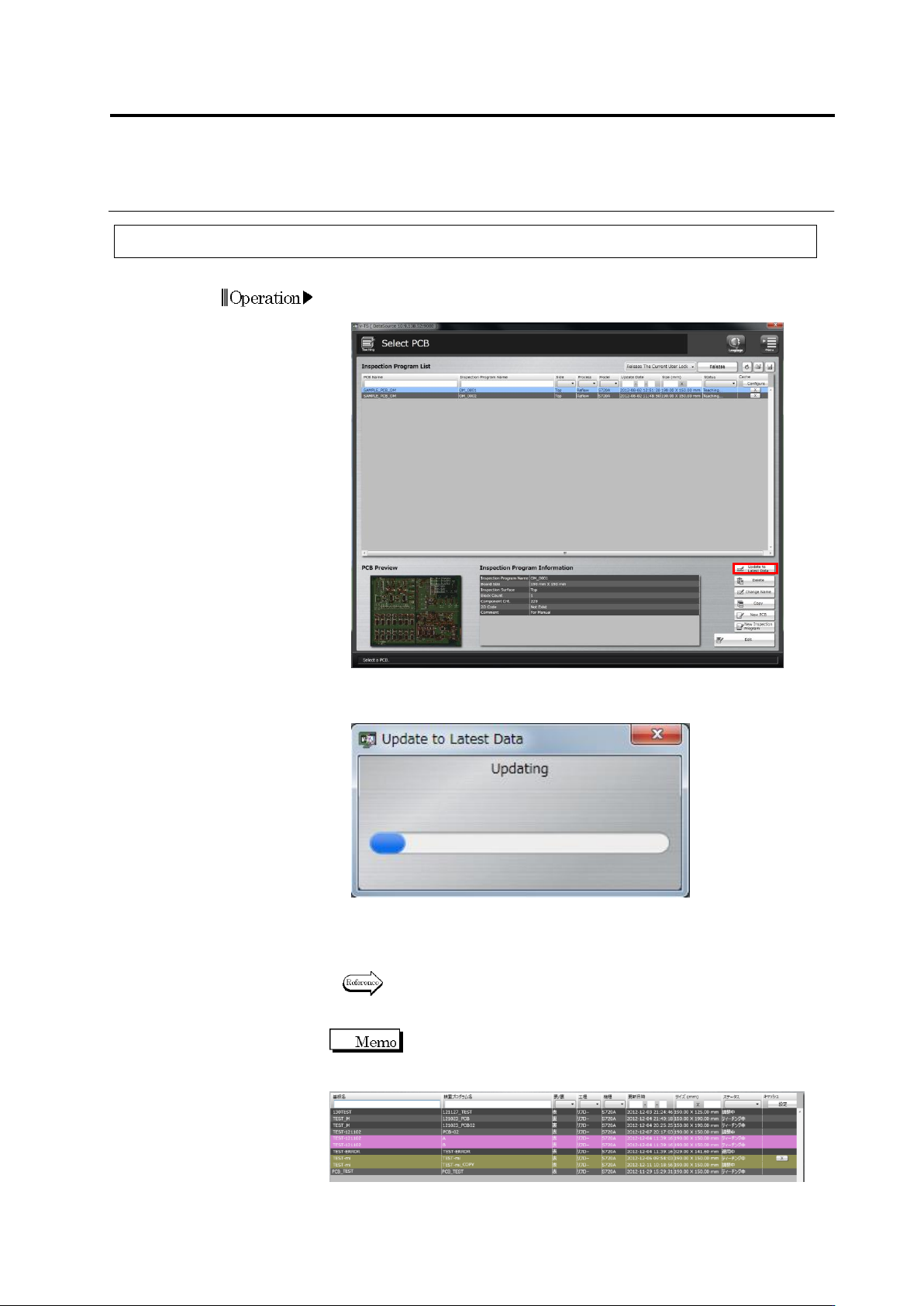
2.18.3 Updating Inspection Program
1.
Select the inspection program in the Select PCB screen and click
[Update Data].
2.
The data update starts, and the progress is shown in the progress
bar.
The dialog closes when the update is complete.
Check that the update date and time of the inspection program is
updated in the Inspection Program List.
Refer to "2.3 Opening an Inspection Program" for the procedure when
the inspection program is opened in a state not updated.
If teaching of the latest product number is not completed
when the operating inspection program is updated to the latest data, the
status is shown by a pink band as follows.
In this case, open the inspection program and release the program
again after teaching of all the product numbers is completed.
Chapter 2 Inspection Programming
2-218
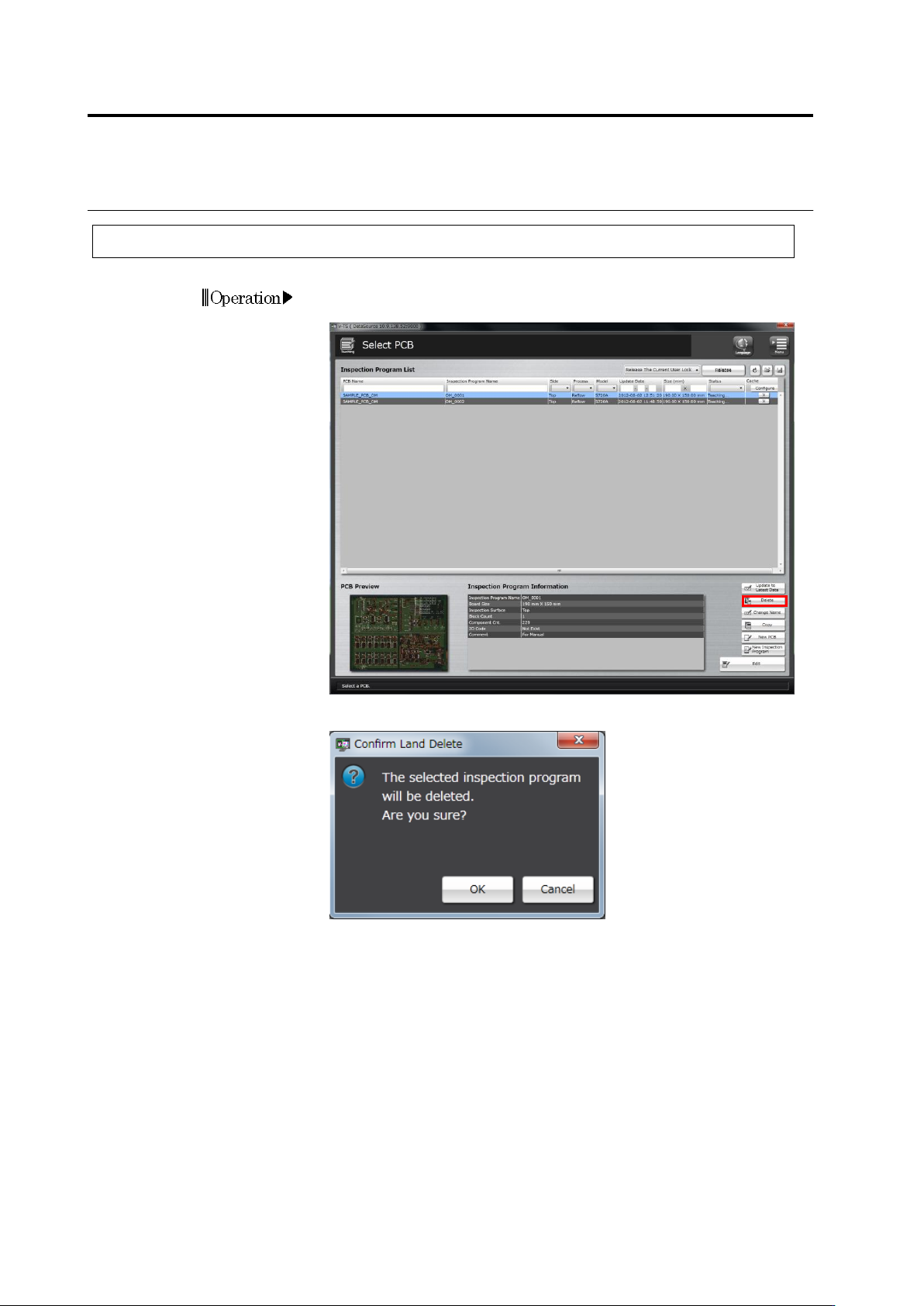
2.18.4 Deleting an Inspection Program
1.
Select the inspection program to delete in the Select PCB screen
and click [Delete].
2.
The following confirmation dialog appears. Click [OK].
・Click [Cancel] to abort the deletion and close the dialog.
Operation
2.17 Mass-Produced PCB Image
2-219
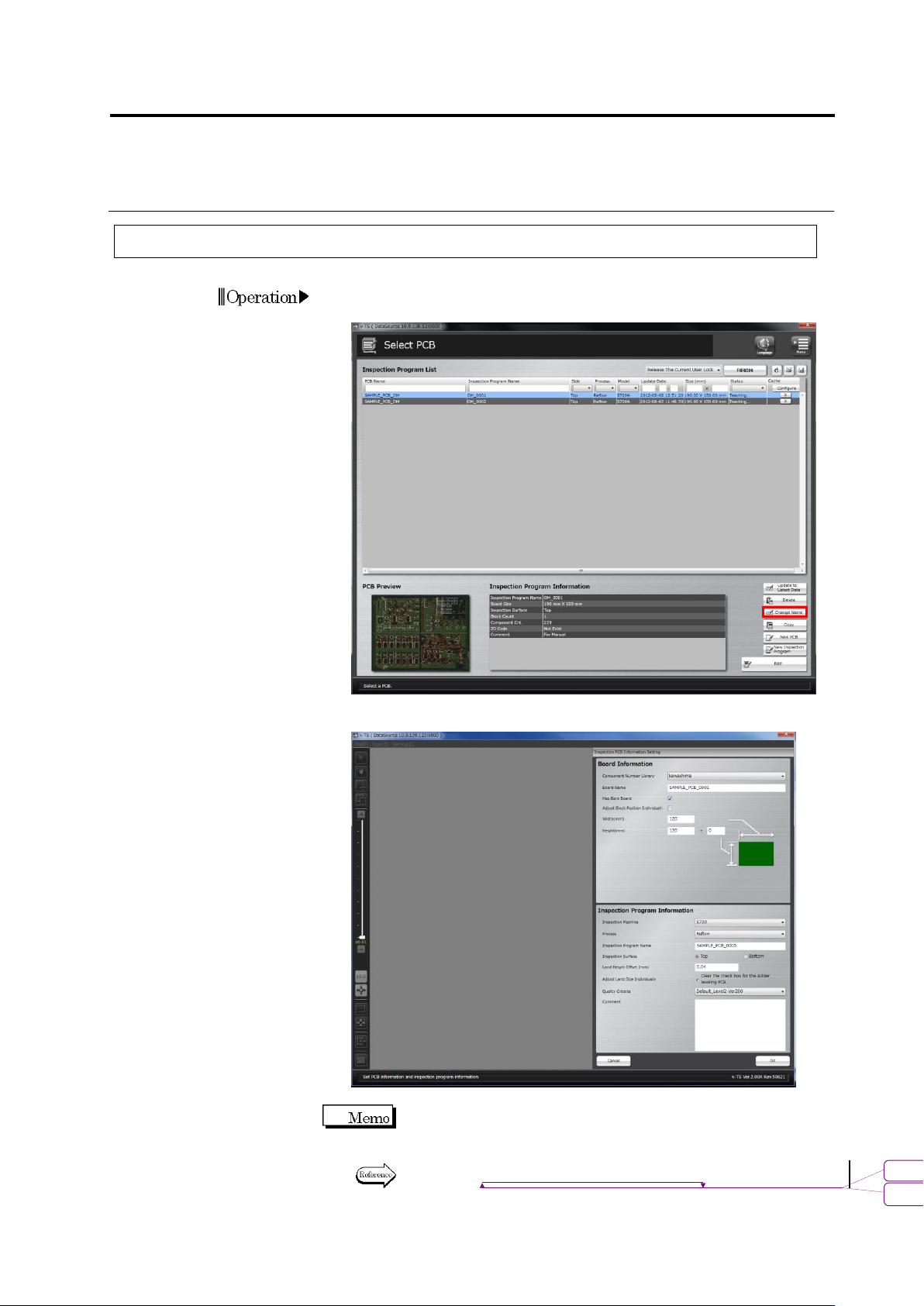
2.18.5 Renaming an Inspection Program
1.
Select the inspection program to rename in the Select PCB screen
and click [Change Name].
2.
The Inspection PCB Information Setting screen is displayed.
Change the name of the program and click [OK].
Only the PCB name, presence of bare board, adjust block position
individually, inspection program name, inspection surface, auto size
adjustment for each land and comment can be edited.
Refer to "2.2 Creating a New Inspection Program" for the details on
individual input items.
Operation
書式変更: フォント : 9 pt
削除
: Creating a New Inspection Program