Omron V-TS Teaching Manual.pdf.pdf - 第169页
Chapter 2 Insp ection Progr amming 2- 142 (6) Inspection Item Displays the inspection items for the model currently being edited. (7) Inspection Result Select the inspection resu lt for the thum bnail to displa y. Click …
2.15 Modifying an Inspection Program
2-141
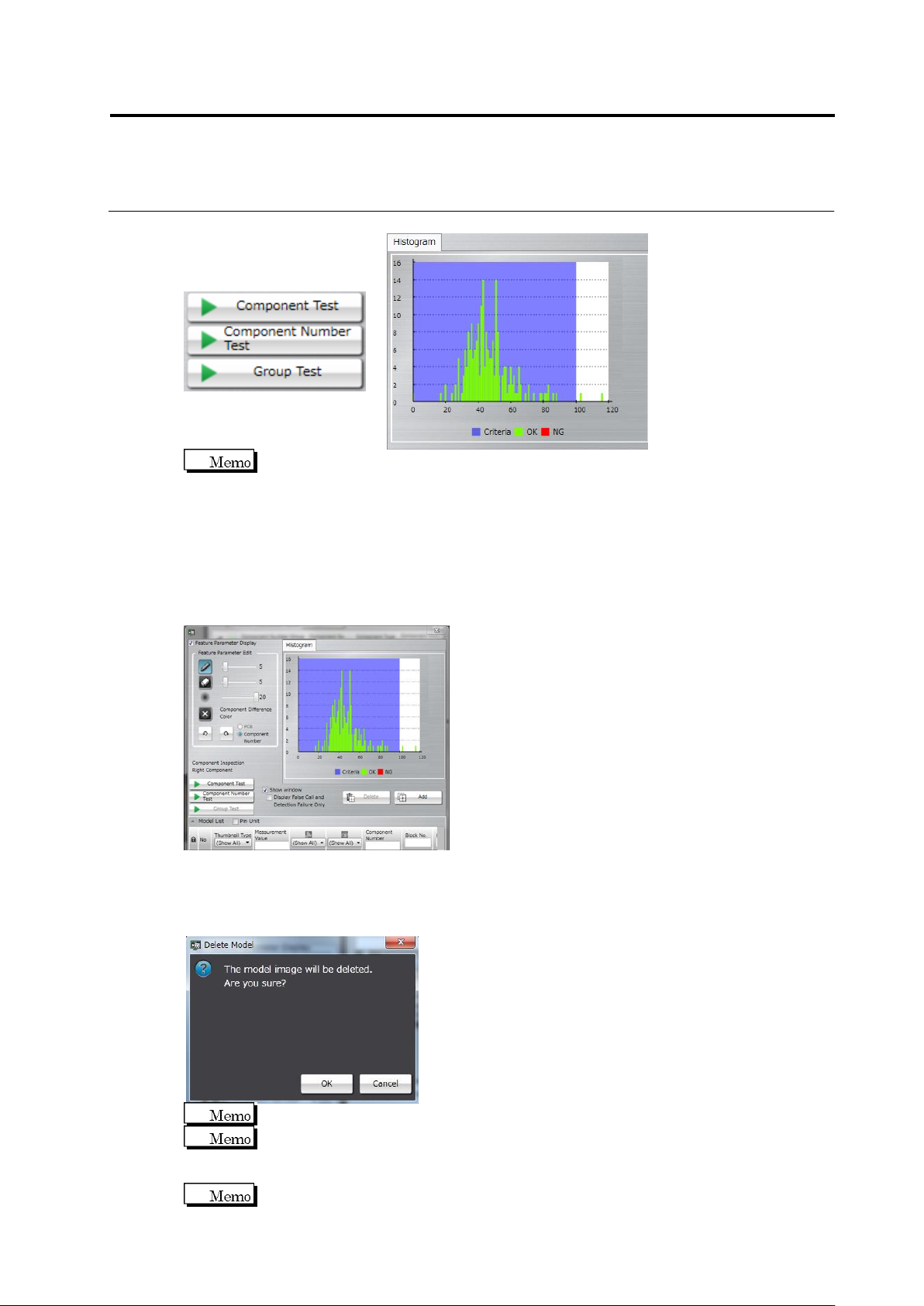
The Model Editing screen shows the measured values, judgment result, and histogram of
PCB testing when it is opened after the test. However, the result of oblique inspection is
not displayed. Perform a test to check the result.
(4) Show Window (Display False Call and Undetected Fault only)
- Show Window: Switches a view of window detection position detected by the test.
Selecting/unselecting this option shows/hides the window, respectively.
- Display False Call and Undetected Fault only: Inspection result is displayed only in the
case of false call or undetected fault.
(5) Delete/Add
Deletes/Adds the model image selected in the component thumbnail list.
Click the [Delete] button. The delete confirmation dialog appears. Click [OK] to delete the
image.
The [Delete] button is not effective if an image other than a model image is selected.
The [Delete] button is also disabled when only one model image is in the component
number.
Click the [Add] button to register the selected image as a model.
The [Add] button is disabled if a model image is selected.
(5)
(7)
(6)
Chapter 2 Inspection Programming
2-142
(6) Inspection Item
Displays the inspection items for the model currently being edited.
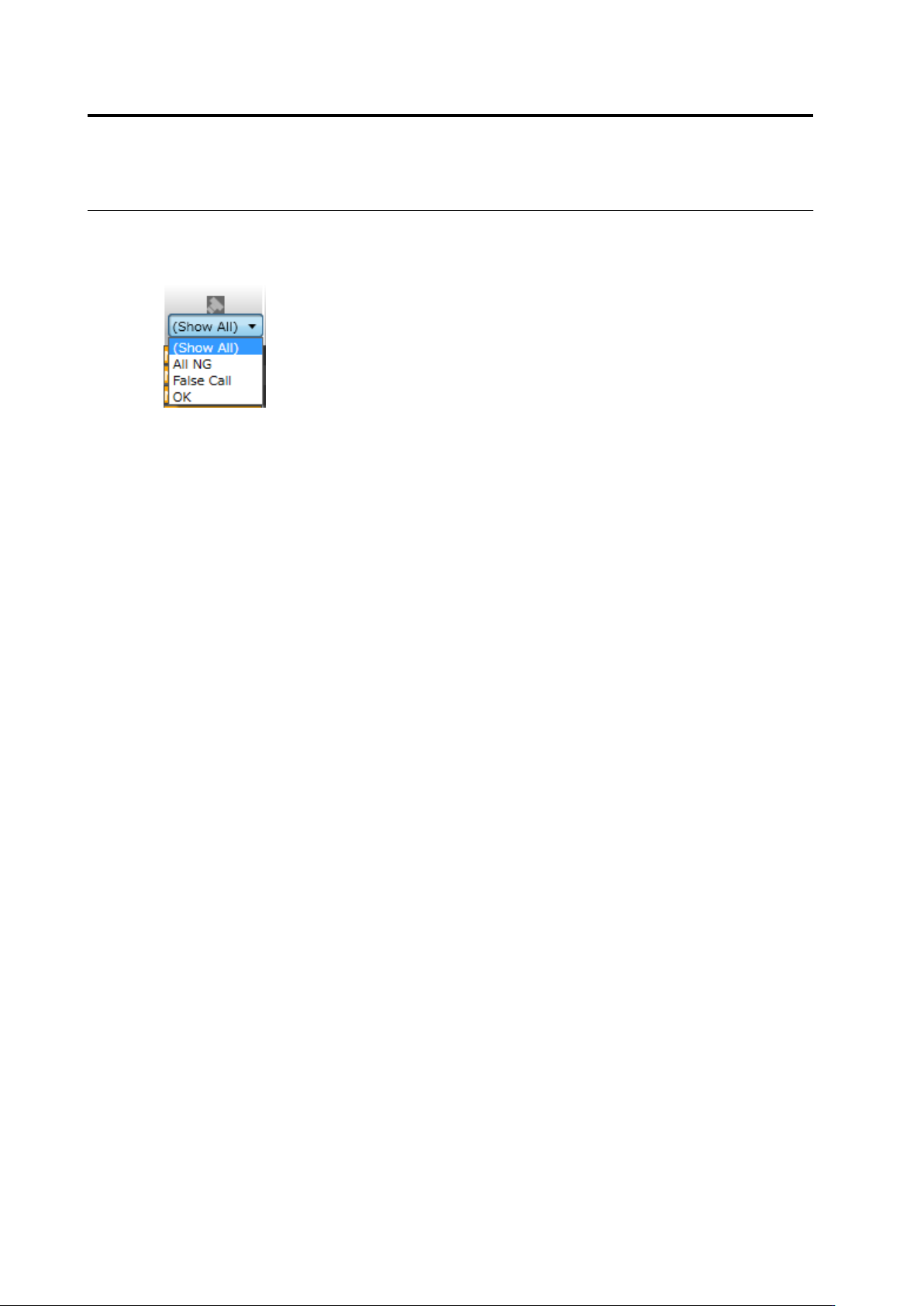
(7) Inspection Result
Select the inspection result for the thumbnail to display.
Click [(Display All)] to display all thumbnails regardless of the inspection result.
Click [(Blank)] to display only thumbnail(s) without an inspection result.
Click [OK] to display only the thumbnails whose inspection result is "OK".
Click [NG] to display only the thumbnail that the selected inspection item is "NG".
Click [All NG] to display only the thumbnails whose inspection result for any of the inspection
items is "NG".
Clicking [False Call] displays only a thumbnail of window without visual check result that is
judged as defect in the inspection.
Clicking [Undetected Fault] displays only a thumbnail of window with its visual check result
judged as OK in the inspection.
2.15 Modifying an Inspection Program
2-143
(8) Visual Check Result
Select the visual check result for the thumbnail to display.
Click [(Display All)] to display all thumbnails regardless of the visual check result.
Click [(Blank)] to display only thumbnail(s) without a visual check result.
Click [None] to display only thumbnail(s) with the visual check result as None.
Click [OK] to display only the thumbnails whose visual check result is "OK".
Click [Acceptable] to display only the thumbnails whose visual check result is "Acceptable".
Click [NG] to display only the thumbnail whose visual check result for any of the inspection
items is "NG".
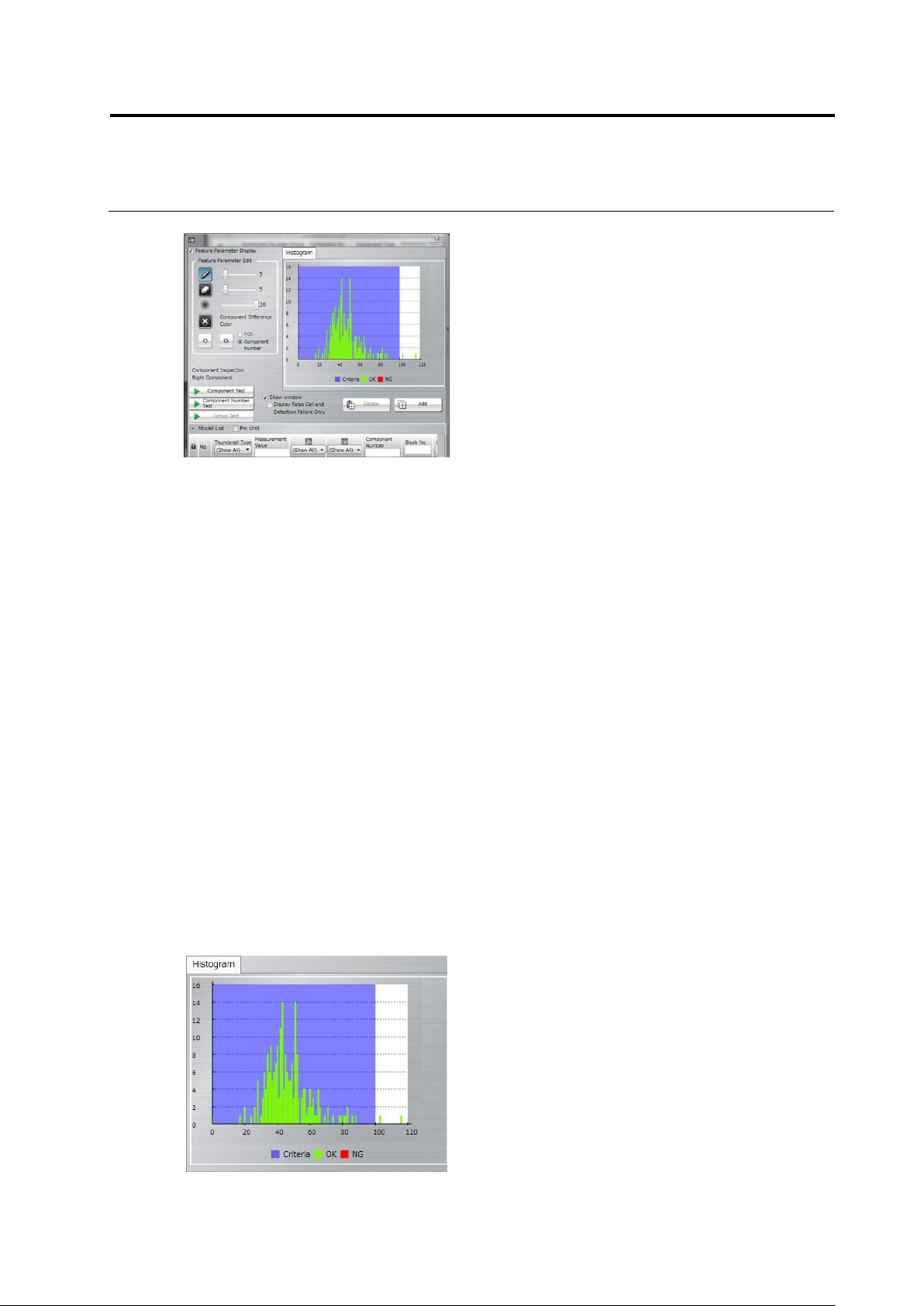
(9) Thumbnail Type
Select the thumbnail type to display.
Click [(Display All)] to display all thumbnails regardless of type.
Click [Model] to display only the tumbnails registered as models using captured PCB images.
Click [Mask Model] to display only mask model thumbnail(s).
Click [PCB Test Result] to display only thumbnails created from the PCB test result.
Click [Mass Production Image] to display only thumbnails registered using mass production
images.
Click [Mass Production Image (not registered)] to display only thumbnails for which a model
has not been registered using mass production images.
Click [Adjust] to display only the thumbnails obtained by the adjusted images.
(10) Sort
Clicking the list header sorts the thumbnails for each item.
(11) Histogram
When a test is peformed, the measured values of the thumbnails to display are shown in a
histogram.
(11)
(8)
(9)
(10)