Omron V-TS Teaching Manual.pdf.pdf - 第144页
2.10 Sett ing Secon dary Ref lection Inspection 2- 117 If there is no target com ponent of the secondar y reflection inspection arou nd the target com ponent of it, a warning mes sage is displayed when the inspection pro…

Chapter 2 Inspection Programming
2-116
2.10 Setting Secondary Reflection Inspection
This section describes the setup procedure of the secondary reflection inspection.
It is unable to set up the secondary reflection inspection on a component with an
inspection range window of 10mm or more square.
2.10.1 Setting a target component for the secondary reflection inspection
This section describes a procedure to change an existing component to a target component of
the secondary reflection inspection.
1.
Select the [Register Inspection] tab.
If this tab is not being displayed, click on the left
end. The hidden tab appears.
2.
The screen moves to the inspection registration screen. Select a
target component of the secondary reflection inspection from the
inspection list, and check the [Secondary Reflection] checkbox.
3.
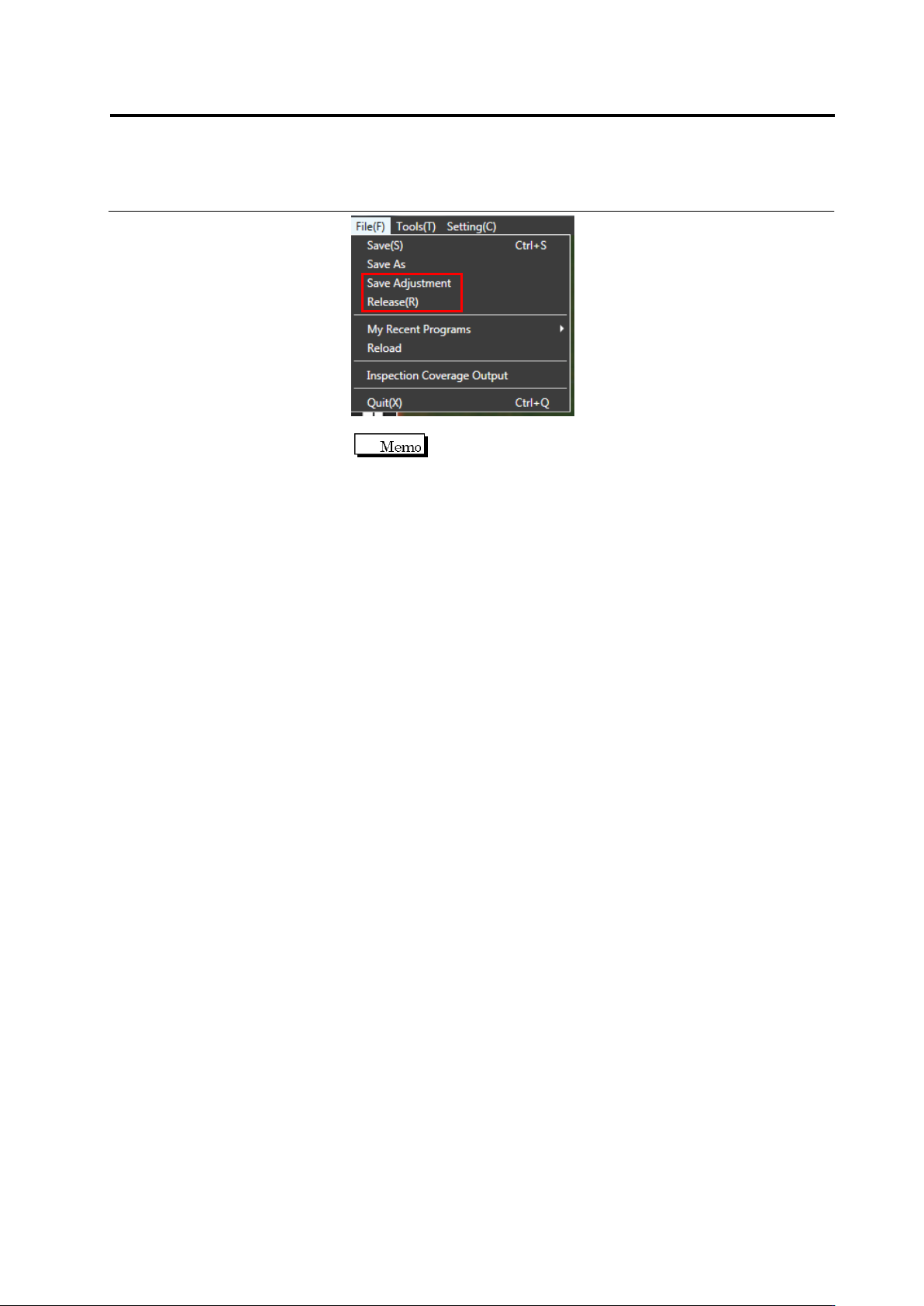
Adjust and save the inspection program, or release it. (On the menu,
select [File] - [Save Adjustment] or [Release].) After it is saved,
close the inspection program.
Operation procedure
2.10 Setting Secondary Reflection Inspection
2-117
If there is no target component of the secondary
reflection inspection around the target component of it, a
warning message is displayed when the inspection
program is closed. If it happens, review the settings of
the secondary reflection inspection.
Chapter 2 Inspection Programming
2-118
2.11 Saving an Inspection Program
2.11.1 Saving an Inspection Program
Save an inspection program during the process of teaching.
4.
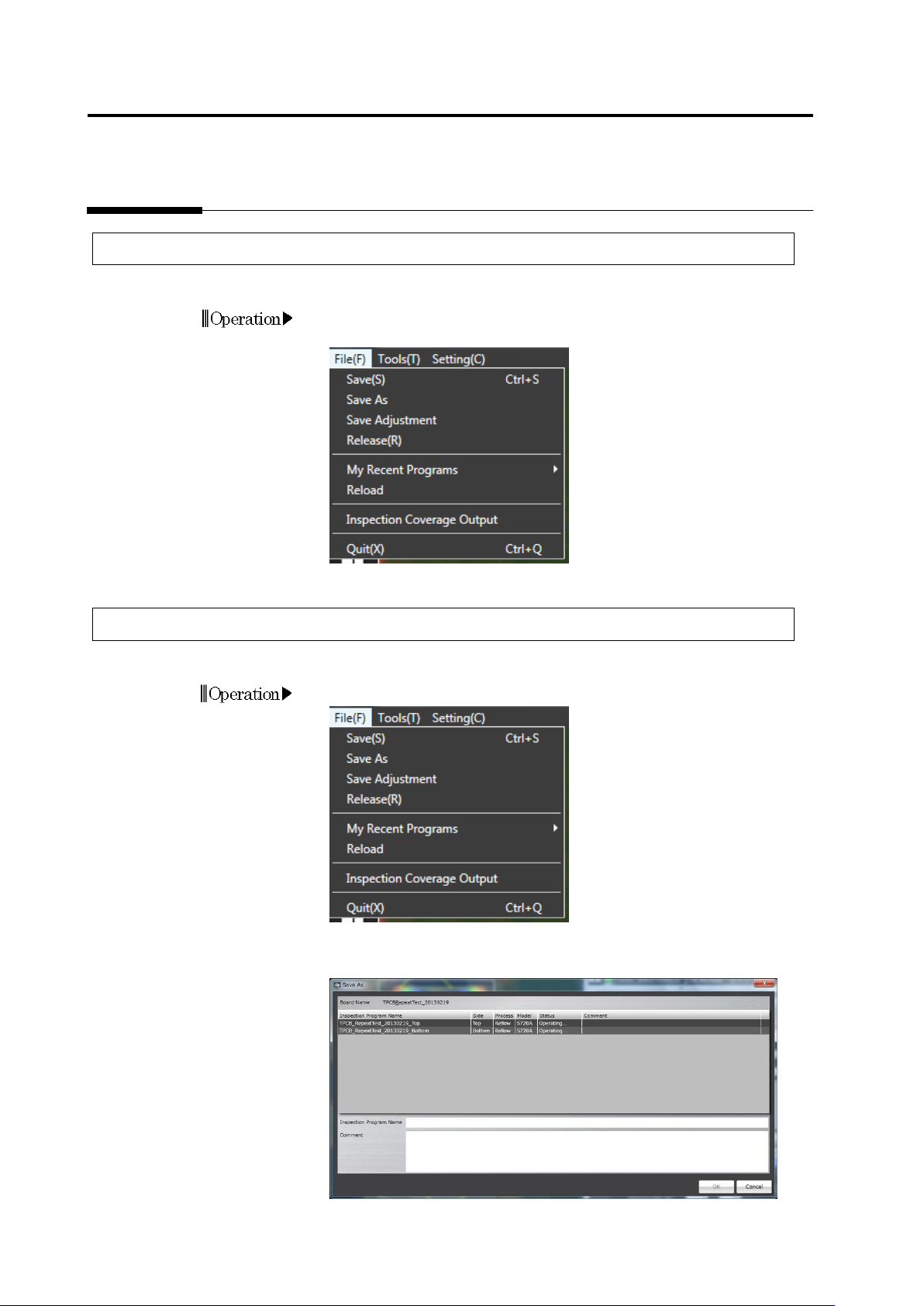
Select [File] - [Save] in the menu bar.
Or press [S] while holding down the [Ctrl] key on the keyboard.
2.11.2 Saving an Inspection Program Under a New File Name
This section describes how to save an inspection program with a name during teaching.
1. On the menu bar, select [File] - [Save As].
2. The Save As dialog box appears.
Specify an inspection program name and a comment, and click [OK].
Operation