Omron V-TS Teaching Manual.pdf.pdf - 第166页
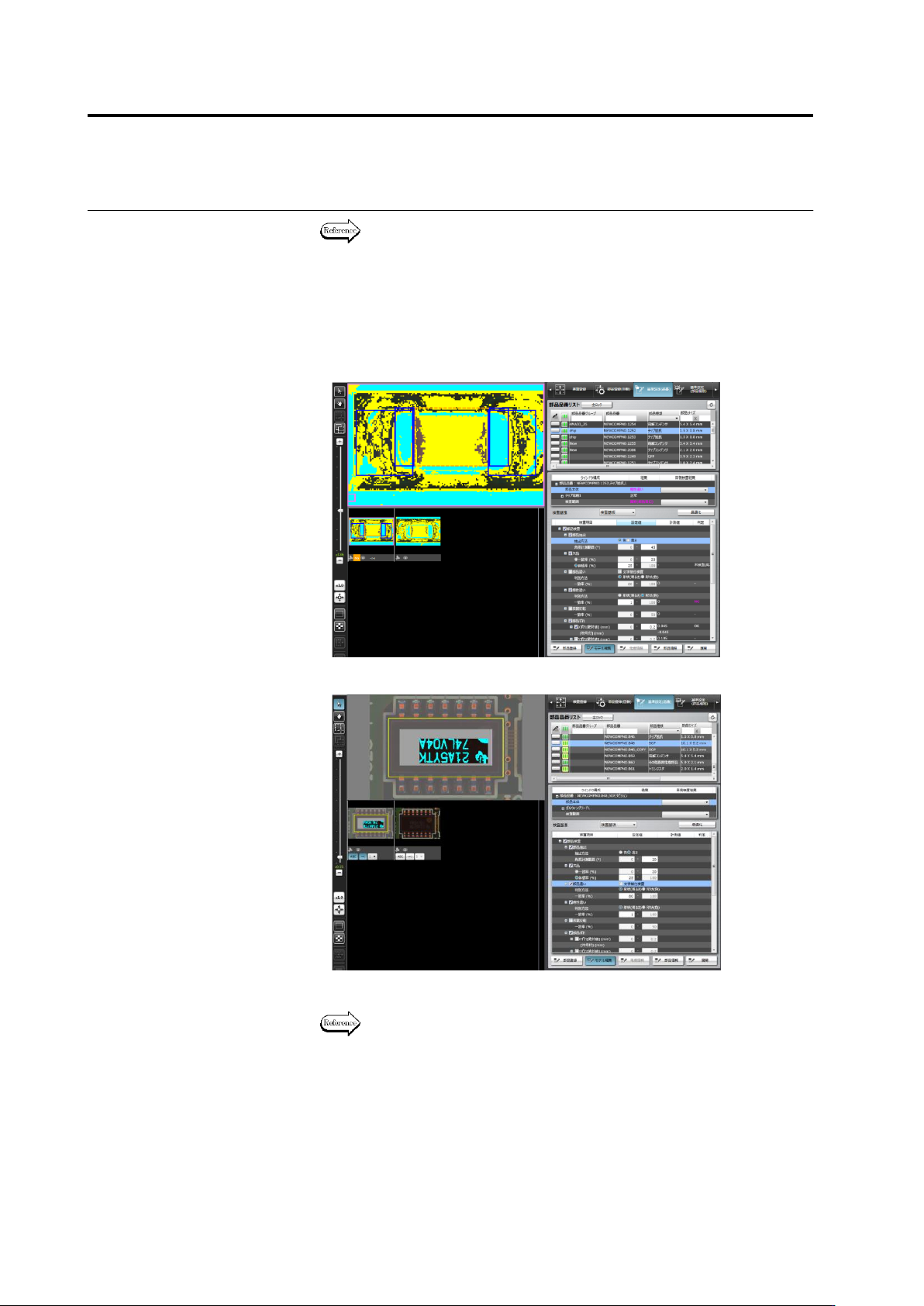
2.15 M odifying an Inspection Pr ogram 2- 139 Model Editing Screen Operation W hen a logic selected on the inspection item column is change d with the model editing scr een open, the tools of the m odel editing screen …
Chapter 2 Inspection Programming
2-138
Refer to "2.6.1 Criteria Setting (Product No.)" for the procedure up to
selecting the inspection item if [Criteria Setting (Product No.)] is
selected, and "2.6.2 Criteria Setting (Individual Component)" for the
same if [Criteria Setting (Individual Component)] is selected.
3.
A different model editing screen is displayed depending on the
characteristic parameter to edit.
・
Color Characteristic Parameters
・
Mask Model Characteristic Parameters
4.
Edit the characteristic parameters.
The operation method of the model editing screen is described on the
next page.
5.
To continue the editing of other characteristic parameters, click any
of the inspection items allowed for model editing.
The Model Editing screen closes if [Edit Model] is clicked.
2.15 Modifying an Inspection Program
2-139
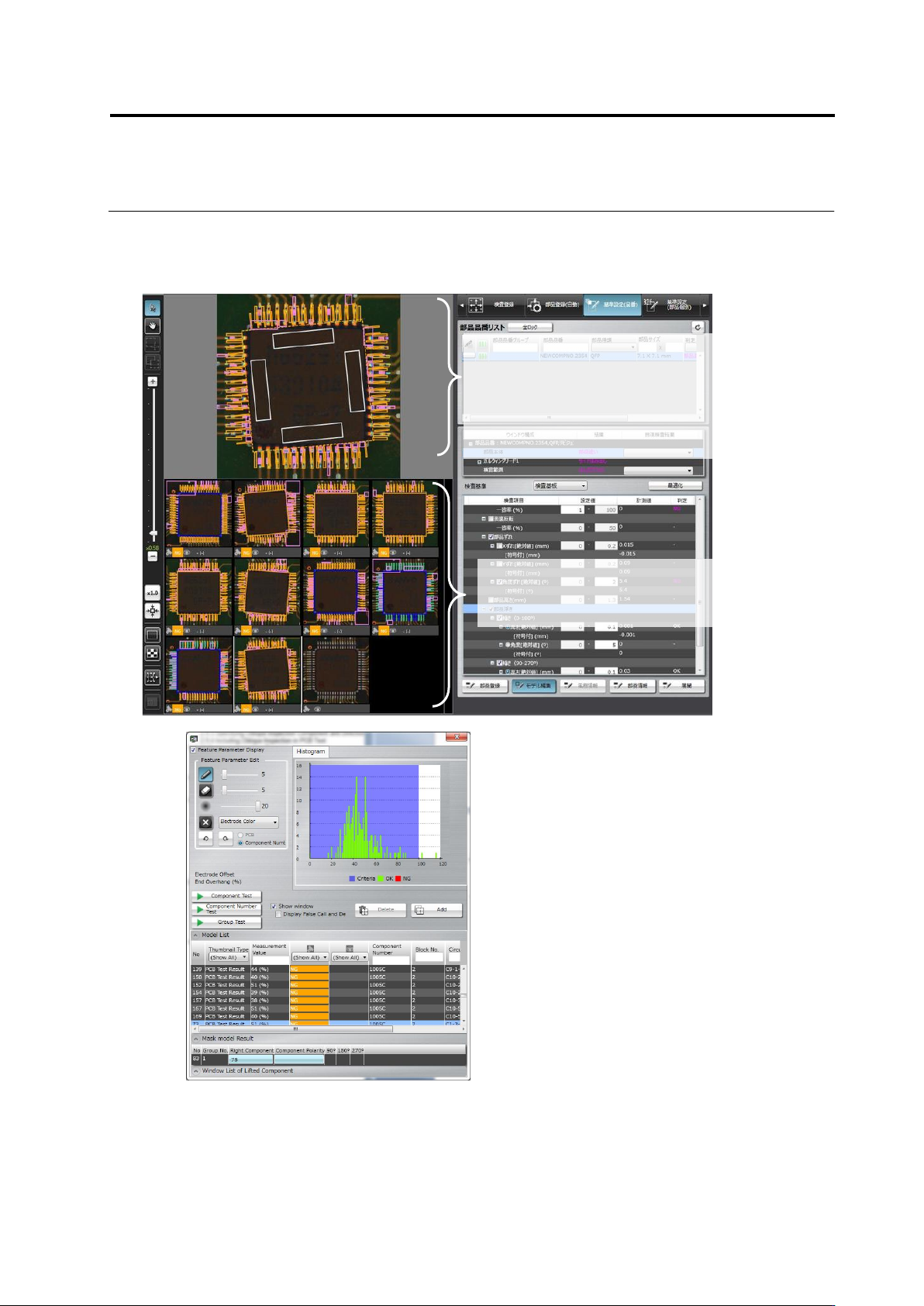
Model Editing Screen Operation
When a logic selected on the inspection item column is changed with the model editing screen
open, the tools of the model editing screen are also changed.
Shows a thumbnail list of the
component registered in the
library.
Displays a magnified view of the image
selected in the component thumbnail list
at the bottom of the screen.
Operate this component thumbnail to edit
the model.
(13)
(12)
(3)
(4)
(5)
(6)
(7)
(8)
(9)
(10)
(12)
(1) ①
(2)
(11)
Chapter 2 Inspection Programming
2-140
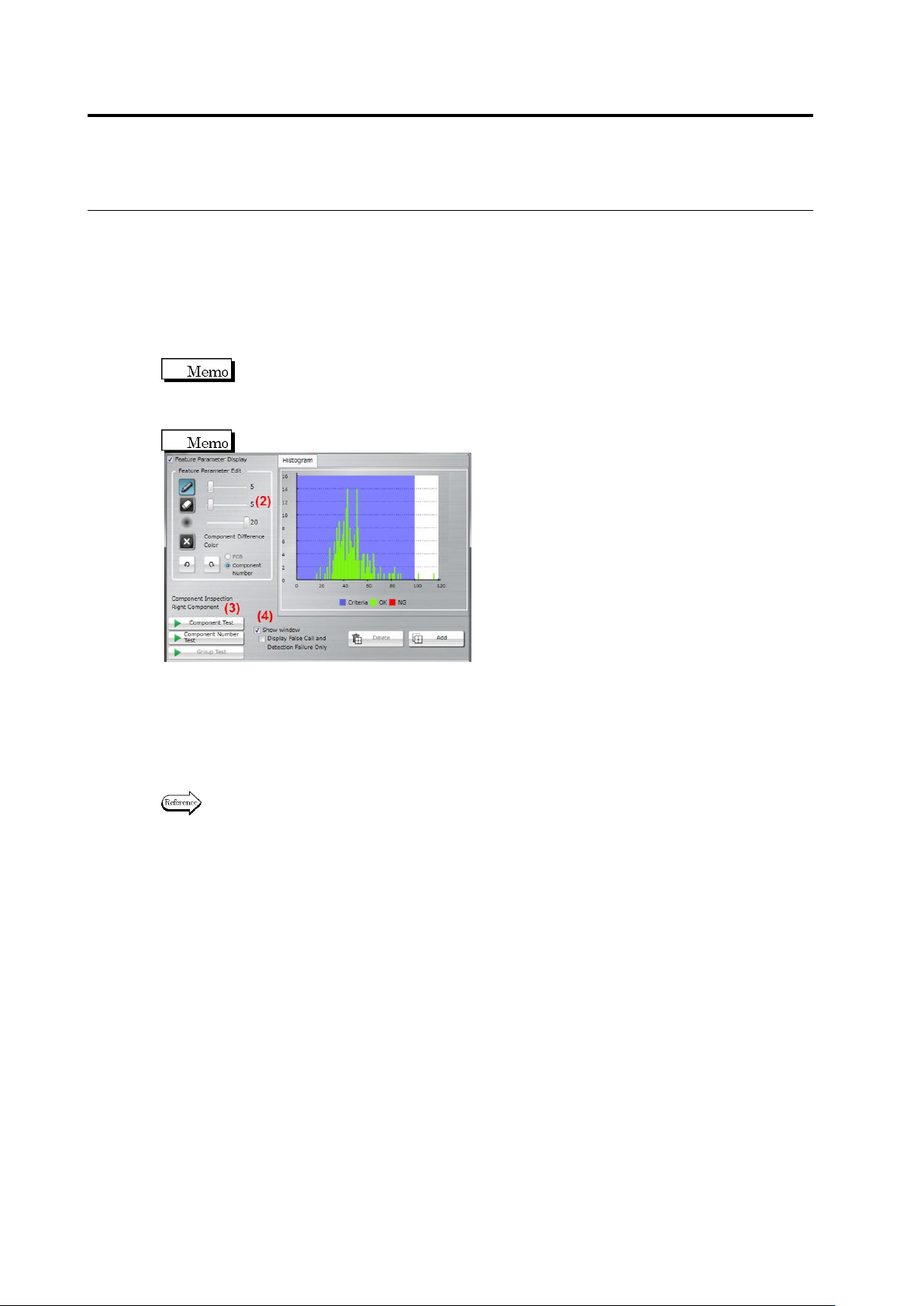
(1) Feature Parameter Display
When this checkbox is selected, the component thumbnail image is binarized and the
extracted pixels using the characteristic parameters are displayed in aqua color.
For component extraction or component presence, two or more characteristic parameters
can be displayed simultaneously.Select the display item from [Show All Colors] or [Show
Selected Colors]. If [Show All Colors] is selected for component extraction, the component
top color is displayed in yellow, and electrode color, in aqua.
Binarization refers to the process of converting individual pixels into binary values based
on a brightness threshold, in which pixels equal to or below the threshold value is
represented in "0" and those above the threshold value, in "1". In TS, "0" values are
displayed in aqua color.
The checkbox is selected by default.
(2) Feature Parameter Edit
Displays the characteristic parameters editing tool.
The tool is consisted the following two types:
・Color Table Editing Tool … For characteristic parameters other than character and mark
colors
・Model Image Editing Tool … For are (color), shape (brightness), and shape (color)
Refer to <Color Table Editing Tools> or <Model Image Editing Tools> of 2.15.3 “Editing a Model”
of for the procedures to operate individual editing tools.
(3) Test
Test the component thumbnail images with the edited characteristic parameters. After
testing, the measured value and judgement result for the individual component thumbnails,
as well as the histogram of all the measured values are displayed.
[Component Test]: Test is performed only for the selected component.
[Component Number Test]: Test is performed for all images of the selected component
number.
[Group Test]: Test is performed for all images of the component number group to which the
selected component number belongs.