Omron V-TS Teaching Manual.pdf.pdf - 第226页
2.16 M anaging PC B Im ages 2- 199 Hereafter, good and bad exam ples of base plane binarization are described. RGB image Good example Bad example (Base plane is binari zed) (Base plane is not binarized) <Confirmation …
Chapter 2 Inspection Programming
2-198
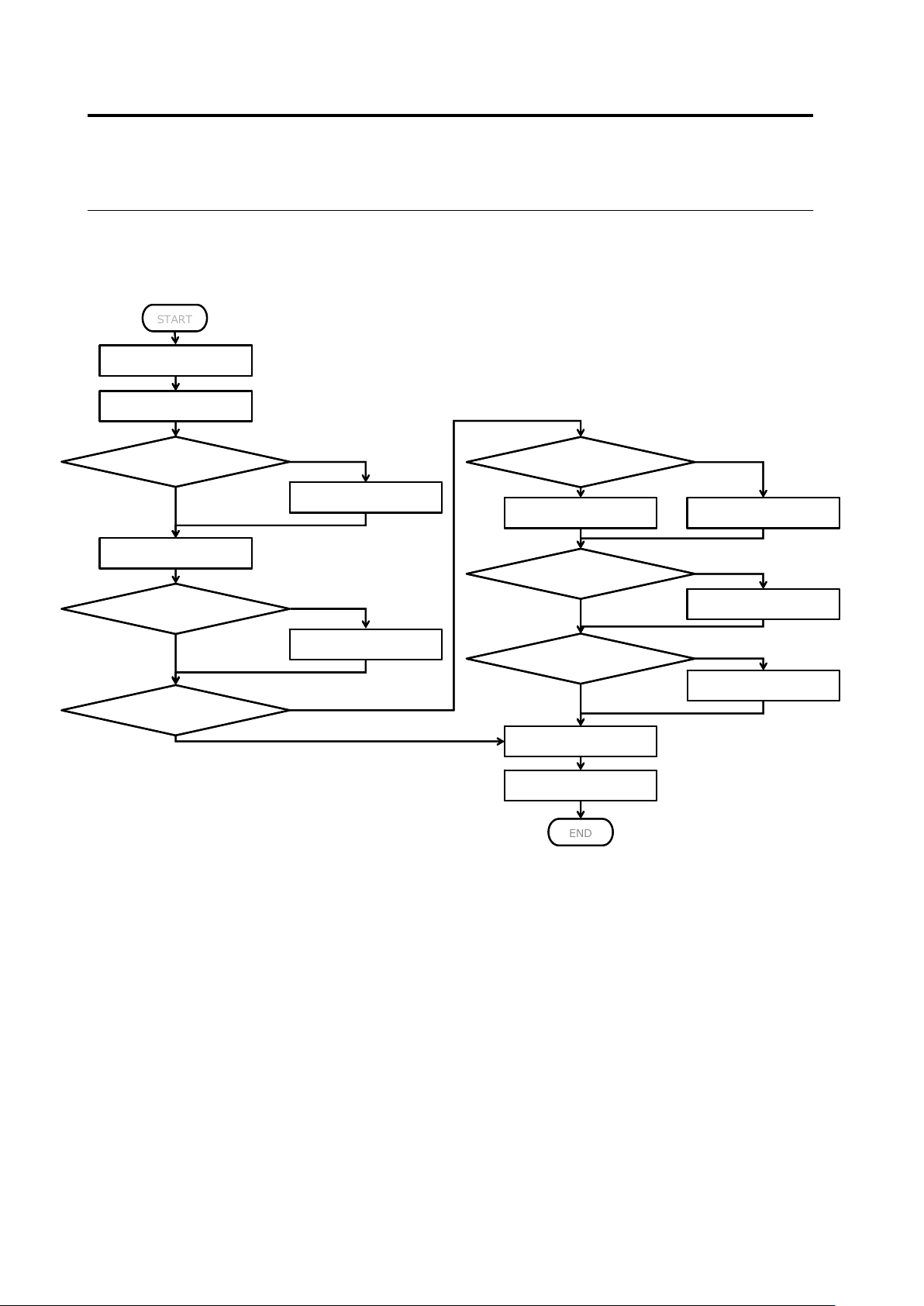
■ Description on reference level model editing flowchart
The flowchart of editing of a reference level model is as follows:
■ Various detailed editing methods of reference level models
This section explains various detailed editing methods of reference level models based on the
above flowchart.
<Confirmation of base plane binarization and color table editing function>
If the base plane has not been binarized, use the ⑪ Unlock button to unlock the plane, and
use the ⑥-⑩ tools to edit the color table of the base plane.
START
Start ref. level editing tool
Select “Binarized” from [View]
pulldown or press keyboard F2
button
Has base plane been
binarized?
(displayed in cyan blue)
Edit color table of PCB
Select “Height” from [View]
pulldown or press keyboard F3
button
Is base plane displayed
in green?
Yes
No
Set masking of base plane
Is PCB face of overall
FOV displayed in green?
Yes
No
Yes
No
Click [Component Block Unit] to
partition base plane automatically
Has component block
unit of insp. program
been set?
Partition base plane manually
Flexible PCB?
(PCB face is bent)
Set curbed face approximation
Click [Component] to partition
base plane for each component
Is CPB face of overll
FOV displayed in green?
END
To save edited data, click
[Save]
Exit base plane editing tool
No
Yes
No
Yes
Yes
No
START
Start ref. level editing tool
Select “Binarized” from [View]
pulldown or press keyboard F2
button
Has base plane been
binarized?
(displayed in cyan blue)
Edit color table of PCB
Select “Height” from [View]
pulldown or press keyboard F3
button
Is base plane displayed
in green?
Yes
No
Set masking of base plane
Is PCB face of overall
FOV displayed in green?
Yes
No
Yes
No
Click [Component Block Unit] to
partition base plane automatically
Has component block
unit of insp. program
been set?
Partition base plane manually
Flexible PCB?
(PCB face is bent)
Set curved face approximation
Click [Component] to partition
base plane for each component
Is CPB face of overll
FOV displayed in green?
END
To save edited data, click
[Save]
Exit base plane editing tool
No
Yes
No
Yes
Yes
No
2.16 Managing PCB Images
2-199
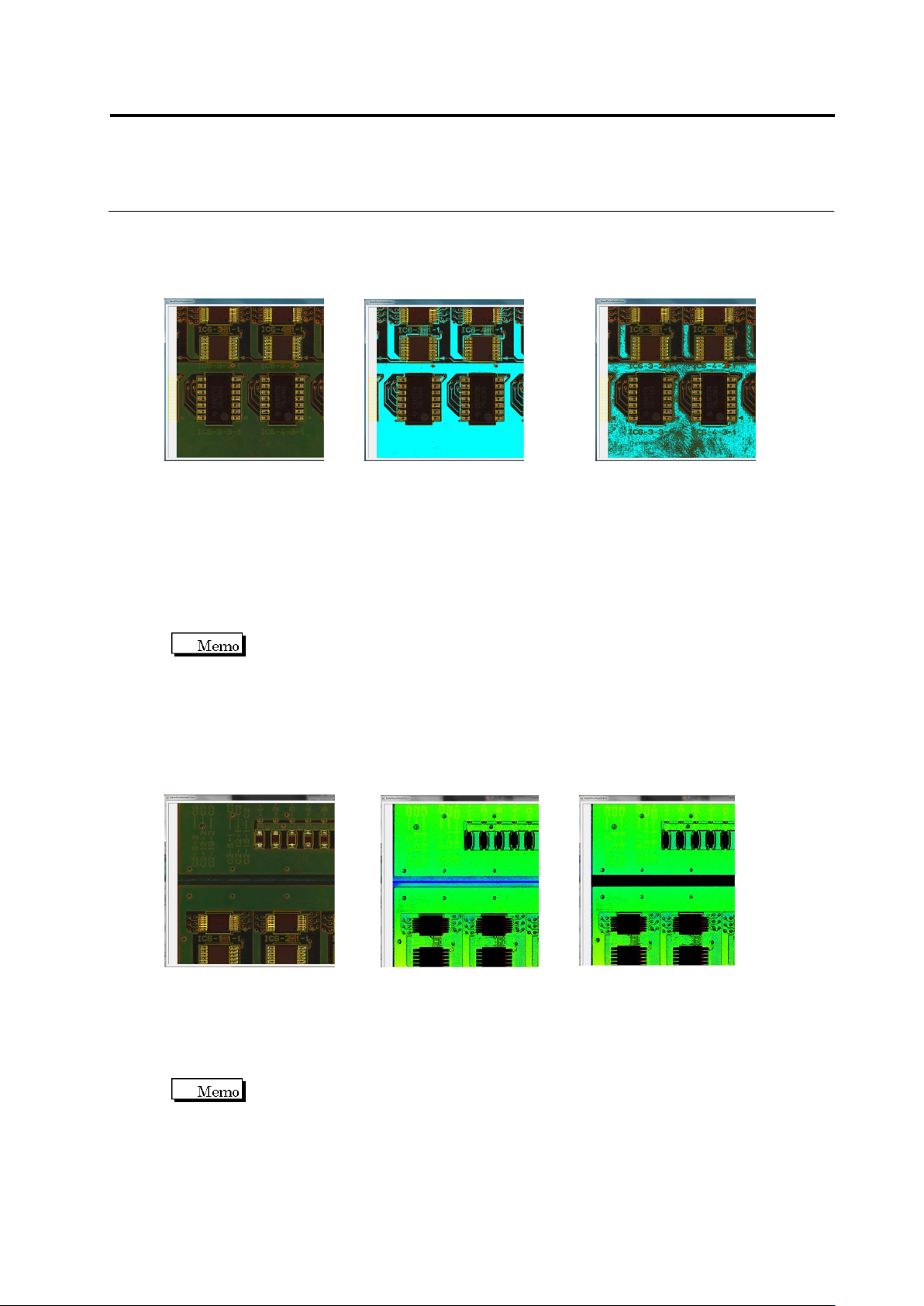
Hereafter, good and bad examples of base plane binarization are described.
RGB image Good example Bad example
(Base plane is binarized) (Base plane is not binarized)
<Confirmation of base plane height image and mask adding function>
If the base plane of the overall FOV is not displayed in green, add a mask using the ④ Add
mask button to set the base plane correctly.
To add a mask, click the ④ Add mask button and drag an area to be masked. The added mask
is displayed on the ⑱ mask list of the selected inspection FOV.
To delete a mask, select the mask on the ⑱ list and click the [Delete] button. To
delete all the masks, press the ⑳ [Delete All Masks] button.
Hereafter, a base plane height image before and after adding a mask is shown.
RGB image Before adding mask After adding mask
(Noise occurs) (Noise eliminated)
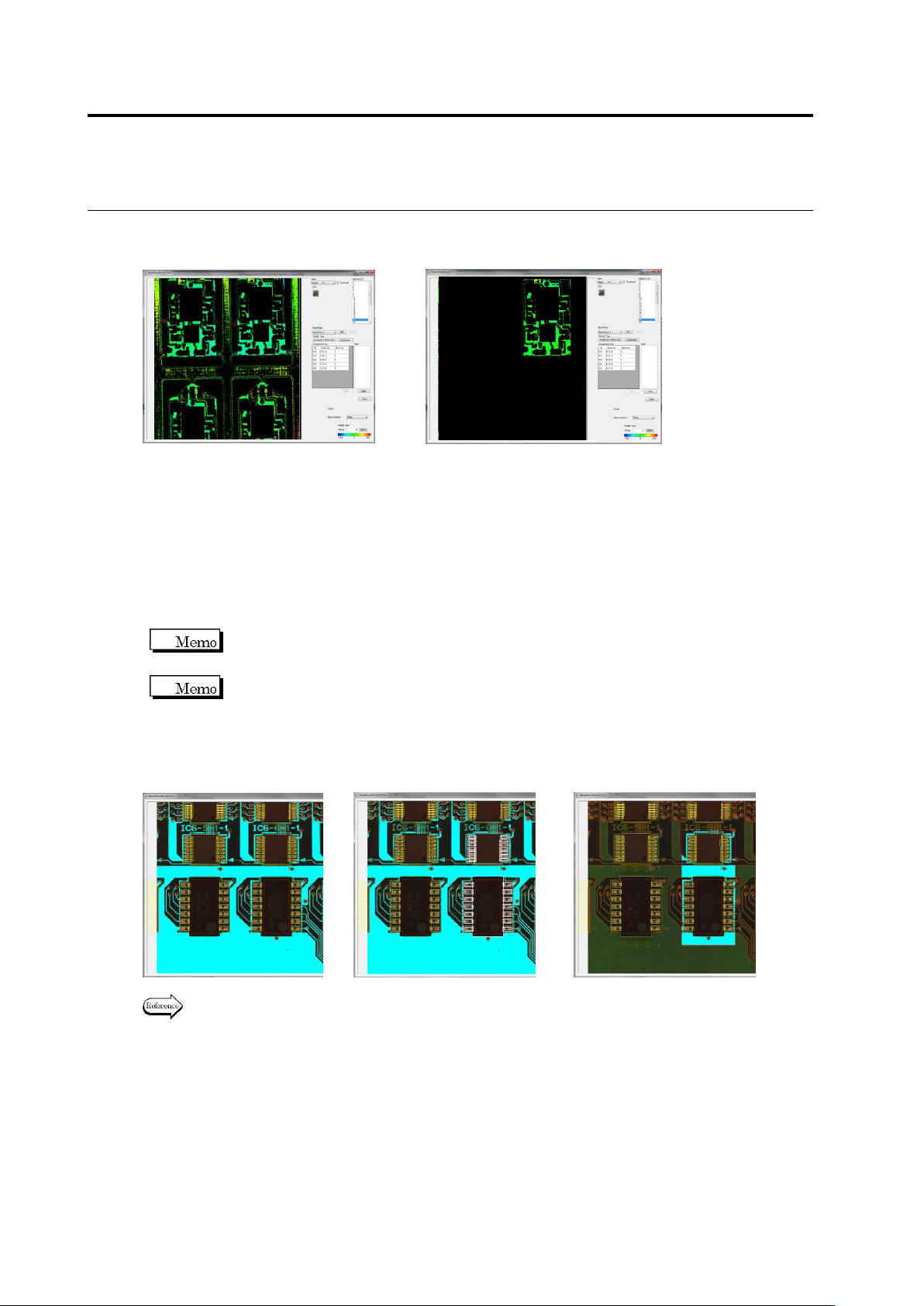
<Base plane per-block partitioning function>
This function sets up base planes automatically by partitioning them on a component block unit
basis.
To use this function, it is assumed that component block unit has been set up.
By clicking the ⑮ base plane per block partitioning button, the base plane is partitioned in the
overall FOV on a component block unit basis.
Chapter 2 Inspection Programming
2-200
Hereafter the effect of this function is shown.
Before setup After setup
<Base plane manual partitioning function>
This function can generate more than one base plane in a FOV. Use this function when
component block unit has not been set up yet and the base planes have different height.
Use the ⑤ select button to select an area to be partitioned or use the ⑰ component list to
select a component to be applied to base plane partitioning. By clicking the ⑬ add base plane
button after selecting it, it is able to partition or add base planes.
More than one component can be selected by selecting them as pressing and
holding the Ctrl key on the ⑰ component list or on a binarized image.
The added base planes can be resized by the ⑤ select button.
Hereafter, examples of base plane partitioning are shown.
Before partitioning Select component (displayed in white) After partitioning
For the settings of base plane, refer to “Base Plane Partitioning Setup” of Section 2.4
“Base Plane Setup” in the inspection logic manual.