Omron V-TS Teaching Manual.pdf.pdf - 第220页
2.16 M anaging PC B Im ages 2- 193 5. Clicking [Edit Mode l] again closes the color t able editing toolbox . Click [Close]. The Ins pection Program Editing screen returns . 2.16.4 Editing a Refere nce Level Model W hen c…
Chapter 2 Inspection Programming
2-192
3.
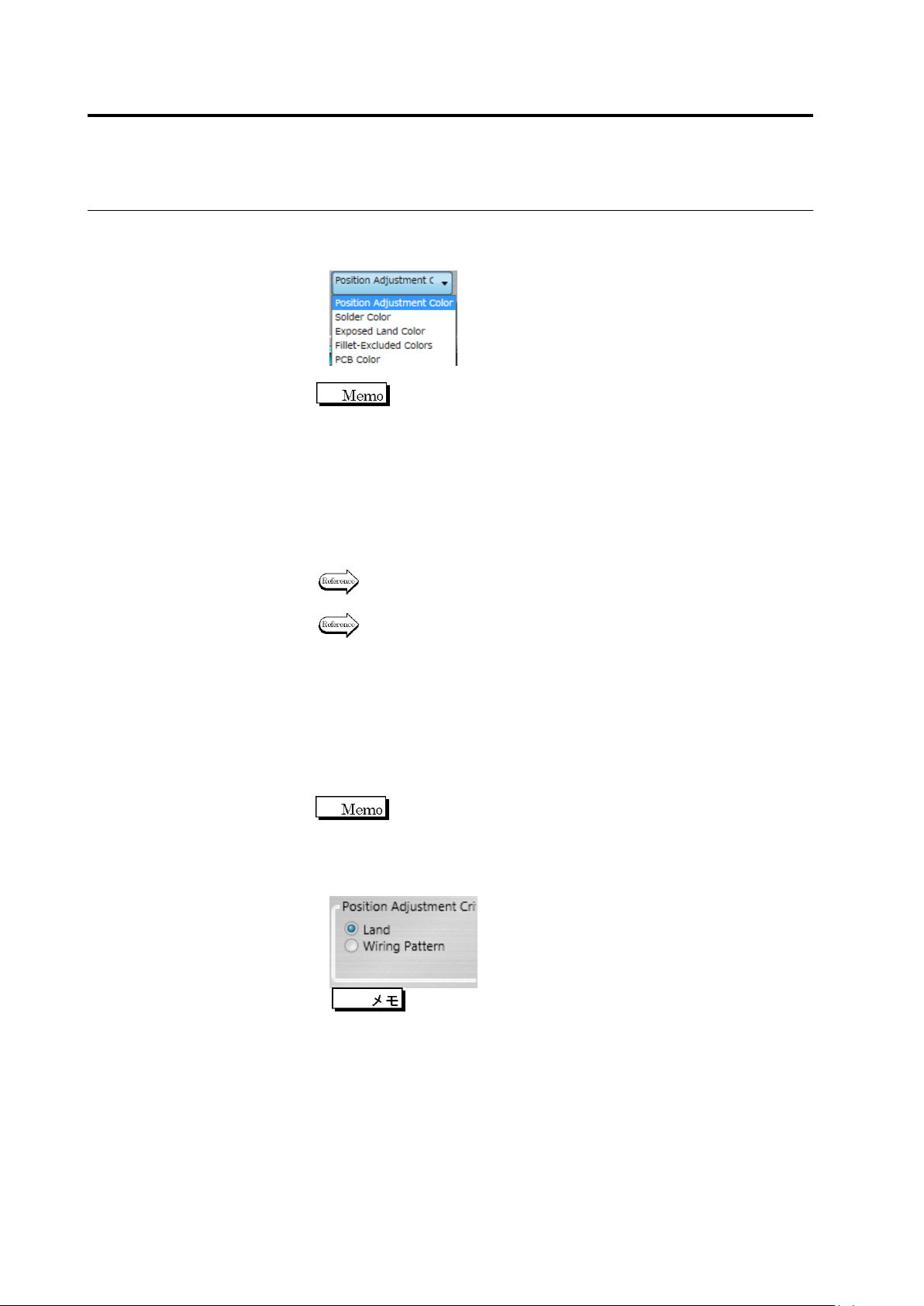
Select the characteristic parameter to edit from the options: Position
Adjustment Color, Solder Color, Land Exposed Color,
Fillet-Excluded Colors and PCB Color. Edit the color table.
Each characteristic parameter is used on the inspection items
shown below.
- Position Adjustment Color ... Inspection Screen Position
Adjustment
- Solder Color ... Component Presence, Solder Ball,
Solder Bridging
- Exposed Land Color ... Exposed Basis Metal, Missing
Component
- Fillet-Excluded Colors ... Fillet Inspection
- PCB Color ... Missing Component, Foreign Material
Refer to each inspection item in the Inspection Logic Manual for colors
to be extracted.
Refer to "Model Editing Screen Operation" for the color table editing
tool operation.
When you select the PCB Color or Position Adjustment Color, the
[Re-extract Color] button is enabled and each color is automatically
extracted and displayed.
The [Test] button is enabled only when you select the position
adjustment color. When you click it the land window after position
adjustment is displayed.
Only the land window of the component displayed on the
screen when [Test] was clicked.
4.
As the criterion for screen position correction, either [Land] or
[Wiring Pattern] can be selected.
[Land] is selected by default. If post-mounting inspection is
conducted and it is detected that solder paste extends beyond
the land, or if a lot of bottom electrode components such as
BGA are implemented and the land is not visible, select [Wiring
Pattern].
2.16 Managing PCB Images
2-193
5.
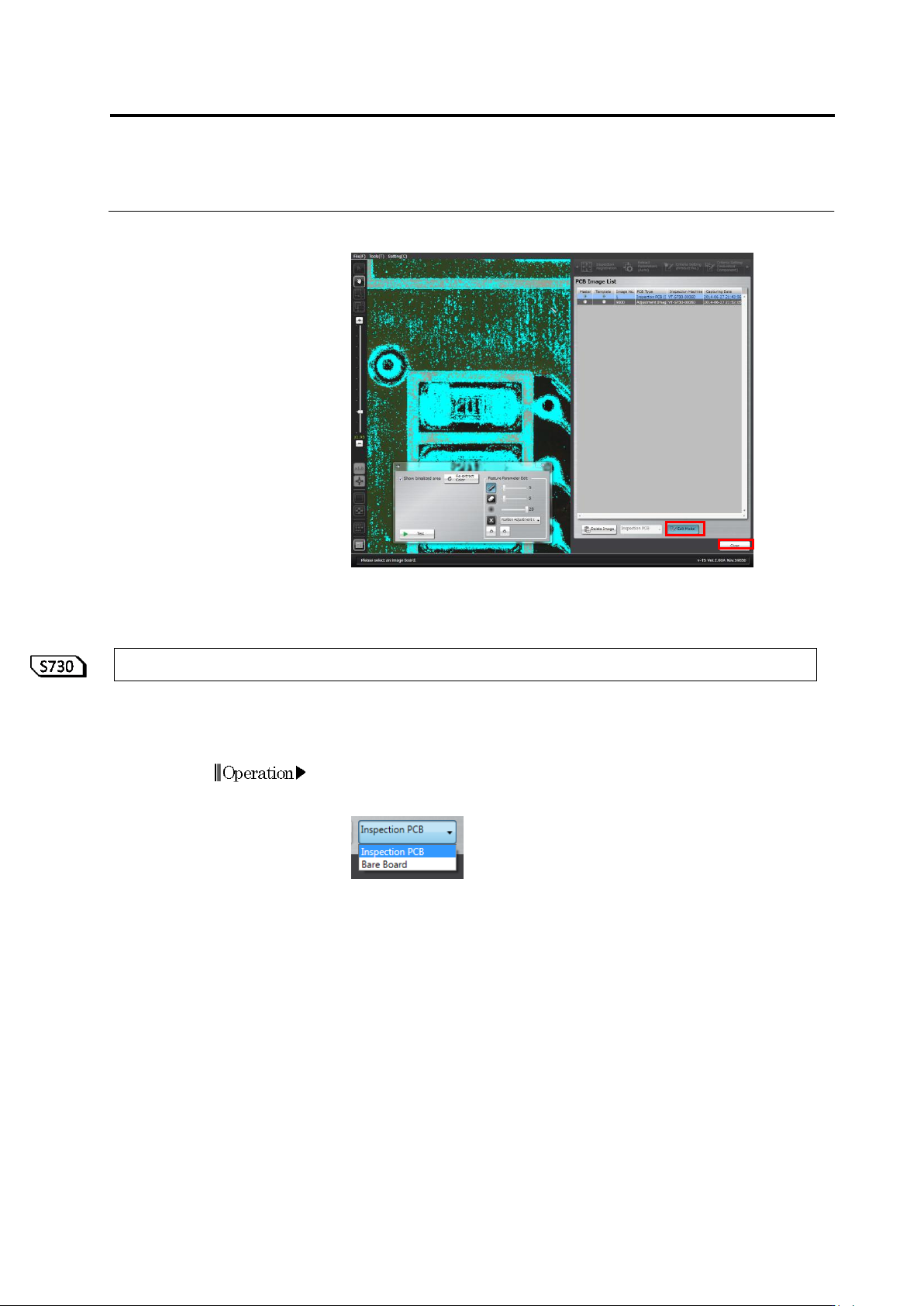
Clicking [Edit Model] again closes the color table editing toolbox.
Click [Close]. The Inspection Program Editing screen returns.
2.16.4 Editing a Reference Level Model
When conducting inspection or v-TS PCB tests by the system, if a measured component height is
different from the height of the real component, use the reference level model editing tool to edit
the reference level model. This section describes the operation procedure of this tool.
1.
On the menu bar of the edit screen, select [Tool] - [PCB Image
Management Screen]. If a bare board image is displayed on the
screen, select Inspection PCB from the list.
Chapter 2 Inspection Programming
2-194
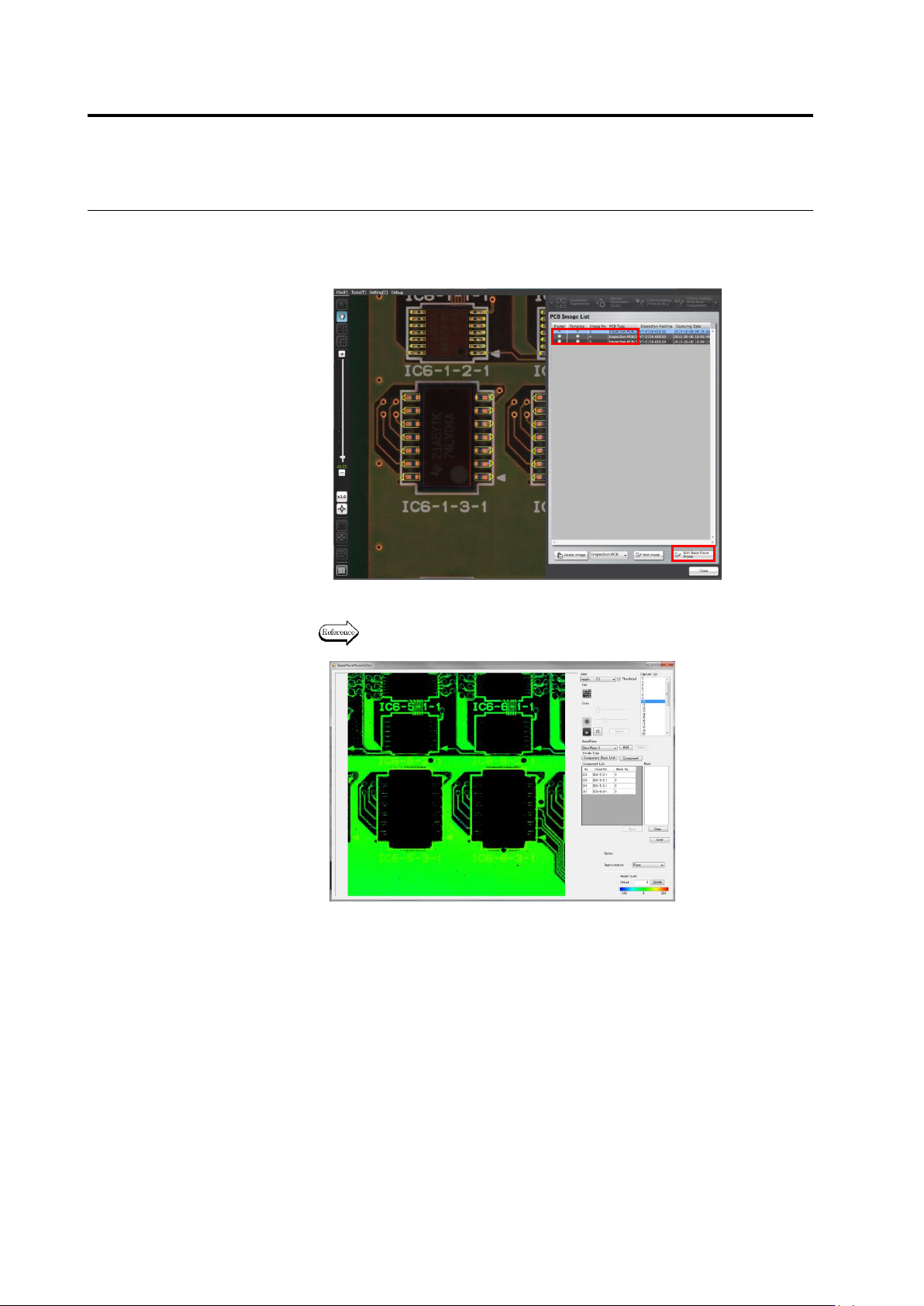
2.
Click to select the inspection PCB image (PCB type: adjustment
image) from the PCB image list, and click [Edit Reference Level
Model].
3.
Edit the reference level model.
The usage of the reference level model editing tool is described in and
after the following page.