Omron V-TS Teaching Manual.pdf.pdf - 第248页
2.17 M ass-Produced PCB Image 2- 221 2.18.7 Outputting Conte nt of Inspection Program Lis t This function outputs to a CSV file t he content of an inspection program list, such as information on inspection program s, pro…
Chapter 2 Inspection Programming
2-220
2.18.6 Copying an Inspection Program
1.
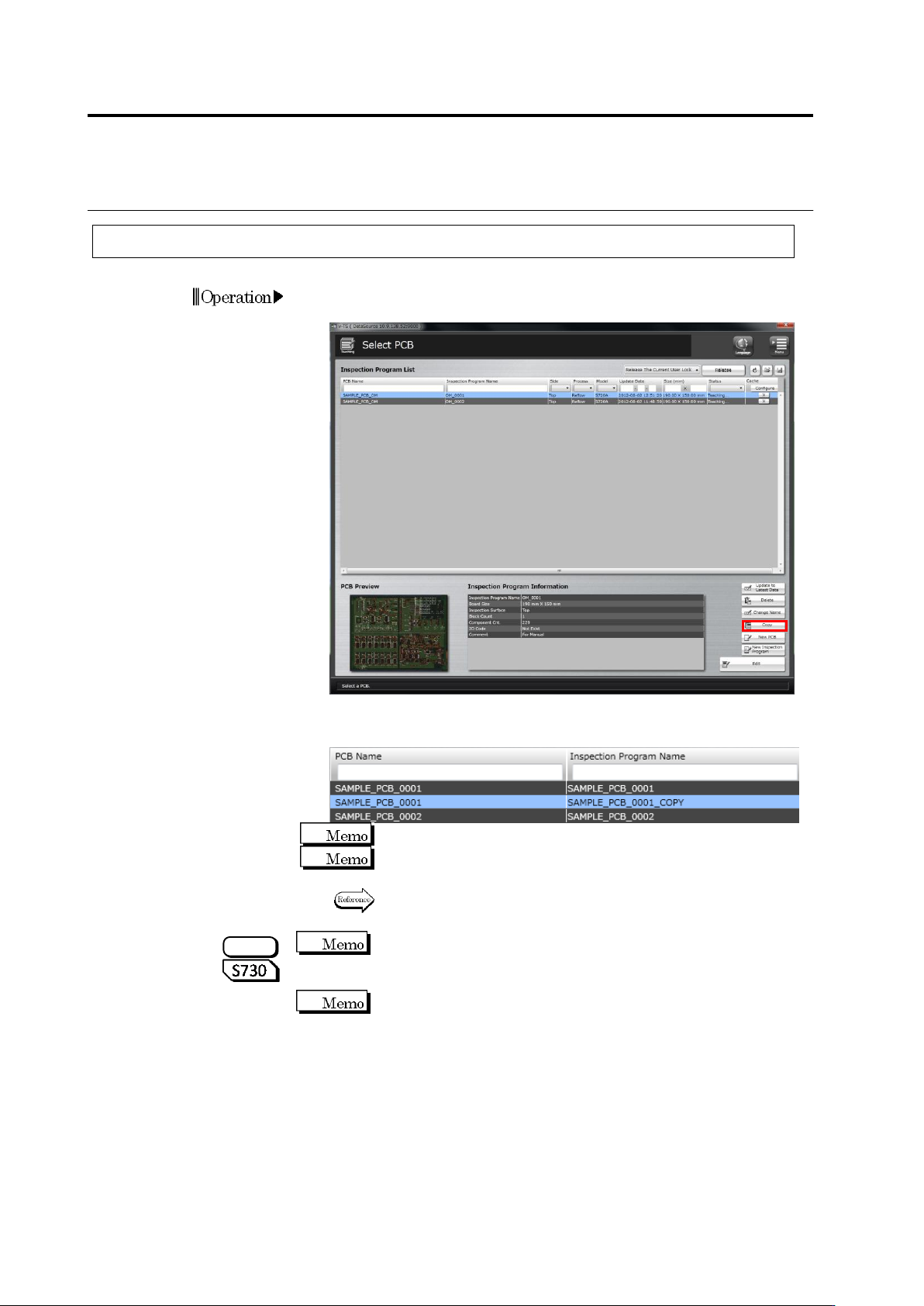
Select the inspection program to copy in the Select PCB screen
and click [Copy].
The inspection program is copied and copied program is displayed
in the Inspection Program List.
Copying an inspection program requires a certain amount of time.
The copied program is named with the default name "The name of
the original inspection program_COPY".
To rename the program name, refer to "2.18.5 Renaming an
Inspection Program".
If an inspection program with oblique images is copied, oblique
images are deleted. The program can be used as an inspection PCB
only including direct view images.
Since oblique images cannot be diverted depending on the
component location, they are deleted when an inspection program is
copied.
Operation
S720A
2.17 Mass-Produced PCB Image
2-221
2.18.7 Outputting Content of Inspection Program List
This function outputs to a CSV file the content of an inspection program list, such as information
on inspection programs, progress of the creation work of them, the number of images belonging
to each inspection program, the number of inspection programs, the number of destinations, or
version of the logic being used.
When outputting a list of the component numbers used by inspection programs, refer to Section
3.4.3 “Outputting List of Component Numbers Used by Inspection Programs.”
This section describes the procedure to output the content of an inspection program list.
2.
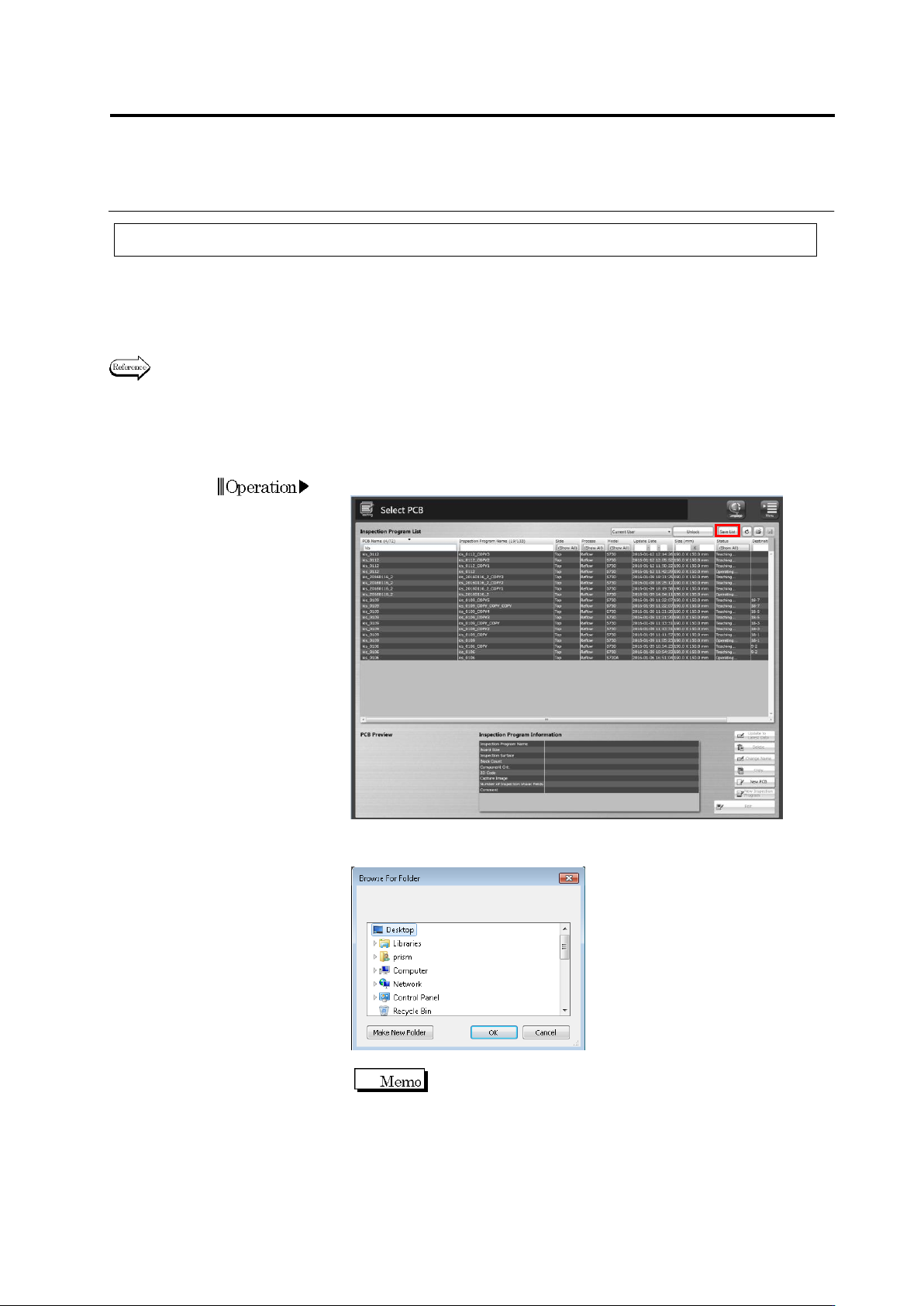
Click the [Save List] button on the Select PCB screen.
3.
A dialog to browse folders is displayed.
Specify a folder to save the file, and click [OK].
The default file name is “(Date and
Time)InspectionProgram.csv.”
Chapter 2 Inspection Programming
2-222
4.
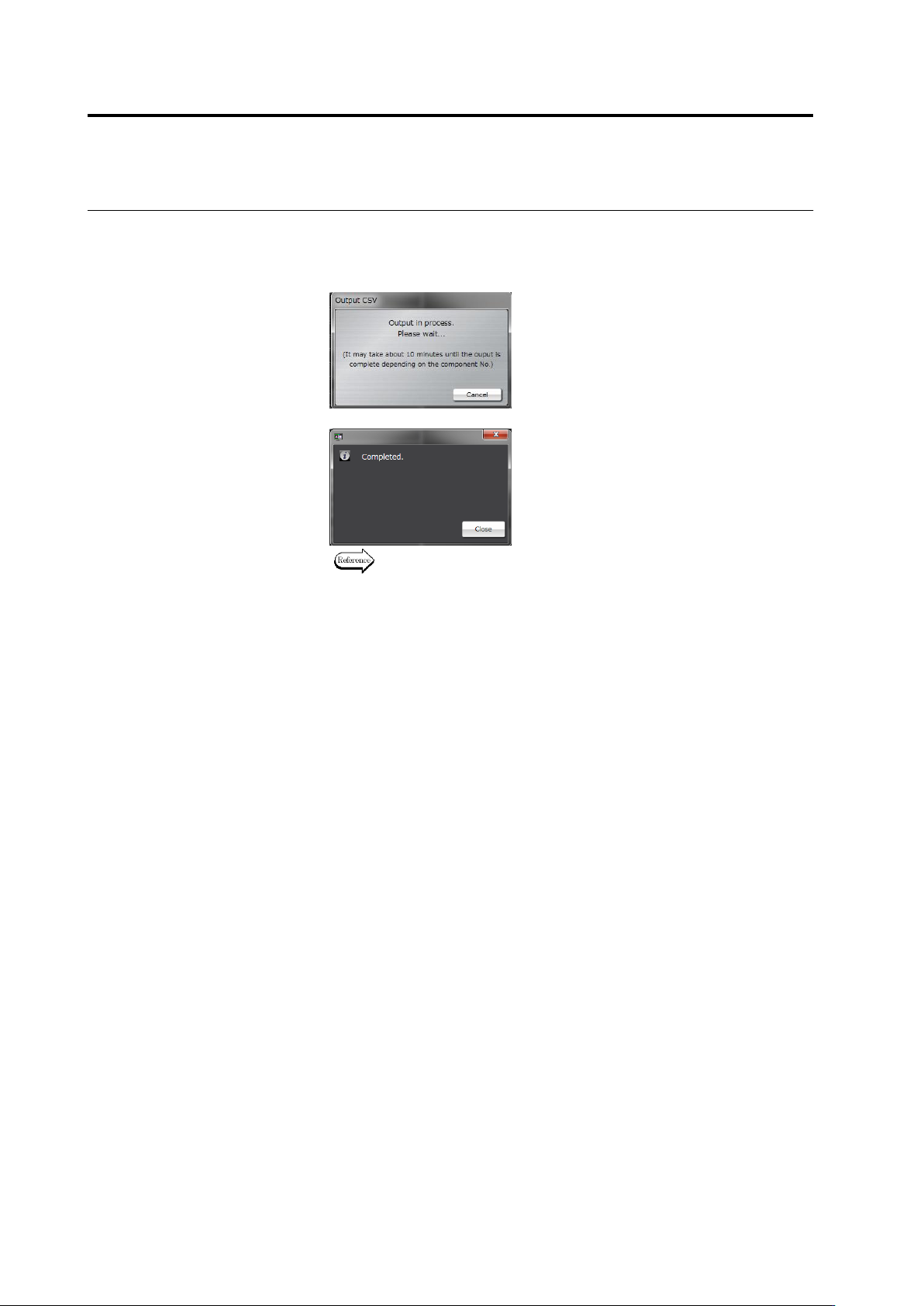
After the finish screen of CSV output is displayed, click the [Close]
button.
The CSV file is saved in the selected folder.
To abort the file output, click [Cancel].
↓
For details of the output format, refer to the following page.