Omron V-TS Teaching Manual.pdf.pdf - 第92页
2.4 Registeri ng f or Insp ection 2- 65 ・ Copy on Two Sides or Four Sides The land window grou p specified for one si de of the com ponent can be duplicate d for the remaining sides. Click [2nd Side Cop y] for an SOP, a …
Chapter 2 Inspection Programming
2-64
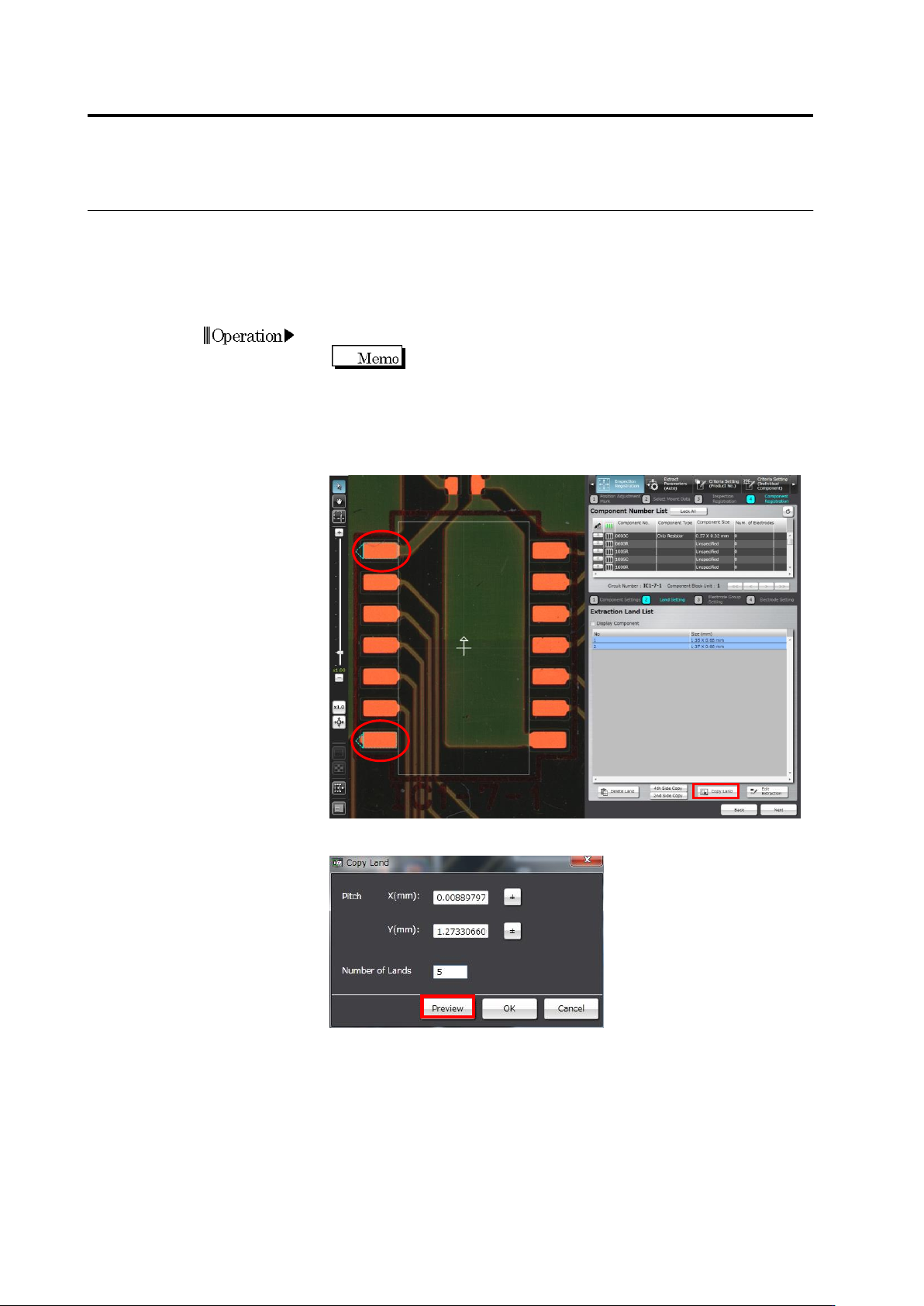
・ Copy a Land Window
A multiple number of land windows can be added efficiently for a component such as QFP,
which requires many lands.
By selecting the lands at both ends of the same side, land windows are automatically copied
and inserted among the selected lands.
1.
Add land windows to one side of the component.
Delete the land windows (if any) at positions other than the
both ends of the side.
2.
Select the lands at both ends and click [Copy Land].
To select two lands simultaneously, click the land windows on the
image display area while holding down the [Ctrl] key on the
keyboard, or click the lands in the Extraction Land List.
3.
Enter the number of lands to add, and click [Preview].
4.
Click [OK] to apply the result shown in the preview, or [Cancel] to
abort it and quit land copying.
Operation
2.4 Registering for Inspection
2-65
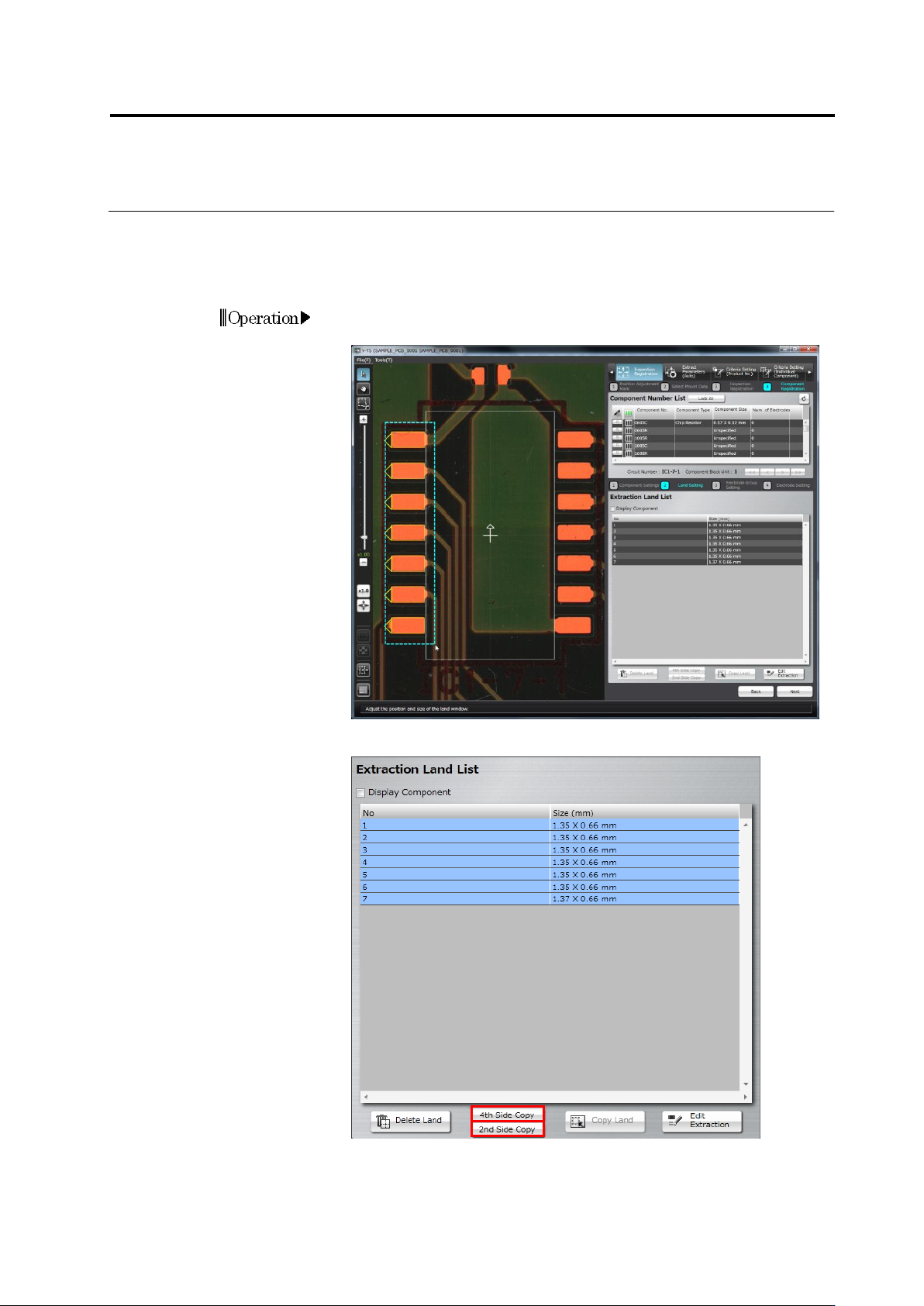
・ Copy on Two Sides or Four Sides
The land window group specified for one side of the component can be duplicated for the
remaining sides.
Click [2nd Side Copy] for an SOP, and [4th Side Copy] for a QFP.
1.
Drag and drop the cursor on the image display area to surround the
specified side of the land window to select it.
2.
Click [2nd Side Copy] or [4th Side Copy].
3.
The land windows are copied on the remaining side(s) of the
component.
Adjust the window positions if necessary.
Operation
Chapter 2 Inspection Programming
2-66
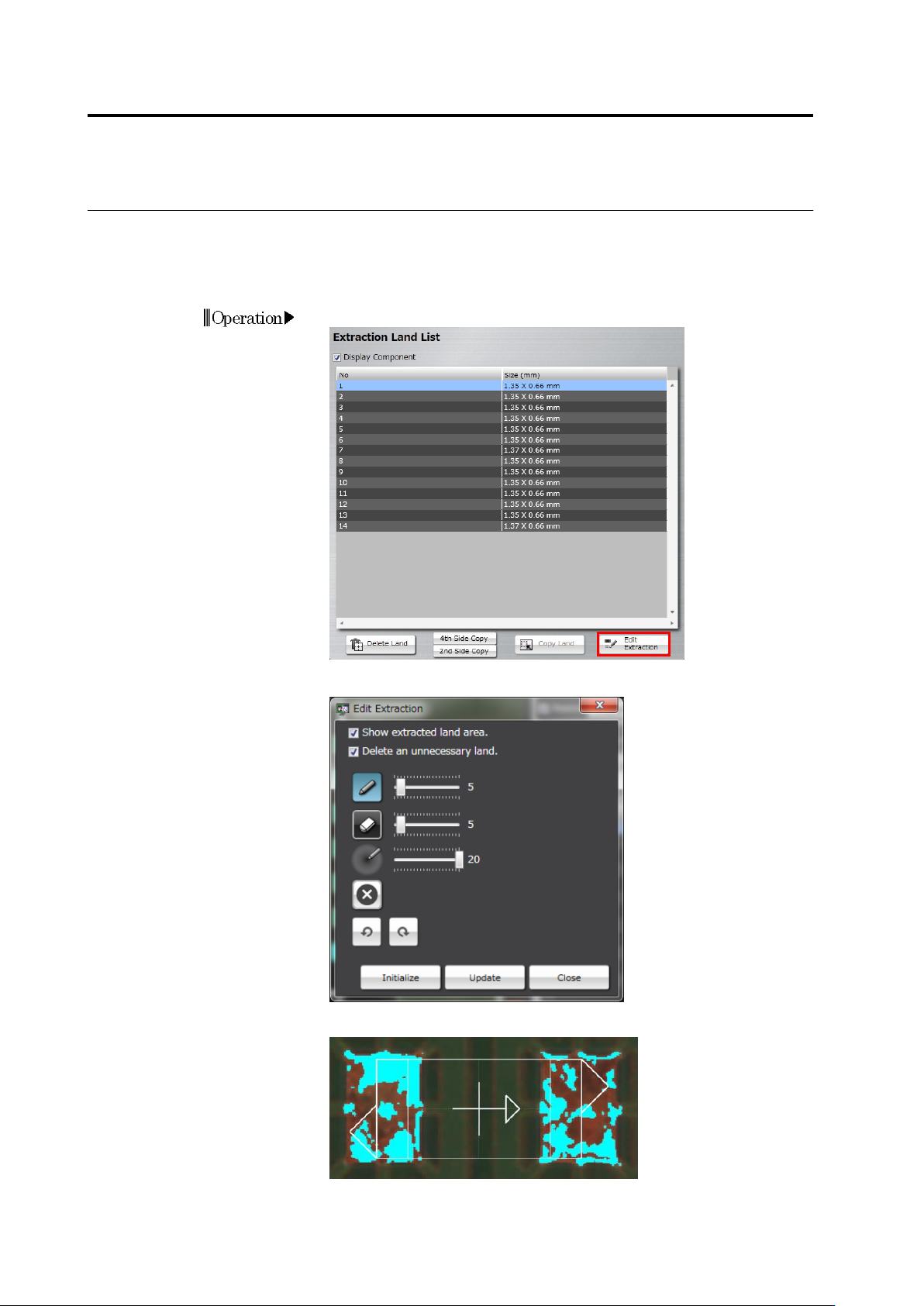
・ Edit the Auto Extraction Result
The auto extraction of lands may not be successful if the bare PCB is applied with solder
leveling. Use the system learning feature to teach it the colors of the lands. The more lands the
system learns, the more precise the auto extraction can be.
1.
Click [Edit Extraction].
2.
The extraction editing tool starts up.
Select the [Show extracted land area] checkbox. The land pixels
successfully extracted are shown in aqua color.
Operation