Omron V-TS Teaching Manual.pdf.pdf - 第263页
Chapter 3 Man agement Menu 3-8 3. Click the text box of [Sh eet Nam e] to edit the sheet nam e. 4. If an electrode condition is not displ ayed, click the [Ele ctrode Condition] tab. 5. Set an electrode t ype for which yo…
3.3 Configuring Quality Criteria Setting
3-7
3.3.3 Configuring Electrode Type Inspection Criteria
Initial settings of inspection criteria are done for each electrode type in this section.
Setup details are managed in a sheet. If an electrode type is defined in more than one sheet,
the criteria in a sheet with higher priority are used for the initial setting.
1.
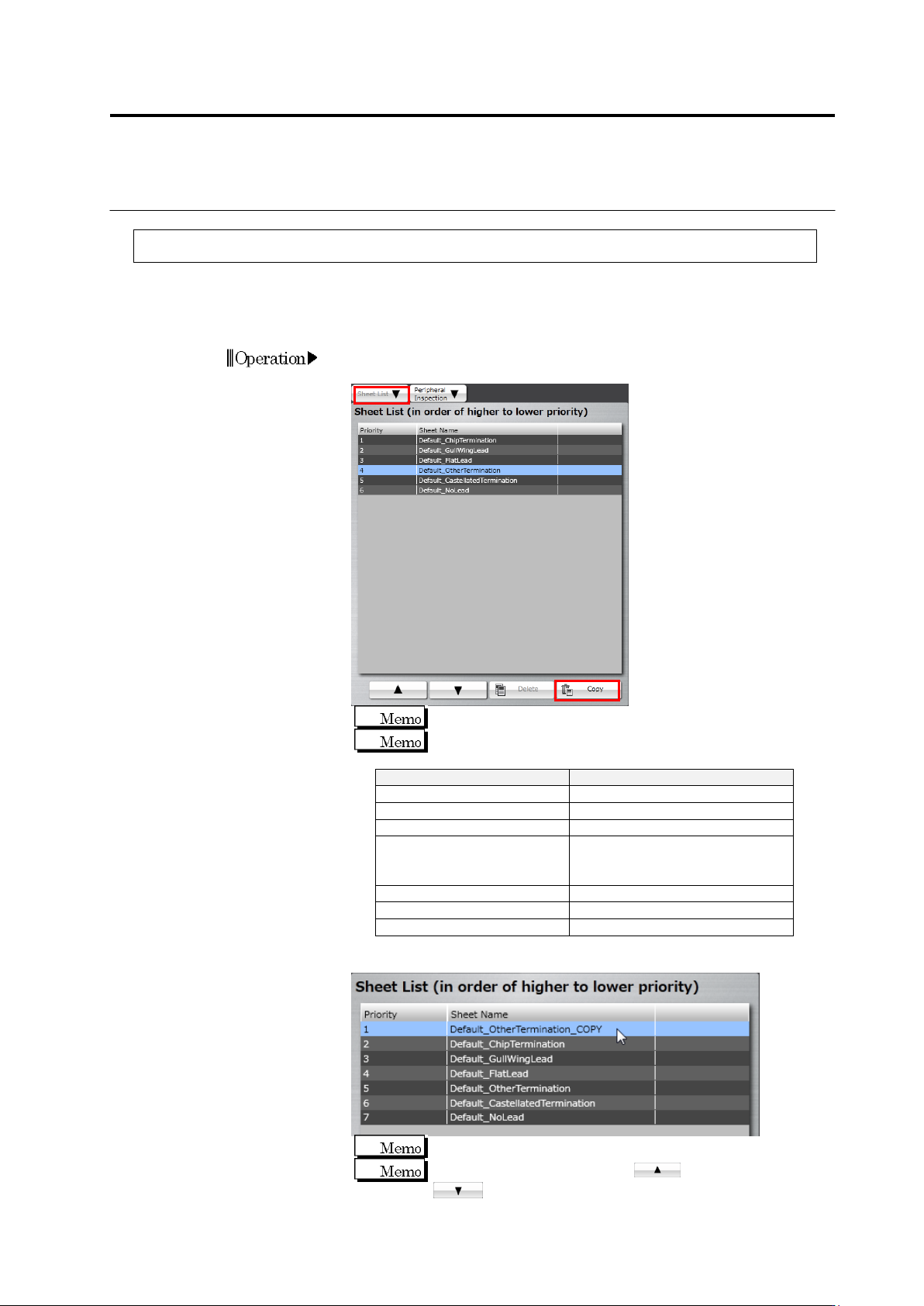
Click the [Sheet List] tab, select a sheet of an electrode type you
want to edit from the sheet list, and click [Copy].
The default sheet cannot be edited.
Shown below are electrode types and the corresponding
sheets.
Electrode Type
Sheet Name
Chip Electrode
Default_ChipTermination
Gull-Wing Lead
Default_GullWingLead
Flat Lead
Default_FlatLead
Other Electrode
(Inward L-Shaped Lead, J-
Shaped Lead, Micro Lead)
Default_OtherTermination
Castellation Electrode
Default_CastellatedTermination
No Lead
Default_NoLead
Insertion Lead
Default_InsertionLead
2.
Click the sheet copied from the sheet list to select.
The copied sheet is displayed as priority 1.
To increase the priority, click . To decrease, click
.
Chapter 3 Management Menu
3-8
3.
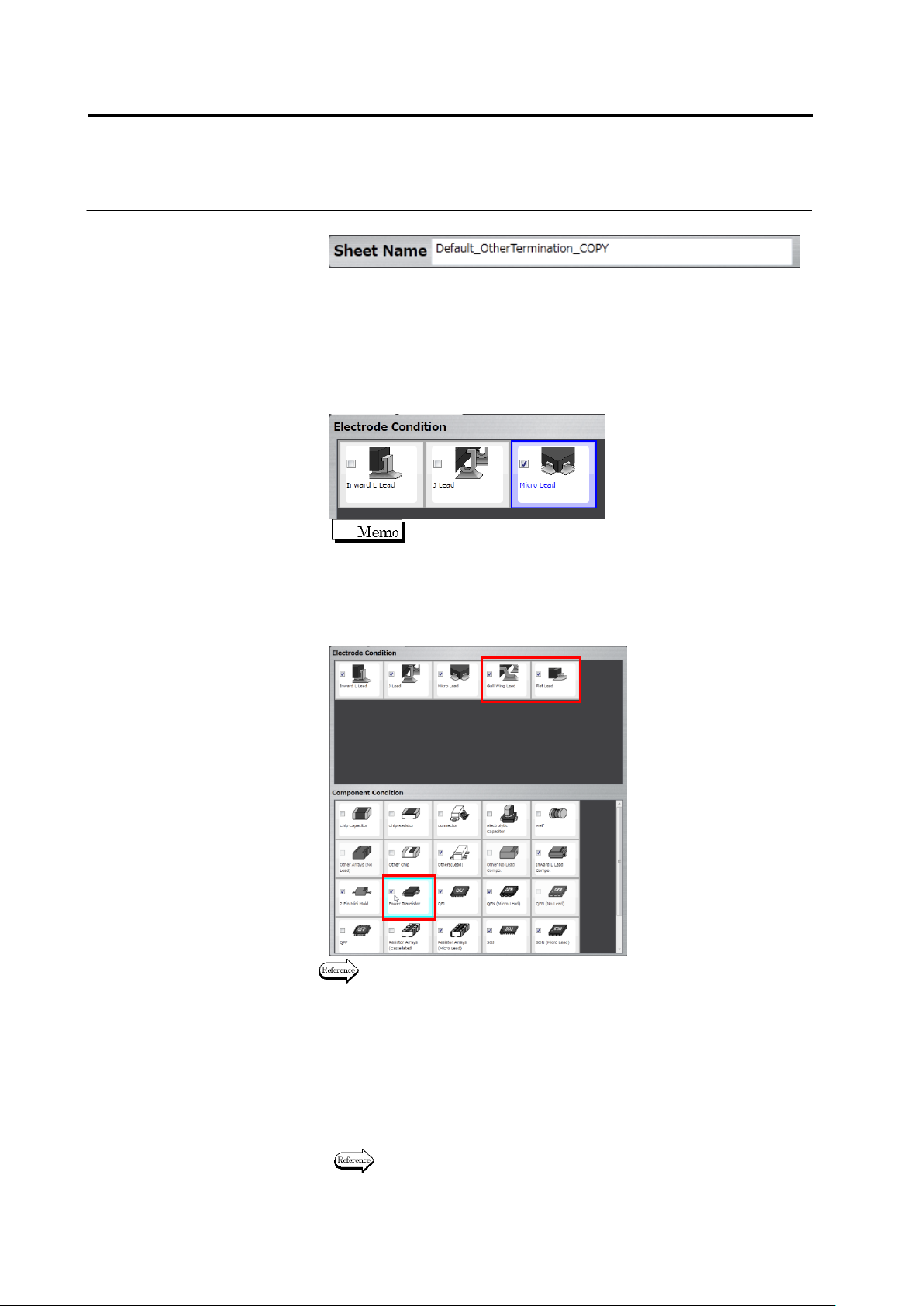
Click the text box of [Sheet Name] to edit the sheet name.
4.
If an electrode condition is not displayed, click the [Electrode
Condition] tab.
5.
Set an electrode type for which you want to enable the inspection
criteria of this sheet.
Click a check box for each electrode type in the electrode condition.
Select the box to enable, or unselect it to disable.
On the component conditions, the check box is displayed as
being selected for a component type corresponding to the
enabled electrode type.
To add other electrode type than those displayed, select the check
box of a component type corresponding to the electrode type in the
component conditions.
For component types and the corresponding electrode types, see P2-7
“Component Types” and P2-8 “Electrode Types.”
6.
Click the [Inspection Criteria] tab to display the inspection criteria.
7.
Edit the initial setting of the inspection criteria.
If the check box is being selected, inspection for the item will be
performed. If not, it will not be performed.
For an inspection item with its check box being selected, set a
reference value for OK judgment.
For details of inspection items, refer to the inspection logic manual.
Add
3.3 Configuring Quality Criteria Setting
3-9
3.3.4 Configuring Peripheral Inspection Criteria
Initial settings of peripheral inspection are done in this section.
1.
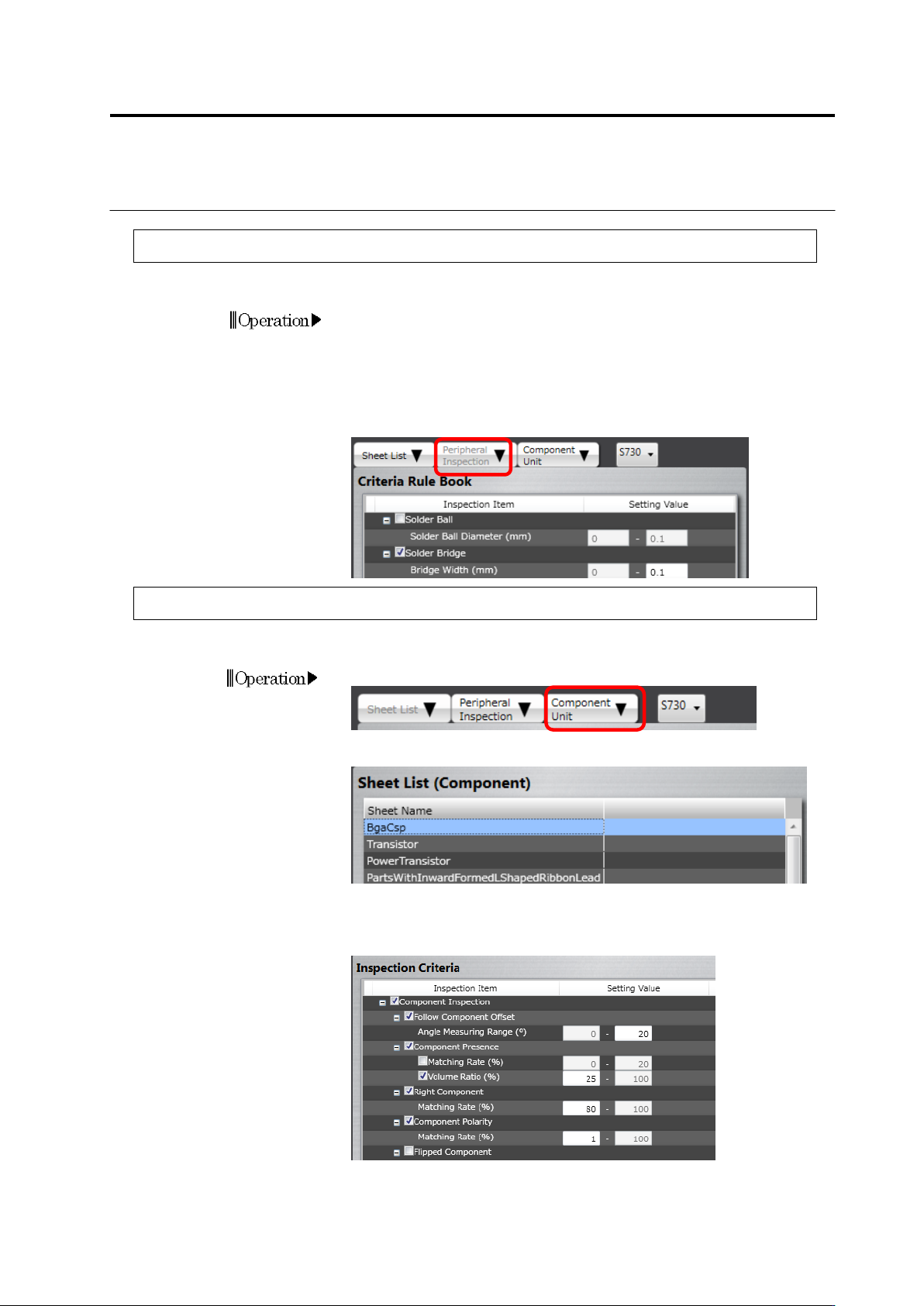
Click the [Peripheral Inspection] tab.
2.
Edit the initial setting of the peripheral inspection criteria.
If the check box is being selected, inspection for the item will be
performed. If not, it will not be performed.
For an inspection item with its check box being selected, set a
reference value for OK judgment.
3.3.5 Configuring Component Unit Inspection Criteria
The inspection criterion values for component body inspection can be changed.
1.
Click the [Component Unit] tab.
2.
Click the sheet to be changed on the sheet list.
3.
On the right-hand inspection criterion list, the inspection criteria of
the applicable sheet are displayed.
Correct the items as needed.
The meaning of Setting ON/OFF the checkboxes is the same as that
of the peripheral inspection above.