Omron V-TS Teaching Manual.pdf.pdf - 第236页
2.17 M ass-Produced PCB Image 2- 209 3. Select [Tool] – [Mas s Production Im age] in the ed iting screen m enu bar Unle ss the component registration is completed, the ite m is shaded and cannot be selected. Or select th…
Chapter 2 Inspection Programming
2-208
2.17 Mass-Produced PCB Image
A mass-produced PCB image specified by Q-upNavi or the specified product image saving
function can be acquired and registered in the library.
1.
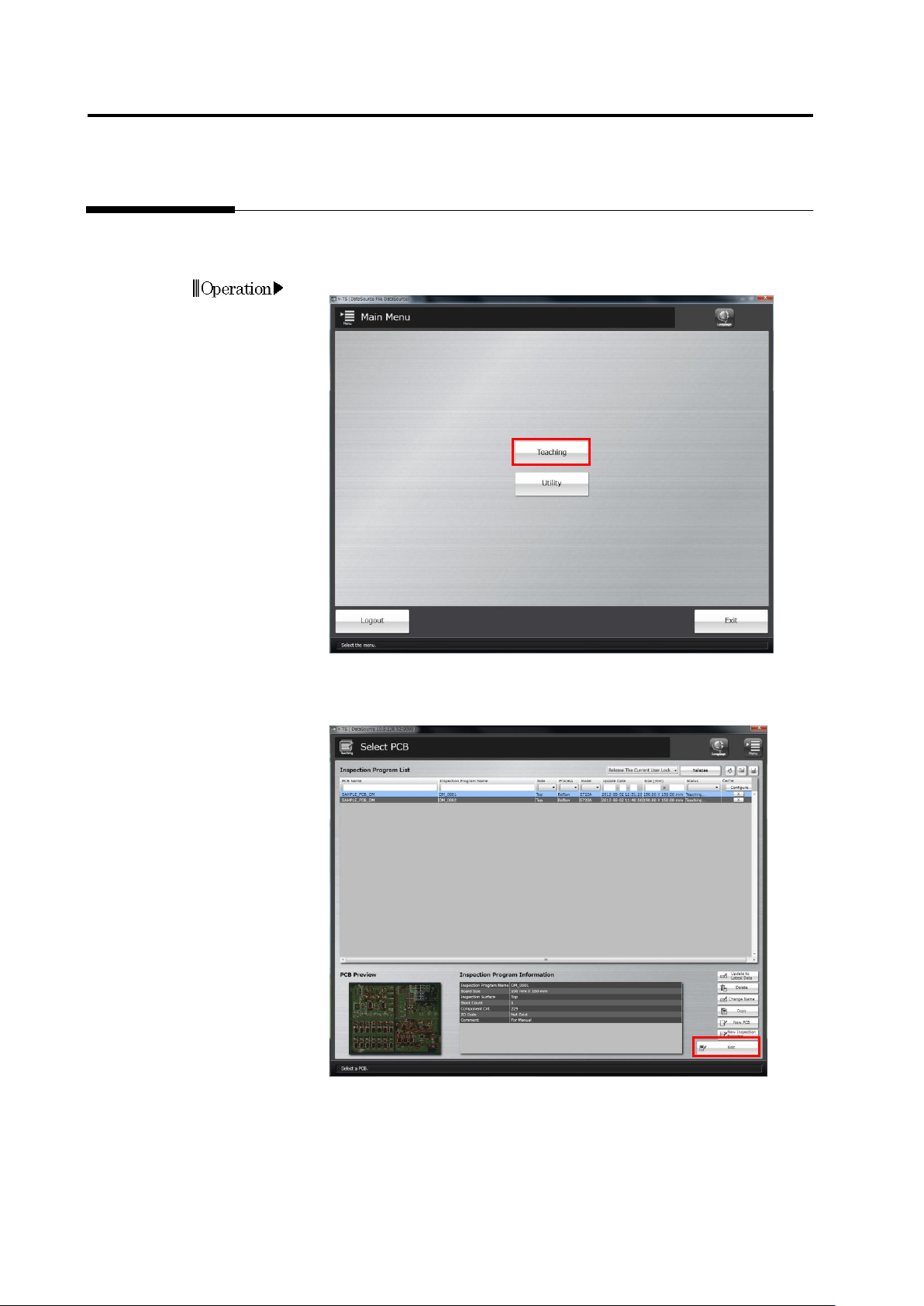
Click [Teaching] in the main menu.
2.
The Select PCB screen appears.
Click to select the inspection program whose mass-produced PCB
image to acquire in the Inspection Program List, and click [Edit].
Operation
2.17 Mass-Produced PCB Image
2-209
3.
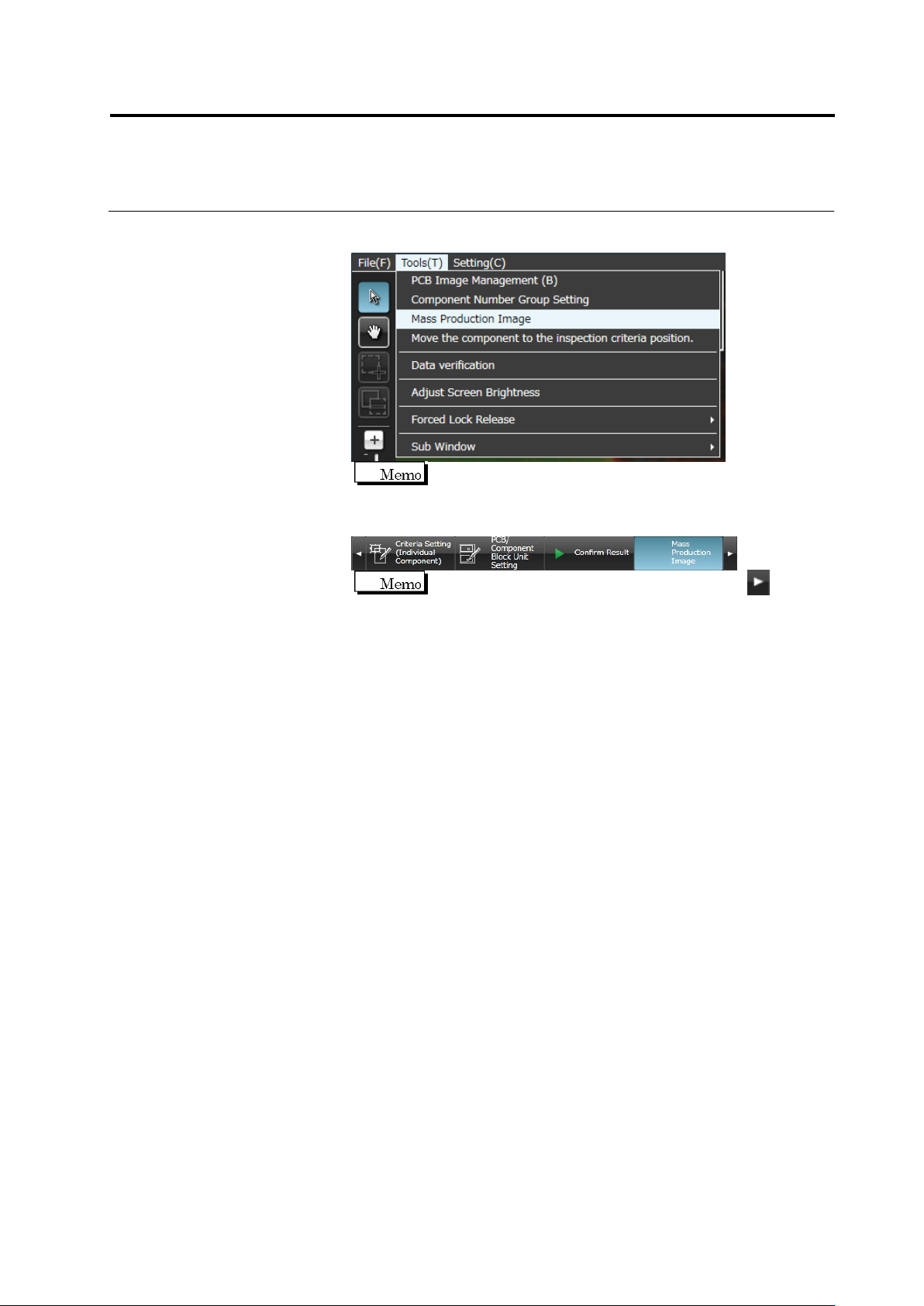
Select [Tool] – [Mass Production Image] in the editing screen menu
bar
Unless the component registration is completed, the item is
shaded and cannot be selected.
Or select the [Mass Production Image] tab.
If the [Mass Production Image] tab is hidden, click at the
right to display it.
4.
The mass production management screen appears.
To confirm the image registered by Q-upNavi, select the image
management job and select the job with the [Mass Production
Image] type. Select the component number to be registered in the
component number list.
To confirm the image specified by the specified component image
saving function, select a job whose type is [Mass Production
Inspection OK Image] or [Inspection NG].
If the former item is selected, the image of inspection OK selected
by the specified component image saving function is displayed. If
[InspectionNg] is selected, the image of the component judged as
NG by the inspection is displayed.
When the machine executes inspection, one OK line and one NG
line of the job of the [Mass Production Image] type increase. These
lines (including both OK and NG) increase at 30-minute intervals,
and the latest information is displayed at the top.
On the destination column, the destination name which was used for
inspection is displayed.
The component number list shows all the component numbers for
which check boxes of image management job are selected ON.
Enter the circuit number in the circuit search box, and click to
display the image of the specified circuit number only.
On the component number group column, the component number
group to which the component number belongs is displayed.

Chapter 2 Inspection Programming
2-210
Click ON the check box of the image to be registered in the
component thumbnail image list or the inspection component list,
and click [Add].Click the check box to cancel the selected state.
Click [Model Edit] to go to the criteria setting screen. Click at the
upper right of the screen if the list of image management jobs is not
the latest.