Omron V-TS Teaching Manual.pdf.pdf - 第186页
2.15 M odifying an Inspect ion Program 2- 159 (1) Deploy Button Clicking the button d isplays the com ponent number pa rameter deplo y m ent screen . (2) Component Number Param eter Deployment T arget List Displays a lis…
Chapter 2 Inspection Programming
2-158
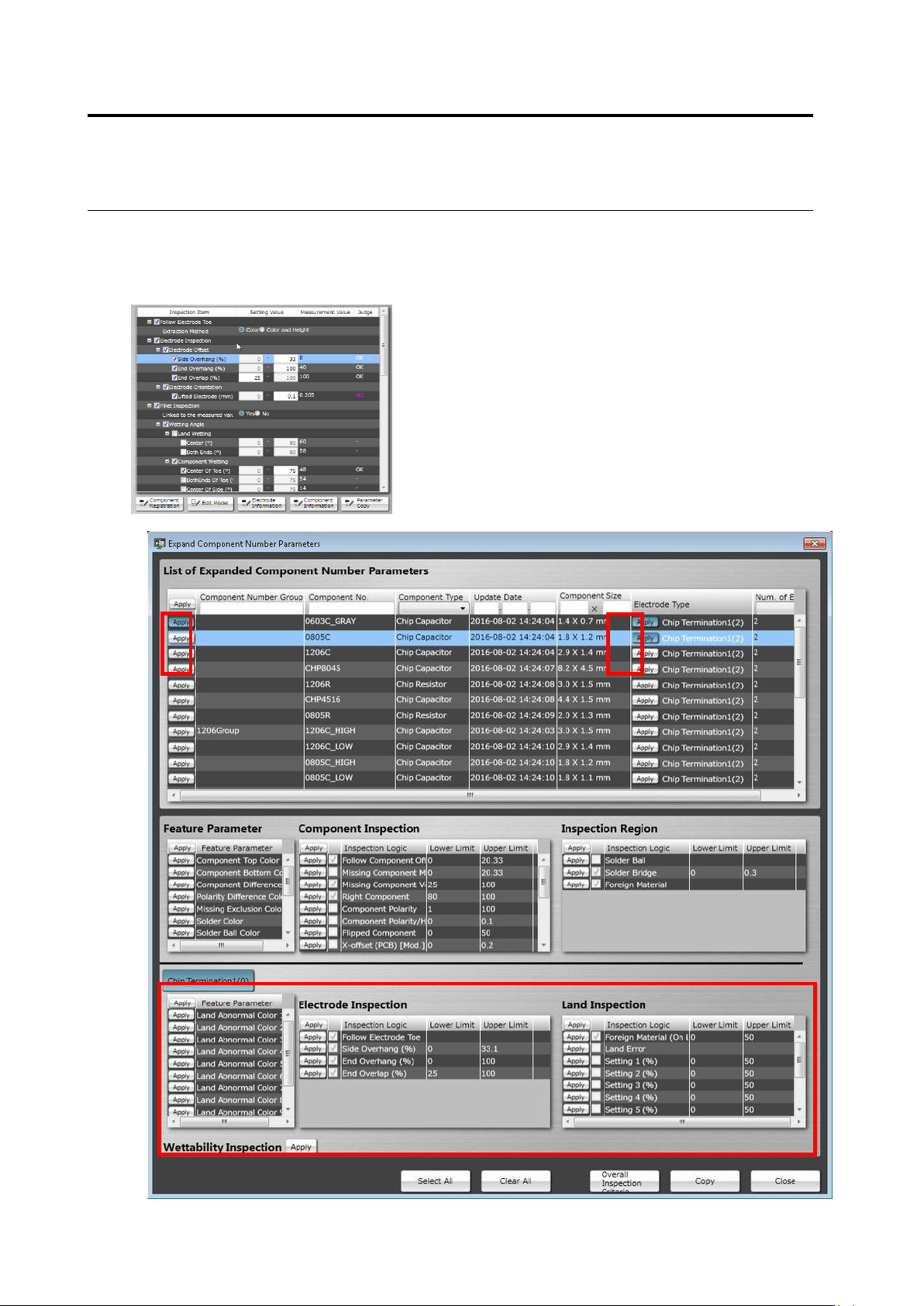
<Component Number Deployment Tool>
You can deploy characteristic parameter and inspection criteria of the selected component
number to other component number.
(1)
(2)
(3)
(5)
(6)
(4)
(7)
(8)
(9)
(11)
(12)
(13)
(14)
(15)
(17)
(16)
(10)
2.15 Modifying an Inspection Program
2-159
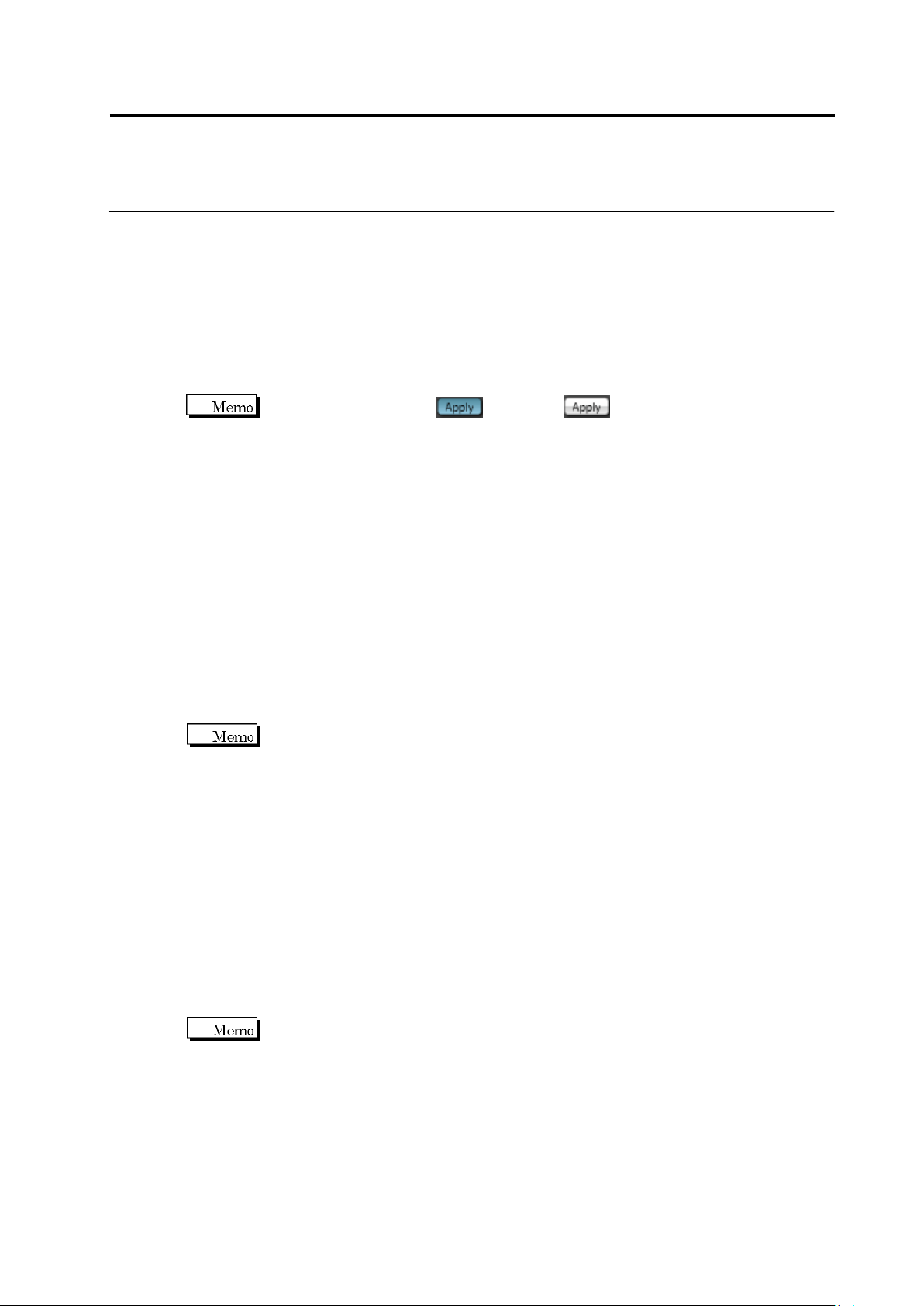
(1) Deploy Button
Clicking the button displays the component number parameter deployment screen.
(2) Component Number Parameter Deployment Target List
Displays a list of component numbers that have parameters which can be deployed.
(3) Apply Deployment Target Component Number Button
Use the Apply button to specify a component number that has parameters which you want to
deploy. If the selected component number belongs to a component number group, the
parameters are deployed to the component number group.
The Apply buttonis blue and white when it is enabled and
disabled, respectively.
(4) Apply Deployment Target Electrode Group Button
Use the Apply button to specify an electrode group that has the electrode inspection and
land inspection settings which you want to deploy.
(5) Apply Characteristic Parameter Deployment Button
Use the Apply button to specify a characteristic parameter you want to deploy.
(6) Apply Component Inspection Setting Deployment Button
Use the Apply button to specify a component inspection setting you want to deploy.
(7) Apply Inspection Range Setting Deployment Button
Use the Apply button to specify an inspection range setting you want to deploy.
(8) Electrode Group Selection Radio Button
Select an electrode group you want to deploy.
Clicking Copy deploys the parameter of the electrode group being selected upon
clicking. The parameters of electrode groups not being selected are not
deployed.
(9) Apply Electrode Group Characteristic Parameters Deployment Button
Set the characteristic parameters of the electrode group you wish to deploy by the Apply
button.
(10) Apply Electrode Inspection Setting Deployment Button
Use the Apply button to specify an electrode inspection setting you want to deploy.
(11) Apply Land Inspection Setting Deployment Button
Use the Apply button to specify a land inspection setting you want to deploy.
(12) Wettability Inspection Setting Deployment Toggle Button
Use the toggle button if you want to deploy the wettability inspection setting.
You cannot deploy the wettability inspection setting independently for inspection
items. All wetting inspection settings are the deployment targets.
(13) Select All Button
Clicking this button sets ON the characteristic parameters and all the Apply buttons of the
inspection criterion. If there are more than on electrode group, the Apply buttons of the
electrode group which is not being selected are not changed.

Chapter 2 Inspection Programming
2-160
(14) Clear All Button
Clicking this button sets OFF the characteristic parameters and all the Apply buttons of the
inspection criterion. If there are more than one electrode group, the Apply buttons of the
electrode group which is not being selected are not changed.
(15) Deploy All Inspection Criteria Button
When this button is clicked, all inspection settings are deployed to the component number
and electrode group of the deployment destination being selected without respect to
pressing the Apply button of the inspection setup section of the deployment source. Even the
items not displayed on the deployment screen are deployed. If there are more than one
electrode groups, criteria are deployed only for the effective electrode groups.
(16) Copy Button
Clicking this button deploys all the inspection settings with the Apply buttons being selected
from the source to the selected deployment target component number and electrode group.
(17) Close Button
Clicking the button closes the component number parameter deployment screen.