Omron V-TS Teaching Manual.pdf.pdf - 第146页
2.11 Sav ing an Inspection Program 2- 119 2.11.3 Releasing an Ins pection Program The following shows the procedure to re lease a com pleted inspection program . Once released, it is now available for th e use on the PCB…
Chapter 2 Inspection Programming
2-118
2.11 Saving an Inspection Program
2.11.1 Saving an Inspection Program
Save an inspection program during the process of teaching.
4.
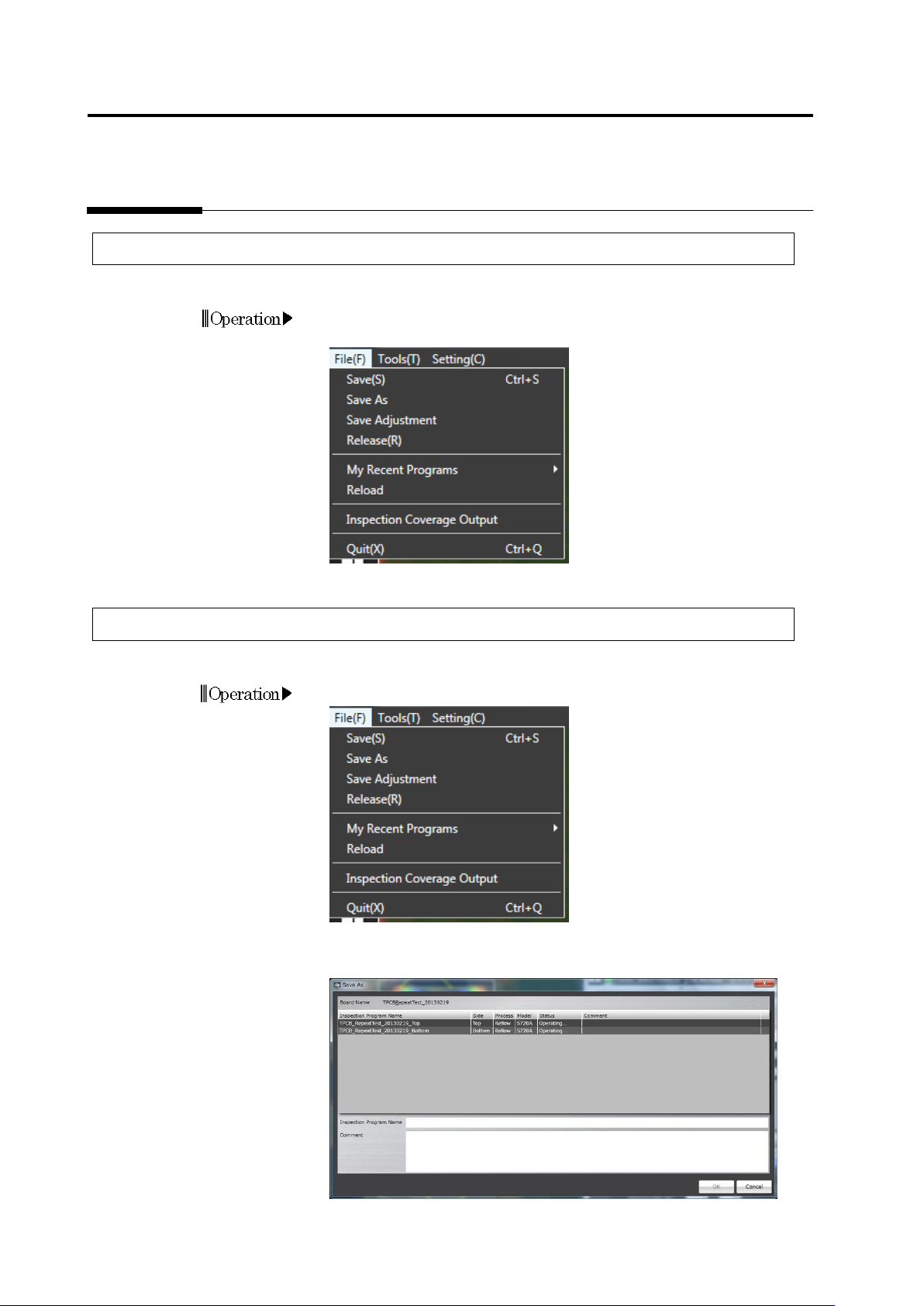
Select [File] - [Save] in the menu bar.
Or press [S] while holding down the [Ctrl] key on the keyboard.
2.11.2 Saving an Inspection Program Under a New File Name
This section describes how to save an inspection program with a name during teaching.
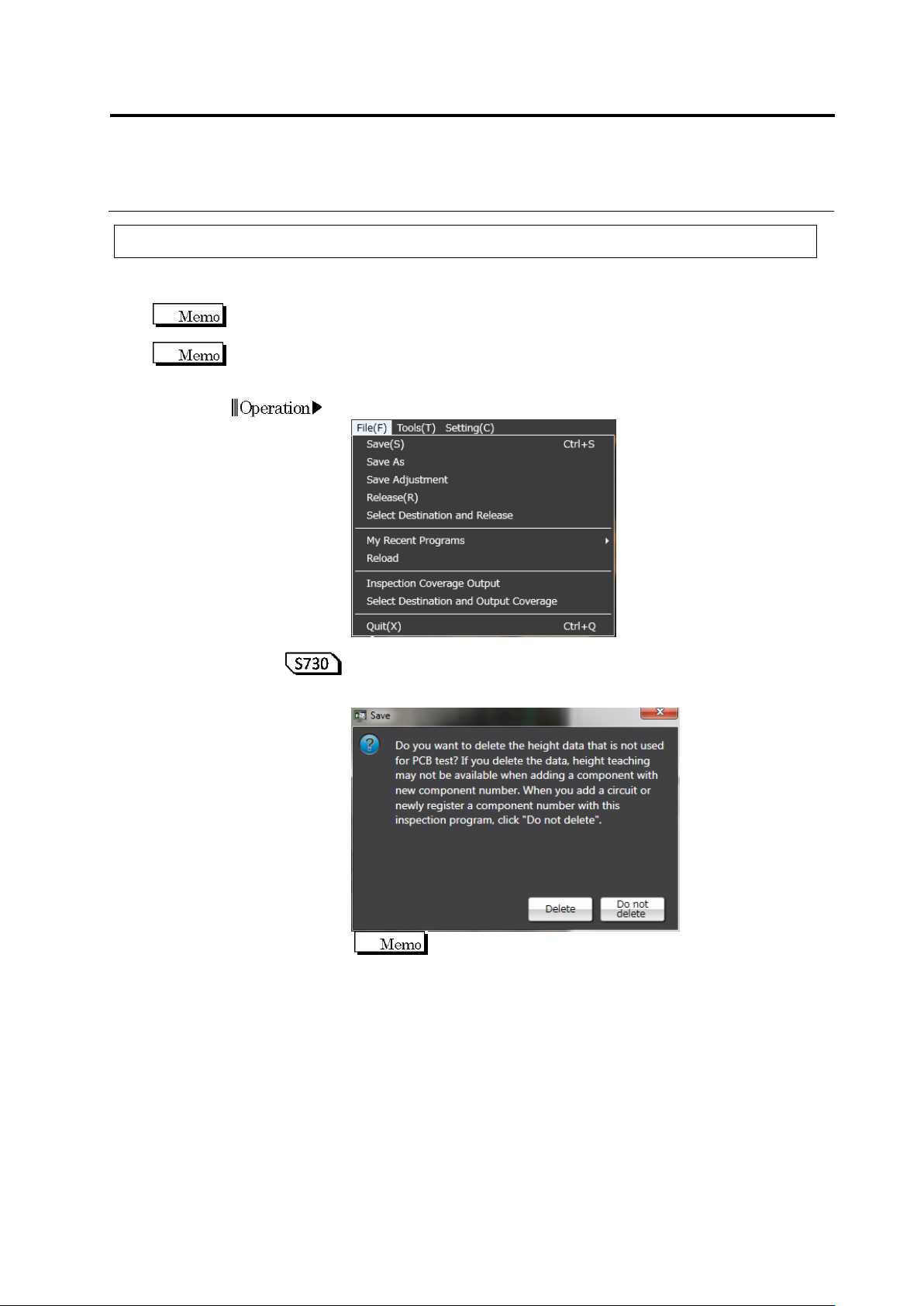
1. On the menu bar, select [File] - [Save As].
2. The Save As dialog box appears.
Specify an inspection program name and a comment, and click [OK].
Operation
2.11 Saving an Inspection Program
2-119
2.11.3 Releasing an Inspection Program
The following shows the procedure to release a completed inspection program. Once released, it
is now available for the use on the PCB inspection system.
The calculation and saving of the image capture route is performed when an inspection
program is released, which requires a certain amount of time.
After an inspection program is released, its status in the Inspection Program list in the Select
PCB screen changes from "Teaching" to "Operating".
1.
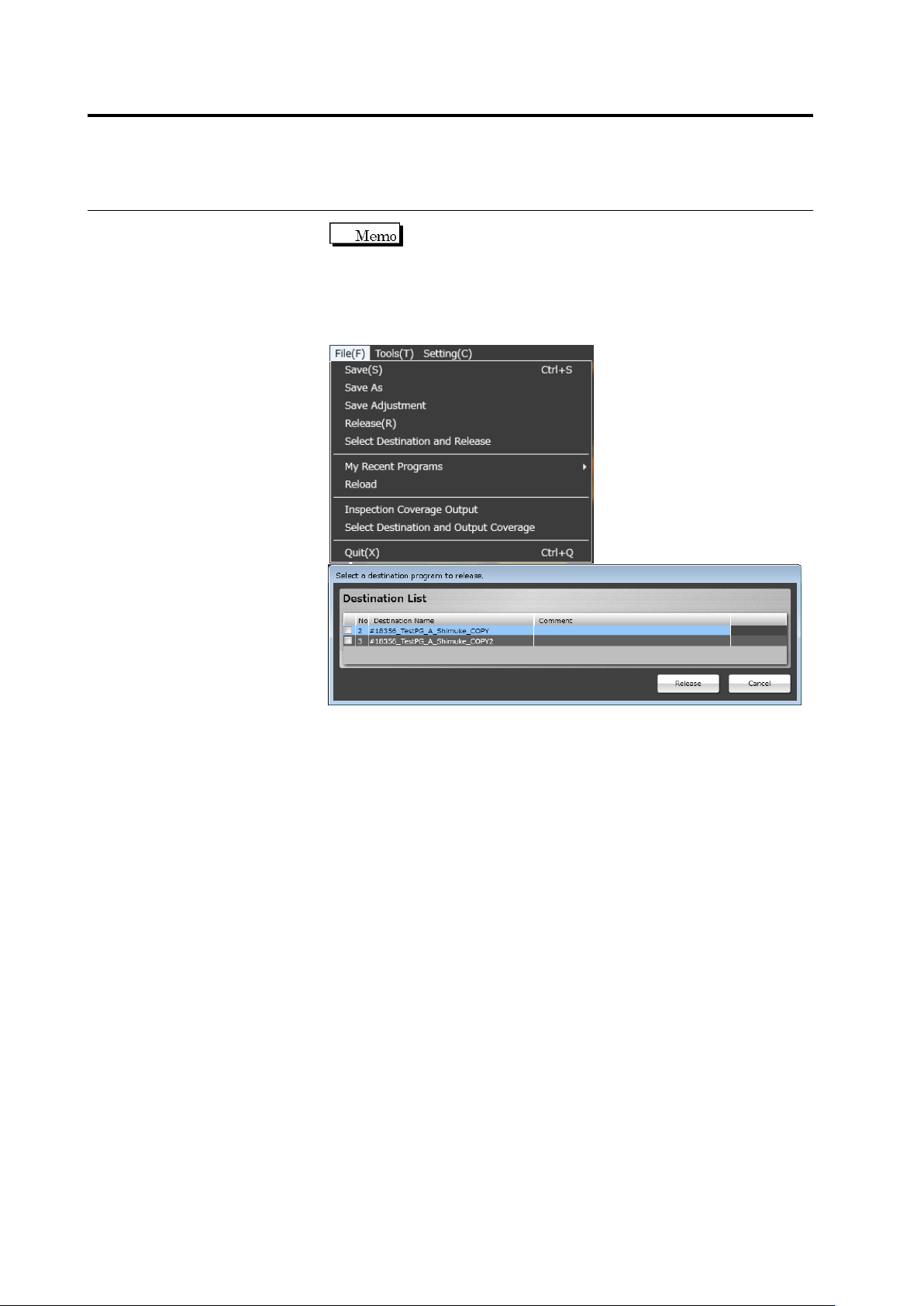
Select [File] - [Release] in the menu bar.
The dialog below is displayed during releasing.
If components might be added because of destination creation,
select [No] to leave the height data.
To add a component after height data is deleted, perform
teaching using a PCB image with the height data using the
steps below:
1. On the inspection machine, capture the image in the capturing mode.
2. Move back to v-TS, select [Tool] - [PCB Image Management]. On this
screen, se the newest image captured at Step 1 as a master.
3. Confirm the result. After the reference value is confirmed, select [File] -
[Release] to release the inspection program.
Operation
Chapter 2 Inspection Programming
2-120
If there is setting of destination, the necessary destination can
be released individually. By selecting only the necessary destinations, time
to release the destinations not needed to release can be eliminated. On the
menu bar, select [File]-[Select Destination and Release], and check a
destination to be released to release the programs.
The checked destination programs are released, but the unchecked
destination programs are saved normally.