Omron V-TS Teaching Manual.pdf.pdf - 第60页
2.3 Open ing an Inspection Program 2- 33 2.3 Opening an Inspection Program This section explains the procedure to o pen an inspection program . 1. Select a desired inspecti on program in the Inspection Program List in th…
Chapter 2 Inspection Programming
2-32
4.
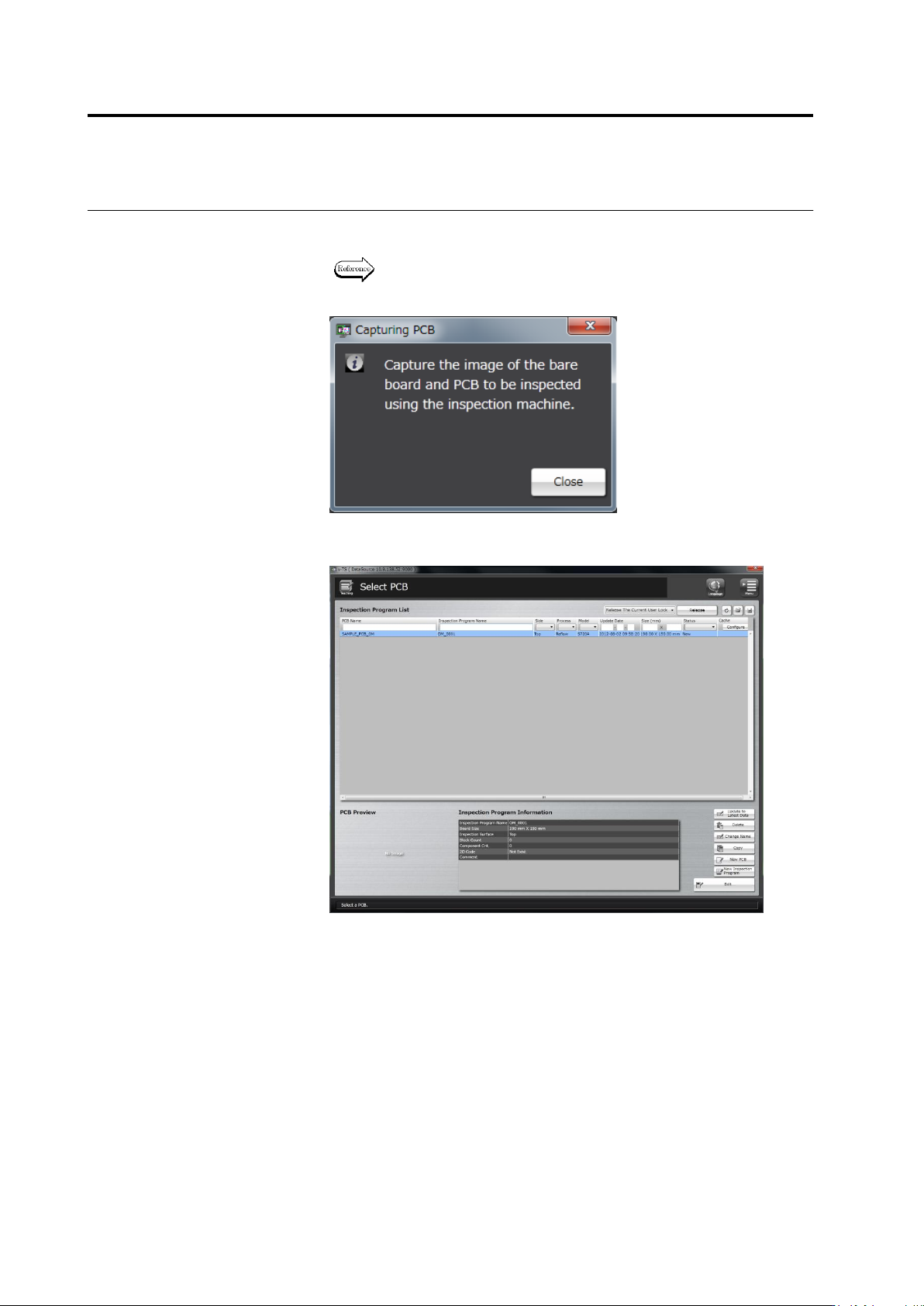
The following dialog appears. Capture the bare board and good
inspection PCB images with the PCB inspection system.
Refer to the Operation Manual of the inspection machine, Chapter 3:
“Capturing PCB Image" for the procedure to capture a PCB image.
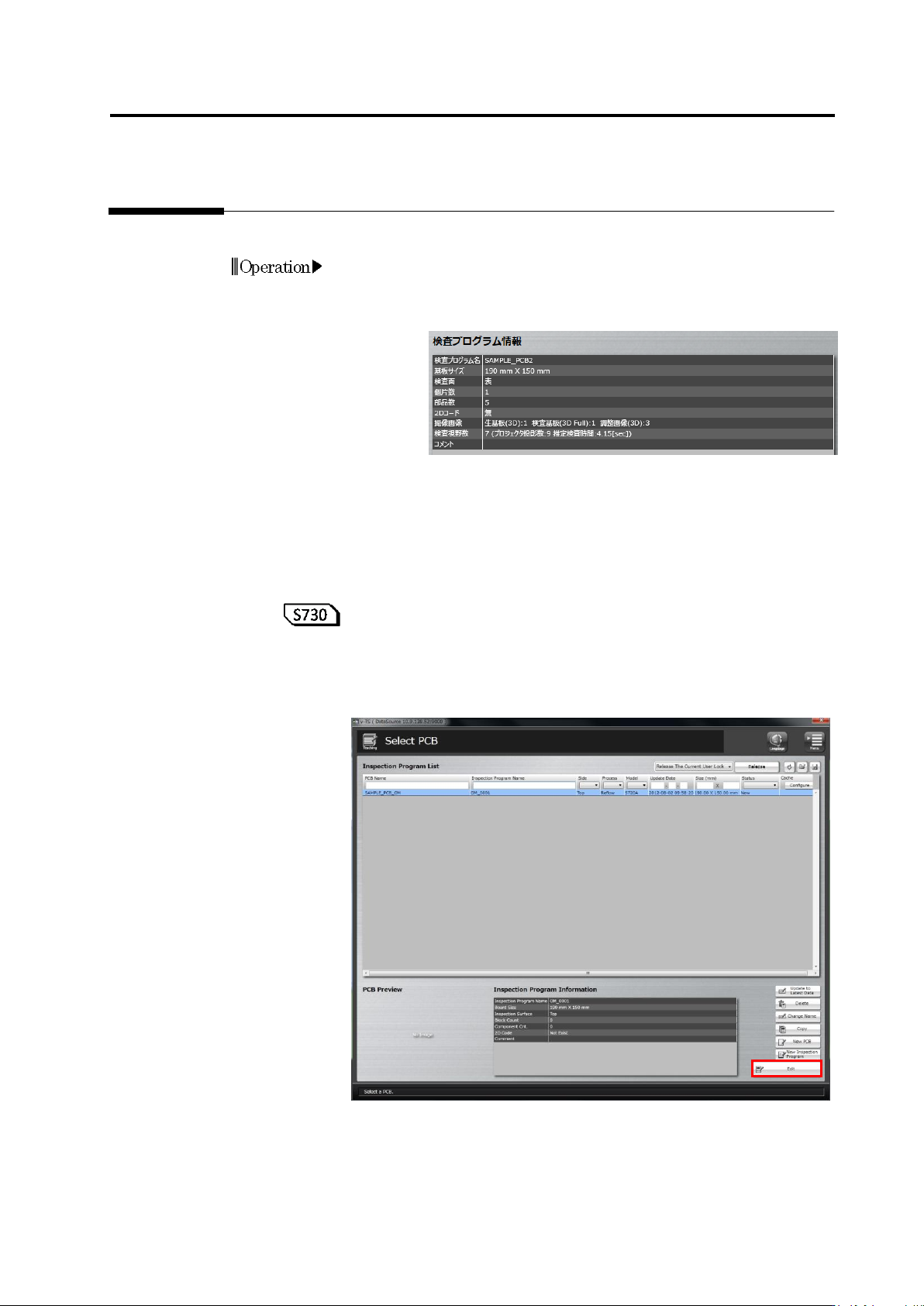
Click [Close]. The dialog closes and the Select PCB screen returns.
2.3 Opening an Inspection Program
2-33
2.3 Opening an Inspection Program
This section explains the procedure to open an inspection program.
1.
Select a desired inspection program in the Inspection Program List
in the Select PCB screen.
When an inspection program is selected, information on the
inspection program is displayed.
The content of the inspection program is as follows:
■ Information on the PCB and inspection program is displayed.
Inspection program name, PCB size, inspection side, and
comment
■ Details of the inspection program is displayed.
Number of component block units, number of components,
presence/absence of 2D code, types and numbers of captured
images, number of inspection fields of view including direct view
and oblique view
Number of projections from projectors and estimated inspection
time (sec.)
2.
Click [Edit] to open the program.
The following message appears if the PCB image is not captured yet.
Capture the bare and inspection PCB images with the PCB
inspection system and click [Edit] again.
Operation
Chapter 2 Inspection Programming
2-34
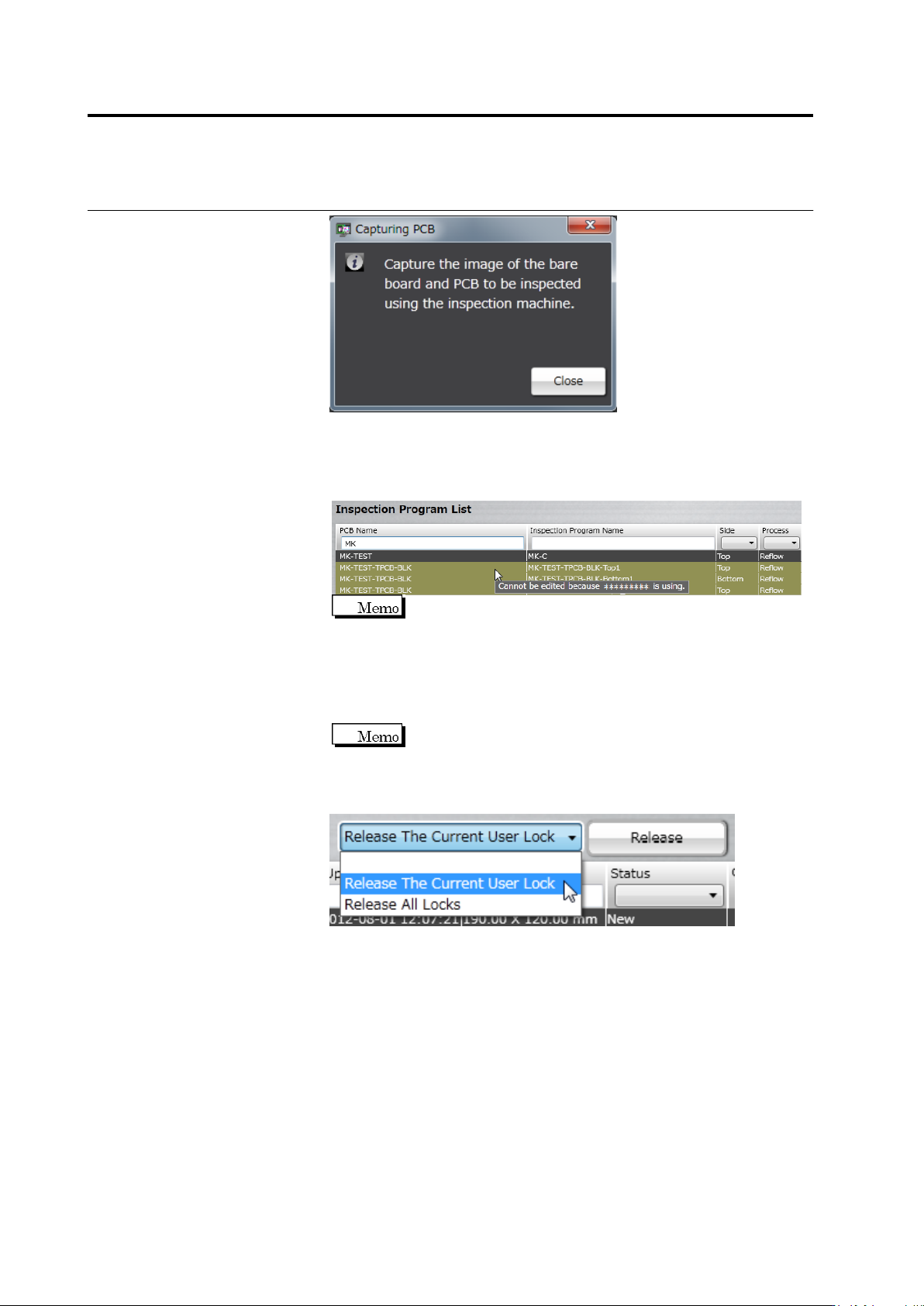
The inspection programs of the same PCB as the inspection program
that other user is editing are all locked and displayed in khaki. You cannot
edit, delete, change name or copy on the locked inspection programs and
you cannot create a new inspection program.
When you select a locked inspection program, only the [New
PCB] button is enabled.
If you cannot release the lock even though the inspection program is
not opened by any user, select a release method from the list box at
the upper right, and then click [Release].
When selecting [Utility Screen] - [Component No. Library
Management] - [Import], lock might not be released although
the inspection program is not being opened by any users.
・ Release The Current User Lock
Releases the program locked by the user currently in operation.
・ Release All Locks
Releases the lock of all locked programs.
The lock release confirmation dialog appears. Make sure that no
user is in the process of editing the inspection program and click
[OK].