Omron V-TS Teaching Manual.pdf.pdf - 第205页
Chapter 2 Insp ection Progr amming 2- 178 2. In the com ponent number list, select t he component num ber for which the visual check result is registered, and click [Edit M odel ]. 3. In the com ponent thumbnail Im age l…
2.15 Modifying an Inspection Program
2-177
2.15.5 Registering Visual Check Results
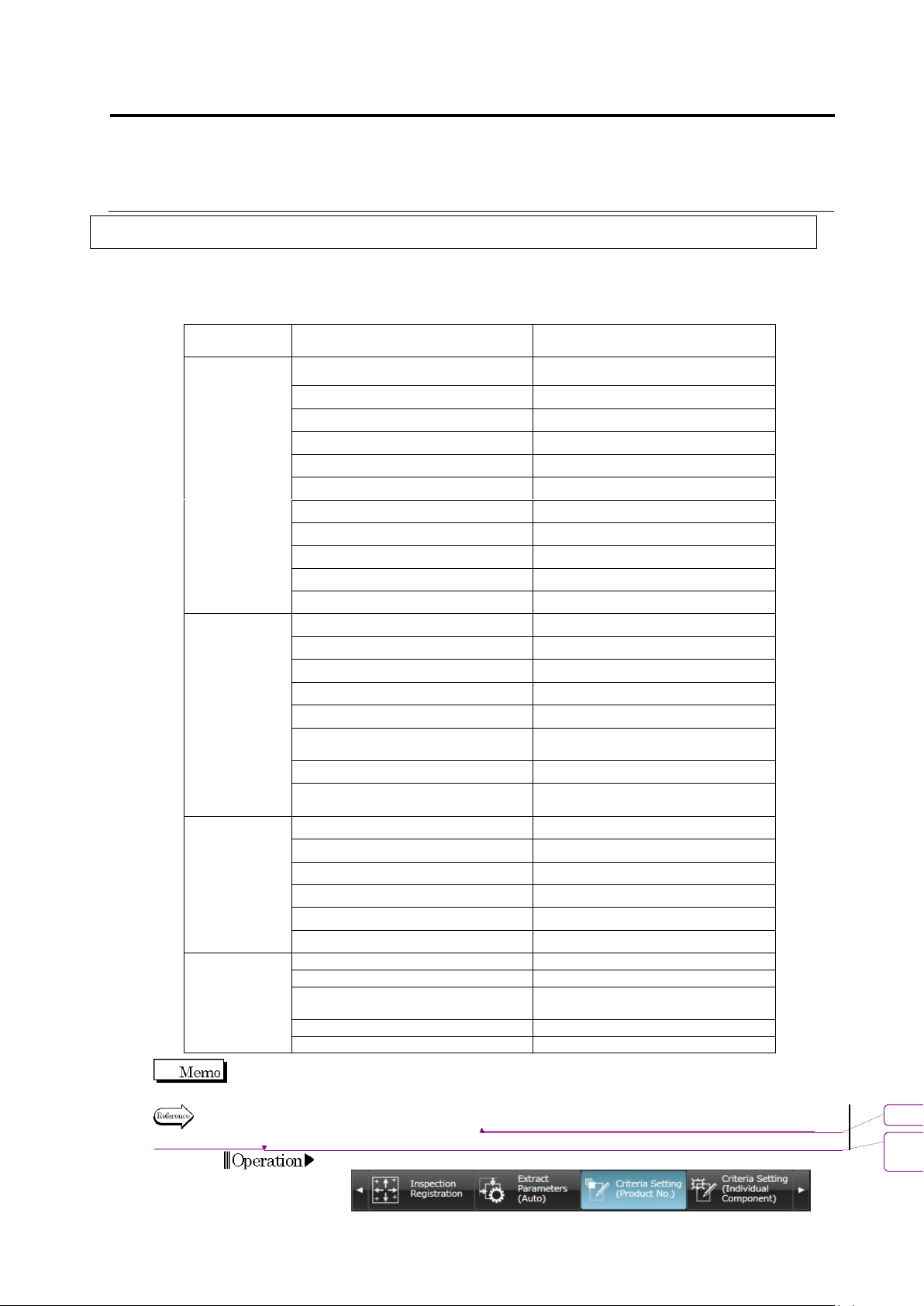
Visual check results can be registered for each window of model images.
Visual check items that can be registered
Window
Item
S500
/S720
S720A
S730
Component
Body Window
Component Presence
Yes
Yes
Yes
Right Component
Yes
Yes
Yes
Component Polarity
Yes
Yes
Yes
Flipped Component
Yes
Yes
Yes
Offset X
Yes
Yes
Yes
Offset Y
Yes
Yes
Yes
Component Skew
Yes
Yes
Yes
Component Height
Yes
Component Tilt (0-180 deg.)
Yes
Component Tilt (90-270 deg.)
Yes
Parallel Lifted Component
Yes
Electrode
Window
Wetting Error
Yes
Yes
Yes
Side Overhang
Yes
Yes
Yes
End Overhang
Yes
Yes
Yes
End Overlap
Yes
Yes
Yes
No Electrode
Yes
Yes
Yes
Electrode Posture (Color
Dispersion)
Yes
Yes
Yes
Electrode Posture (Side Bend)
Yes
Yes
Yes
Electrode Posture (Color
Dispersion (Oblique))
Yes
Yes
Land Window
Wetting Error
Yes
Yes
Yes
Exposed Basis Metal
Yes
Yes
Yes
Abnormal Land
Yes
Yes
Yes
Foreign Material on Land
Yes
Yes
Yes
Exposed Basis Metal (Oblique)
Yes
Yes
Abnormal Land (Oblique)
Yes
Yes
Inspection
Range
Window
Solder Ball
Yes
Yes
Yes
Solder Bridge
Yes
Yes
Yes
Foreign Object (Component
Peripheral)
Yes
Yes
Yes
Solder Ball (Oblique)
Yes
Yes
Solder Bridge (Oblique)
Yes
Yes
Wetting Error shows the result of Boolean expressions set in the [Detailed Settings].
For the setting procedure, refer to "2.15.4 Optimizing Boolean Expressions and Inspection
Criterion Values."
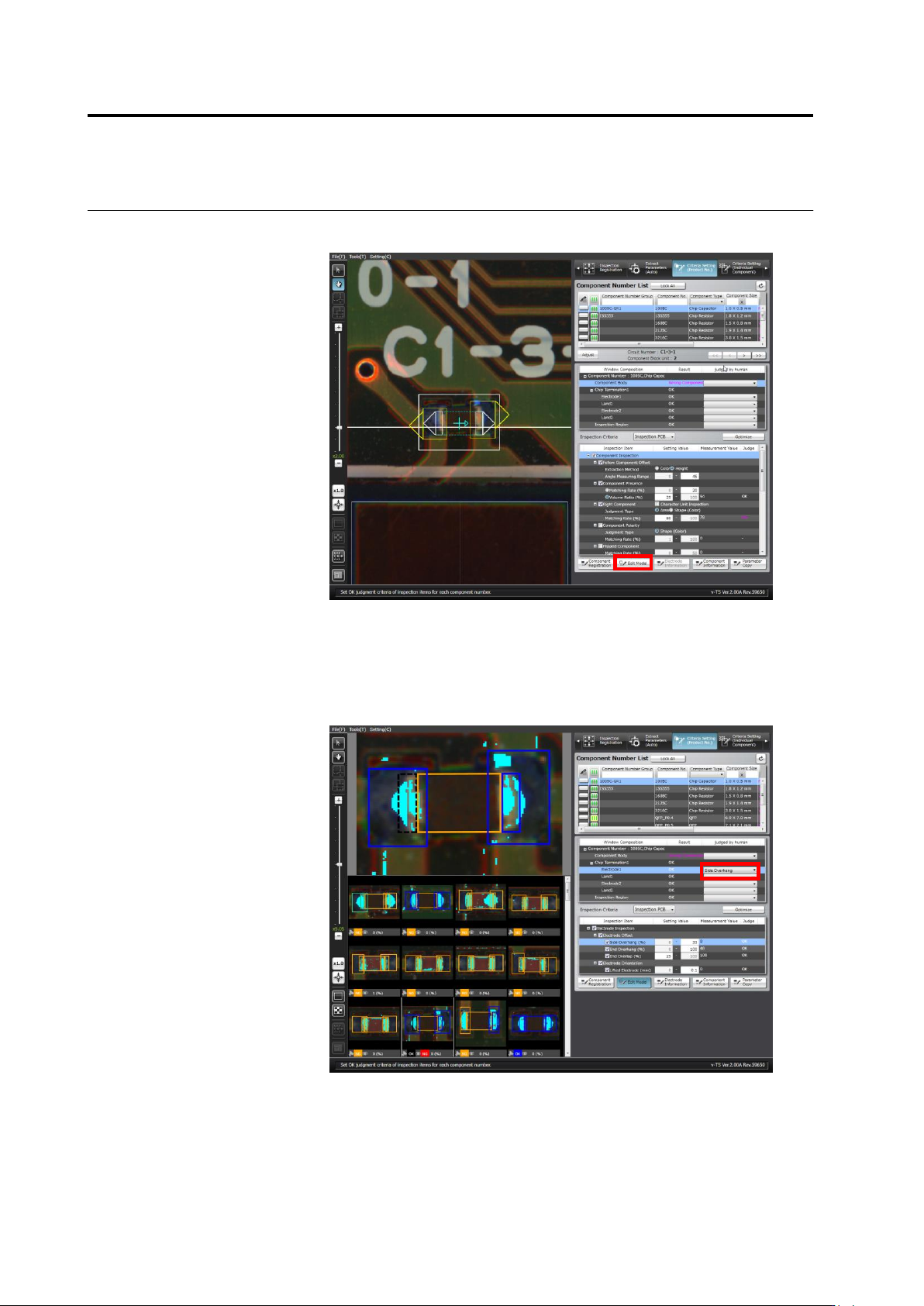
1.
Select the [Criteria Setting (Component Number)] tab.
書式変更: フォント : Arial, 10 pt
削除: Optimizing Boolean Expressions
and Inspection Criterion Values
Chapter 2 Inspection Programming
2-178
2.
In the component number list, select the component number for which
the visual check result is registered, and click [Edit Model].
3.
In the component thumbnail Image list, select the thumbnail for
which the visual check result is to be entered, and select the visual
check result in the pull-down menu of the visual check results in the
Window composition. When multiple windows are selected, the
same visual check result is entered for the selected windows of the
same type.
4.
Repeat Step 3 if you want to continue entering the visual check
result in other thumbnail.
2.15 Modifying an Inspection Program
2-179
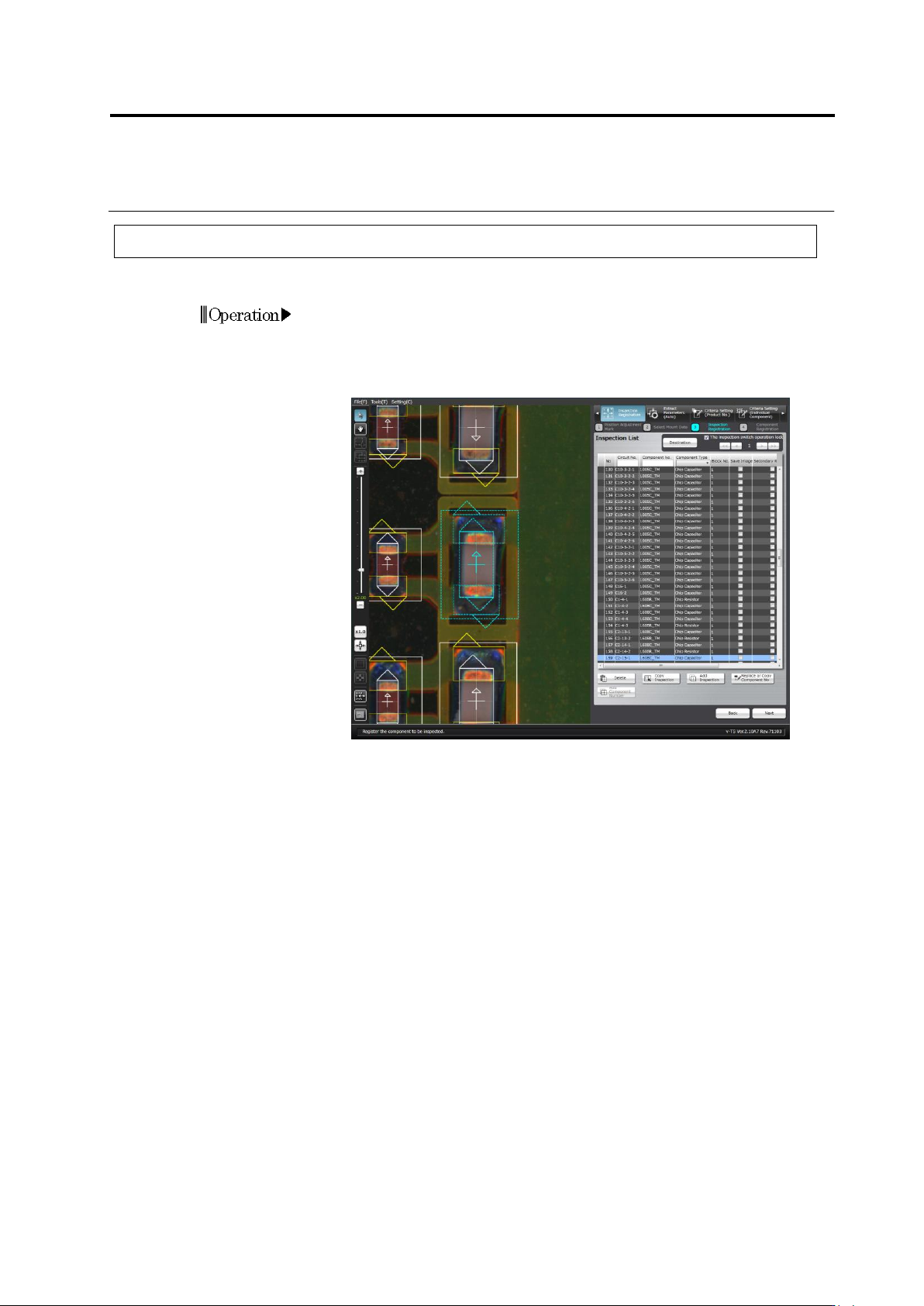
2.15.6 Replacing the Component Number
The component number can be replaced.
1.
Select the [Inspection Registration] tab.
2.
Select the desired circuit of the component number to be replaced.
3.
Click the [Replace or Copy Component No.] button.