Omron V-TS Teaching Manual.pdf.pdf - 第77页
Chapter 2 Inspecti on Programm ing 2- 50 2.4.4 Inspec tion Registration Register com ponents to inspect based o n the com ponent inform ation in the loaded mount data. Also the components whose im ages are saved while in…
2.4 Registering for Inspection
2-49
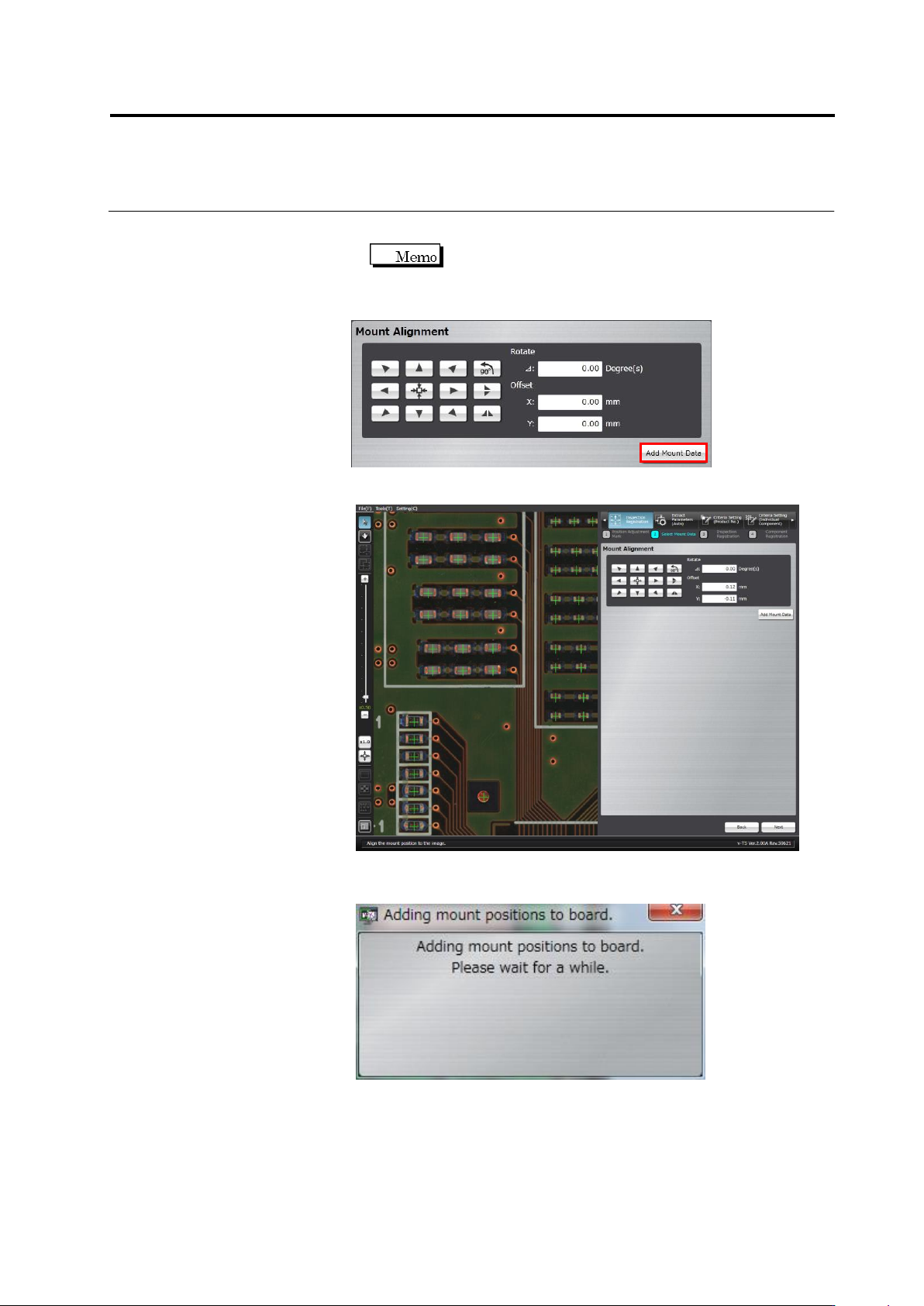
Up to two decimal places can be entered for the rotation
angle and offset values.
2.
Click [Add Mount Data] to add more mount data and repeat Step 1.
3.
Click [Next].
The mount position addition processing dialog appears. After
processing, the screen returns to the inspection registration screen.
Chapter 2 Inspection Programming
2-50
2.4.4 Inspection Registration
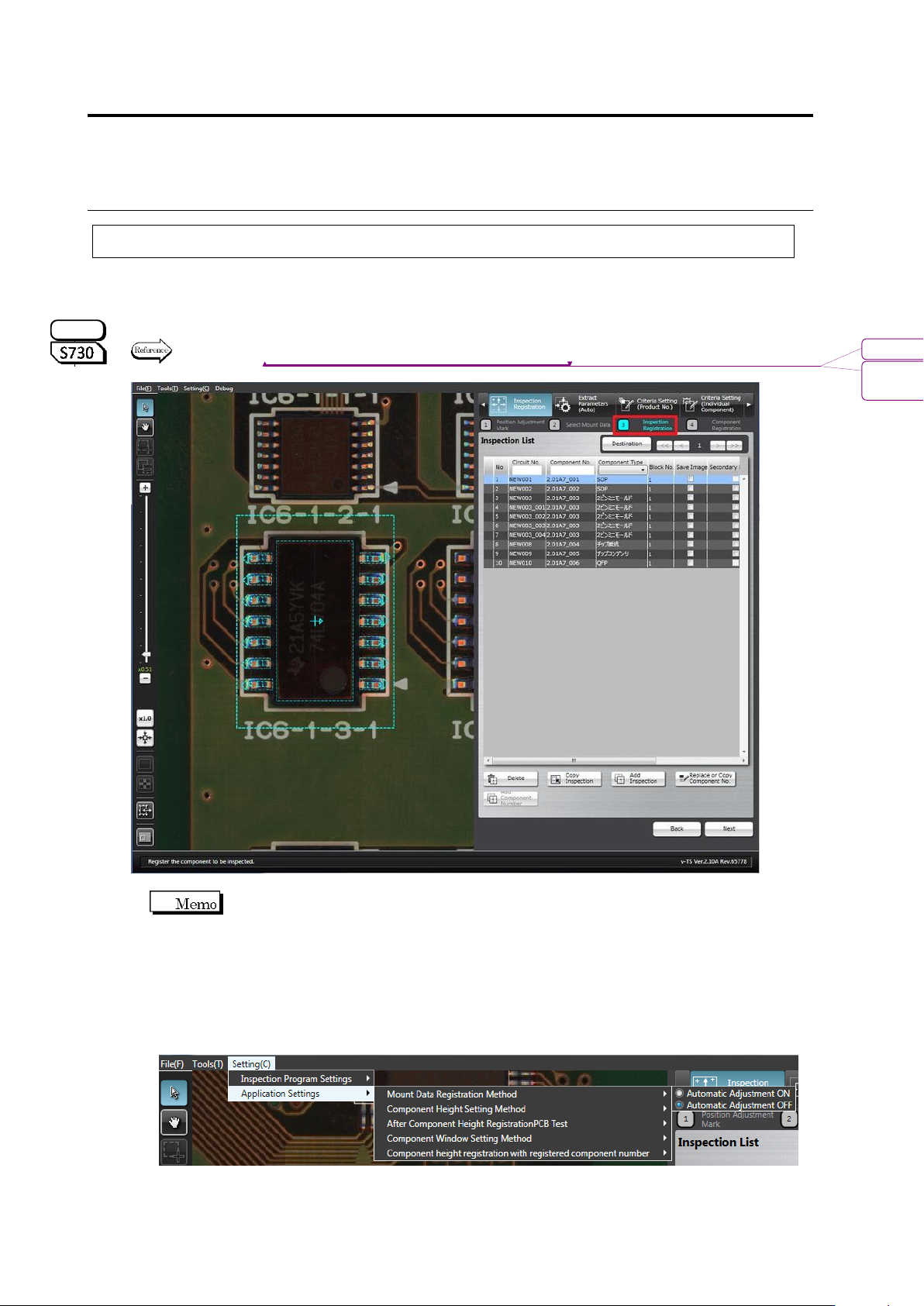
Register components to inspect based on the component information in the loaded mount data.
Also the components whose images are saved while inspection is performed can be selected.
Specify the inspection direction for the component numbers for oblique inspection, individually for
each component.
Refer to "2.9.3 Specifying Oblique Inspection Component and Direction" for the procedure to specify the
oblique inspection direction.
The software normally detects misalignment of the component position
automatically, and adjust it automatically from the position of the mount data.
When registering the component position in the position of the mound data to inspect misalignment
based on the mount data, turn OFF automatic adjustment by the following steps.
(The ON/OFF setting of automatic adjustment is saved in the v-TS terminal. This setting is
used by any inspection program.)
1. Select [Setting] - [Application Settings] - [Mount Data Registration Method], and check
[Automatic Adjustment OFF].
2. Execute inspection registration using the operation procedure below.
S720A
書式変更: フォント : (英) Arial, 9 pt
削除: Specifying Oblique Inspection
Component and Direction
2.4 Registering for Inspection
2-51
1.
Check that the components to inspect and their mount positions are
available and ready for registration by moving the field of vision on
the image display area or selecting the components in the
Inspection List.
Refer to "2.1.2 Configuration of the Editing Screen" for the image
display area operation.
2.
Delete, add or rename the components for inspection as required.
Delete Components from the Inspection List
Select the component to delete in the Inspection List and click
[Delete].The "+" mark of the deleted component is not displayed in
the image display area any more.
A component can also be selected by switching the image
display area to the Select Window mode and clicking the "+"
mark with the mouse directly.
Refer to "2.1.2 Configuration of the Editing Screen" for the
image display area operation.
Add Components to the Inspection List
Copy an Existing Component
1. Select the component to copy in the Inspection List and click
[Copy Inspection].
2. Click the center of the copy destination component in the
image display area.
3. After completing copying, click [Copy Inspection] to exit.
The inspection windows are copied in the same sizes as the
original. However, the inspection criteria common to the
component number is specified, if the original component is
individually set to specific criteria.
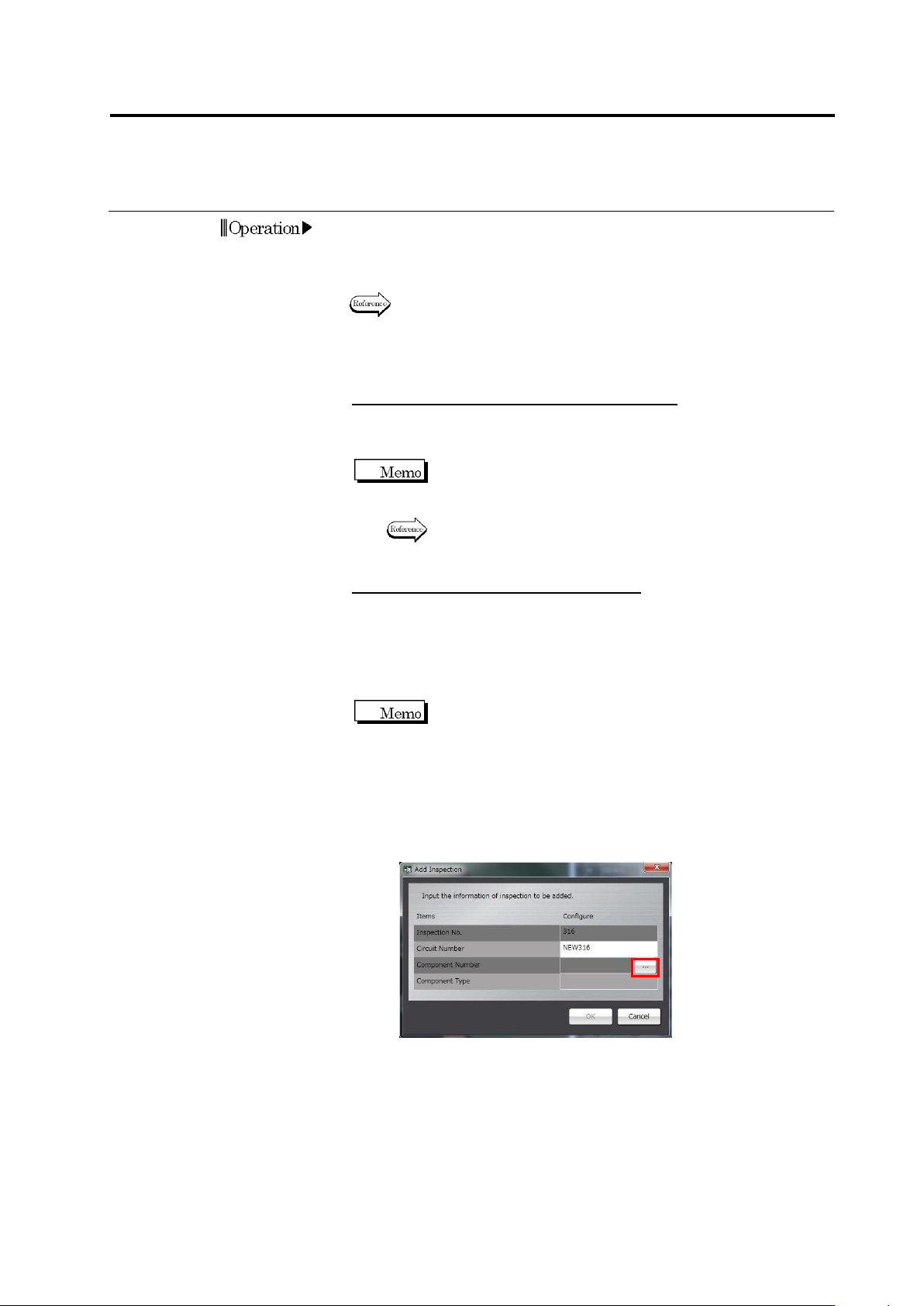
Specify the Component Number
1. Click [Add Inspection].
2. Enter the circuit number and click […] to select the
component number.
3. The Component Number List is displayed.
To add a new component number, click [Create New].
The new component number is added at the last row of the
Component Number List.
Select the component number to add for inspection and click
[OK].