Omron V-TS Teaching Manual.pdf.pdf - 第215页
Chapter 2 Insp ection Progr amming 2- 188 3. Select [Tool] - [PC B Image Managem ent] in the edit ing screen menu bar. The PCB Image M anagement scr een is displayed. Click [Close] to close the PCB image m anagement scr …
2.16 Managing PCB Images
2-187
2.16 Managing PCB Images
The PCB Image Management screen is provided for the deletion of PCB images and model
editing of position correction colors, solder colors, land exposure colors, fillet exclusion colors,
and PCB colors.
2.16.1 Accessing the PCB Image Management Screen
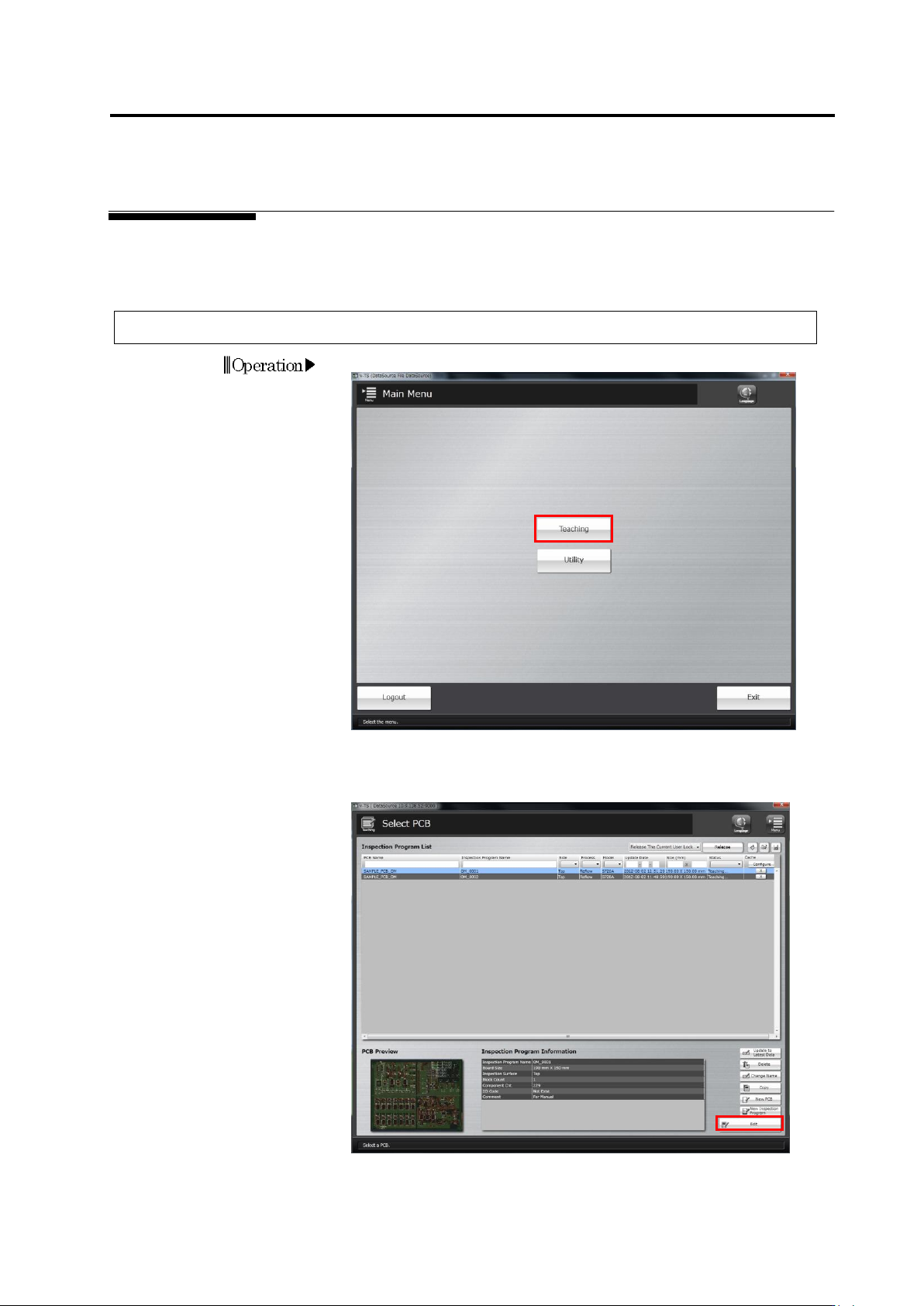
1.
Click [Teaching] in the Main menu.
2.
The Select PCB screen appears.
Select the inspection program to manage the images in the
Inspection Program List, and click [Edit].
Operation
Chapter 2 Inspection Programming
2-188
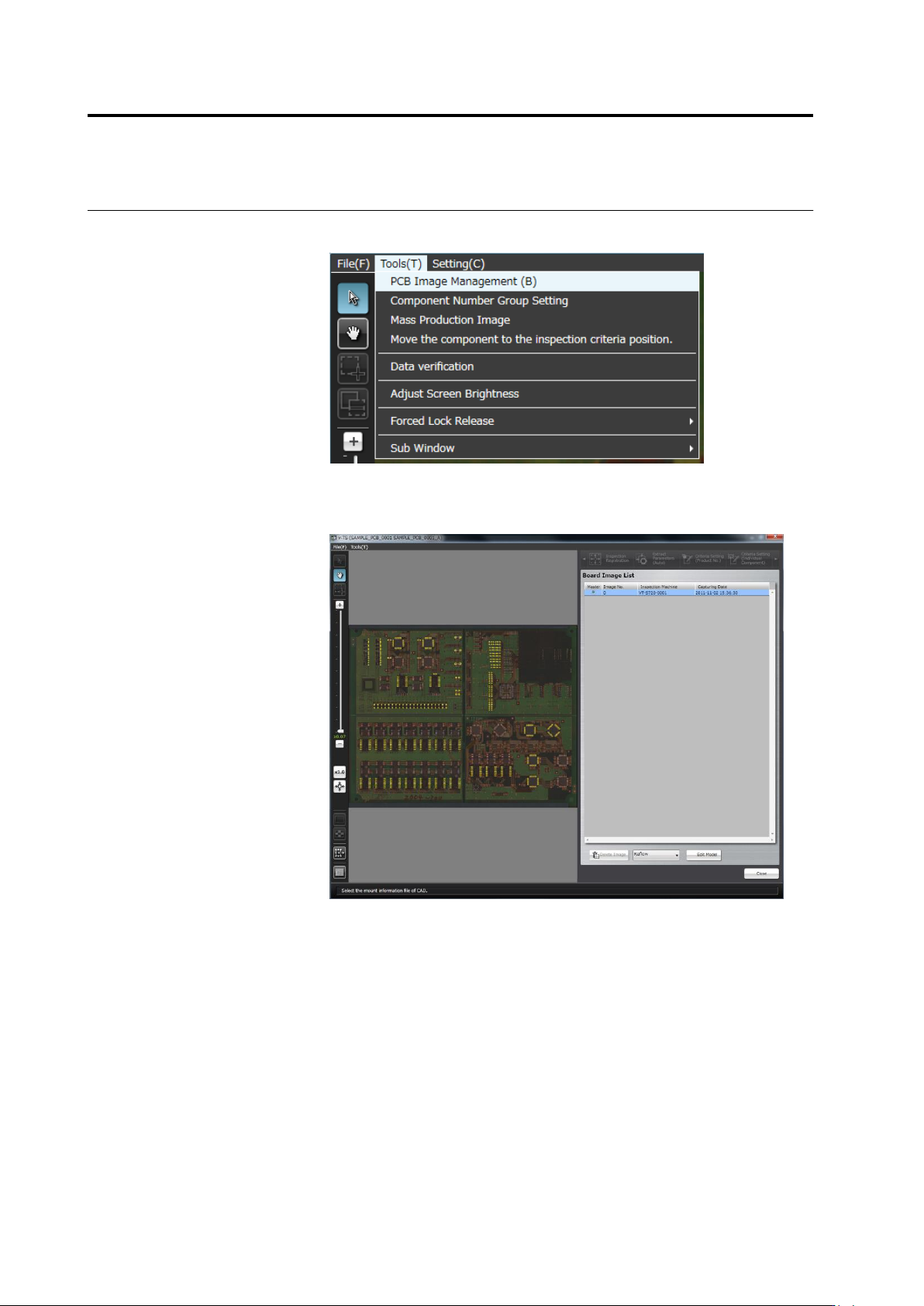
3.
Select [Tool] - [PCB Image Management] in the editing screen
menu bar.
The PCB Image Management screen is displayed.
Click [Close] to close the PCB image management screen and
return to the inspection program edit screen.
2.16 Managing PCB Images
2-189
2.16.2 Deleting a PCB Image
This section explains the procedure to delete bare PCB and inspection PCB images, which are
not required for teaching.
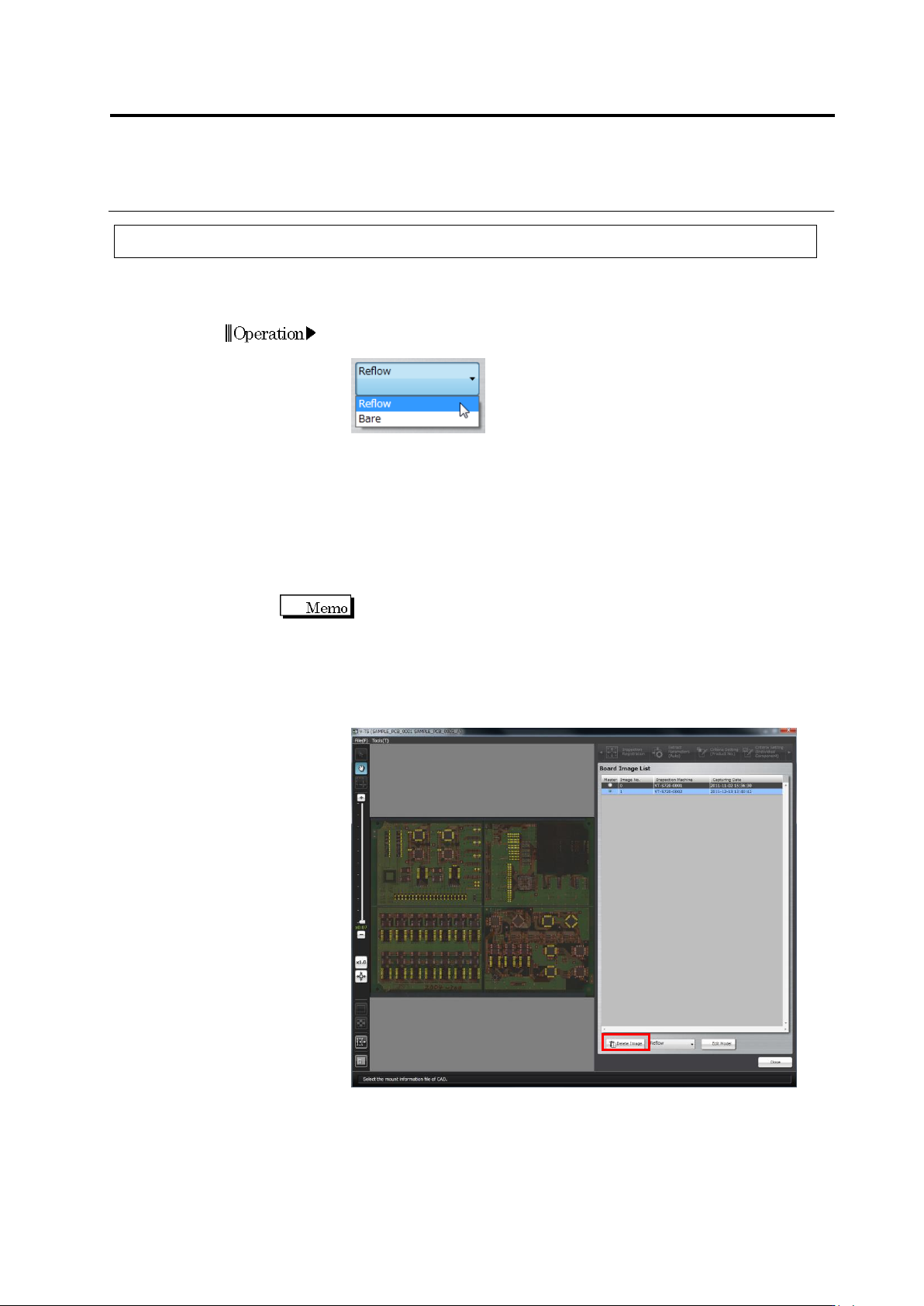
1.
Select the image type (bare PCB image or inspection PCB image)
to display in the PCB Image Management screen from the list.
2.
Click to select the image to delete in the Board Image List, and click
[Delete Image]. More than one images can be selected. The
method to select them is as follows:
1) Ctrl Key + Select an image: Selection of the image corresponding
to the key pression can be set ON/OFF.
2) Shift Key + Select an image: The entire area from the start point
to end point of key pression can be selected.
All the images can also be selected by pressing Ctrl Key + A Key.
However, it is necessary to leave at least one image in the raw
PCB list and the inspection PCB list from the PCB image list,
respectively. If only one image is left in the raw PCB list or the
inspection PCB list from the PCB image list, the [Delete Image]
button is not enabled.
Operation