Omron V-TS Teaching Manual.pdf.pdf - 第178页
2.15 M odifying an Inspection Pr ogram 2- 151 <Inspection A rea Edit Tool> Selecting an Abnorm al Land or Abnorm al Land (Oblique) logic d isplays the inspec tion area edit tool. Specify an area to ins pect in the …
Chapter 2 Inspection Programming
2-150
(5) Clear Button
Click the button to delete all the color settings from the color table.
(6) Feature Parameter
Display the feature parameter of the editing target. You can select from multiple feature
parameters in the case of component extraction and missing component.
(7) UNDO Button
Click the button to undo the changes added to the color table. However, changes made prior
to switching the feature parameter or component number menu item cannot be canceled.
(8) REDO Button
Click the button to redo the canceled changes to the color table. However, changes
canceled prior to switching the feature parameter or component number menu item cannot
be redone.
(9) Characteristic Parameter Radio Button
Clicking the radio button allows selection of a PCB or a component number that retains the
characteristic parameters. You cannot select it if selection of a PCB or a component number
is not available for the characteristic parameters.
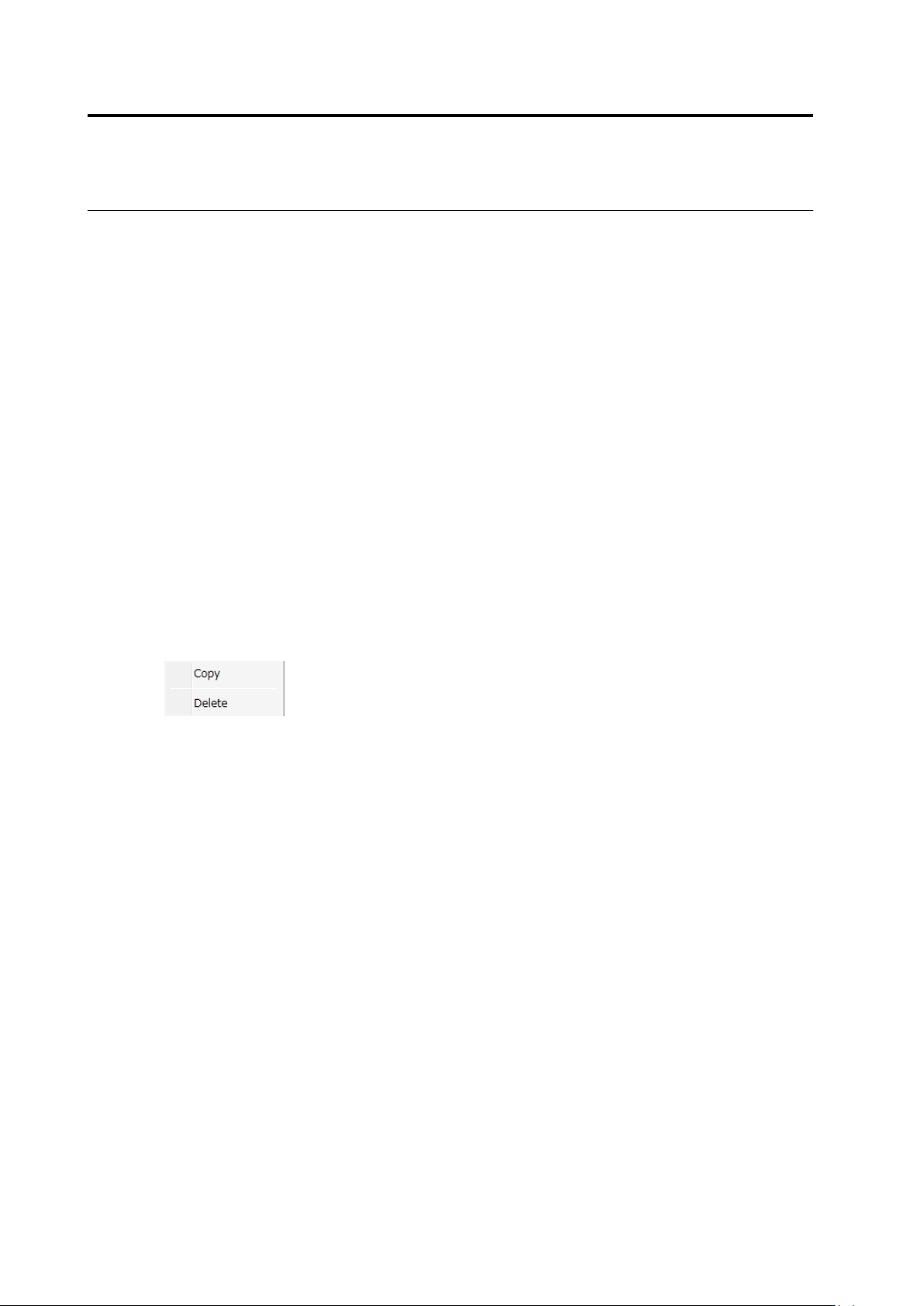
(10) Mask Add Button
Click the button to add a mask. When it is not available, the button cannot be clicked. After
selecting the added mask, it can be copied and deleted.
2.15 Modifying an Inspection Program
2-151
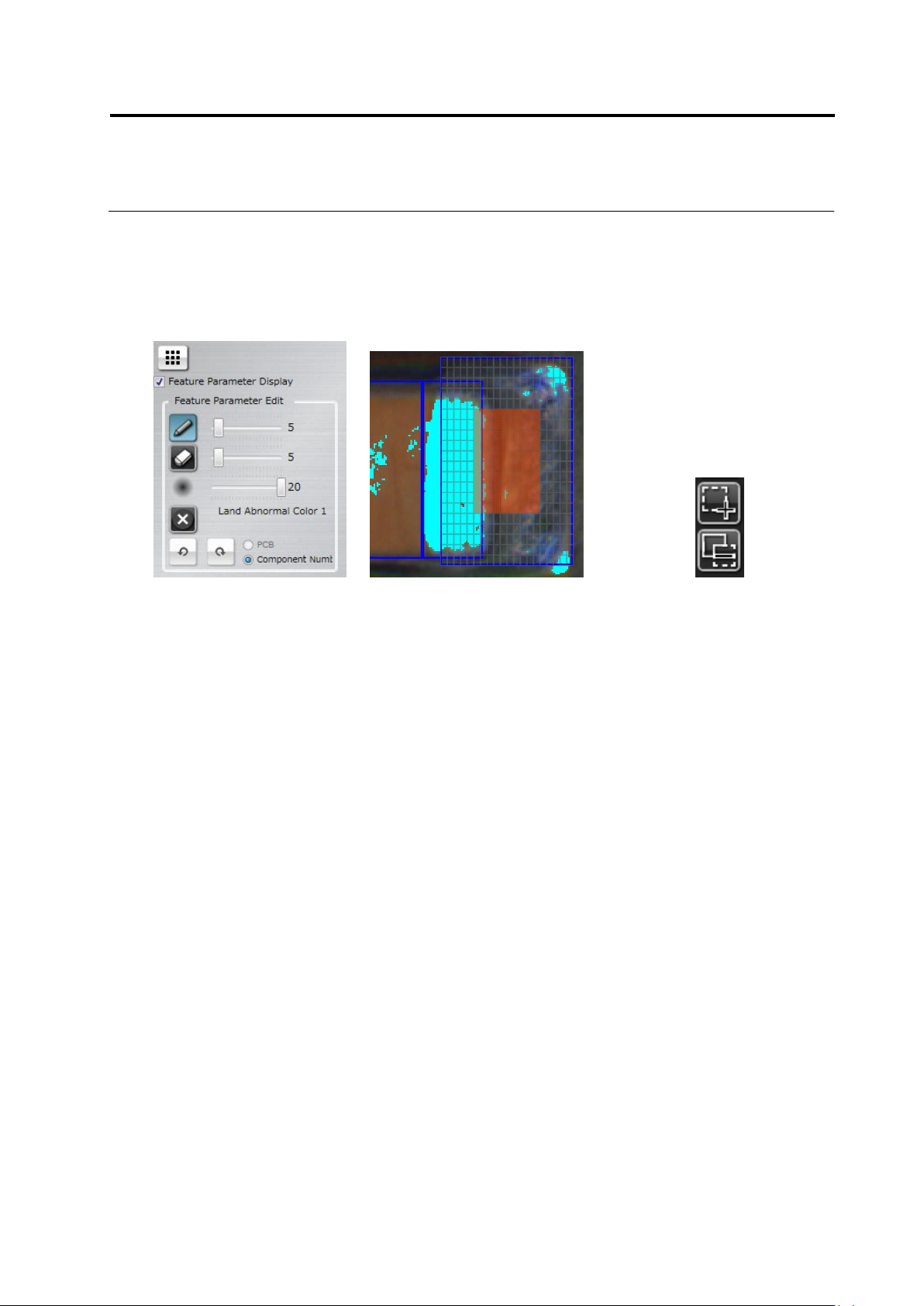
<Inspection Area Edit Tool>
Selecting an Abnormal Land or Abnormal Land (Oblique) logic displays the inspection area edit
tool.
Specify an area to inspect in the Land Window.
Edit Tool Inspection Area Cells Cell Selection Switch
(1) Inspection Area Edit Toggle Button
Clicking the button displays the inspection area cells in the Land Window.
(2) Inspection Area Cell + Switch
Clicking the button and dragging an invalid cell (A) enables the cell (B).
(3) Clicking the button and dragging a valid cell (B) disables the cell (A).
(1)
A
B
(2)
(3)
Chapter 2 Inspection Programming
2-152
<Model Image Editing Tools>
The model image edit tool is displayed when component difference/polarity difference inspection
is selected.
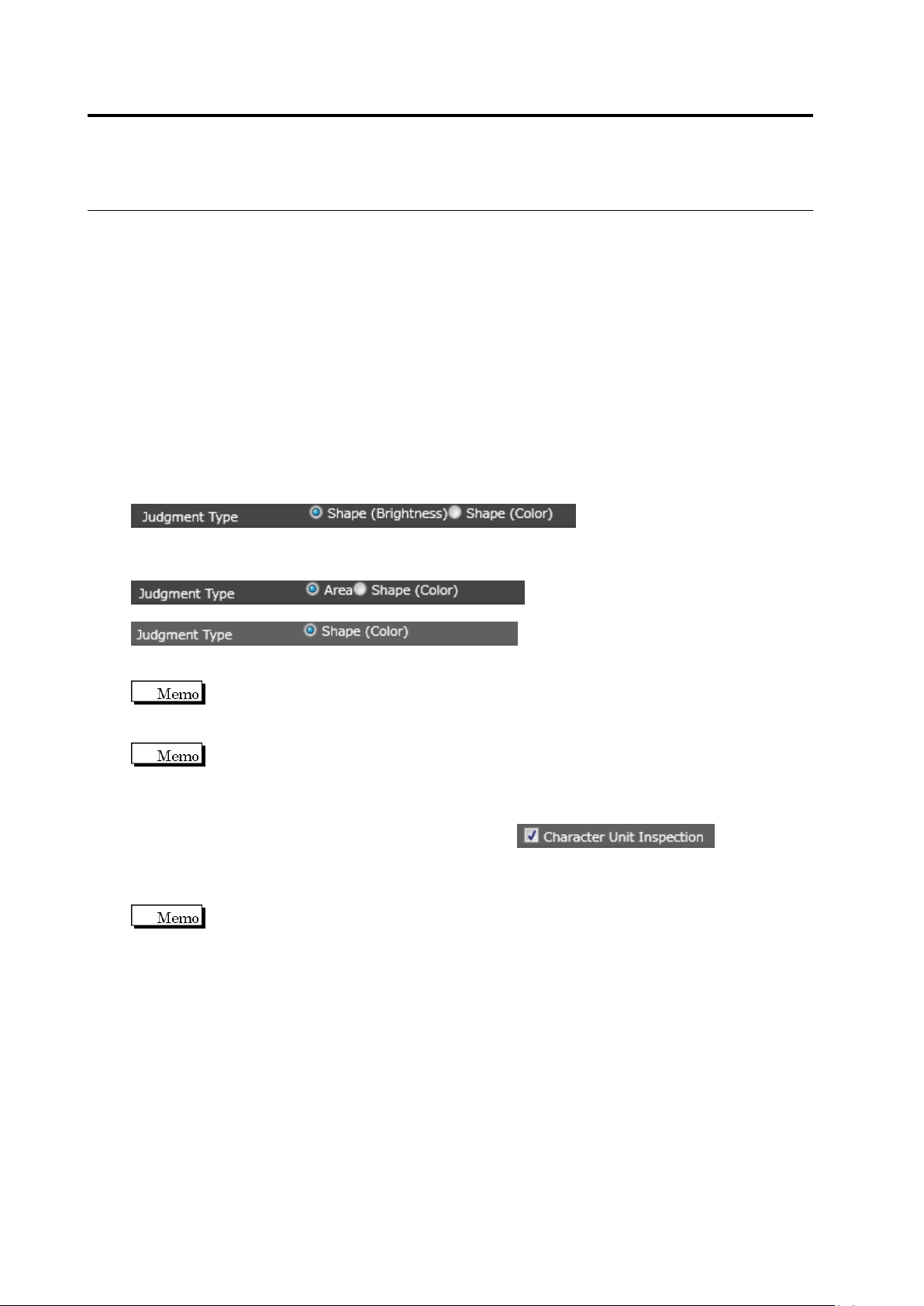
Use the tools to edit the binarized areas or colors in the model image for character or symbol
extraction. Model image can be judged in three ways:
Area (Color): Color is adjusted to judge component difference.
Shape (Brightness): Binarization area is specified and brightness is adjusted to judge the
pattern.
Shape (Color): Binarization area is specified and color is adjusted to judge the pattern.
To judge a model image, check the display corresponding the setting of “Component has
character pattern” of the component number:
Component has character pattern: ON
Select a judgment type for component difference/polarity difference inspection
Component has character pattern: OFF
Select a judgment type for component difference inspection
Select a judgment type for polarity difference inspection
For the polarity difference inspection, you cannot select [Area (Color)] as the
matching rate is judged based on the model asymmetry.
If color difference is small between the component body and character patterns,
whether characters or patterns can be judged easily by enabling the “Component Top Highlight
Display” option.
For calculation or measured value by character, enable to calculate
the measured value per mask area and perform the component difference inspection. The
measure value is calcurated with the condition that the mask area with no pixel to the left, right,
top, or bottom side is regarded as a single unit.
Shown below is an example.