Omron V-TS Teaching Manual.pdf.pdf - 第273页
Chapter 3 Man agement Menu 3- 18 3.4.3 Outputting List of Component Nu mbers Used b y Inspection Programs T o simply grasp wh i ch compone nt number is us ed for each i nspection program, a list of the component nu mbers…
3.3 Configuring Quality Criteria Setting
3-17
Importing component number group data
User operations are equal to those for component number data until the data imported are
selected.
1.
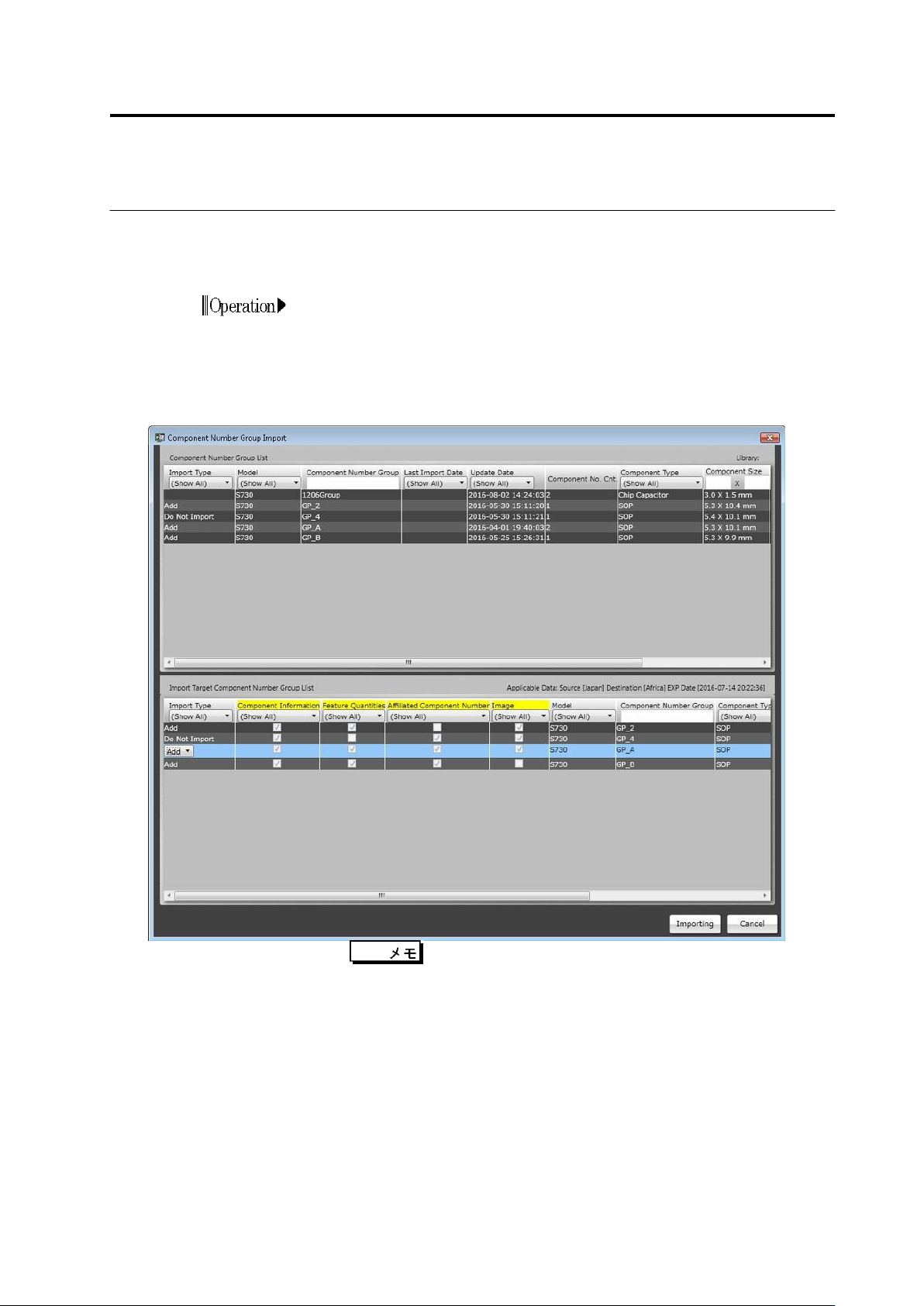
Display the Import Component Number Group screen. A list of
existing component number groups is displayed at the screen top.
The component number group imported and import type are
displayed at the screen bottom. By clicking the Import Type cell,
whether to execute import or not can be set.
By clicking [Import], the component number group is imported.
When [Cancel] is clicked, this screen is closed.
One of the following types is displayed for each component
number group according to the software processing of
importing.
- Overwrite to Component Number Group: The existing component number
group is overwritten by the component number group imported.
It can be selected which data are imported to the existing
component number group. For example, if adding images only,
turn OFF the check boxes of Component Information and
Feature Quantity, but turn ON the check box of Image. If
overwriting inspection criteria only, conversely, turn ON
Component Information only.
- Add: The component number group is added as a new one.
- Not Execute Import: If there is no existing component number group and
feature quantity or images are not selected when data are
exported, data are not sufficient, so they cannot be imported. It
is also able not to execute import by changing the import type.
Chapter 3 Management Menu
3-18
3.4.3 Outputting List of Component Numbers Used by
Inspection Programs
To simply grasp which component number is used for each inspection program, a list of the
component numbers used by inspection programs can be output.
To output the content of the inspection program list, refer to Section 2.18.7
“Outputting Content of Inspection Program List.”
1.
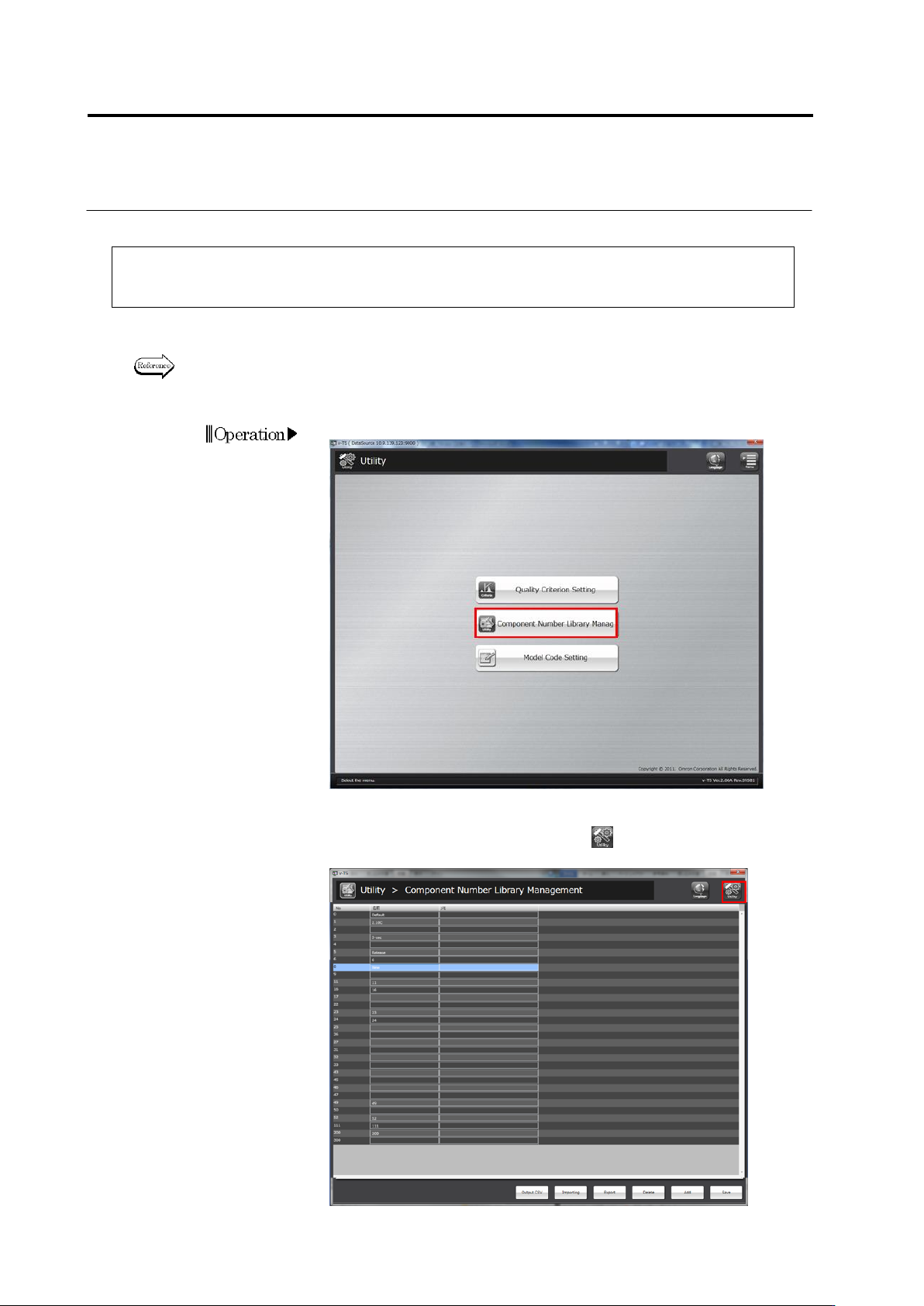
On the Utility menu, click [Component No. Library Management].
2.
The component No. library management screen is opened.
To return to the Utility menu, click the button in the upper right
corner of the screen.
3.3 Configuring Quality Criteria Setting
3-19
3.
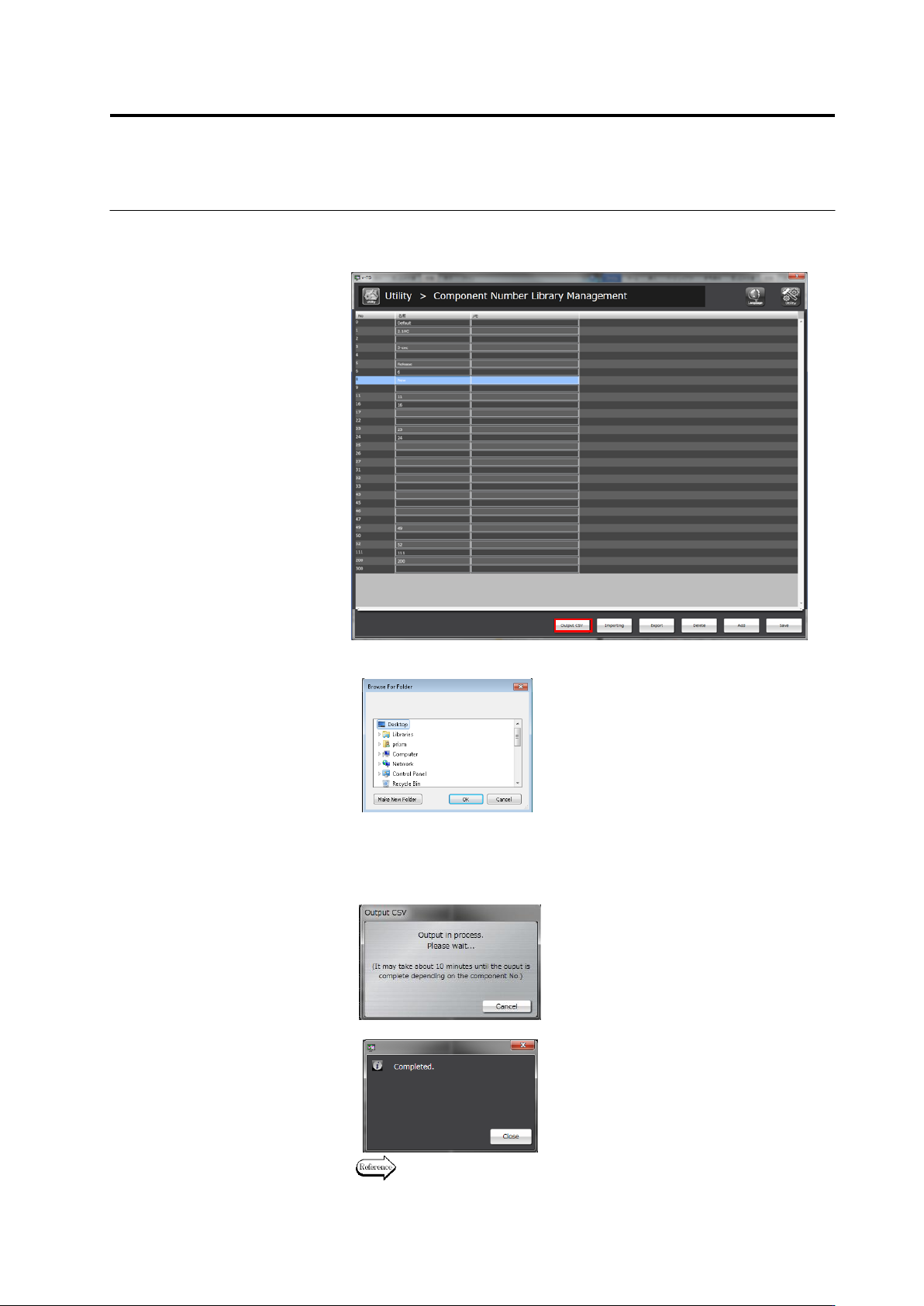
Select a component No. library No. used by an inspection
program, and click [Output CSV].
4.
A file saving dialog is displayed. Select a folder to save, and click
[OK].
5.
When the finish screen is displayed after the CSV outputting
screen appears, click the [Close] button.
A CSV output file is saved in the selected folder.
To abort outputting the file, click [Cancel].
↓
For details of the output format, refer to the following page.