Omron V-TS Teaching Manual.pdf.pdf - 第206页
2.15 M odifying an Inspection Pr ogram 2- 179 2.15.6 Replacing the Co mponent Numbe r The component num ber can be replaced. 1. Select the [Inspection Re gistration] tab. 2. Select the desired circu it of the component n…
Chapter 2 Inspection Programming
2-178
2.
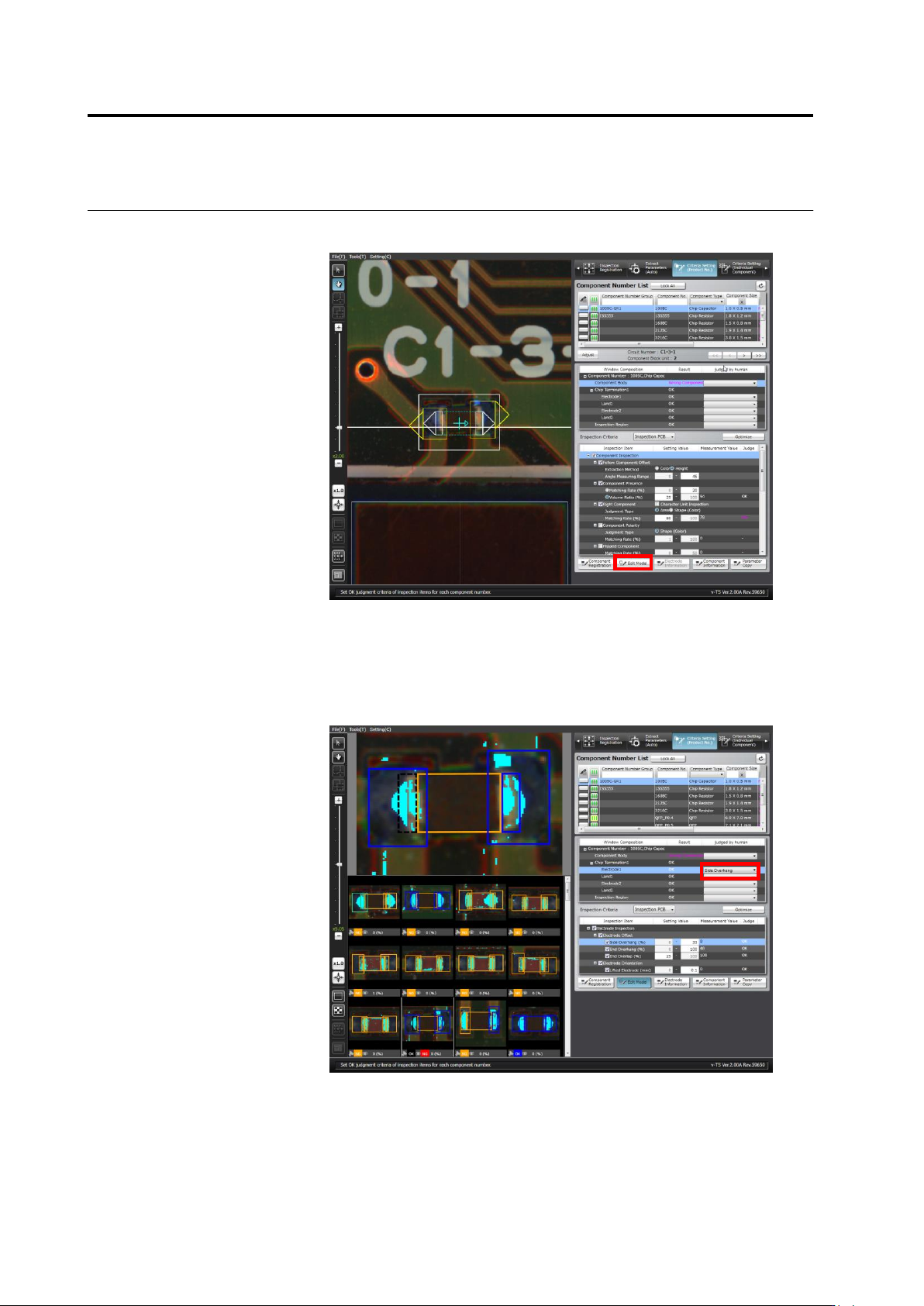
In the component number list, select the component number for which
the visual check result is registered, and click [Edit Model].
3.
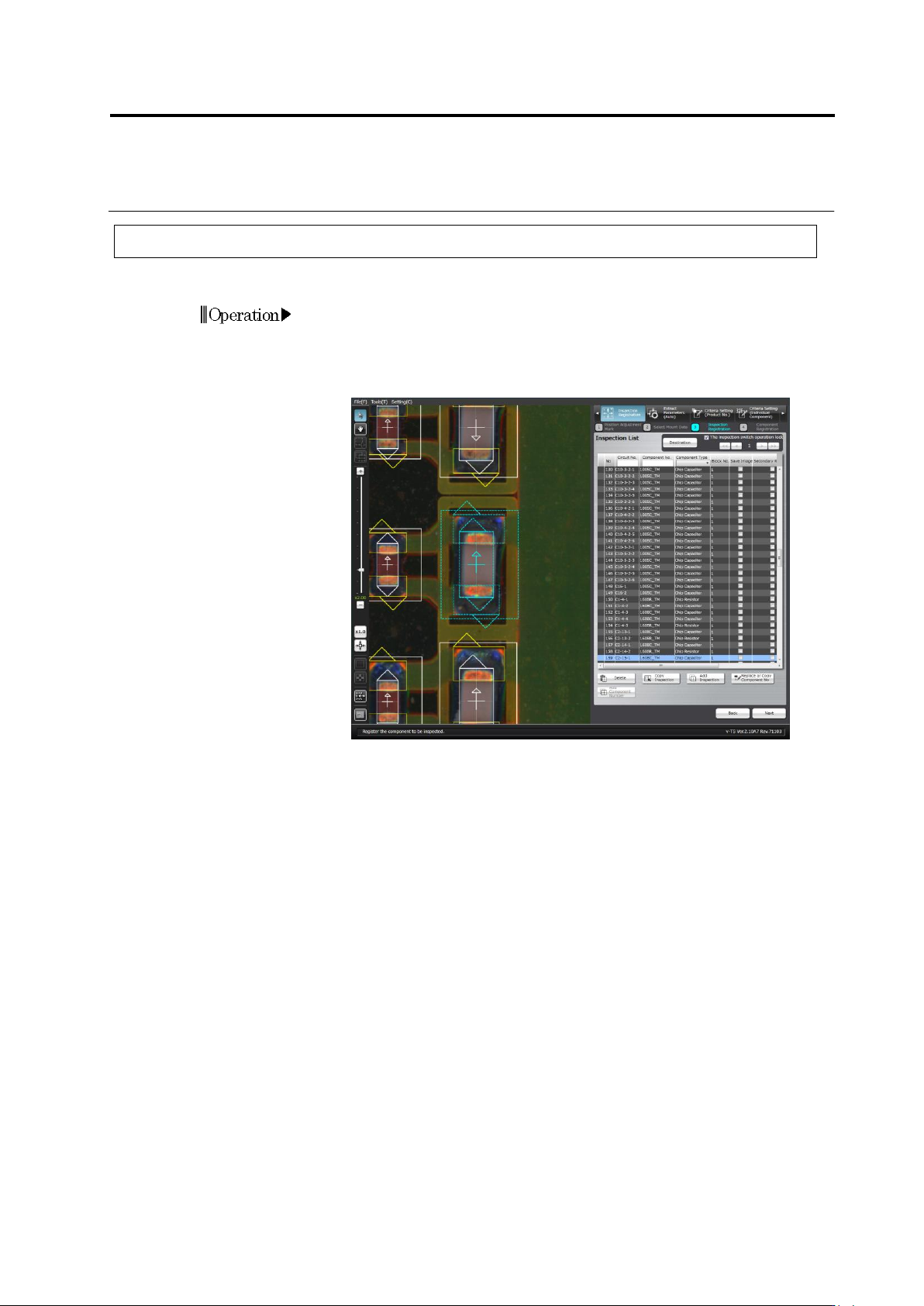
In the component thumbnail Image list, select the thumbnail for
which the visual check result is to be entered, and select the visual
check result in the pull-down menu of the visual check results in the
Window composition. When multiple windows are selected, the
same visual check result is entered for the selected windows of the
same type.
4.
Repeat Step 3 if you want to continue entering the visual check
result in other thumbnail.
2.15 Modifying an Inspection Program
2-179
2.15.6 Replacing the Component Number
The component number can be replaced.
1.
Select the [Inspection Registration] tab.
2.
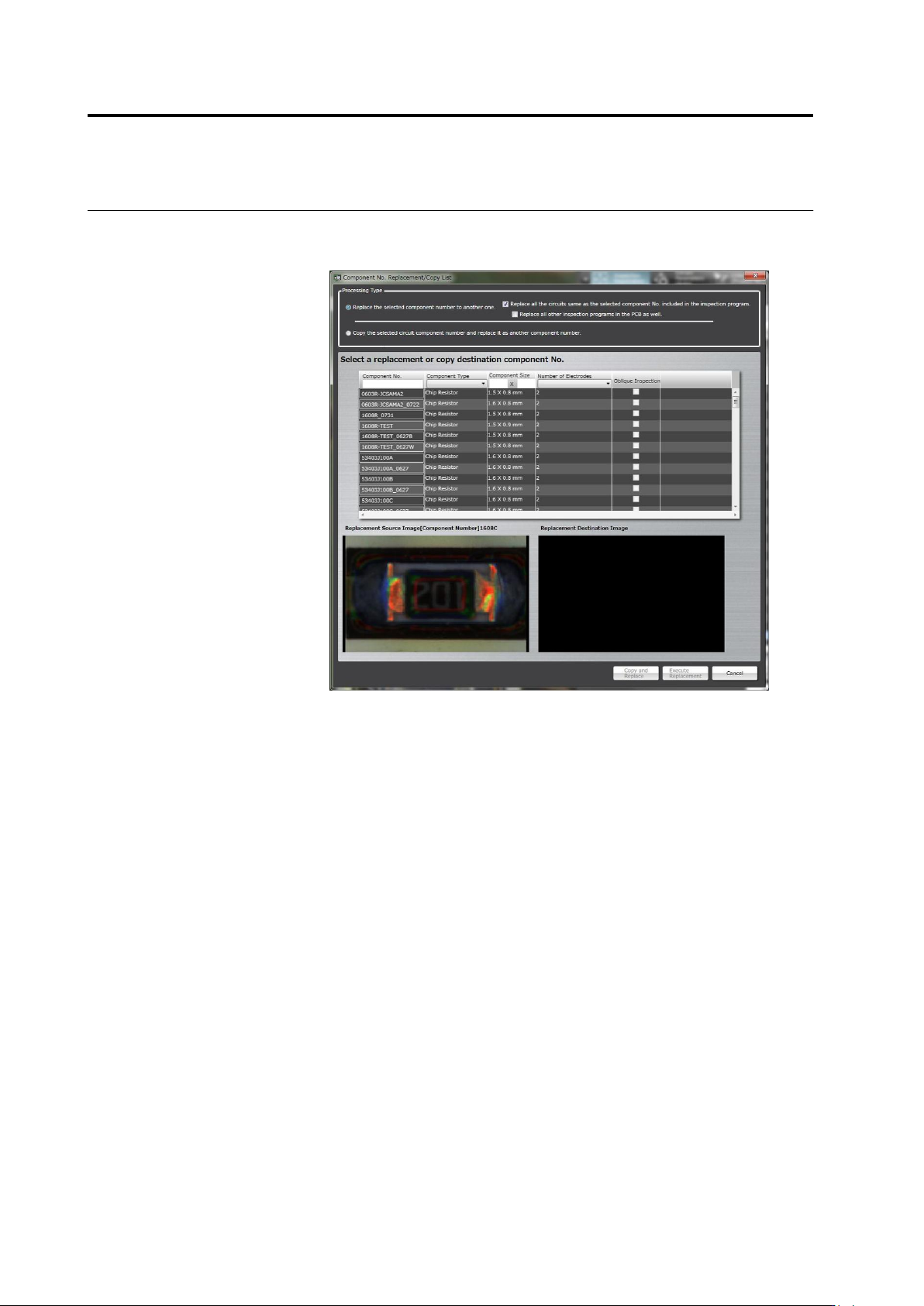
Select the desired circuit of the component number to be replaced.
3.
Click the [Replace or Copy Component No.] button.
Chapter 2 Inspection Programming
2-180
4.
To replace to other component number, go to step 5. To copy the
selected component number to replace as other component number,
go to step 10.
5.
Select [Replace the selected component number to another one.]
radio button.
6.
Select a component number from the component number list as the
replacement target.
7.
When only replacing the selected circuit, clear the check box
[Replace all the circuits same as the selected component No.
included in the inspection program.]. When replacing all other
inspection programs within the PCB, select the check box [Replace
all other inspection programs in the PCB as well.].
8.
Click [Execute Replacement].