Omron V-TS Teaching Manual.pdf.pdf - 第23页
1.4 Switching La nguages 1-9 1.4 Switching Languages This syst em allows y ou to select either English or Japan ese as a display language. Switching Languages is available on: Main menu, T eaching PCB selection screen, o…
Chapter 1 Before Getting Started
1-8
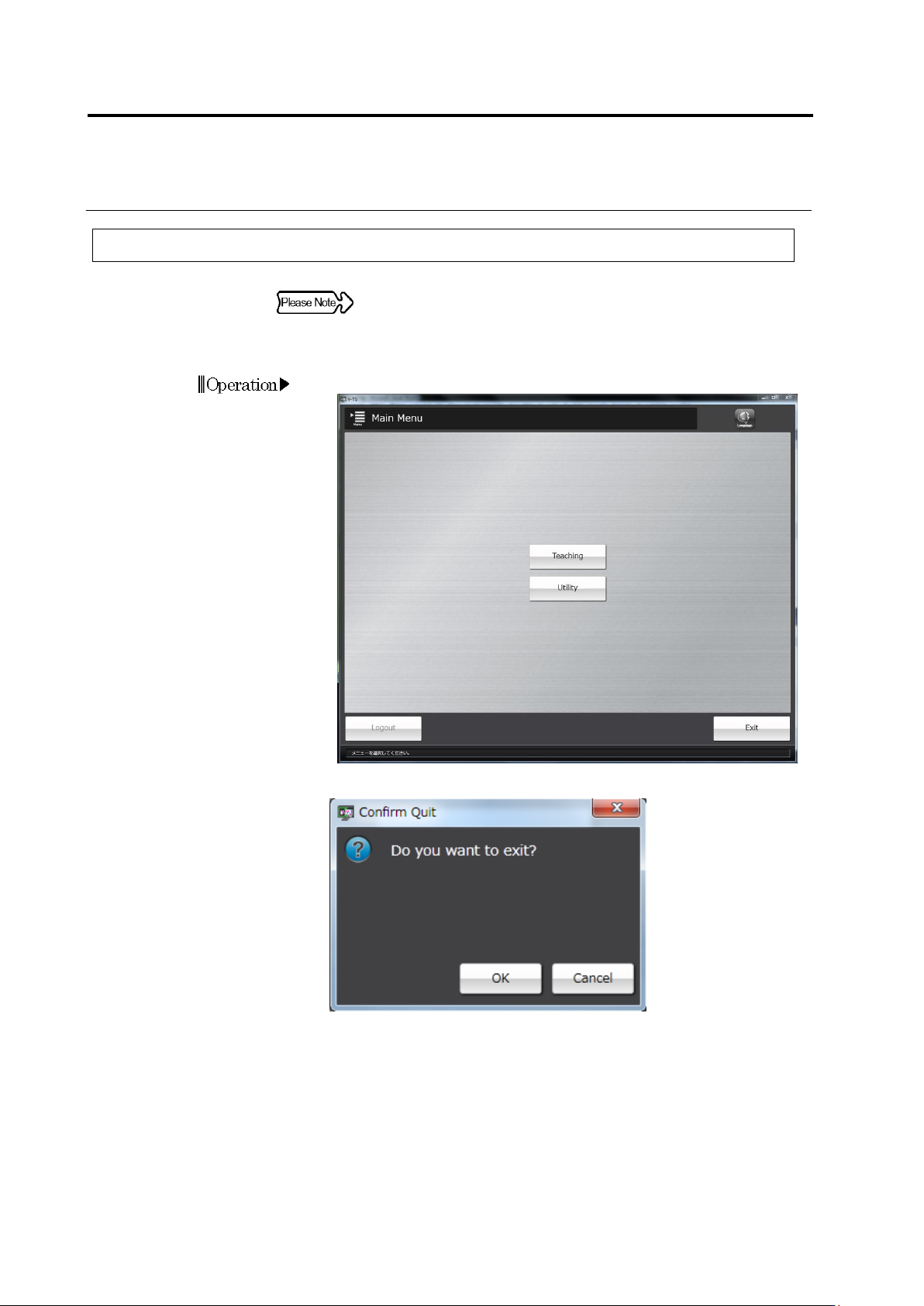
1.3.2 System Termination
When turning off the system, be sure to follow the procedures listed
below. Turning off the PC power supply without going through the
shutdown procedures could damage the hard disk drive.
1.
Click [Exit] on the main menu.
The Confirmation message will be displayed.
・ Clicking [Cancel] will return the system to the main menu.
2.
Click [OK].
The v-TS will be terminated and the desktop will be displayed.
3.
On the [Start] menu of the OS, select [Shutdown].
The power of the PC will be turned off.
1.4 Switching Languages
1-9
1.4 Switching Languages
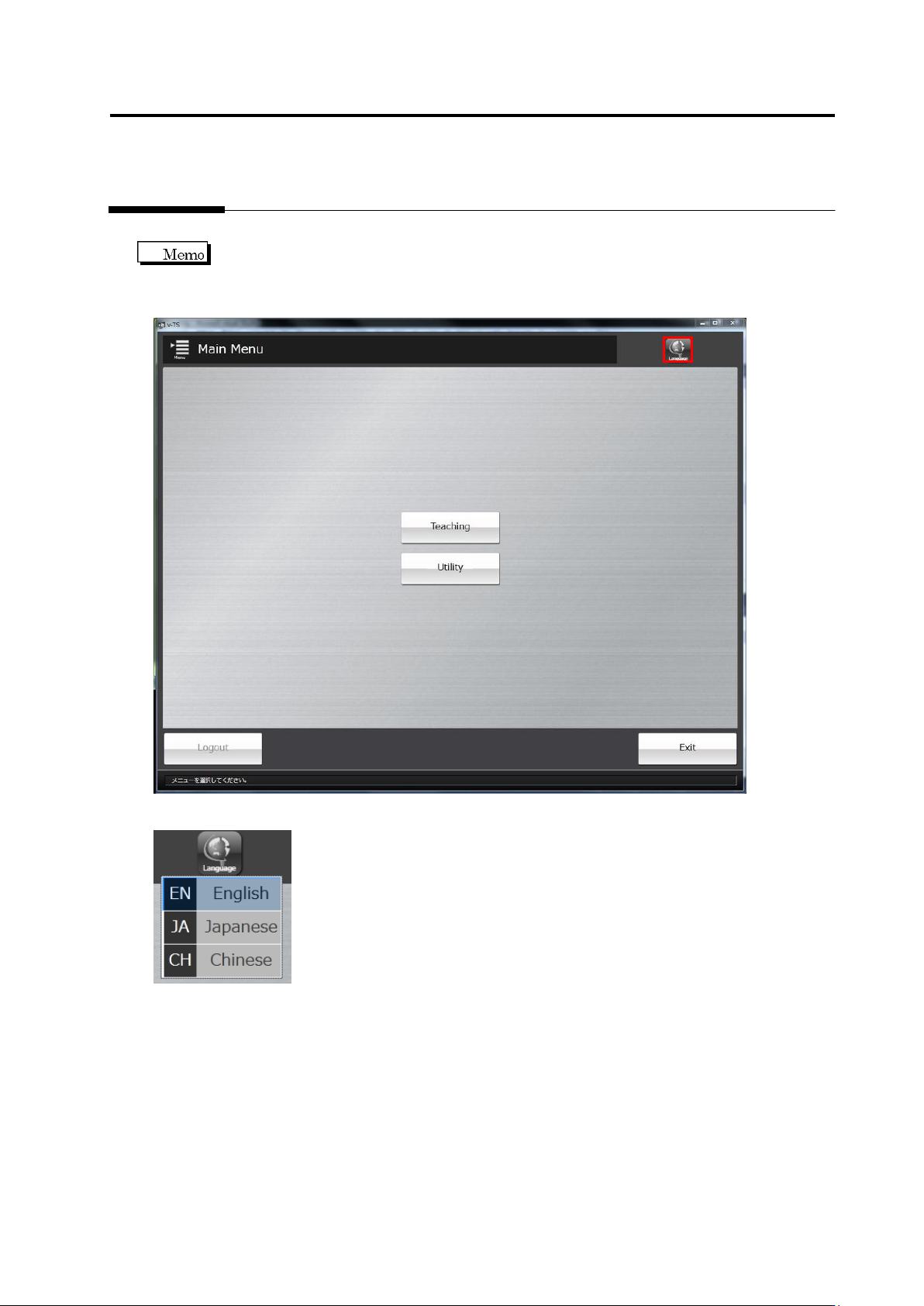
This system allows you to select either English or Japanese as a display language.
Switching Languages is available on:
Main menu, Teaching PCB selection screen, or any screen of the utility
Click the [Language] on the top-right of the screen and a language list appears.
Click a language you want to display.
Chapter 1 Before Getting Started
1-10
1.5 Login and Logout
After the system starts, follow the login procedures from the main menu. Without following the
procedures, no menu can be started. After all the operation is done, follow the logout
procedures.
A user name and a password registered in v-DB Tool are required to log in. This function allows
the user to limit access to the operator of the system.
Refer to "Chapter 2 Using v-DB Tool" in the v-DB Operation Manual for v-DB Tool operation.
1.5.1 Login
Specify a user and log in to the system.
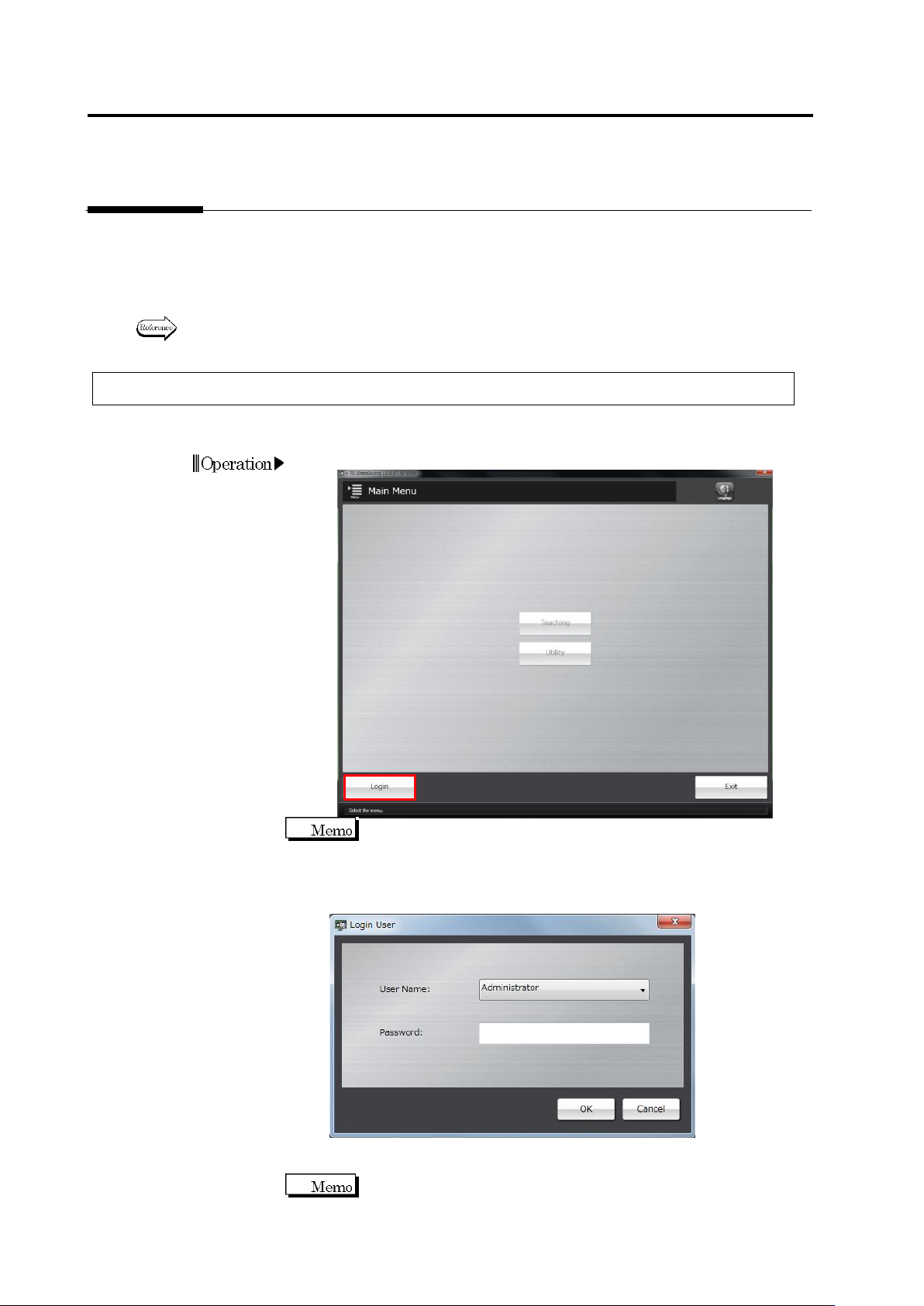
1.
Click [Login] on the main menu.
The login dialog automatically appears when v-TS starts.
2.
The following dialog will appear.
Select a user name from the list box, enter a password and then
click [OK].
・ Clicking [Cancel] will return the system to the main menu without
logging in.
The characters entered will be displayed as "
" in the space for the
password.