Omron V-TS Teaching Manual.pdf.pdf - 第242页
2.17 M ass-Produced PCB Image 2- 215 2.18.2 Reading an Insp ection Program 1. To read the saved ins pection program on the PCB selection screen, click the read button at the upper right of the inspection program list. 2.…
Chapter 2 Inspection Programming
2-214
4.
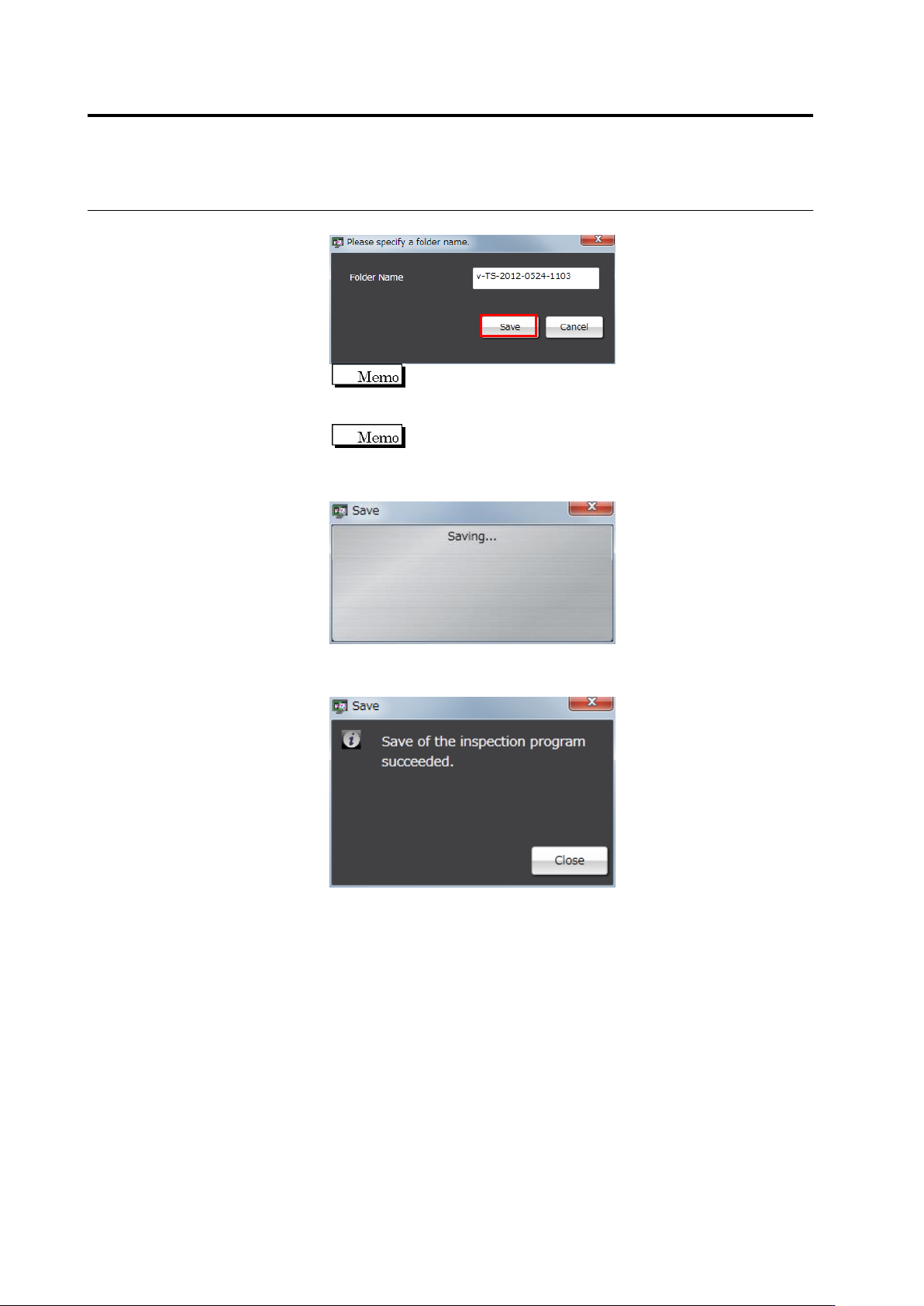
Enter a folder name and click [Save].
The folder name can be entered within 32 single-byte
alphanumeric characters and the symbols shown below:
! # $ % & ' ( ) - = ^
~
@` [ { ;+ } ] ,._
␣
A folder name comprising "v-TS time/date (yyyy-mmdd-hhmm)
is displayed by default.
5.
Saving of the inspection program starts.
The following dialog is displayed if the inspection program is
successfully saved. Click [Close].
If the saving fails, an error dialog appears.
Close the dialog by clicking [Close], and check for a possible cause
e.g. the disk space or restricted access to the saving destination
folder.
2.17 Mass-Produced PCB Image
2-215
2.18.2 Reading an Inspection Program
1.
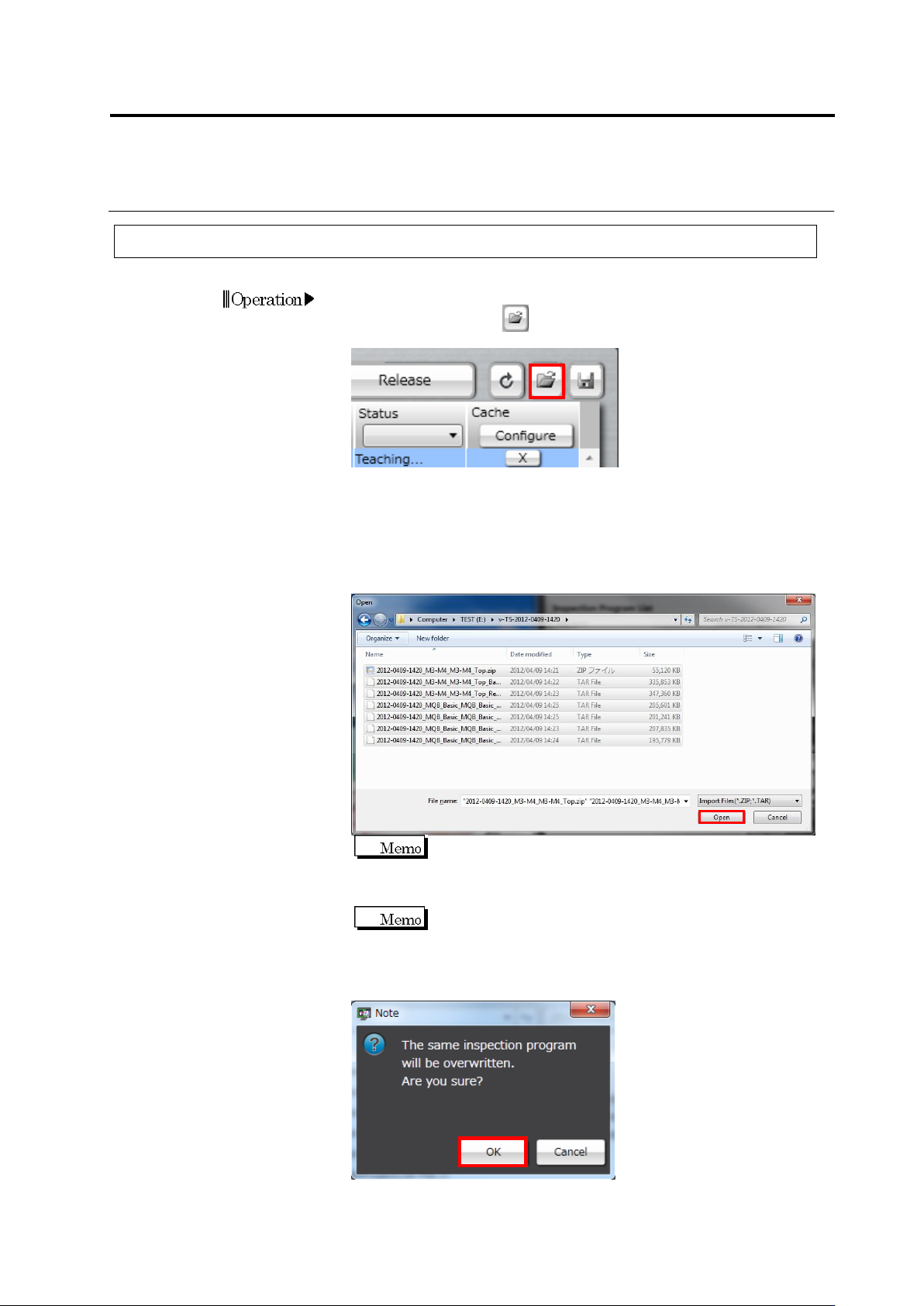
To read the saved inspection program on the PCB selection screen,
click the read button at the upper right of the inspection
program list.
2.
The file selection dialog appears. Specify the saving destination of
the reading target inspection program, select the file to be read and
then click [Open].
File names in which “Bare,” “Reflow,” and “adjust” are included are
the data of a raw PCB image, an inspection PCB image, and an
adjustment image, respectively.
The ZIP format file is data excluding PCB images, and TAR
format file is data of one PCB image. When reading all the
necessary data for inspection program teaching, select a ZIP
file and TAR file for necessary images, and then click [Open].
The component ID imported is equal to the component ID
when the files are exported.
3.
The inspection program overwrite confirmation dialog appears.
Click [OK].
Chapter 2 Inspection Programming
2-216
4.
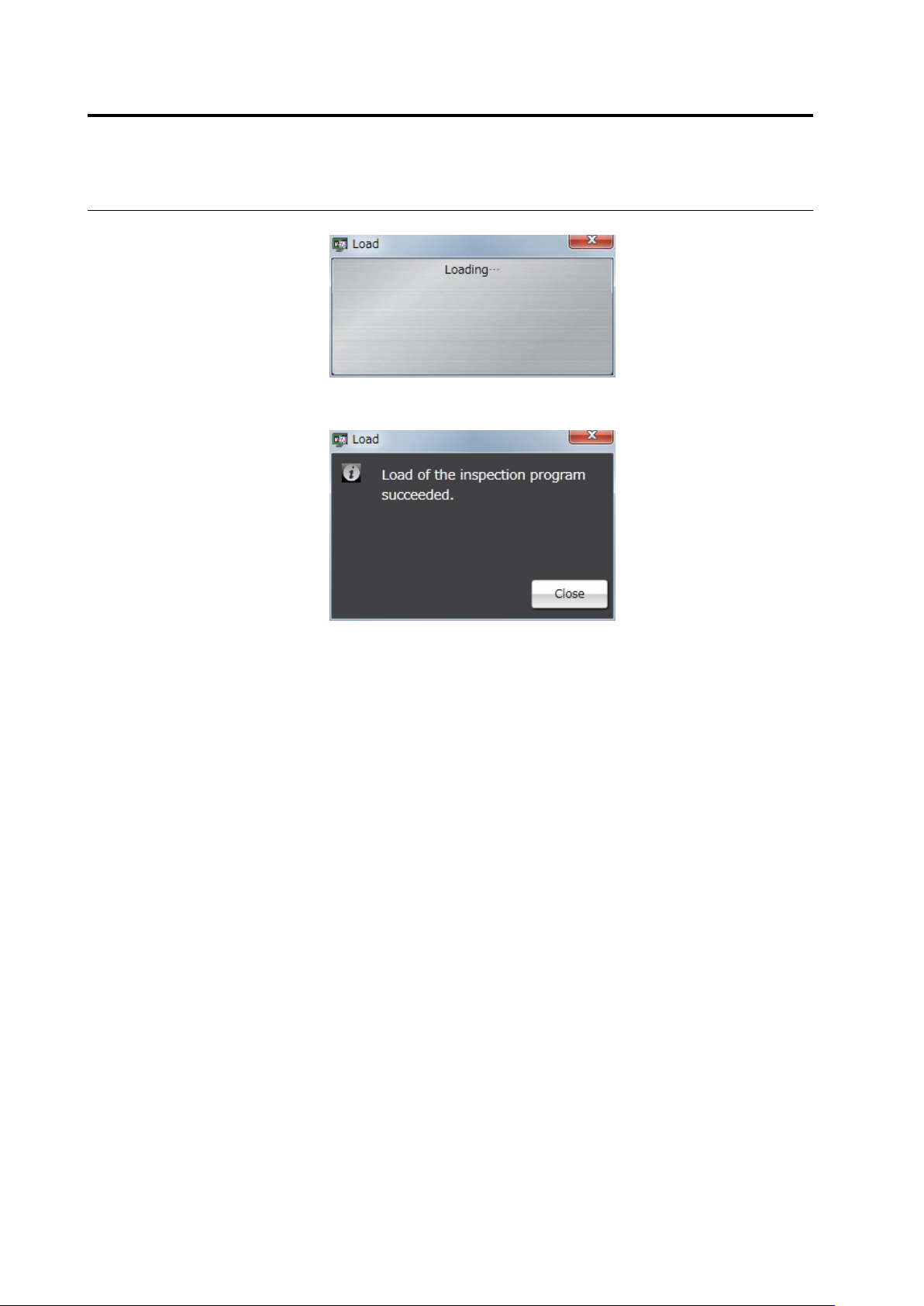
Inspection program reading starts.
The following dialog is displayed if the file is successfully read. Click
[Close].
If the reading fails, an error dialog appears.
When reading only the inspection program with the image captured
without presence of a capture image, a data mismatch occurs,
causing an error. Click [Close] to close the error dialog and select
the image and read the file again.