Omron V-TS Teaching Manual.pdf.pdf - 第21页
1.3 S tartup & T ermination of the S y s tem 1-7 1.3 S t artup & T ermination of the System This section d escribes how to start and end v- TS. 1.3.1 S ystem S tartup Do not start other applications at the same t…
Chapter 1 Before Getting Started
1-6
1.2.2 Using the Keyboard
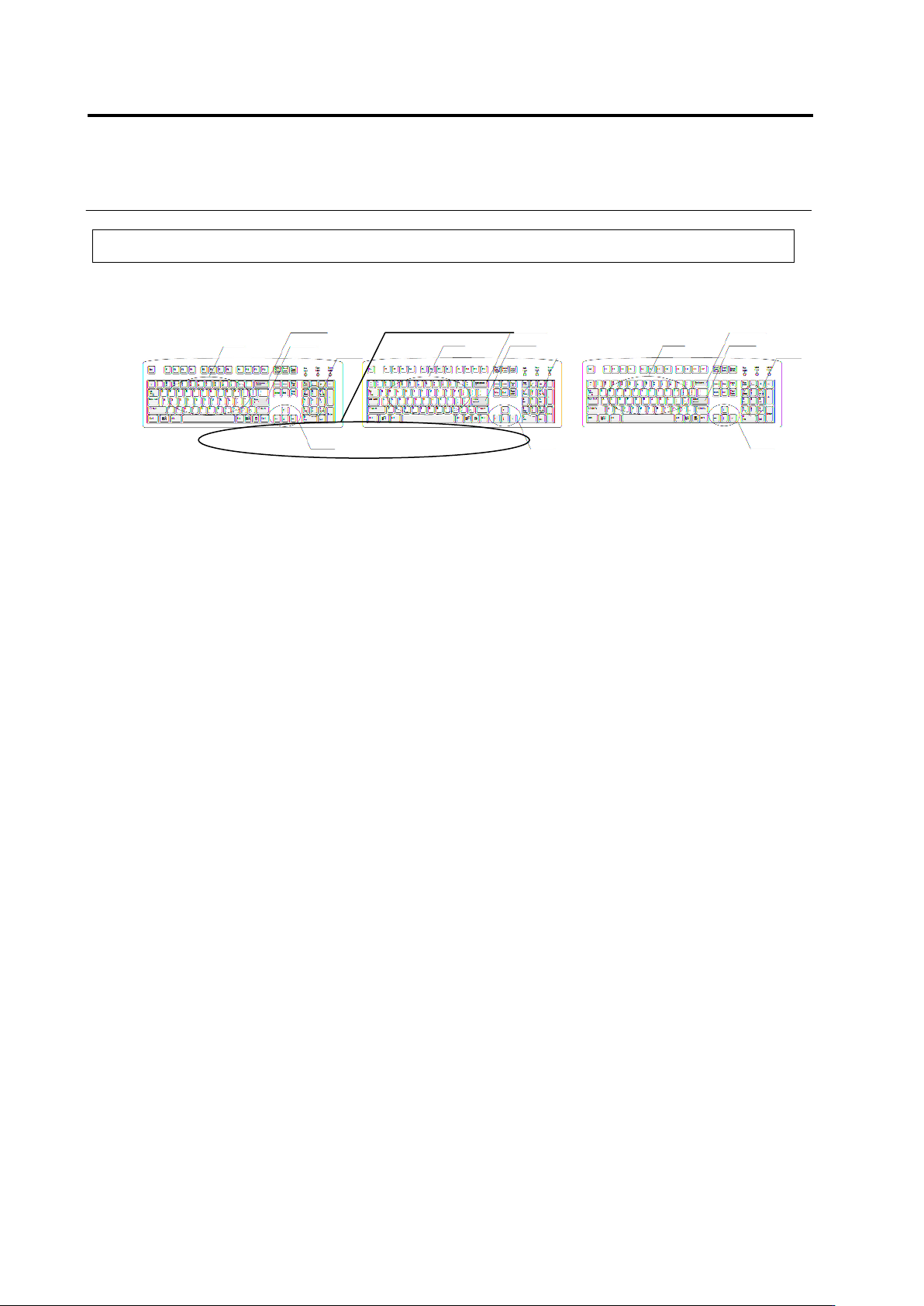
The keyboard is used for actions such as inputting file names and shortcut keystrokes. The
types of keys are listed below.
Alphabet Keys
These keys input letters. These are used for things like inputting the name of the inspection
program, comments, component number names, circuit numbers, etc., in dialog boxes.
Numeric Keys
These keys input numbers. These are used for inputting numeric values in the dialog boxes.
Back Space Key
Erases the character to the left of the cursor.
Enter Key
Confirms the input data and sets them.
Cursor Keys
Moves the cursor in the direction indicated by the arrow.
Function keys
Executes the following function:
F2: Switching of the mouse tool button.
Alphabet Keys
Cursor Keys
Enter Key
Back Space Key
Function Keys
Numeric Keys
1.3 Startup & Termination of the System
1-7
1.3 Startup & Termination of the System
This section describes how to start and end v-TS.
1.3.1 System Startup
Do not start other applications at the same time with this system.
1.
Turn ON the power of the PC.
2.
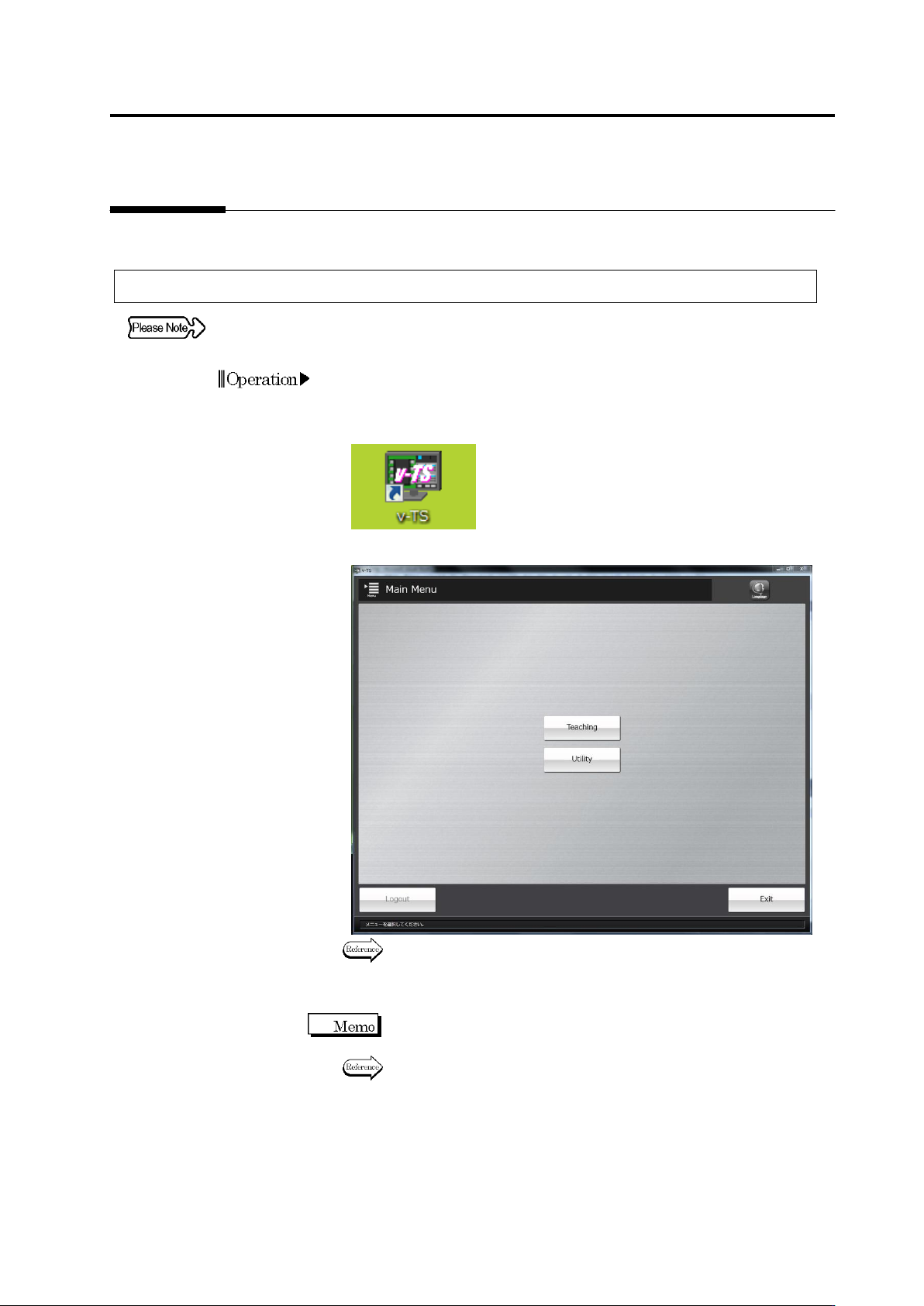
After OS is started, double-click the v-TS shortcut icon on the
desktop.
3.
The teaching system is started and the main menu appears.
To create an inspection program, go to P2-1, "Chapter 2 Inspection
Programming."
To configure the system using the utility, go to P3-1, "Chapter 3
Management Menu."
When the password function has been implemented, the login dialog
appears. Log in to the system before starting a menu.
Refer to "1.5 Login and Logout."
Chapter 1 Before Getting Started
1-8
1.3.2 System Termination
When turning off the system, be sure to follow the procedures listed
below. Turning off the PC power supply without going through the
shutdown procedures could damage the hard disk drive.
1.
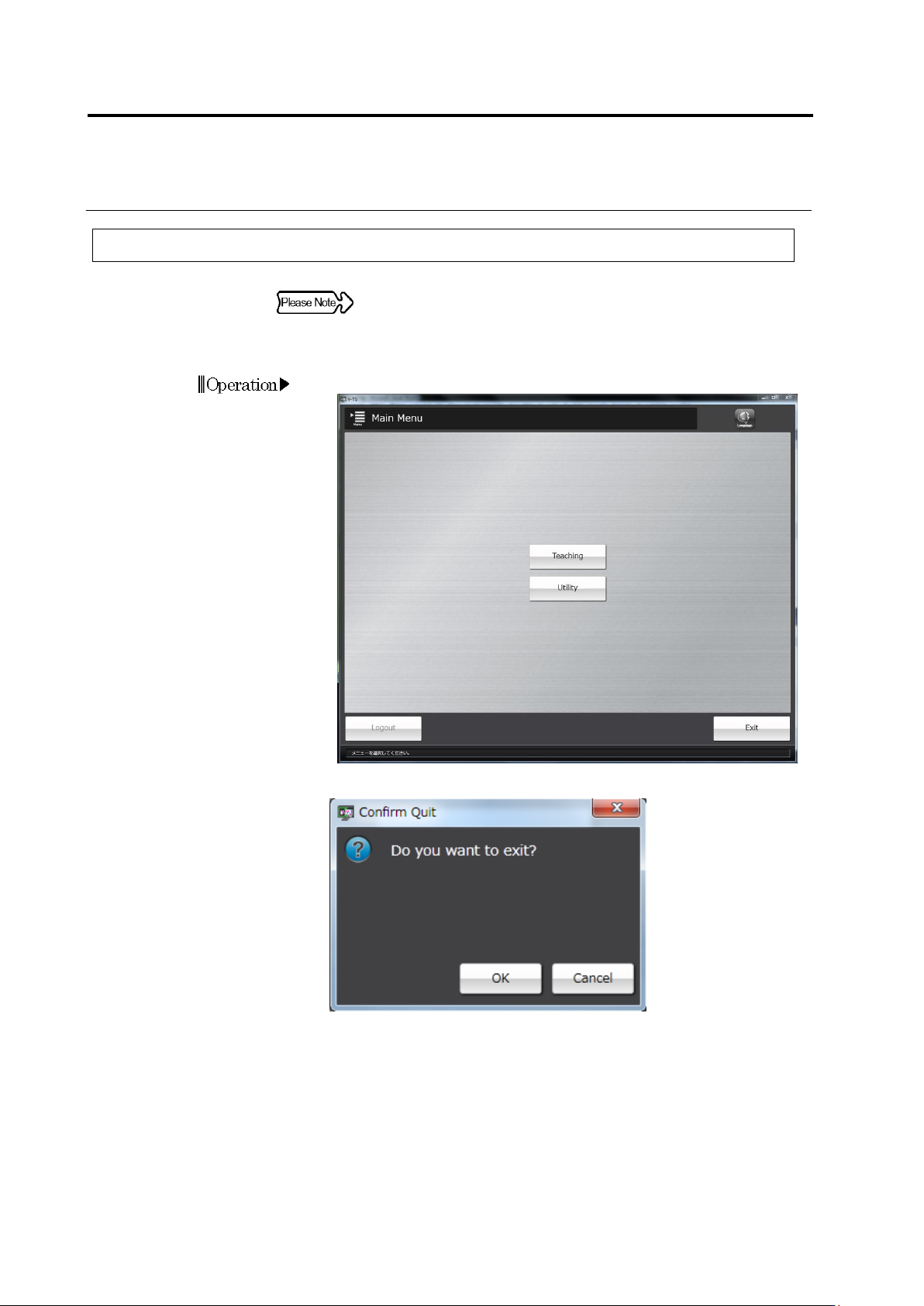
Click [Exit] on the main menu.
The Confirmation message will be displayed.
・ Clicking [Cancel] will return the system to the main menu.
2.
Click [OK].
The v-TS will be terminated and the desktop will be displayed.
3.
On the [Start] menu of the OS, select [Shutdown].
The power of the PC will be turned off.