Omron V-TS Teaching Manual.pdf.pdf - 第63页
Chapter 2 Inspecti on Programm ing 2- 36 Cl i ck [ Up da te ] o r [ Do N ot Up da te ]. I f y ou d o no t up da te , a n up da te c on fi r ma ti on d ia lo g w il l ap pe ar w he n y ou e di t t he c o mp on en t n um b…
2.3 Opening an Inspection Program
2-35
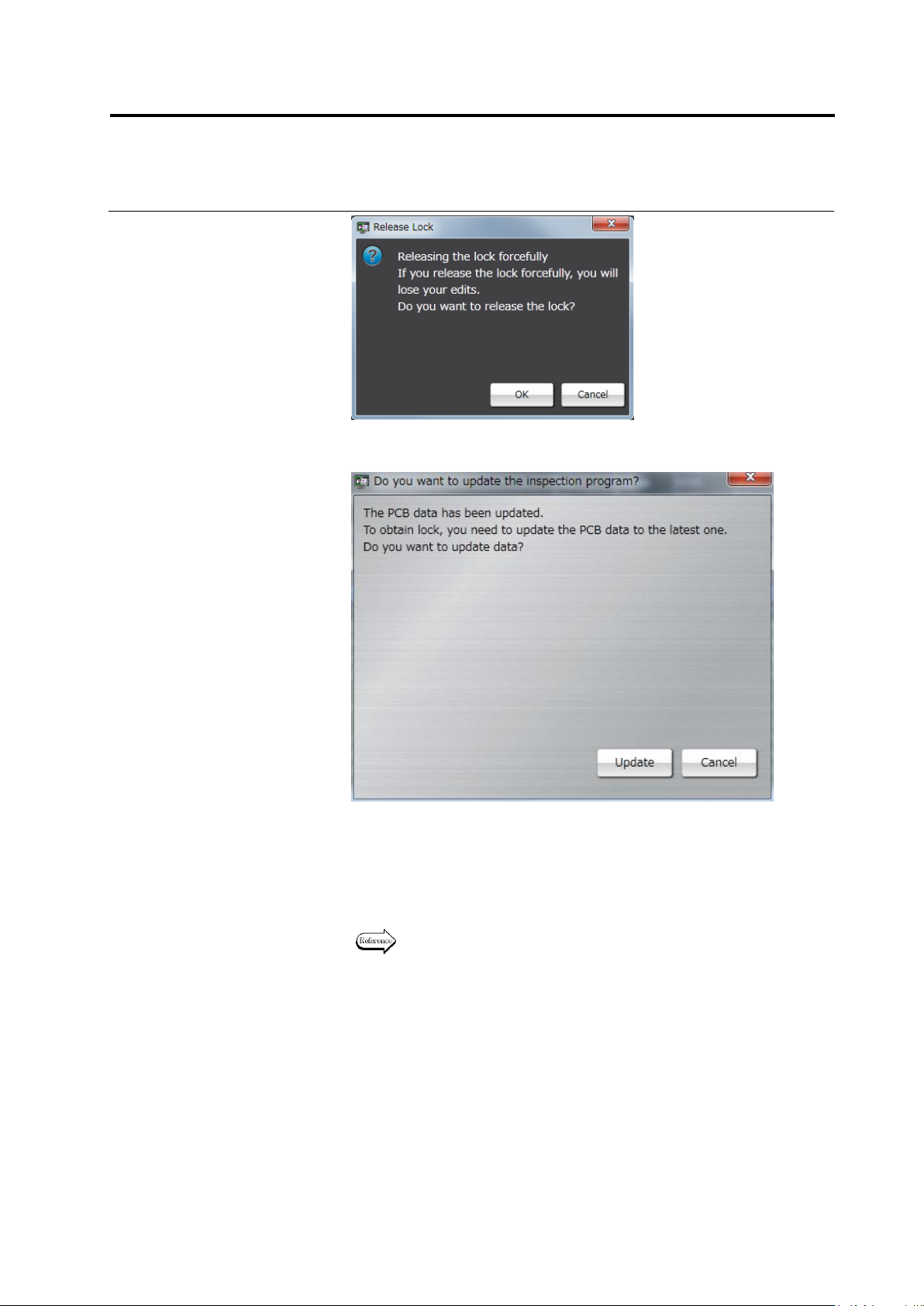
The update confirmation dialog appears if the inspection program is
updated by other user or captured PCB image is added.
When you click [Update], the PCB data will be automatically updated
and you can lock the inspection program and edit the content.
If you want to retain the backup of the inspection program before
update, click [Cancel] to close the dialog and save the inspection
program.
By clicking [Cancel], the screen moves to the page which was
opened just before that.
Refer to 2.18.1 Saving an Inspection Program” for the procedure to
save the inspection program..
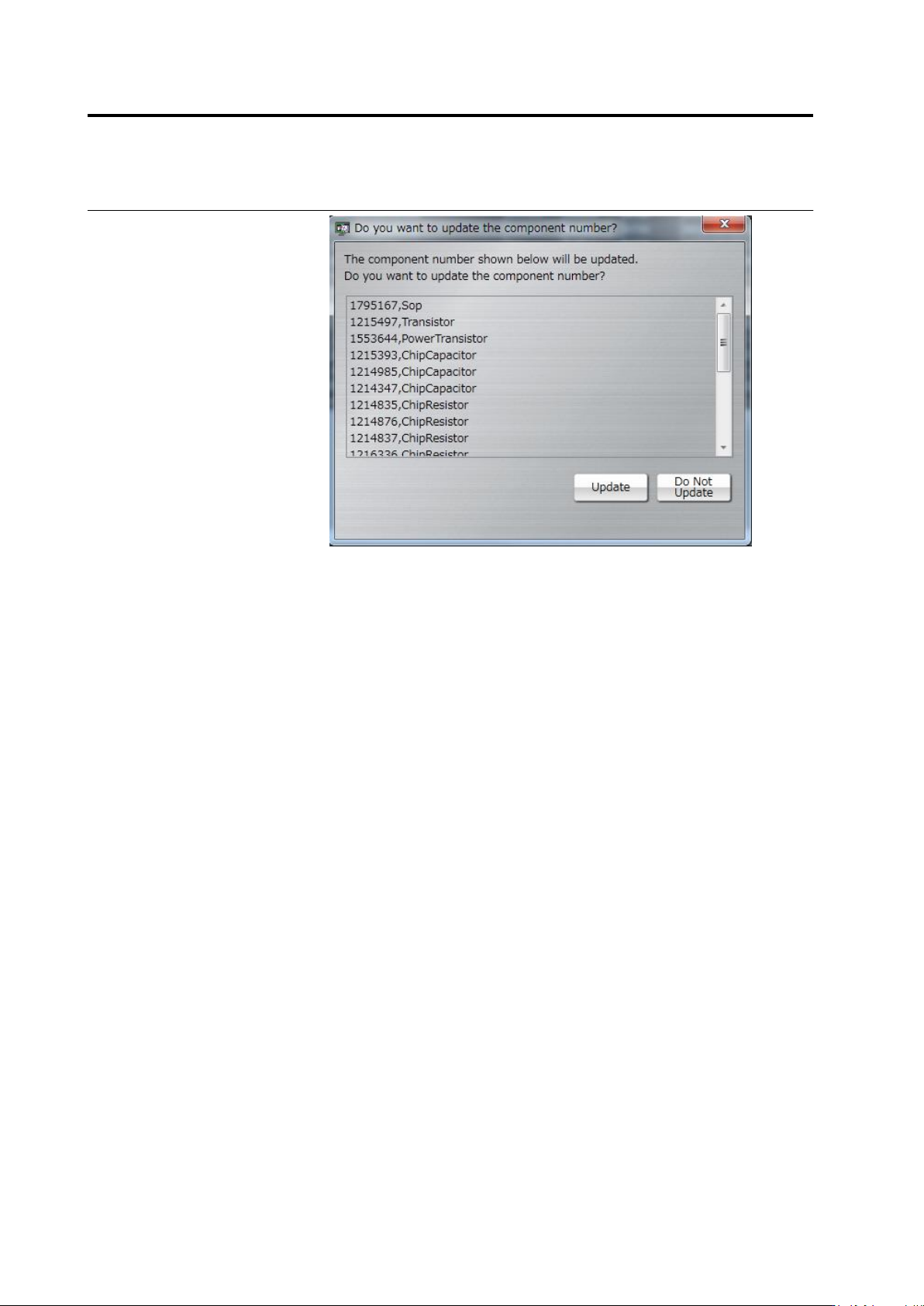
If the component number data has been updated at the time of
editing other inspection program, the component number update
confirmation dialog will appear before you click [Edit] to open an
inspection program.
Chapter 2 Inspection Programming
2-36
Click [Update] or [Do Not Update]. If you do not update, an update
confirmation dialog will appear when you edit the component number.
2.4 Registering for Inspection
2-37
2.4 Registering for Inspection
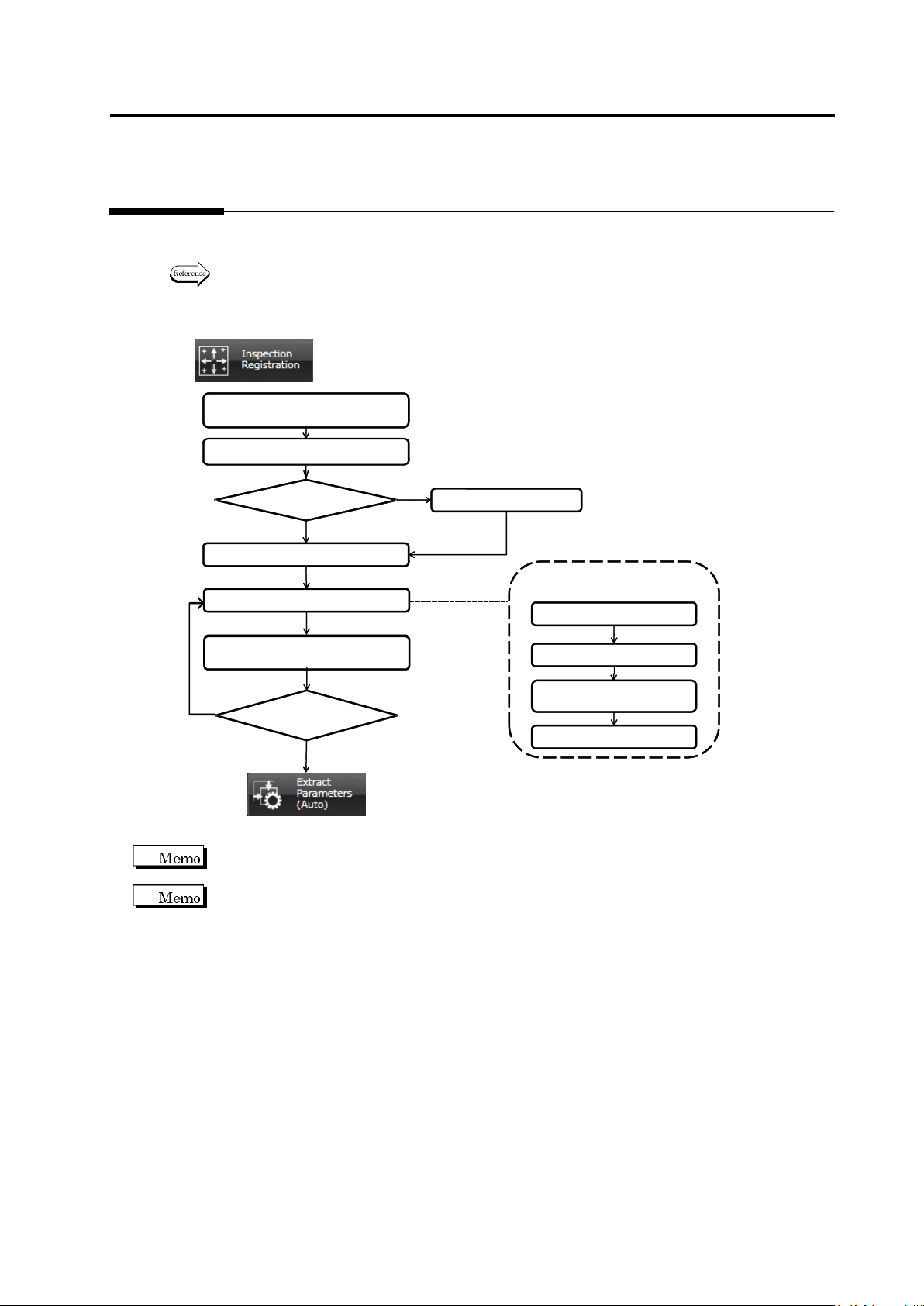
This section details the operation required in the Inspection Registration screen.
Position inspection windows on the component following the procedures below.
Refer to the individual section described in the flow chart for details of each procedure.
2.4.1 Registering Position
Adjustment Marks
2.4.4 Inspection Registration
2.4.5 Component Registration
2.4.2 Selecting Mount Data
2.4.3 Mount Alignment
All Component Numbers
Registered?
Yes
No
Operation Flow in (2.4 Registering for Inspection)
2.4.5.1. Component Setting
2.4.5.4. Electrode Setting
2.4.5.2. Land Setting
2.4.5.3. Electrode Group
Setting
2.4.5 Component
Registration Detailed Flow
Mount Data
Selected?
Yes
No
(2.4.6 Setting Component
Number Group)
(2.5 Registering the Component
Number Model)
Clicking [Next] at the bottom of the screen switches the screen displays in the order shown in the
flow chart, and [Back] switches them in the reverse order.
The Inspection Registration screen (See 2.4.4 “Inspection Registration”) appears as the initial
screen if an inspection program with the mount data loaded is opened.