MR8740、MR8741_user_manual_eng_20191016H.pdf - 第101页
4.2 Saving Data 89 4 Chapter 4 Saving/Loading Dat a & Managing Files 5 Select the save area. Move the flashing cursor to the [Save Area] item. Select 6 (When [Wave Binary] is the selected save typ e) Select whet her …
4.2 Saving Data
88
Measurement data are acquired for the recording length and then saved automatically each time.
Save location and data type are selected before the measurement.
Waveform data can be saved.
4.2.2 Automatically Saving Waveforms
Procedure
To open the screen: Right-click and select [SYSTEM] [File Save] sheet
1
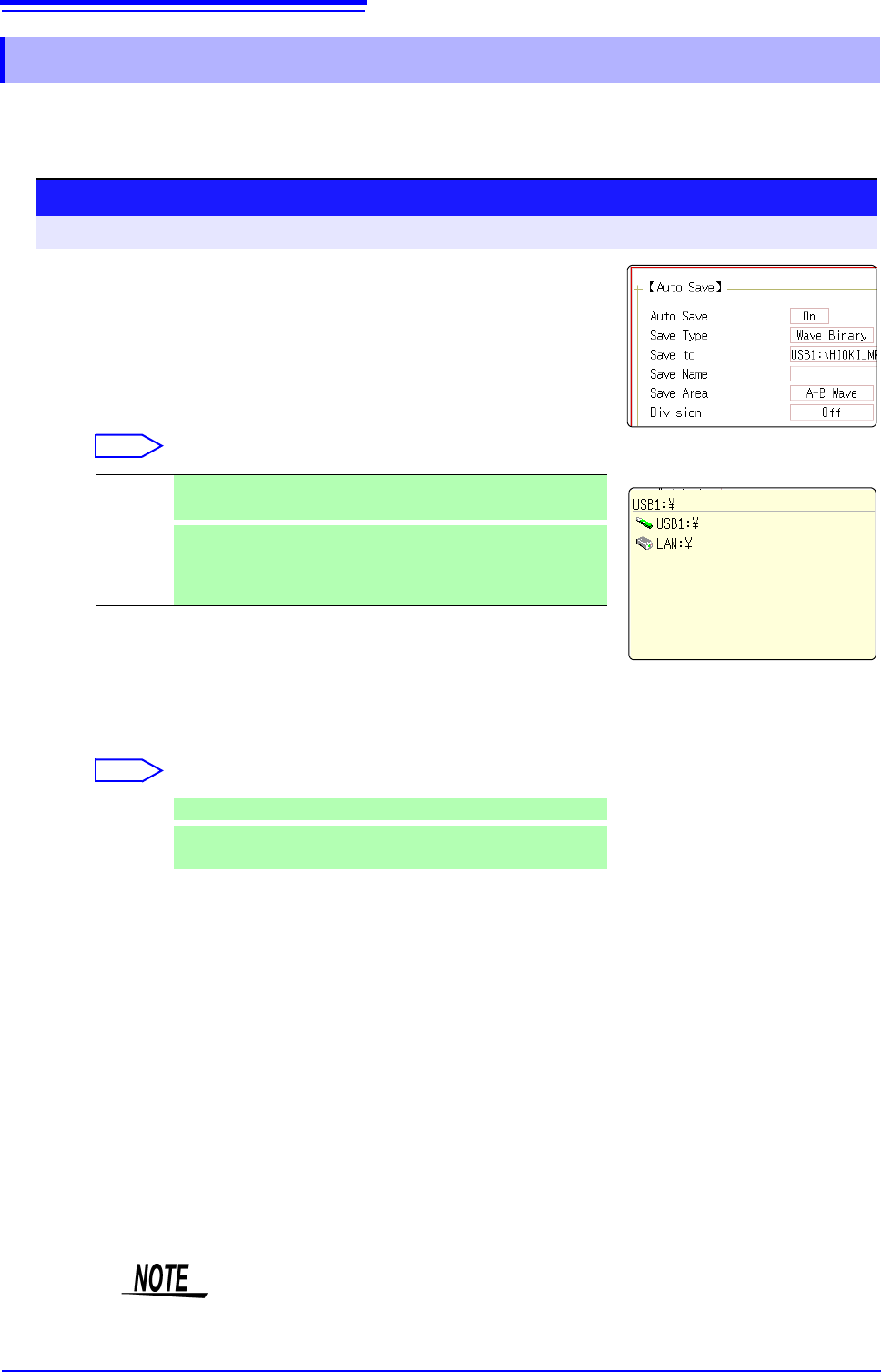
Enable auto save.
Move the flashing cursor to the [Auto Save] item, and select [On].
Default setting: Off (automatic saving is not performed)
2
Set the save type.
Move the flashing cursor to the [Save Type] item.
Select
3
Set the save destination.
Move the flashing cursor to the [Save To], and select [Edit].
The Browse folders dialog box appears (at bottom right).
Move the flashing cursor to the save target media
*
and confirm
the setting with [Confirm].
Select
When the root directory (topmost folder on media) was selected, a folder named
"HIOKI_MR8740" or "HIOKI_MR8741" is created automatically. (If the media was
initialized in the instrument, the folder will already have been created.) This folder
is then used as save target.
To create a new folder, select [New Folder]. When [LAN] is set
as the save destination, [New Folder] setting is ignored and the
folder named with the current date is created.
4
Set the file name.
Move the flashing cursor to the
[Save Name]
, and enter the save
name.
See: "7.1.3 Alphanumeric Input" (p.141)
When [LAN] is set as the save destination, [Save Name] setting is
ignored and the files to be saved are named in the previously-
determined format.
See:
"Save Operations (When setting the save destination to [LAN])"(p.92)
Wave
Binary
Save the waveform data in binary format.
(Data saved in binary format can only be loaded to this instrument.)
Wave
Text
Save the waveform data in text format.
The data can be thinned out and then saved.
(This data can be opened by a computer editor or spreadsheet
software, but it cannot be loaded to this unit.)
USB1 Automatically save the waveform data on the USB memory stick.
LAN
Automatically save the waveform data on the PC connected via
LAN. Model 9333 LAN Communicator is required to be installed.
1
2
3
4
File name
The maximum number of characters for the [Save Name] string is 123. The
maximum path length including file name is 255 characters.
4.2 Saving Data
89
4
Chapter 4 Saving/Loading Data & Managing Files
5
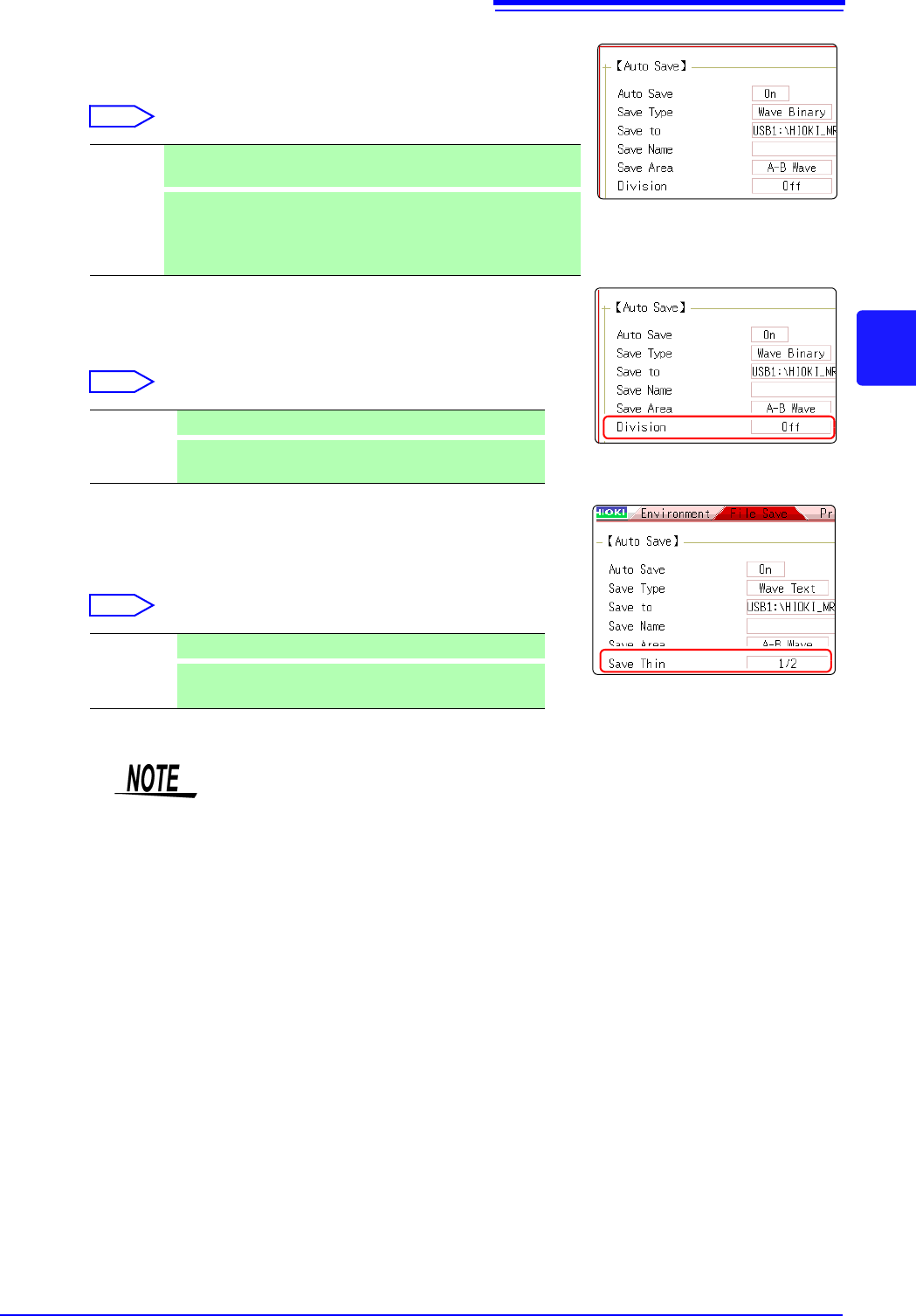
Select the save area.
Move the flashing cursor to the [Save Area] item.
Select
6
(When [Wave Binary] is the selected save type)
Select whether to save divided files
Move the flashing cursor to the [Division] item.
Select
(When [Wave Text] is selected as the save type)
Set the data thinning number.
Move the flashing cursor to the [Save Thin] item.
Select
Whole
Wave
Save all recorded data. (default setting)
A-B
Wave
Save the data between the A and B cursors. If only the A cursor is
used, the range from the A cursor position to the end of the data is
saved.
A/B cursor Specification Method (p.120)
Off Files are not divided when saved.
16M, 32M
64M
Select the size for divided save.
Off Data thinning (sub-sampling) is not carried out.
1/2 to
1/1000
Set the thinning number (out of how many data items to
leave one data item remaining).
5
About the save area
• If the MR8990 is installed, one data item more than the number of data items
specified with the A and B cursors may be saved.
• The data that is measured and saved with the MR8990 will be the same data
twice in a row.
About divided saving
• Large quantities of waveform data can be divided and saved as multiple files.
• Saving divided data makes a folder automatically, and creates one or more
waveform files and an index (IDX) file in the folder.
• Then by loading the IDX file, the data in the waveform file(s) is loaded as a
batch.
• When divided saving is selected, delete save is not available.
• When using the memory division function, divided saving cannot be performed
automatically.
See: "Batch load of waveform data"(p.101)
"Memory Division Function"(p.241)
Thinning
A large amount of space is required for saving files in text format. Data thinning
enables a reduction in file size.
Example: When [1/2] is set, every second data item is saved. The number of
data items is reduced to a 1/2.
4.2 Saving Data
90
7
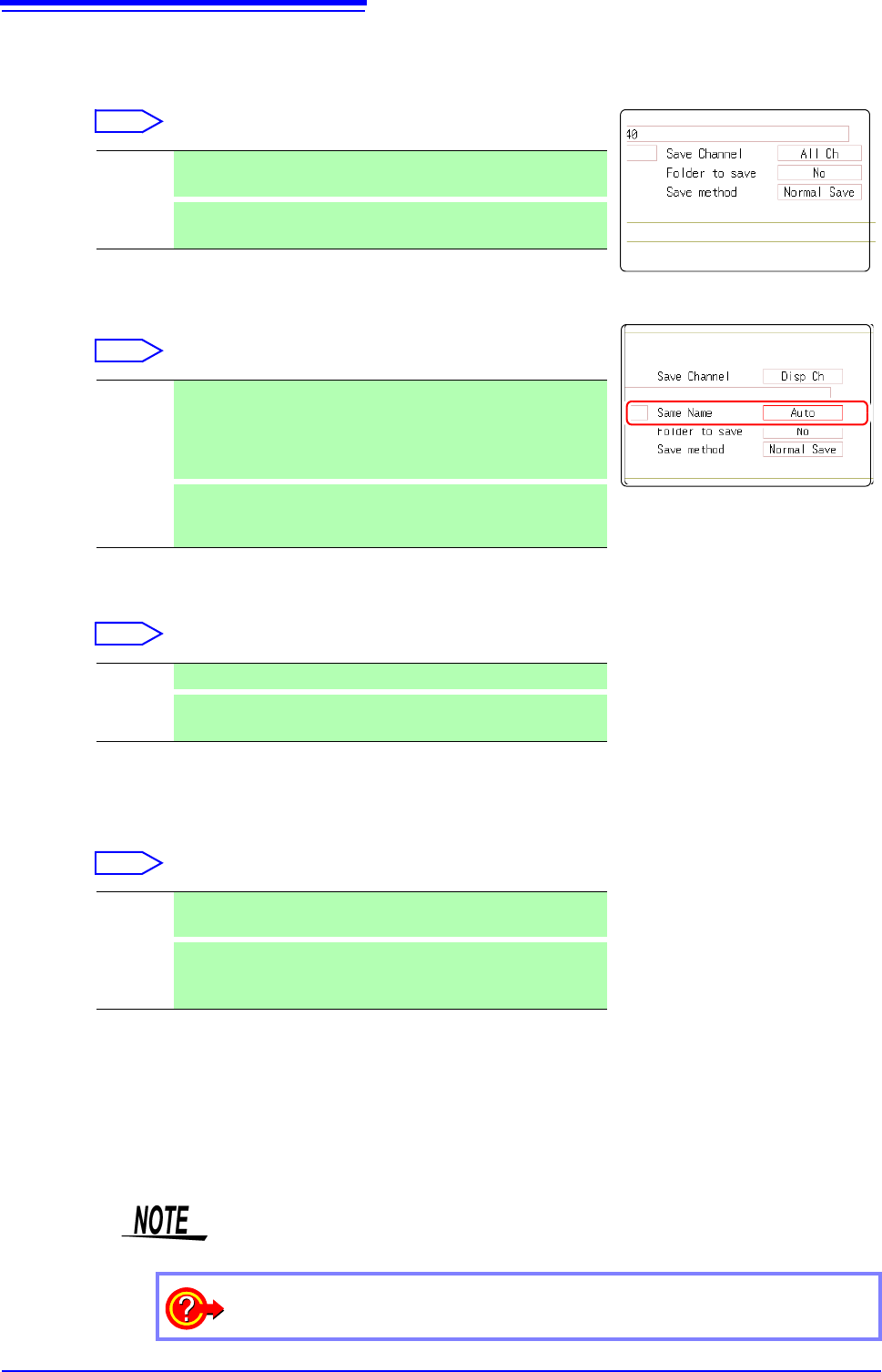
Select the channel to save.
Move the flashing cursor to the [Save Channel]
item.
Select
8
Specify the action if a file with the same name exists in the
target folder.
Move the cursor to [Same Name].
Select
9
Set whether to create folders.
Move the flashing cursor to the [Folder to save] item.
Select
When [LAN] is set as the save destination, [New Folder] setting is ignored and
the folder named with the current date is created.
10
Set the save method for when the storage media runs out of space.
Move the flashing cursor to the [Save method] item.
Select
When [LAN] is set as the save destination, [Save Name] setting is ignored and
the files to be saved are named in the previously-determined format.
See:
"Save Operations (When setting the save destination to [LAN])"
(p.92)
11
Confirm the measurement configuration and other settings,
then start measurement ([START]).
After the data is acquired, the screen image is saved automatically to the specified
storage media.
Disp Ch Saves the channels of all sheets for which waveform display is set
to [On]. (default setting)
All Ch
Saves all measured channels (in the case of the memory function,
channels has been set as [Used Ch] on the Status settings screen).
Auto If no files with the same name exist, saves the file with the desig-
nated name. Otherwise, a 4-digit number is automatically added to
the beginning of the file name (default setting).
If the first character of the file name is a numeral, the added num-
ber will continue sequentially from that number.
Serial
Unconditionally, a 4-digit number is automatically added to the be-
ginning of the file name. If a file with the same name exists, saves
the file, adding the 4-digit number that is increased by 1.
No A folder is not created when measurement starts.
Yes
A folder is created automatically when measurement starts and
files are saved in the folder.
Normal
Save
Automatic saving stops when the storage media becomes full.
Delete
Save
Old files are deleted and automatic saving is performed when the
storage media becomes full. (Waveform files only.)
The [Folder to save] setting is set automatically to [Yes].
7
8
9
7
9
10
Maximum number of files per folder
The combined maximum for files and folders created in one folder is 5,000.
See: "Save Operations (When setting the save destination to [LAN])"(p.92)
To clear the Auto Save dialog box
Click [SAVE] to turn the dialog box display on and off.