MR8740、MR8741_user_manual_eng_20191016H.pdf - 第316页
13.6 Editor Command Details 304 13.6 Editor Command Det ails Load Wave The waveform shown on the W aveform screen is loaded into the editor and displayed . Instructions 1 Select [Load W ave] . 2 Select the type of wavefo…
13.5 Creating the Evaluation Area
303
11
Chapter 13 Waveform Evaluation Function (MR8741 Only)
12
13
13.5 Creating the Evaluation Area
Setting method
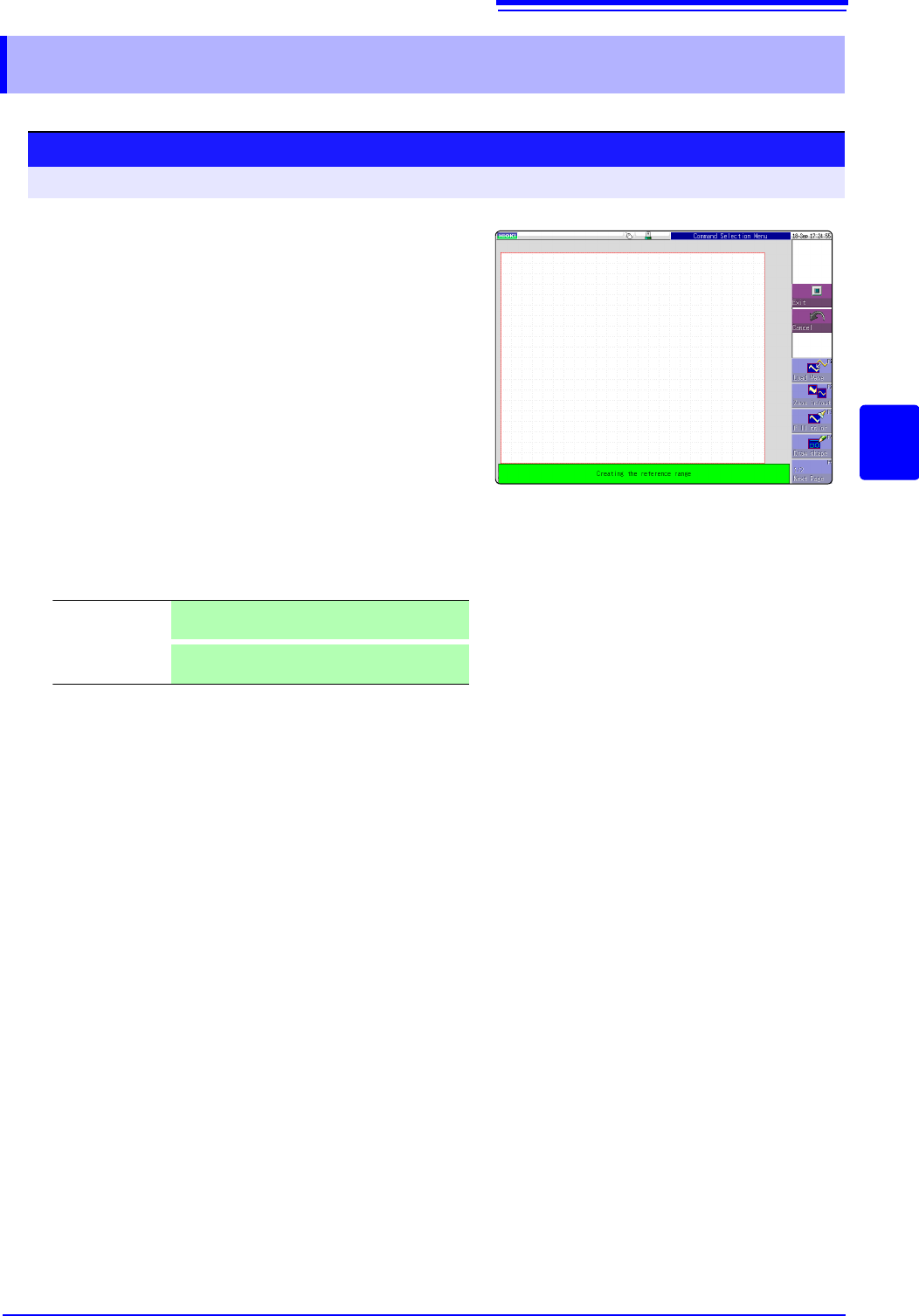
Procedure Screen: Waveform display
1
Move the flashing cursor to the [Waveform
Judge]
item and select [Edit] from the GUI dis-
played on the screen.
2
Select an editor from the GUI displayed on the
screen, and create the area that will be the ref-
erence for waveform judgment. You can also
use the mouse to create an area.
See:"1.5.1 Mouse Operations" (p.22)
3
Click [Exit] to terminate the editor.
4
Serves to store the created area in memory.
5
Save the evaluation area through the File
screen or [SAVE], if necessary.
See:"4.2 Saving Data" (p.87)
Save and End Saves the created evaluation area in the instru-
ment's internal memory and exits.
Discard Chang-
es and End
Discards the created evaluation area and exits.
13.6 Editor Command Details
304
13.6 Editor Command Details
Load Wave
The waveform shown on the Waveform screen is loaded into the editor and displayed.
Instructions
1
Select [Load Wave].
2
Select the type of waveform capture to perform. The waveform displayed on the
Waveform screen will be loaded into the editor.
3
Select [Load Wave] to exit waveform capture mode.
Zoom in/out
Magnifies or compresses the waveform shown on the screen in the horizontal and ver-
tical directions.
Instructions
1
Select [Zoom in/out].
2
Select whether to magnify or compress the waveform.
3
Set the amount of magnification or compression.
• You can set values with the mouse.
• The amount of movement can be set in 0.04/div steps.
Select
Waveform
capture
Captures the storage waveform displayed on the Waveform screen.
Overlay capture
Captures overlay waveforms shown on the Waveform screen after connecting the uppermost
and lowermost positions with the same display color and filling in the resulting enclosed space.
When the waveforms are overlapping, undisplayed portions of the waveforms cannot be rec-
ognized. This option can be selected when an overlay has been drawn on the screen.
Memory seg-
mentation refer-
ence waveform
Captures the memory segmentation reference waveform shown on the Waveform screen after
connecting the uppermost and lowermost positions with the same display color and filling in
the resulting enclosed space. When the waveforms are overlapping, undisplayed portions of
the waveforms cannot be recognized. This option can be selected when an overlay has been
drawn on the screen.
Execute Performs magnification or compression processing based on the settings and creates an eval-
uation area.
Exit magnifica-
tion/compression
Exits magnification/compression mode.
13.6 Editor Command Details
305
11
Chapter 13 Waveform Evaluation Function (MR8741 Only)
12
13
Fill color
Fills in an enclosed area.
Instructions
1
Select [Fill color].
2
Use the mouse to move the paintbrush mark to the area to be filled in.
If the area is not completely enclosed, adjacent areas will also be filled in.
+
Execute The area completely enclosed by lines is filled in.
Exit paint
Terminate the paint mode.
Draw shape
Serves to draw a straight, square or a circle.
Instructions
1
Select [Draw shape].
2
Select the figure you wish to draw.
3
Using the mouse, move the mark to the origin of the figure.
4
Selecting [Set] sets the current position as the origin.
5
Moving the mark draws a figure between the origin and the mark.
6
Selecting [Set] again accepts the figure and causes its color to change. For
straight lines, the origin is set at the accepted position. For other types of figure,
accepting the figure has the same effect as selecting
[Cancel].
7
To draw another figure, click [Select] and selecting the figure type.
8
You can repeat steps (3) through (7) to draw figures as desired.
9
Click [Exit Draw shape] to exit figure mode.
+
+
+