MR8740、MR8741_user_manual_eng_20191016H.pdf - 第92页
3.5 Input Channel Setting 80 The input channel settings can be set differently for each displayed shee t. Up to four sheets can be set. You can set desired waveforms for displaying to different sheets and switch them. Yo…
3.5 Input Channel Setting
79
3
Chapter 3 Measurement Procedure
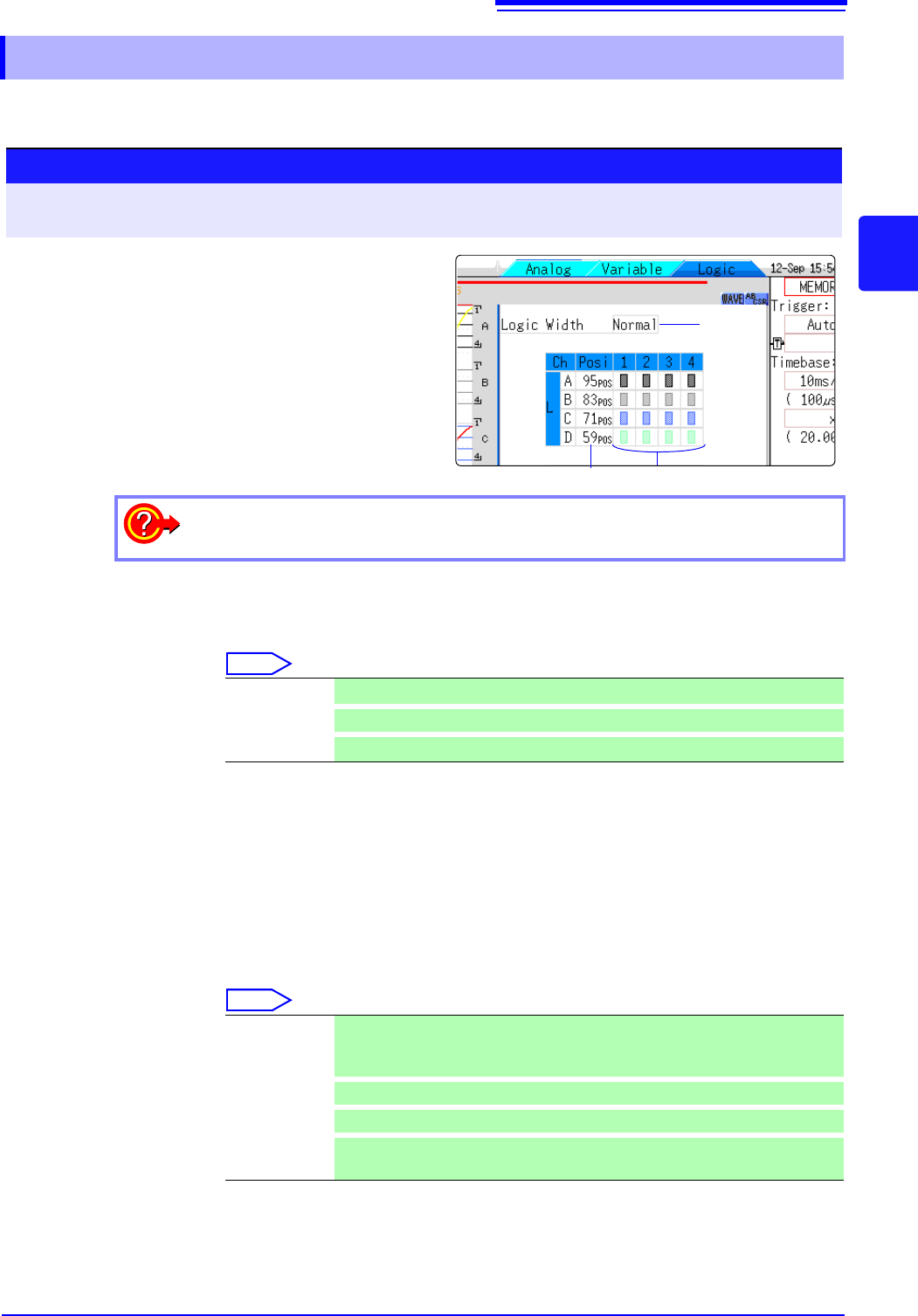
Make settings for the logic channels. The channel settings window (Logic sheet) is shown when the
display format is 1, 2, 4, 8 or 16 screens.
1. Logic Width Allows changing the display width of the logic waveform.
Making waveforms more narrow can enhance the readability of the display when
there are a high number of waveforms.
Select
2. Waveform
Display
Position
Determines where on the screen the logic waveform is displayed.
The position can be freely moved within the range of the display.
3. Waveform
Display Color
Specifies the color in which the waveform of the selected channel is displayed.
You can also select the same color as another channel.
For logic modules, the color can be specified for each module and each channel
separately.
Select
3.5.3 Logic Channel
1.
Procedure
To open the screen: Right-click and select [DISP] Waveform screen Right-click and select [CH.SET]
Channel settings window ([Logic] sheet)
2. 3.
1
Move the flashing cursor to the channel for
which to make settings.
2
Select the settings by clicking the mouse.
To copy the settings of one channel to another
See: "7.8 Copying settings to other channels (calculation No.) (Copy function)" (p.160)
Wide Make the waveform wider.
Normal Display the waveform at normal width.
Narrow
Make the waveform more narrow. (default setting)
Off The waveform is not displayed. If the [Save Channel] setting is [Disp Ch], data
for the channel will not be automatically saved.
See: "4.2.2 Automatically Saving Waveforms" (p.88)
On
The waveform is displayed. Set the display color by clicking [ ] or [ ].
Probe On-Off
Switches the waveform display of the same probes to all ON or all OFF.
All On-Off Switches the display of all logic waveforms to all ON or all OFF.
This can be selected when the cursor at in the waveform display position item.
3.5 Input Channel Setting
80
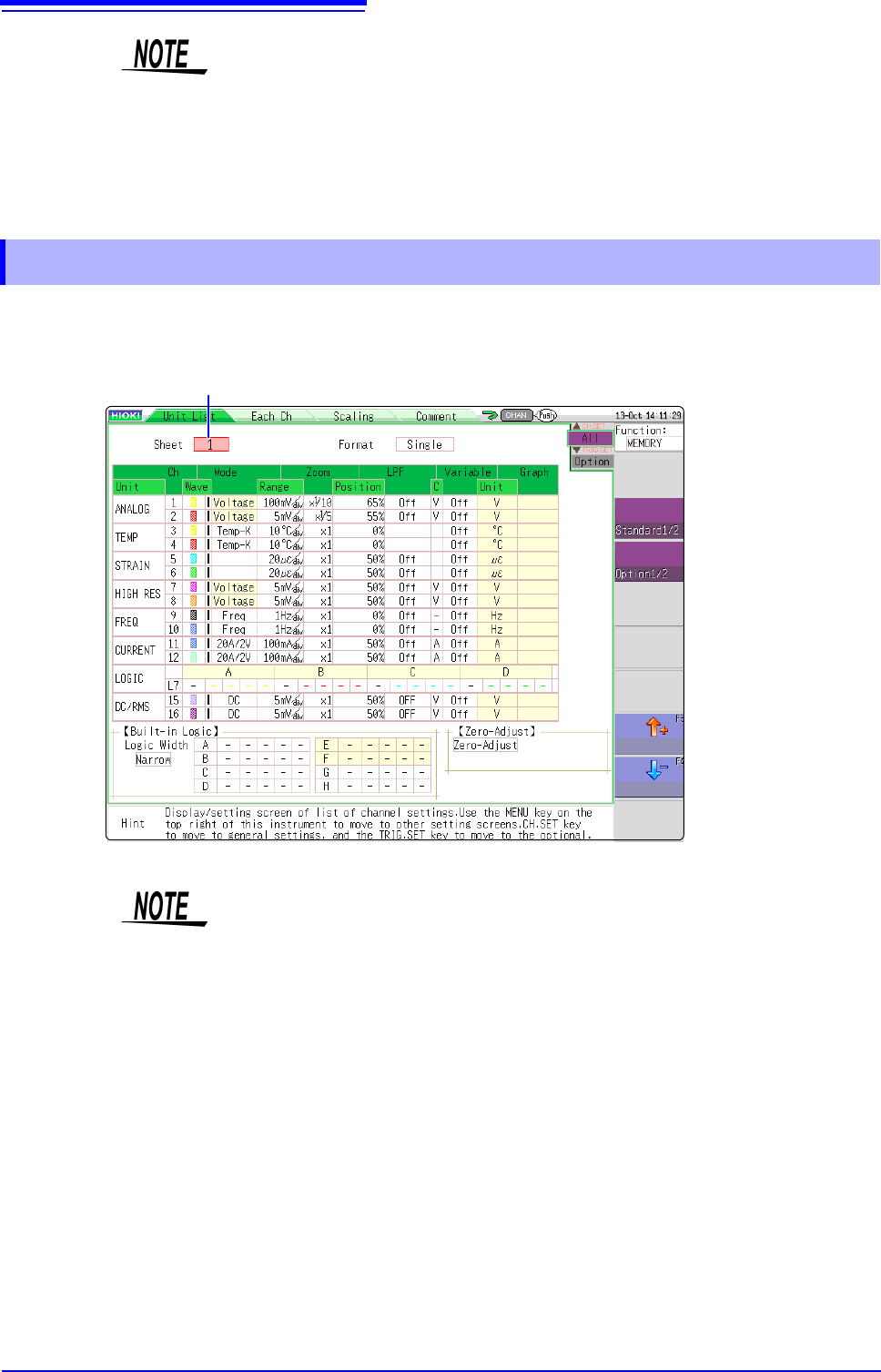
The input channel settings can be set differently for each displayed sheet. Up to four sheets can be set.
You can set desired waveforms for displaying to different sheets and switch them.
You can configure the waveform calculation settings using the channel setting
window.
See: "3.5 Input Channel Setting" (p.73)
• When the standard logic display is on, the 8970 Freq Unit installed on unit 1 or 2 can no
longer be used. Furthermore, the 16-bit resolution 8967 TEMP Unit, 8968 High Resolu-
tion Unit, 8969 Strain Unit, U8969 Strain Unit, U8974 High Voltage Unit, and U8979
Charge Unit have a resolution of 12 bits. Also, when MR8990 Digital Voltmeter Unit is
installed on unit 1 (unit 1 or unit 2 in the case of MR8741), the standard logic can no
longer be used.
• With MR8740, install the logic units on unit 1 to unit 8. Even if you install logic units on
units 9 and after, they will be invalid.
3.5.4 Display Sheet
Sheet switching (1 to 4)
• Only the following display-related settings can be set to each displayed sheet.
Analog waveform: Display ON/OFF, waveform color, ratio, zero position,
graph variable (ON/OFF, upper and lower limit)
Logic waveform: Display ON/OFF, waveform color, display position, and
logic width
X-Y waveform: Display ON/OFF, waveform color, X ch, Y ch, waveform
calculation (X ch, Y ch)
Common setting: Display format
• The measurement-related settings other than above will be common to all dis-
played sheets.
When range is changed, the range of all display sheets is changed.
• When a settings file is saved, the settings of all displayed sheets are saved.
• A waveform file is saved based on the setting of the sheet displayed at the
time of saving. When a waveform file is loaded, only the sheet displayed at the
time of saving can be loaded because other sheets were not saved.
3.6 Starting and Stopping Measurement
81
3
Chapter 3 Measurement Procedure
This section explains how to initiate and terminate a measurement.
Click [START] to start measuring.
Click [STOP] to stop recording at the end of the specified recording length.
Click [STOP] again so stop recording immediately.
The operation conditions for [START] and [STOP] can be changed.
See: "Chapter 14 System Environment Settings" (p.309)
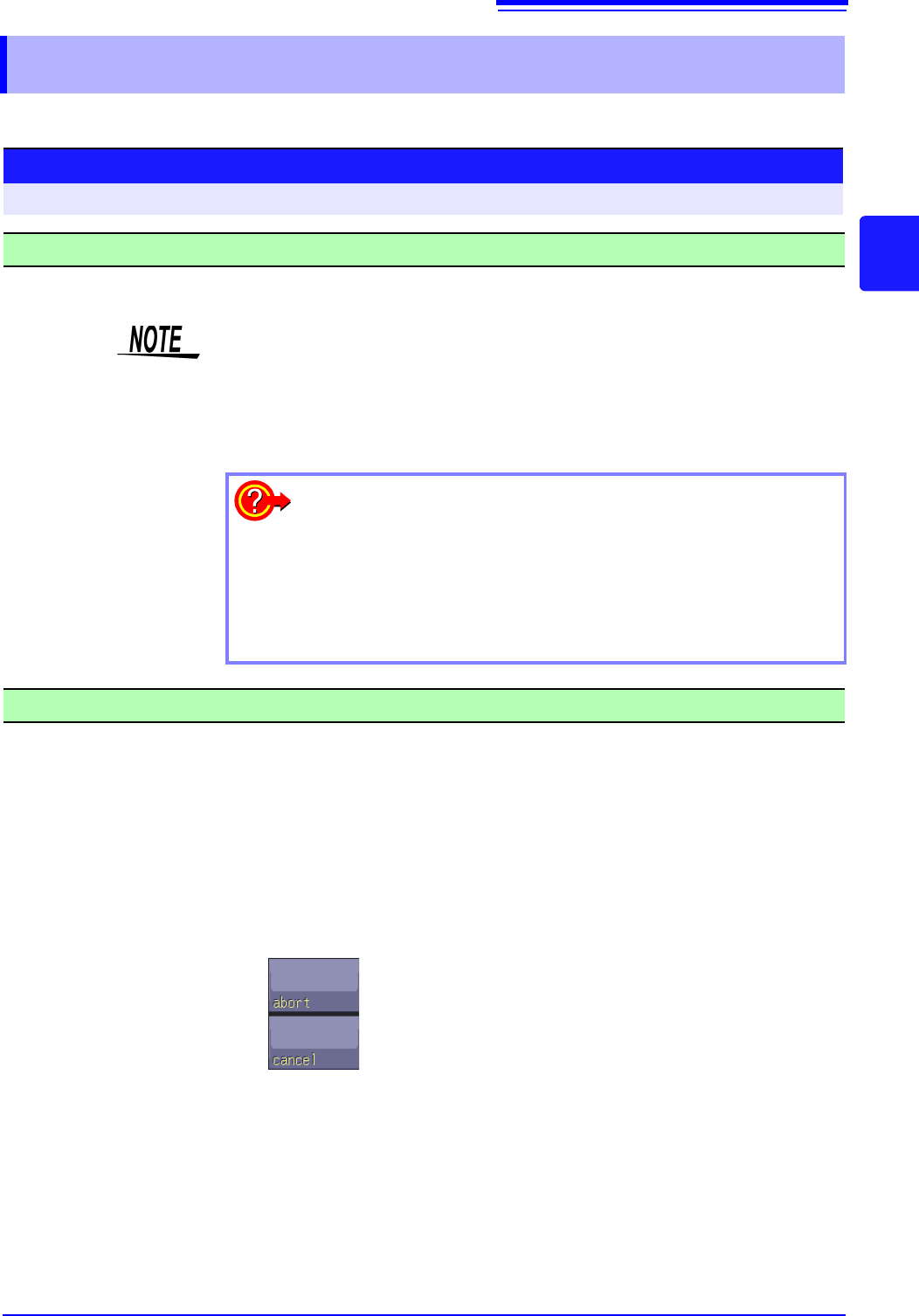
Note When [STOP] is clicked, the following indication may appear on the screen.
3.6 Starting and Stopping Measurement
Starting Measurement
Procedure
To open the screen: Right-click and select [DISP] Waveform screen
• When a measurement is started, waveform data that were displayed on the
screen are cleared. However, when the measurement conditions are the same,
the waveform data for up to 16 past measurements is retained as history.
• Measurement can also be started by inputting a signal at the external control
terminal.
See:"Chapter 16 External Control (MR8741 Only)" (p.335)
To prevent inadvertent measurement start
To reduce the risk of accidentally starting a measurement through an
operation error, operation conditions can be set for [START].
See: "Start Action" (p.311)
To automatically save data during measurement
See: "4.2.2 Automatically Saving Waveforms" (p.88)
Stopping Measurement
The measurement will stop at the point where the mouse is
clicked.
The stopping procedure is canceled and measurement
continues.