MR8740、MR8741_user_manual_eng_20191016H.pdf - 第386页
18.2 Initializing the Instrument 374 Select groups of settings currently in force on th e inst rument, and initialize the sett ings. Initialization returns the instrument to the factory default state. By defa ult, the se…
18.1 Trouble Shooting
373
Chapter 18 Maintenance and Service
14
18
If the cause is unknown
Perform a system reset. All settings are returned to their factory defaults.
See: "18.2 Initializing the Instrument" (p.374)
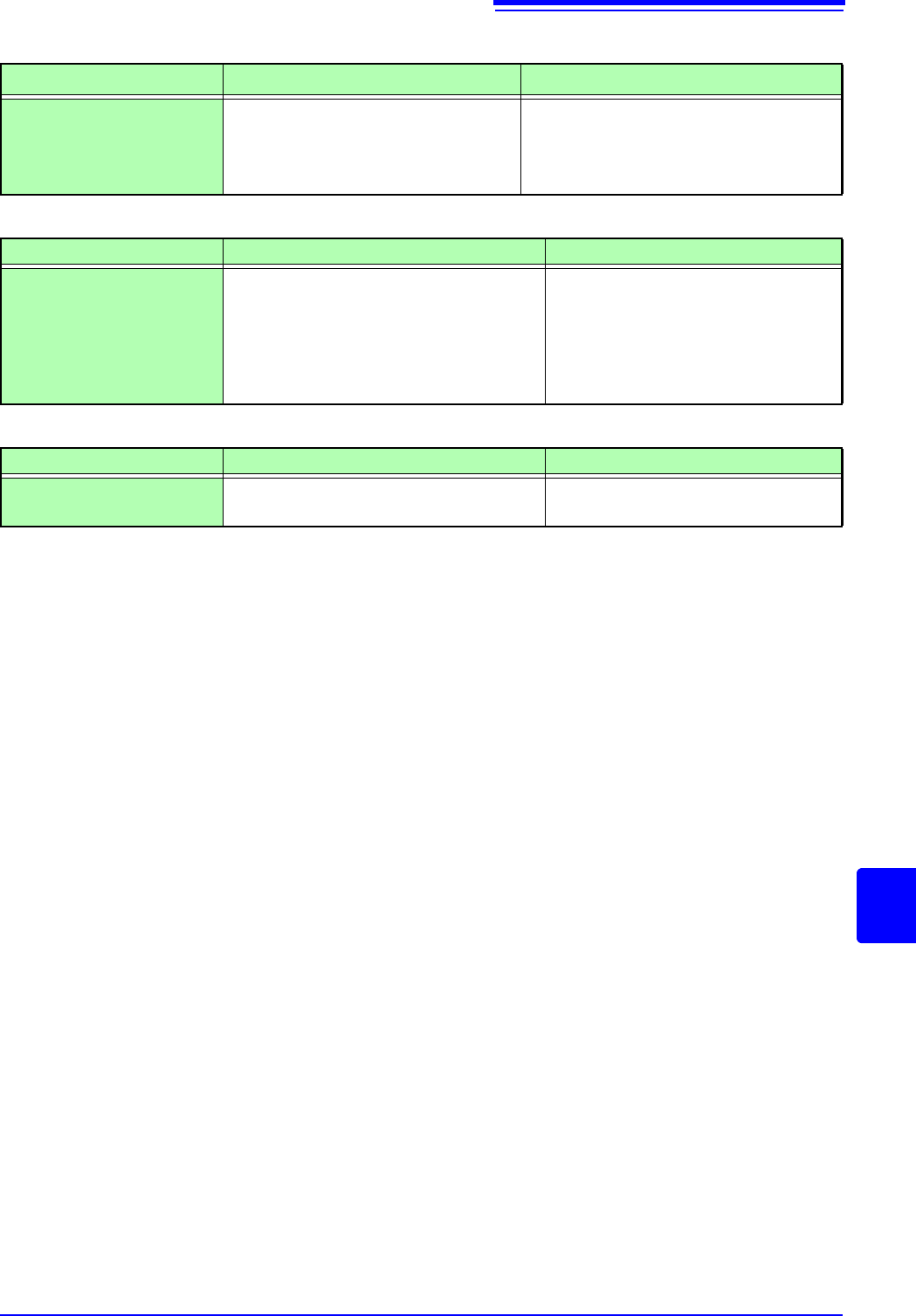
The displayed waveform
size does not change
when the input range is
changed.
Is the Variable function enabled?
Turn the Variable function off.
"7.5 Variable Function (Setting the
Waveform Display Freely)" (p.155)
If the Display or Operations Malfunction
Symptom Check Item, or Cause Remedy and Reference
If Saving is Not Possible
Symptom Check Item, or Cause Remedy and Reference
If saving is not possible to
the USB memory stick
• Is the storage media inserted properly?
• Is the storage media formatted?
• Is the remaining capacity of the storage
media too low?
• Has the number of files in the folder
reached the limit?
"2.3 Recording Media Preparation"
(p.53)
"Media information" (p.84)
Others
Symptom Check Item, or Cause Remedy and Reference
The response of remote
control is very slow.
Check the java settings.
About the java settings, see the applica-
tion disk supplied with the instrument.
18.2 Initializing the Instrument
374
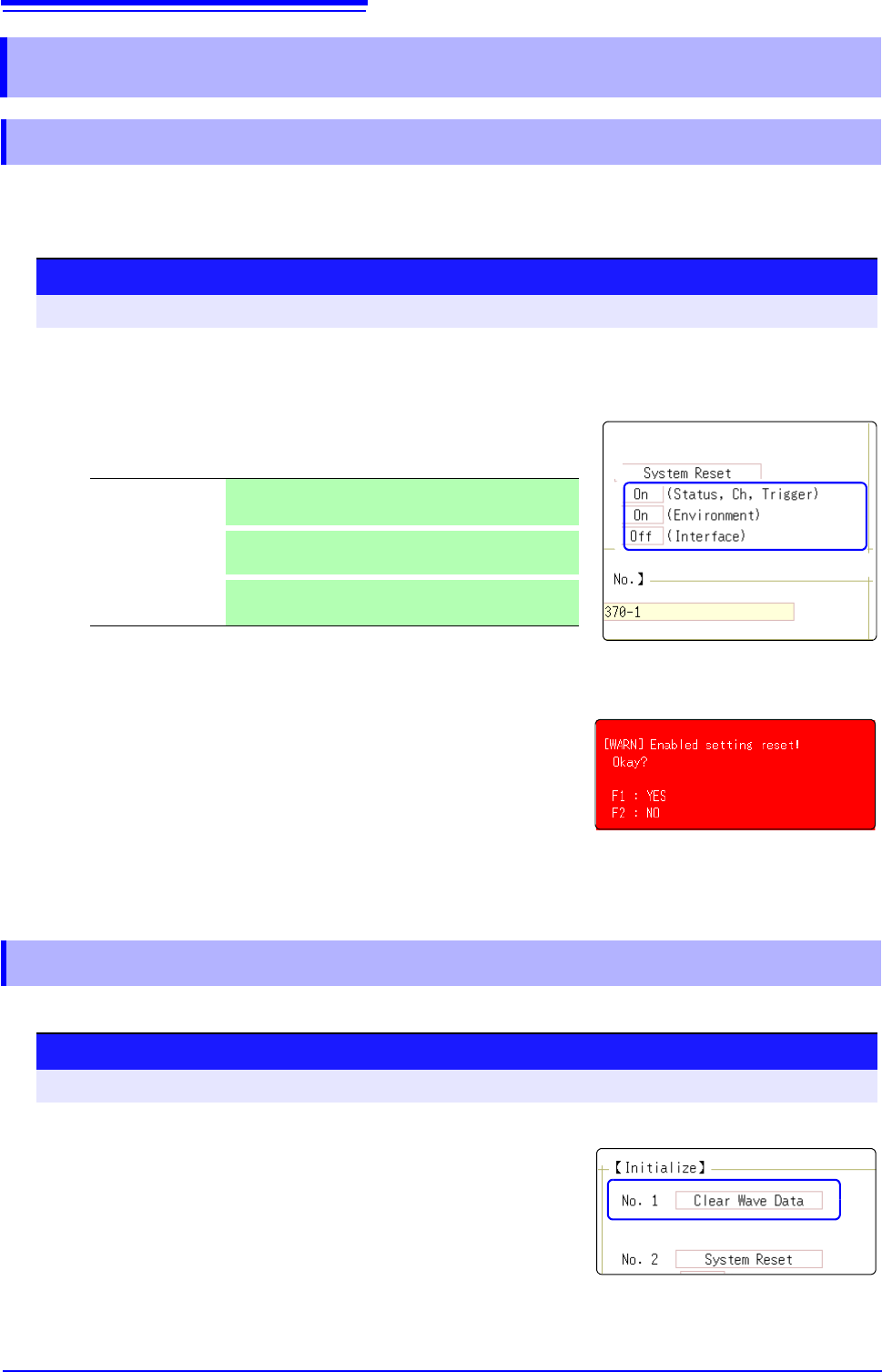
Select groups of settings currently in force on the instrument, and initialize the settings. Initialization returns
the instrument to the factory default state. By default, the setting of [Setting (Stat, Ch, Trig)] and [Setting
(Env)] are selected for initialization in this screen.
Discard the waveform data saved in memory and initialize the data.
18.2 Initializing the Instrument
18.2.1 Initializing System Settings (System Reset)
1
2
3
Procedure
To open the screen: Right-click and select [SYSTEM] [Init] sheet
1
Move the flashing cursor to the item you want to initialize.
2
Select [On].
Select [Off] for the groups of settings that you do not want to initial-
ize.
3
Move the flashing cursor to the [System Reset].
4
Select [Exec].
A confirmation dialog box appears.
5
Select [Yes].
To cancel initializing:
Select [No].
Initialization is complete when "System initialized" appears.
(Status, Ch, Trig-
ger)
Current settings in Status screen, Channel screen,
and Trigger setting window (Default setting: On)
(Environment)
Current settings in the Environment sheet and File
Save sheet (Default setting: On)
(Interface)
Current settings in the Interface sheet (Default setting:
Off)
18.2.2 Initializing Waveform Data
Procedure
To open the screen: Right-click and select [SYSTEM] [Init] sheet
1
Move the flashing cursor to the [Clear Wave Data].
2
Select [Exec].
Initialization is complete when "Waveform data erased." appears.
18.3 Error Messages
375
Chapter 18 Maintenance and Service
14
18
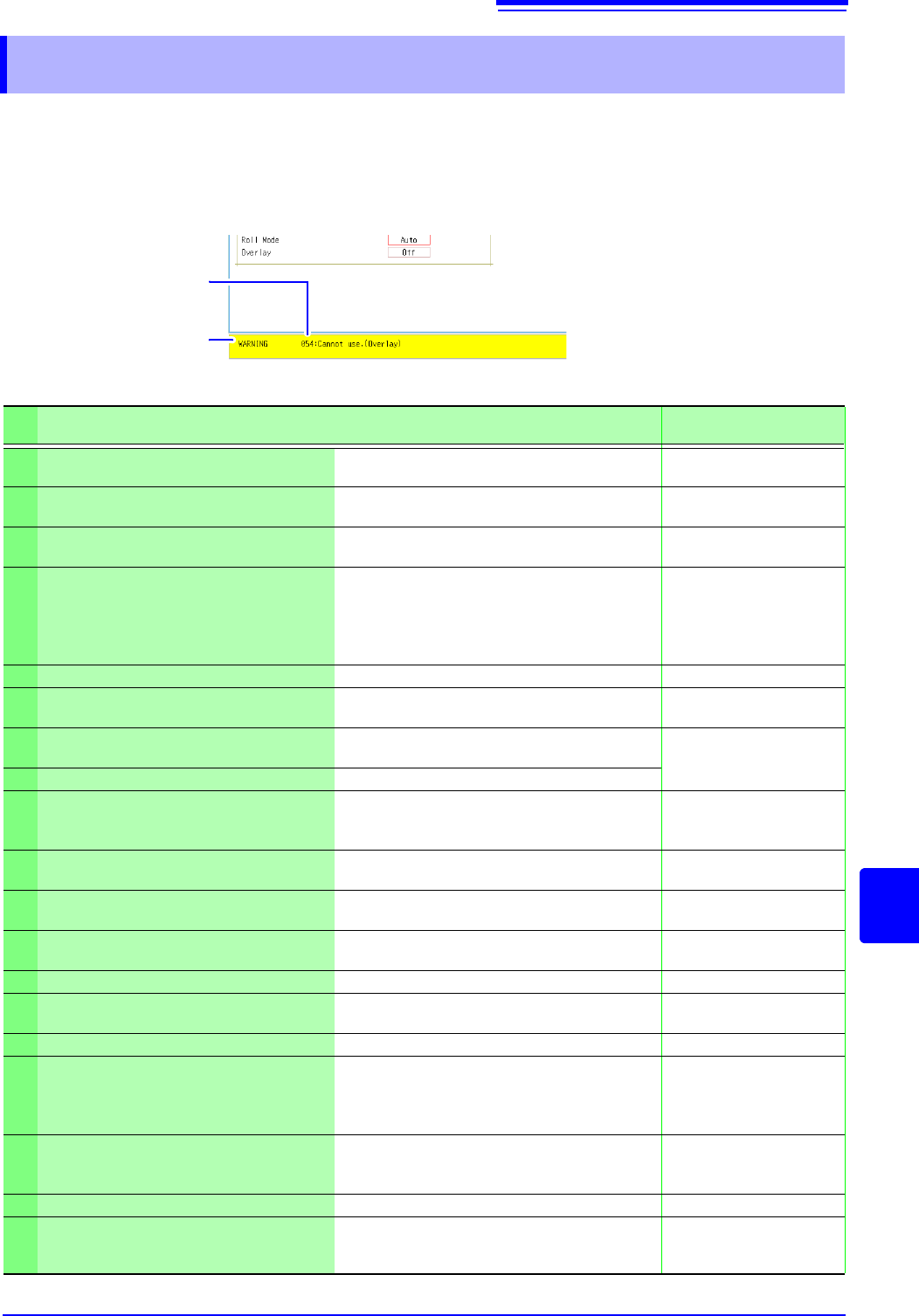
A screen message appears whenever an error occurs. In either case, take the remedial action indicated.
A beep may sound if the beeper setting on the [Environment] sheet is [Warn] or
[Warn+Action].
See: "Chapter 14 System Environment Settings" (p.309)
18.3 Error Messages
Message
Displayed Message
Number (Msg No.)
Warning Display
Appears just once when an error
occurs. Disappears within a few
seconds.
Also disappears when clicking
the mouse.
Displayed Warnings
Msg
No.
Message Remedial Action Reference
10
Mount media. Set the recording media.
"2.3 Recording Media Prep-
aration" (p.53)
11
Illegal format. Wrong recording format. Reformat the media.
"2.3.2 Formatting Storage
Media" (p.54)
12
Can not write.
Write-protection is enabled on the storage
media. Disable it.
-
13
Disk full while accessing the file.
Saving is not possible because of insufficient
space on the storage media. Delete files or re-
place the storage media. If measuring,
Stop measurement, then replace the storage
media.
"4.4.4 Deleting Files & Fold-
ers" (p.106)
14
File is read only. File is read only. Deletion is not permitted.
-
15
Access to the file was denied.
An internal fault may have occurred in the in-
strument. Turn the instrument off and back on
-
16
The file name already exists: cannot
save.
Change the file name.
"4.4.6 Renaming Files &
Folders" (p.107)
17
The folder name already exists. Change the folder name.
18
Not enough free space in the folder to
create file.
Either delete files in the saving destination
folder, or change to another saving destina-
tion.
-
19
Folder not empty.
The folder is not empty, be sure you want to
delete.
-
20
The maximum length of a file name, in-
cluding its path, is 255 characters.
File names including the path must not exceed
255 characters.
-
21
Internal error.
An internal error occurred. Check the storage
media.
-
22
No waveform data to save. Acquire waveform data.
-
24
There is no calculation result.
There is no calculation result. Save results af-
ter performing calculation.
"Chapter 9 Numerical Cal-
culation Functions" (p.211)
26
Invalid folder path. Route cannot be specified.
-
27
When executing, select [No] as the save
property.
As other dialogs are displayed, selective sav-
ing cannot be carried out. Either set the selec-
tive saving during execution to [No] or close
the dialog and re-save.
"4.2.3 Saving Data Selec-
tively (SAVE)" (p.93)
28
Pressed key invalid (waveform evalua-
tion).
Unable to perform operation because wave-
form evaluation is enabled. Turn off waveform
evaluation.
"13.3 Setting the Waveform
Evaluation Mode" (p.300)
29
The record length was restricted. -
-
31
A/B cursor positions invalid.
The A/B cursors overlap. Check the cursor po-
sitions.
"6.2 Specifying a Waveform
Range (A/B Cursor)"
(p.124)