MR8740、MR8741_user_manual_eng_20191016H.pdf - 第281页
12.5 Setting Screen Displays 269 11 Chapter 12 FFT Function 12 If [Format] is set to [Running spectrum] , chan ges in frequency over time can be observed. 12.5.1 Displaying running spectrums 1 Select the re ference dat a…
12.5 Setting Screen Displays
268
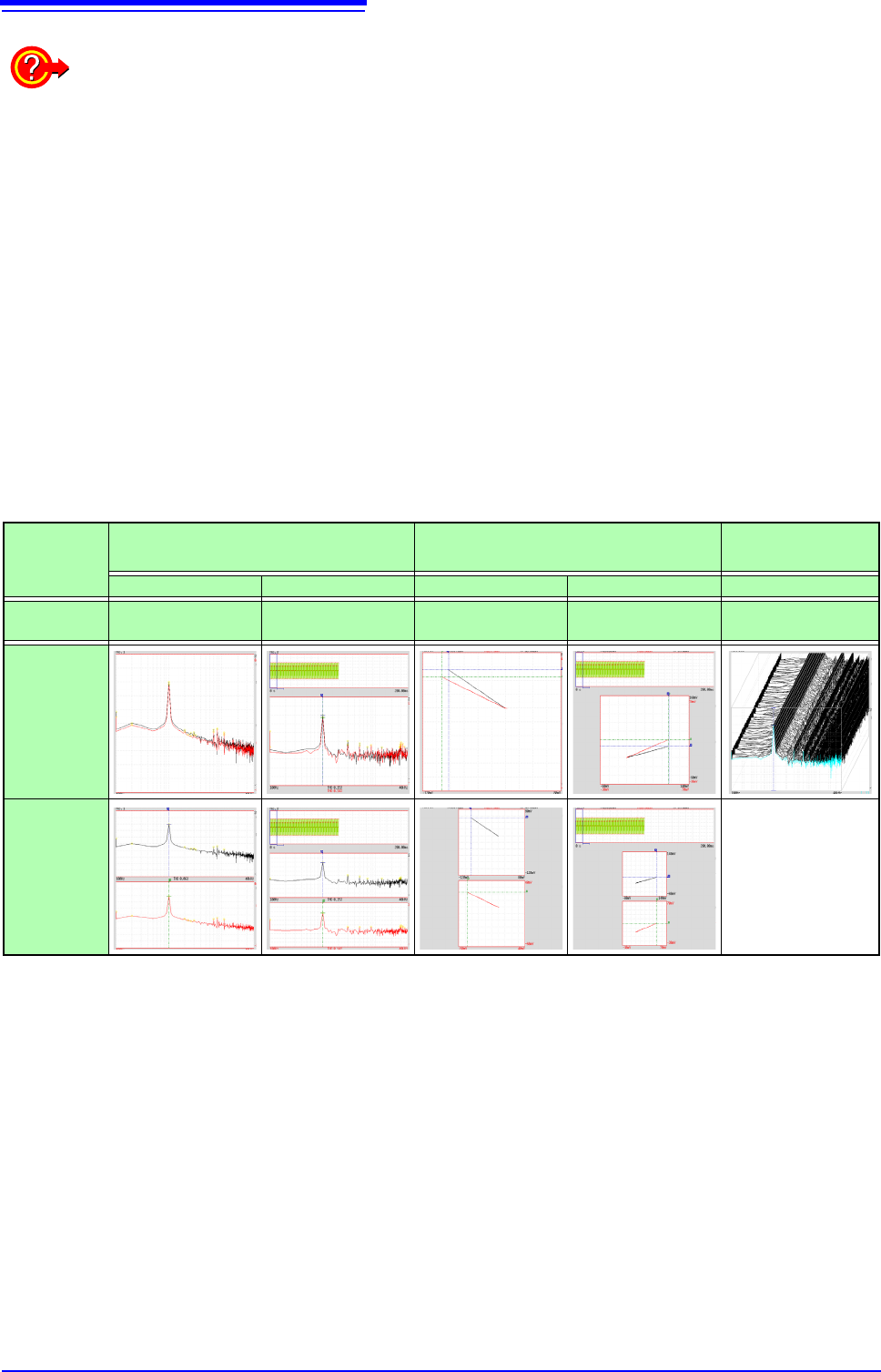
Display Types and Split-Screen Settings
Nine display arrangements are available.
When “Drawing failed”:
•
NG: Nyquist, Running Spectrum
The display format settings and analysis mode do not match.
•
NG: X-Axis
Either change the [Format] setting and increase the number of screen divisions or change the
display setting of the X-axis.
Linear and logarithm X-axes cannot exist in one graph.
•
NG:X-unit
Set [Format] and increase the number of screen divisions. Different horizontal axis units cannot
coexist in 1 graph.
•
NG: EXT
Analysis mode cannot perform external sampling.
Standard Nyquist
Running
Spectrum
Single Standard Dual Standard Single Nyquist Dual Nyquist Running spectrum
[Reference]
setting
[New Data] [From Memory] [New Data] [From Memory] [New Data]
One
division
Two divi-
sions
FFT
MEM
FFT
Nyquist
Nyquist
MEM
ナイキスト
Running Spectrum
FFT
FFT
MEM
FFT
FFT
Nyquist
Nyquist
Nyquist
MEM
Nyquist
12.5 Setting Screen Displays
269
11
Chapter 12 FFT Function
12
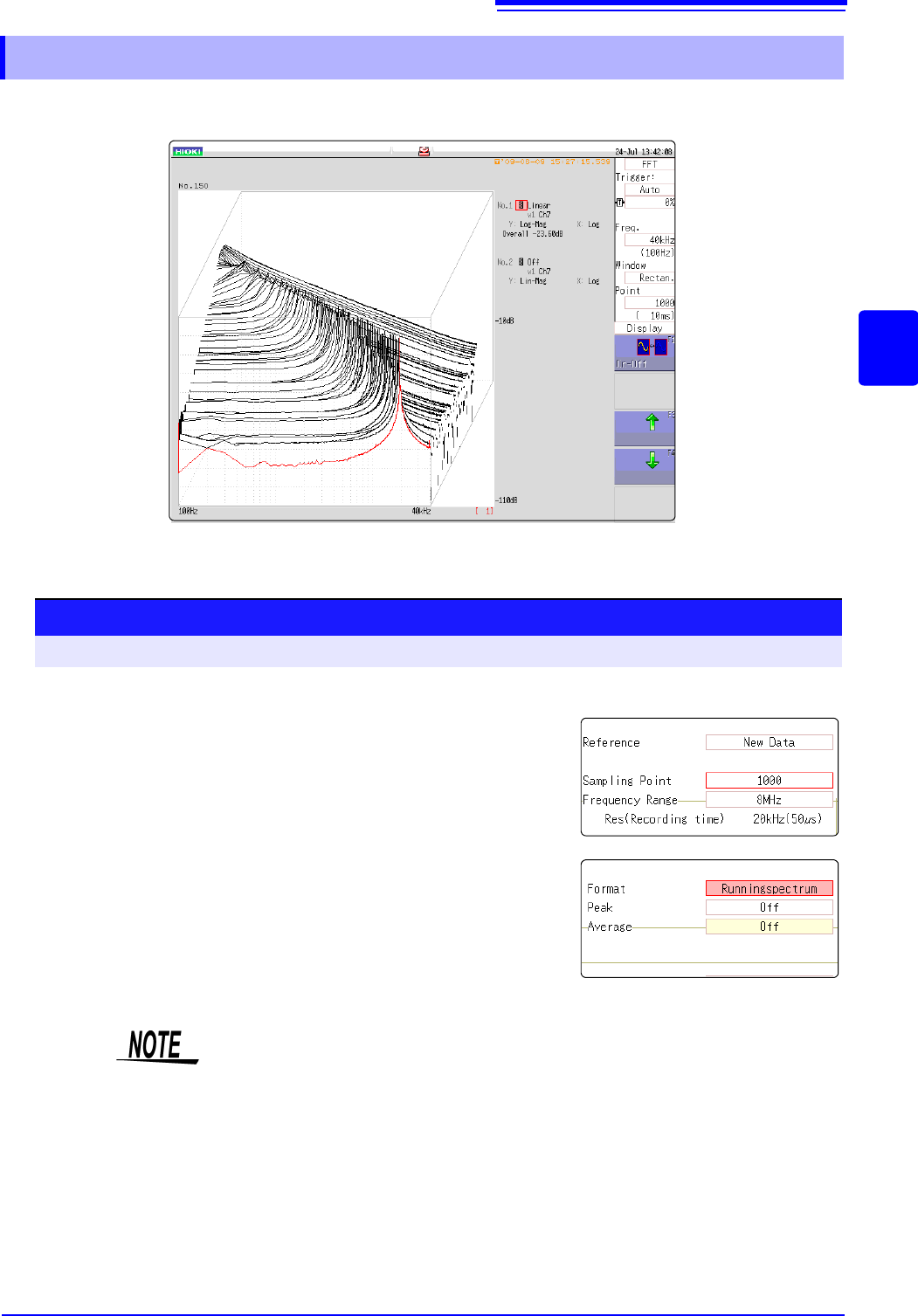
If [Format] is set to [Running spectrum], changes in frequency over time can be observed.
12.5.1 Displaying running spectrums
1
Select the reference data.
Move the flashing cursor to the [Reference], and select
[New Data].
2
Select the display format.
Move the flashing cursor to the [Format], and select [Run-
ning spectrum].
Procedure
To open the screen: Right-click and select [STATUS] [Status] sheet
1
2
• [Running spectrum] can only be set when the [Reference] is [New Data].
• The calculation interval (time interval of the running spectrum waveform and
the waveform) is not regulated.
• Averaging cannot be used.
• Calculations that can be analyzed by running spectrum are limited to the fol-
lowing. When other calculations are selected or calculation settings are
changed after measurement stops, waveforms are not displayed.
(Linear spectrum, RMS spectrum, power spectrum, power spectrum density,
LPC analysis, transfer function, cross power spectrum, 1/1 octave analysis, 1/
3 octave analysis)
12.5 Setting Screen Displays
270
Procedure
To open the screen: Right-click and select [DISP] Waveform screen
Reading measurement values of past waveforms by cursor
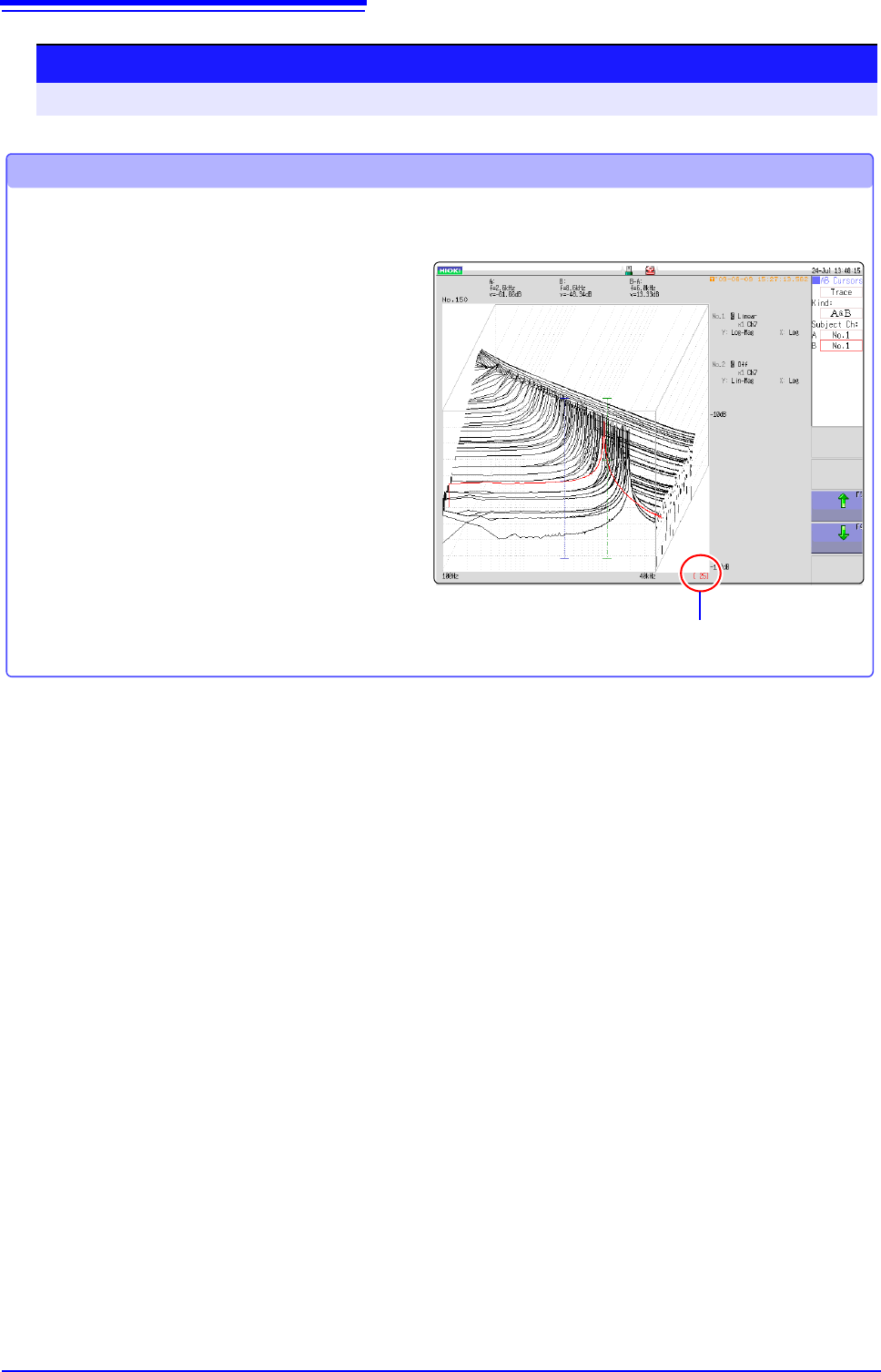
After measurement is finished, read the values of each waveform by cursor.
The older the waveform,
the larger the number.
1 Click [WAVE] in the right-click menu.
2 Select a waveform.
Rotate the mouse wheel to select the
waveform.
(The waveform number is displayed in the
lower right of the screen.)
3 Move the cursor.
Click [AB CSR] in the right-click menu, and
rotate the mouse wheel to read the cursor
value.