MR8740、MR8741_user_manual_eng_20191016H.pdf - 第144页
6.6 Monitoring Input Levels (L evel Monitor) 132 All input waveform levels ca n be monitored in real time. Analog channels and logic channe ls can be displayed at the same time. 6.6 Monitoring Input Levels (Level Monitor…
6.5 Magnifying and Compressing Waveforms
131
5
Chapter 6 Waveform Screen Monitoring and Analysis
6
Description About logic waveform display
When the Zoom function is enabled, and the logic waveform display position is at
less than [50pos], the logic waveform will not be displayed.
Example: Display position [30pos]
This applies to the Memory function and Recorder Function.
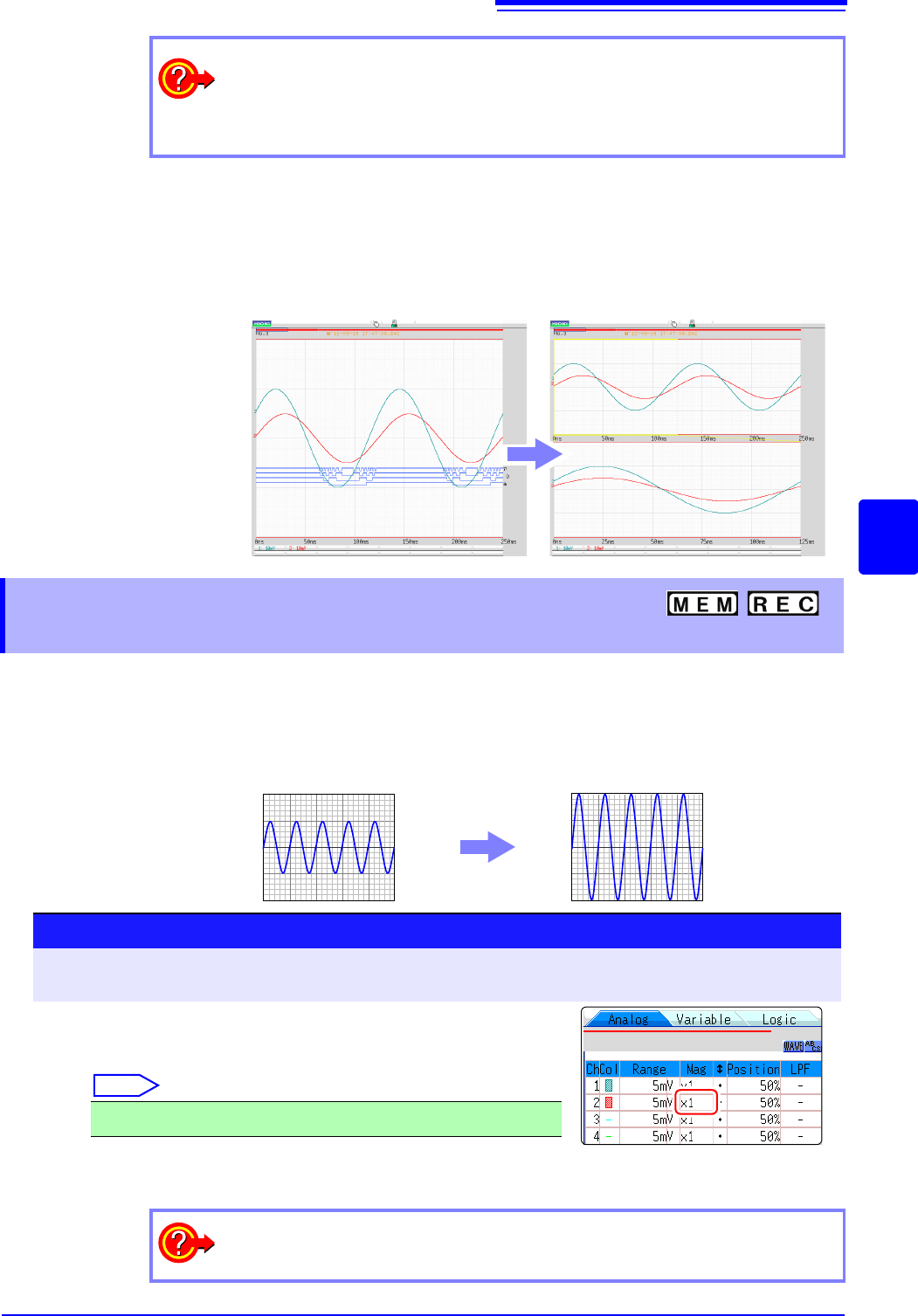
Waveforms on each channel can be magnified or compressed along the vertical axis (voltage axis)
for display.
Magnification and compression based on zero position.
To view the entire waveform (Memory function only)
Move the flashing cursor to the ratio item in the settings window and select [All
Wave].
The waveform information for the entire recording length is displayed.
Normal Display Zoomed Display
6.5.3 Magnifying and Compressing
Vertical Axis (Voltage Axis)
Normal Display
Magnified Display
Procedure
To open the screen: Right-click and select [DISP] Waveform screen Right-click and select [CH.SET]
Channel settings window ([Analog] sheet)
Move the flashing cursor to the [Mag] item of the channel to
adjust, and click it.
Select
Selecting [Invert] will invert plus and minus in the waveform.
See: "7.7 Inverting the Waveform (Invert Function)" (p.159)
x1/10, x1/5, x1/2, x1, x2, x5, x10, x20, x50, x100
To display at an arbitrary ratio
See: "7.5 Variable Function (Setting the Waveform Display Freely)" (p.155)
6.6 Monitoring Input Levels (Level Monitor)
132
All input waveform levels can be monitored in real time.
Analog channels and logic channels can be displayed at the same time.
6.6 Monitoring Input Levels (Level Monitor)
6.6.1 Level Monitor
Procedure
To open the menu: Right-click and select [DISP] Display Menu
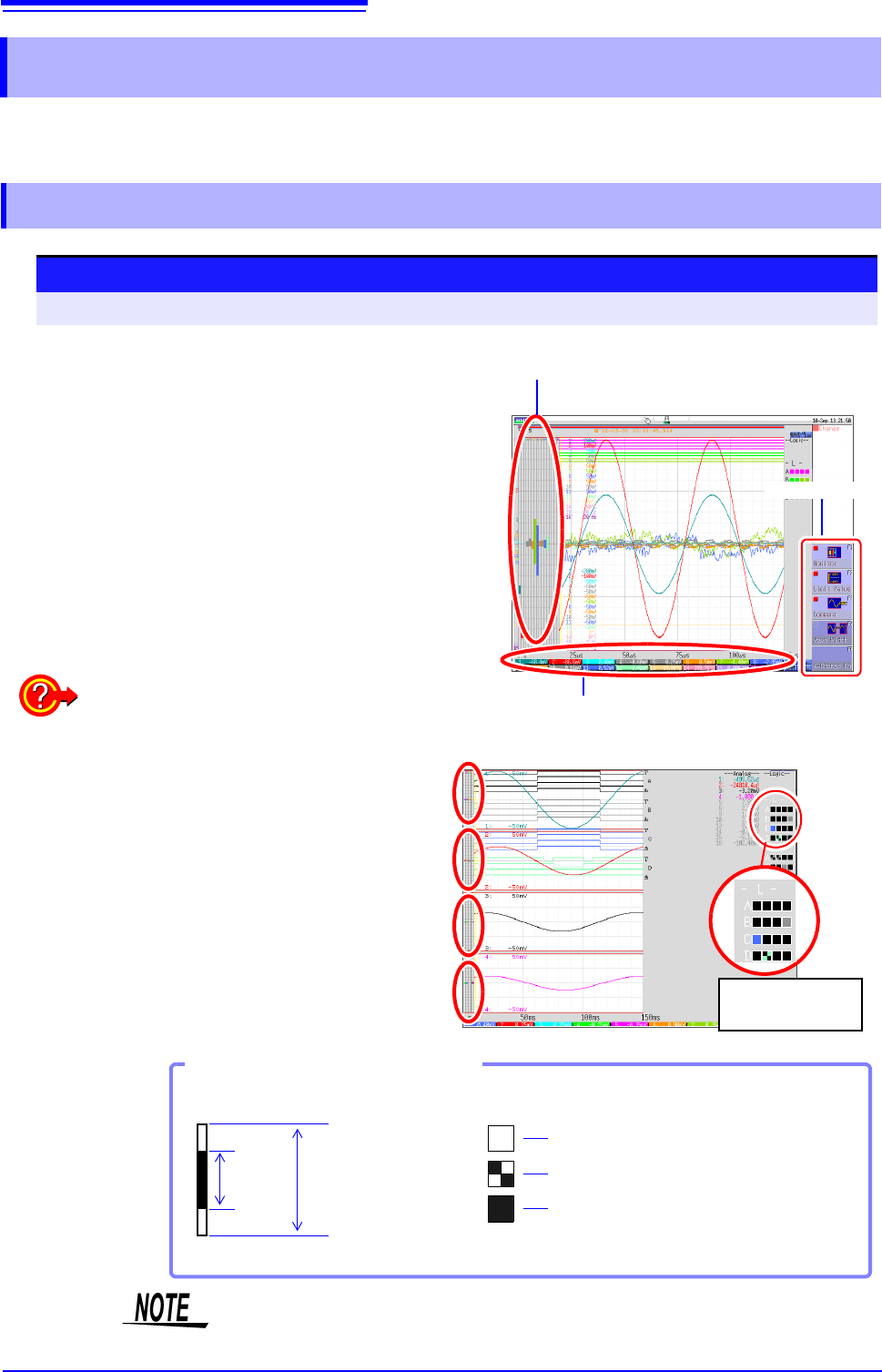
Analog channel level
To hide the level monitor
Select [Monitor] again.
Selecting [Monitor] displays the analog channel level
on the left of the Waveform screen, the logic channel
level on the right of the Waveform screen, and the
monitor numerical values at the bottom of the Wave-
form screen.
Monitor values of analog channels
(Up to 6 digits are displayed.)
Display menu
Display format 2 - 16 screens (p.72)
Level monitors are displayed for each graph.
Upper and lower limit indication is combined with
level monitor.
See: "6.7.1 Showing Upper/Lower Limit On Waveform
Screen" (p.134)
Logic channel
level display
Level display of an analog channel
High
Hi gh& Low
Low
Input
Level
Waveform Display
Range Full Span
Level display of logic channels
How to View a Level Monitor
When the display setting is On,
the part indicated in white takes
the color specified for the wave-
form display. When the setting is
Off, the part becomes gray. The
part indicated in black takes the
background color.
Input levels are not displayed for channels having no corresponding module
installed.
6.6 Monitoring Input Levels (Level Monitor)
133
5
Chapter 6 Waveform Screen Monitoring and Analysis
6
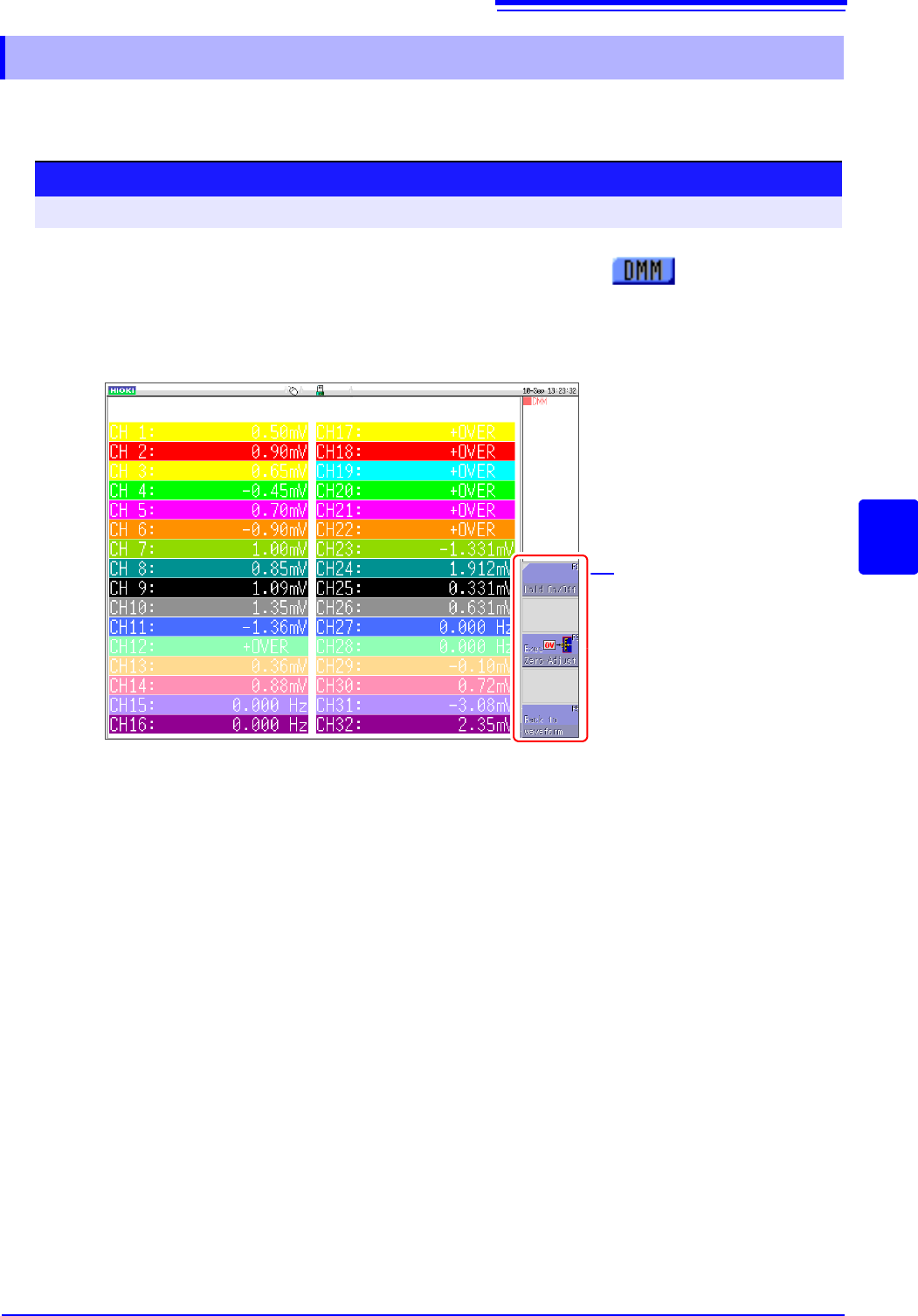
Input values can be monitored as numerical values in the same way as with a DMM (digital multim-
eter).
6.6.2 Numerical Value Monitoring (DMM Display)
Procedure
To open the screen: Right-click and select [DISP] Left-click the [DMM] icon
Left-click the [DMM] icon.
Left-click the [DMM] icon on the top right of the Waveform
screen.
The display changes to numerical value (DMM) display.
To return to the Waveform screen
Left-click [Back to waveform] in the display menu on the right of the
screen.
To pause (hold) display
Left-click [HOLD ON/OFF] in the display menu on the right of the screen.
The HOLD mark appears at the top of the screen to indicate that the
screen is in the HOLD state.
Click [HOLD ON/OFF] in the HOLD state to cancel hold.
Zero adjust
Zero adjustment (calibration for MR8990) can also be performed in the
numerical value (DMM) display screen. Left-click [Exec Zero-Adjust] in
the display menu on the right of the screen.
Display menu