MR8740、MR8741_user_manual_eng_20191016H.pdf - 第282页
12.5 Setting Screen Displays 270 Procedure To open the screen: Right-click and select [DISP] Wa veform scr een Reading measurement values of p ast waveforms by cursor After measurement is finished, read the values of e…
12.5 Setting Screen Displays
269
11
Chapter 12 FFT Function
12
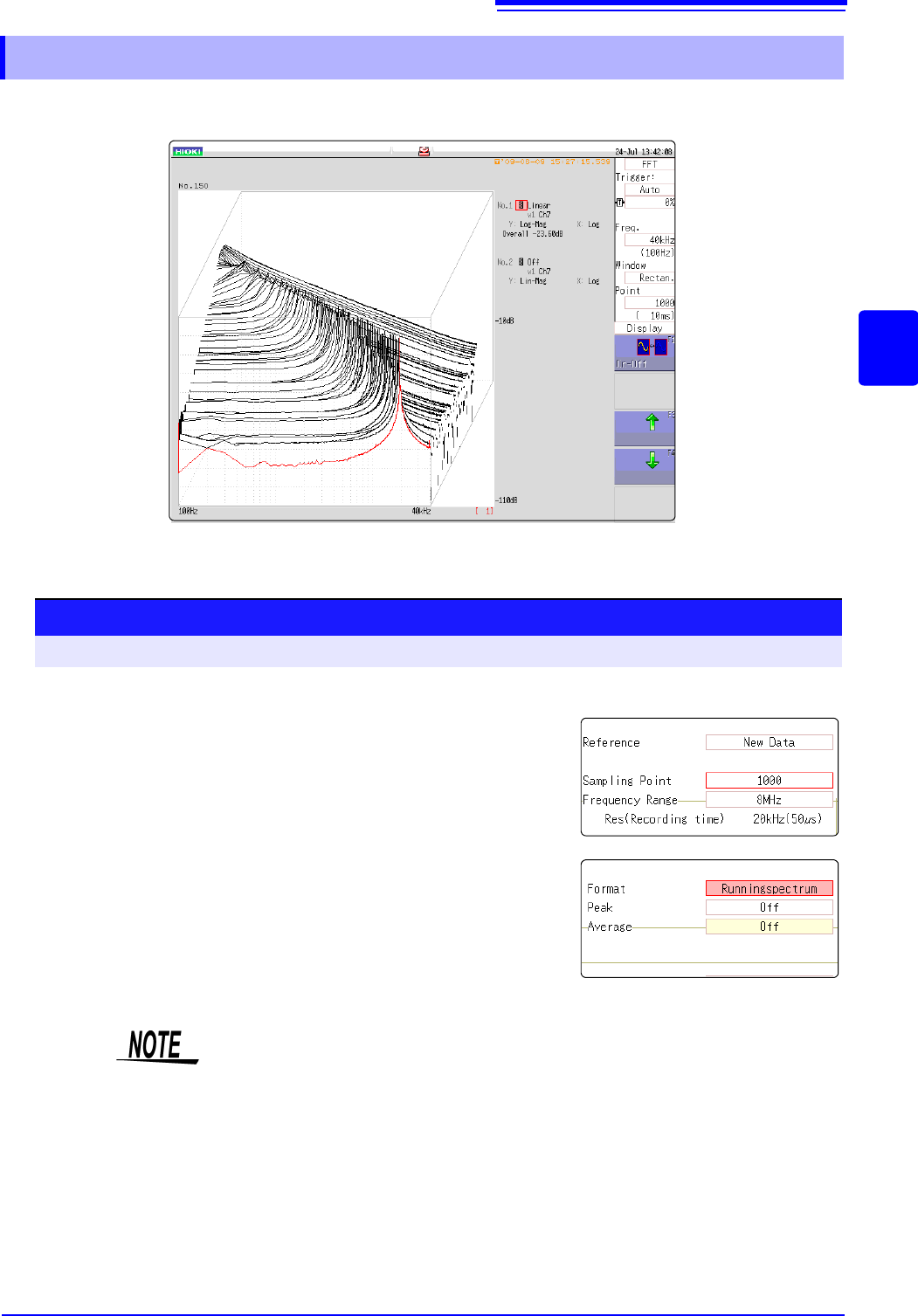
If [Format] is set to [Running spectrum], changes in frequency over time can be observed.
12.5.1 Displaying running spectrums
1
Select the reference data.
Move the flashing cursor to the [Reference], and select
[New Data].
2
Select the display format.
Move the flashing cursor to the [Format], and select [Run-
ning spectrum].
Procedure
To open the screen: Right-click and select [STATUS] [Status] sheet
1
2
• [Running spectrum] can only be set when the [Reference] is [New Data].
• The calculation interval (time interval of the running spectrum waveform and
the waveform) is not regulated.
• Averaging cannot be used.
• Calculations that can be analyzed by running spectrum are limited to the fol-
lowing. When other calculations are selected or calculation settings are
changed after measurement stops, waveforms are not displayed.
(Linear spectrum, RMS spectrum, power spectrum, power spectrum density,
LPC analysis, transfer function, cross power spectrum, 1/1 octave analysis, 1/
3 octave analysis)
12.5 Setting Screen Displays
270
Procedure
To open the screen: Right-click and select [DISP] Waveform screen
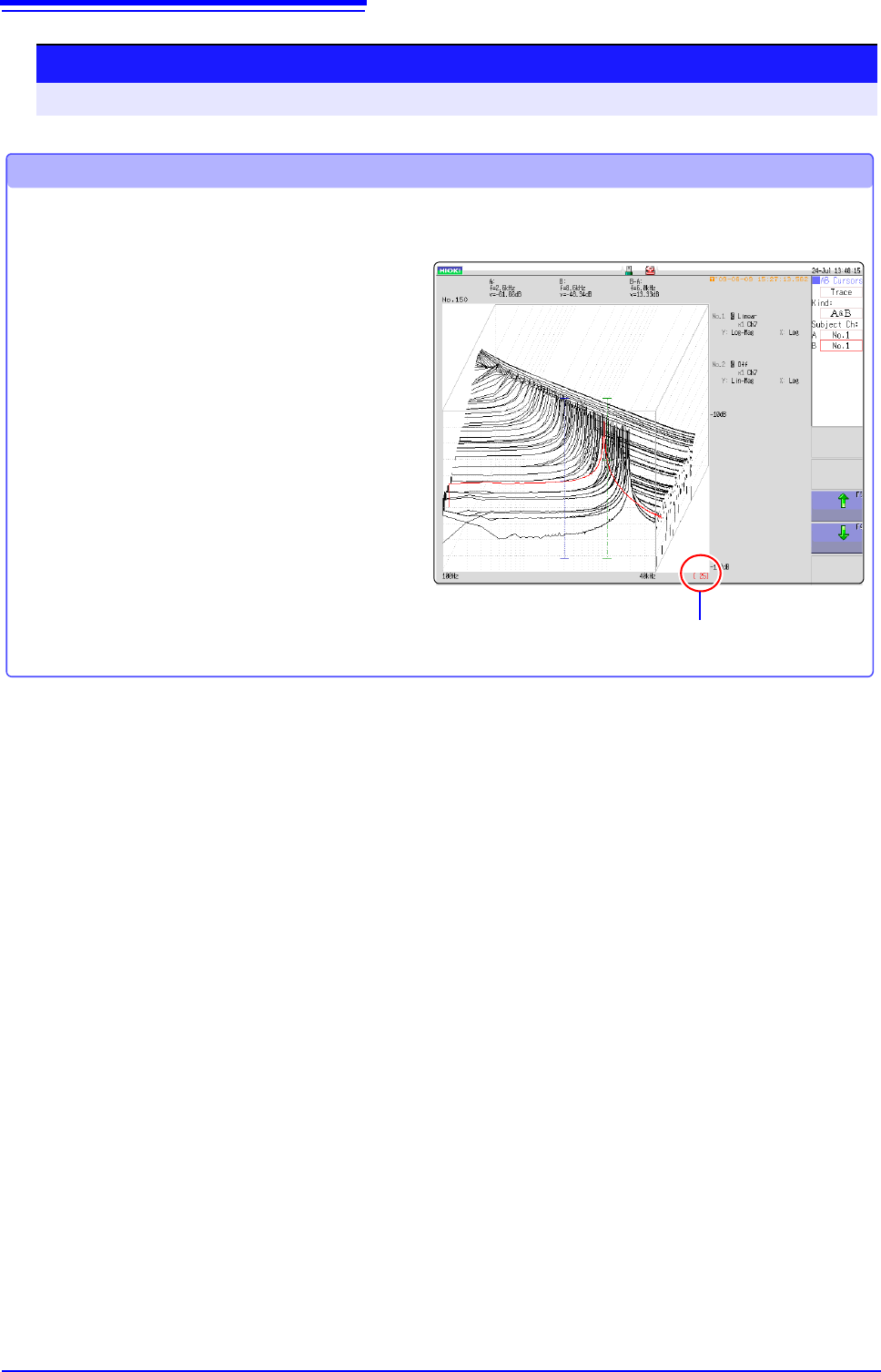
Reading measurement values of past waveforms by cursor
After measurement is finished, read the values of each waveform by cursor.
The older the waveform,
the larger the number.
1 Click [WAVE] in the right-click menu.
2 Select a waveform.
Rotate the mouse wheel to select the
waveform.
(The waveform number is displayed in the
lower right of the screen.)
3 Move the cursor.
Click [AB CSR] in the right-click menu, and
rotate the mouse wheel to read the cursor
value.
12.5 Setting Screen Displays
271
11
Chapter 12 FFT Function
12
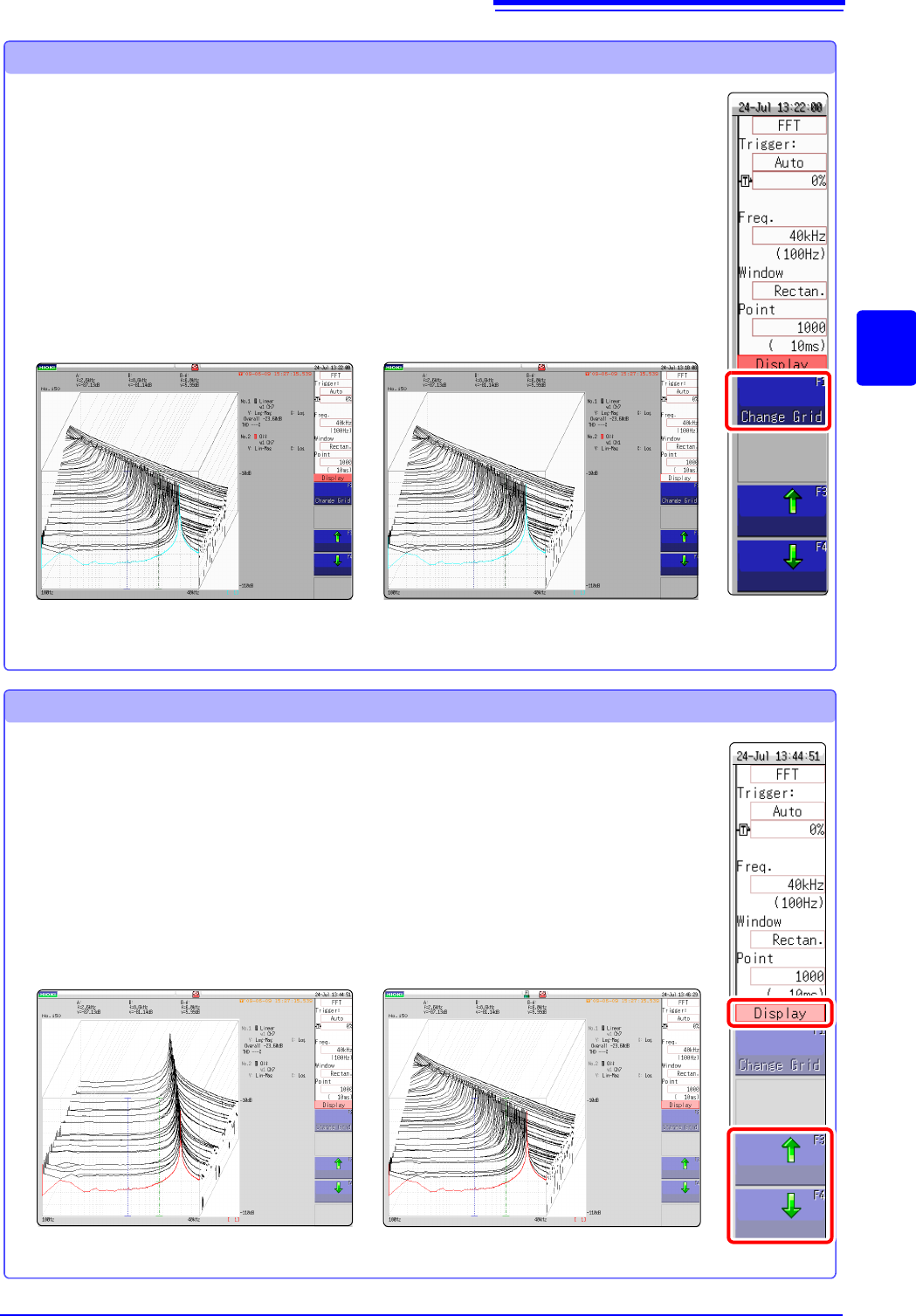
Changing the grid display
The display format of the grid can be switched.
Grid Type 1
1 Click [WAVE] in the right-click menu.
2 Move the flashing cursor to the [Display].
3 Change the grid display
Click [Change Grid] and change the grid display.
Each click changes the display format.
Grid Type 2
1 Click [WAVE] in the right-click menu.
2 Move the flashing cursor to the [Display].
3 Change the number of waveforms to be displayed.
Clicking either [] or [], adjust the number of waveforms to be
displayed.
Changing the number of waveforms to be displayed
The number of waveforms to be displayed can be changed.
The following number of waveforms can be selected: 10, 20, 50, 100, and 200.
100 waveforms displayed50 waveforms displayed