MR8740、MR8741_user_manual_eng_20191016H.pdf - 第75页
3.2 Measurement Workflow 63 3 Chapter 3 Measuremen t Procedure 5 St arting Measurement See: "3.6 Starting and Stopping Measurement" (p.81) "Chapter 4 Saving/Loading Data & Manag ing Files" (p.83) …
3.2 Measurement Workflow
62
3.2 Measurement Workflow
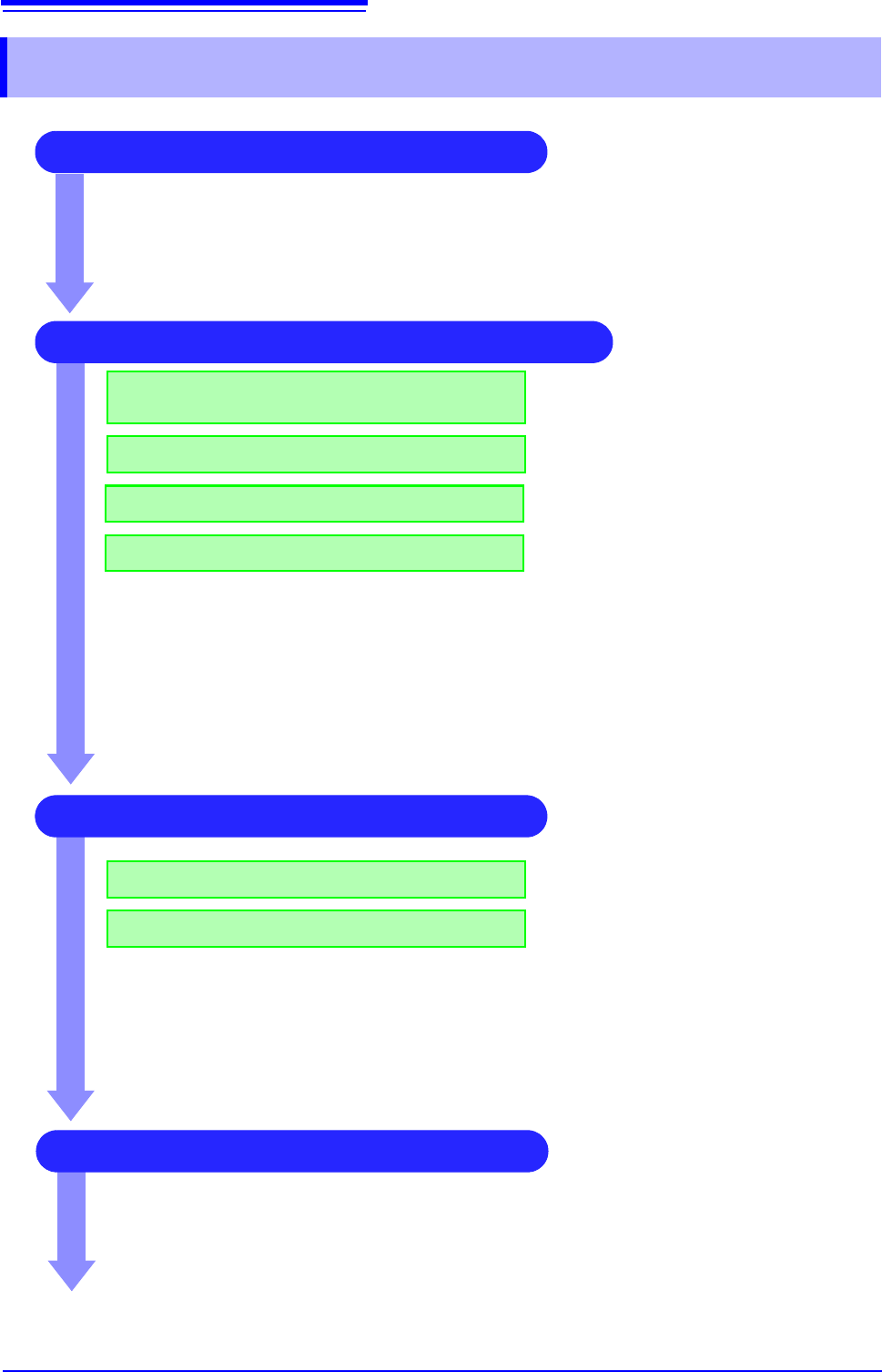
2 Make basic settings for measurement
Set waveform length
Select suitable recording method for
measurement target
Set data acquisition speed
Set waveform display format
See:
"3.4.1 Measurement Function" (p.65)
"3.4.2 Time Axis Range and Sampling Rate"
(p.67)
"3.4.3 Recording Length (number of divisions)"
(p.70)
"3.4.4 Screen Layout" (p.72)
Application examples
See:
"6.4 Performing Waveform X-Y Synthesis" (p.127)
"7.2 Displaying Waveforms During Recording (Roll Mode)" (p.145)
"7.3 Displaying New Waveforms Over Past Waveforms (Overlay)" (p.146)
"Chapter 9 Numerical Calculation Functions" (p.211)
3 Input Channel Settings
Make analog channel settings
Make logic channel settings
See:
"3.5.2 Analog Channel" (p.76)
"3.5.3 Logic Channel" (p.79)
Application examples
See:
"7.1 Adding Comments" (p.138)
"7.4 Converting Input Values (Scaling Function)" (p.148)
"7.5 Variable Function (Setting the Waveform Display Freely)" (p.155)
"7.6 Fine Adjustment of Input Values (Vernier Function)" (p.158)
"7.7 Inverting the Waveform (Invert Function)" (p.159)
4 Make trigger settings
See:
"Chapter 8 Trigger Settings" (
p.189)
1 Pre-Measurement Inspection
See:
"3.3 Pre-Measurement Inspection" (p.64)
3.2 Measurement Workflow
63
3
Chapter 3 Measurement Procedure
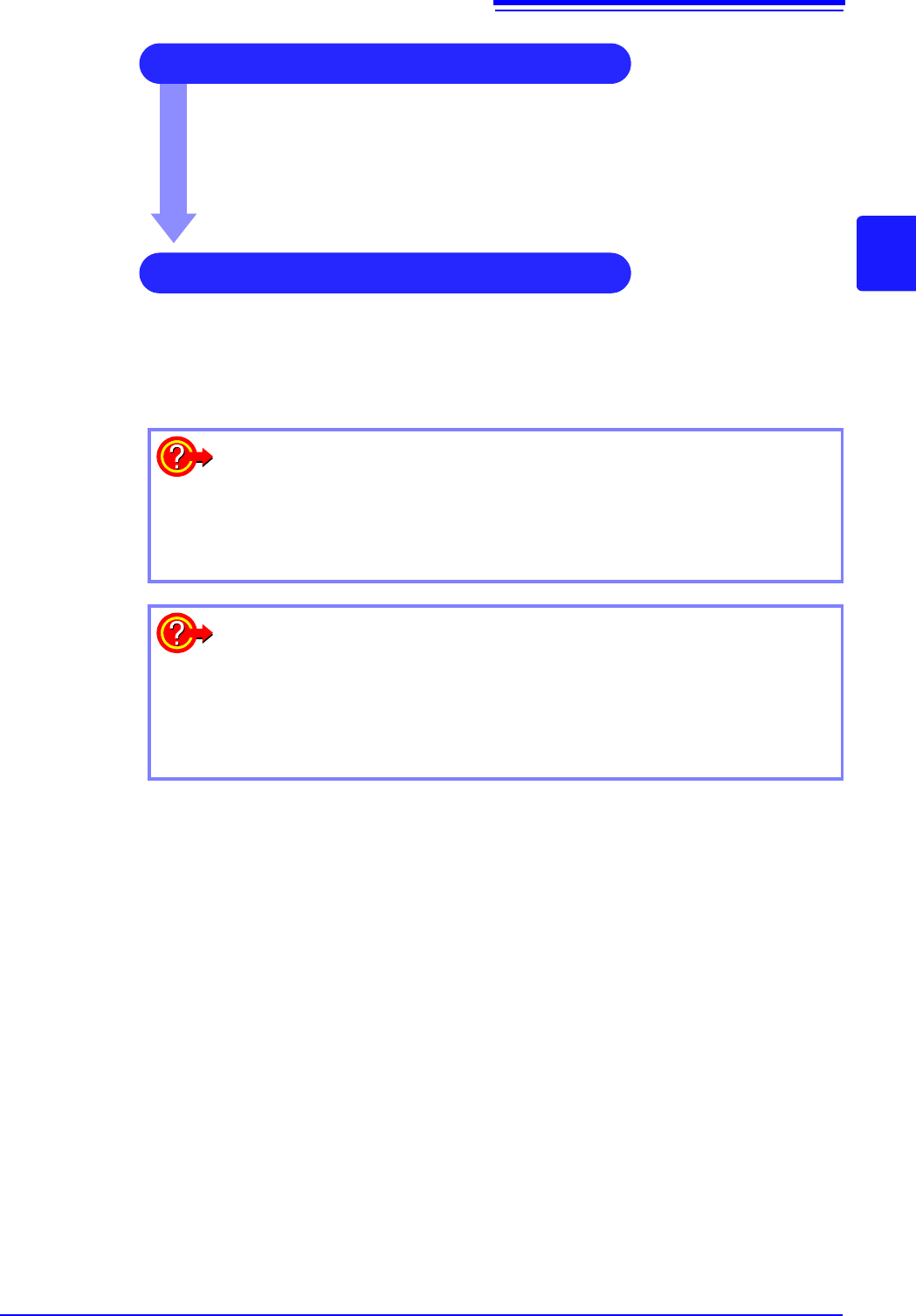
5 Starting Measurement
See:
"3.6 Starting and Stopping Measurement" (p.81)
"Chapter 4 Saving/Loading Data & Managing Files" (p.83)
"6.1 Reading Measurement Values (Using the A/B Cursors)" (p.120)
"6.3.2 Scrolling the Measurement Waveform" (p.125)
"6.5 Magnifying and Compressing Waveforms" (p.129)
6 Stopping Measurement
See:
"3.6 Starting and Stopping Measurement" (p.81)
To reuse previously stored settings
Load the settings file from the File screen.
Saving the settings for different measurement targets or applications enhances
operation convenience.
See: "4.3 Loading Data" (p.99)
To return settings to the original (basic default) condition
From the System screen, select the [Init] sheet to return the unit to the factory
default settings. In this condition, the unit is set up to easily perform simple
measurements. If operation of the unit seems unusual or overly complex, per-
form the initialization procedure.
See: "18.2 Initializing the Instrument" (p.374)
3.3 Pre-Measurement Inspection
64
The following steps should be performed before measurement.
3.3 Pre-Measurement Inspection
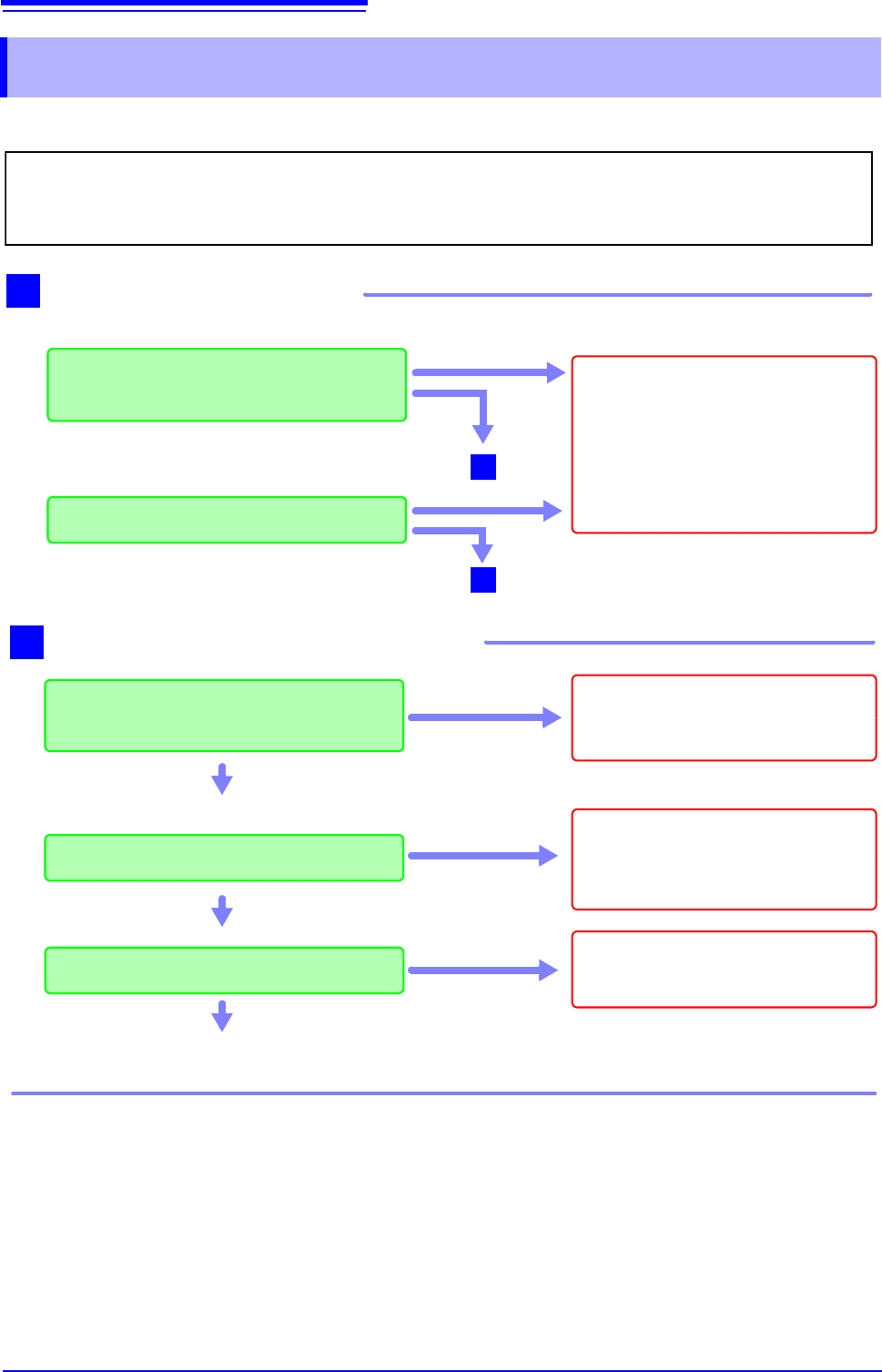
Before using the instrument the first time, verify that it operates normally to ensure that the no
damage occurred during storage or shipping. If you find any damage, contact your dealer or Hioki
representative.
Do not use if damage is present,
as you could receive an electric
shock. Replace the damaged
items.
Metal Exposed
Is the insulation of the probe or connection
cable to be used damaged, or is bare metal
exposed?
When using probes and connection cables
When using a clamp
Is the clamp cracked or damaged?
Yes
1
No Metal Exposed
2
Go to
No
2
Go to
Peripheral Device Inspection
If damage is evident, request re-
pairs.
Yes
Is damage to the instrument or modules evi-
dent?
Instrument and Module Inspection
When turning power on
Do the fans rotate and the Hioki logo appear
on the screen?
No
2
The power cord may be damaged,
or the instrument may be dam-
aged internally. Request repairs.
Does the Waveform screen appear?
No
Yes
The instrument may be damaged
internally. Request repairs.
Nothing appears,
or the display is
abnormal
Yes
Inspection complete