MR8740、MR8741_user_manual_eng_20191016H.pdf - 第327页
15.1 LAN Settings and Connection (Before Using FTP/Internet Browser/Command Communications) 315 12 Chapter 15 Connection to a Computer 14 15 Setting Items Authorization User Name and Password These are us ed when you log…
15.1 LAN Settings and Connection (Before Using FTP/Internet Browser/Command Communications)
314
The required settings are different, depending on whether the instrument is to be connected to an
existing network or directly to a PC.
The required settings are different, depending on whether the instrument is to be
connected to an existing network or whether a new network consisting only of
the instrument and one computer is to be configured.
The following items must be assigned in advance by your network administrator.
Be sure that there is no conflict with other devices.
(Using as Local Network Without External Connections)
If there is not administrator for your network, or if you have been entrusted with
settings, the following addresses are recommended.
15.1 LAN Settings and Connection (Before Using FTP/
Internet Browser/Command Communications)
When connecting the instrument to your LAN using a LAN cable of more than
30 m or with a cable laid outdoors, take appropriate countermeasures that
include installing a surge protector for LANs. Such signal wiring is susceptible to
induced lighting, which can cause damage to the instrument.
Always configure the LAN settings before connecting the instrument to the net-
work. When you change the settings while connected to the network, the IP
addresses may not be unique or invalid address data may be transmitted over
the network.
15.1.1 Making LAN Settings at the Instrument
Things to Check Before Making Settings
When Connecting the instrument to an Existing Network
• The host name and address of the instrument
Host name (up to 12 characters): ____________
IP address: ................................. ___.___.___.___
Subnet mask: ............................. ___.___.___.___
• Gateway
Whether to use a gateway: Yes/No
IP address (when used): ___.___.___.___
• The TCP/IP port number to use: ___X (default 880x)
(Specify the most significant 3 digits of the 4-digit number. The least significant digit
(0 to 9) is reserved for use by the instrument. Specify when the default 8800 to 8809
cannot be used.)
When Configuring a New Network with a PC and This Instrument
IP address
PC: 192.168.0.1
First recorder: 192.168.0.2
Second recorder: 192.168.0.3 and so on, in sequence.
Host name .......................... Any name (However, must be unique)
Subnet mask....................... 255.255.255.0
Gateway.............................. Off
Port number ........................ 880X
(Settings example)

15.1 LAN Settings and Connection (Before Using FTP/Internet Browser/Command Communications)
315
12
Chapter 15 Connection to a Computer
14
15
Setting Items
Authorization User
Name and Password
These are used when you login to the instrument by FTP, or use a PC browser
(with the authorization setting set to on).
When authorization is enabled, login is not possible unless a correct user name
and password are entered. This setting is recommended if you wish to restrict
the users who can access the instrument.
The "Password" item is displayed as "************".
Valid characters: Alphabetic characters and symbols (however, ":" (colon) can-
not be used)
If you want to allow anyone to access, or you wish to login as "anonymous" with
a FTP client, leave the user name and password fields blank.
Interface LAN
Host Name This is a name that identifies the instrument on the network. Assign a host name that
is different from the names of all other devices. This instrument does not support dy-
namic DNS, the name that you set is not registered with a DNS server.
IP Address This is an address that identifies an individual device on a network.
Assign an address that is different from the addresses of all other devices.
Subnet Mask This is a setting used to divide an IP address shown to the network into a network
address and a host address. Use the same subnet mask for all devices in the same
network.
Gateway
IP Address
For network connections:
When your PC (or the communicating device) is on another network than this instru-
ment, set this to [On] and specify the gateway device. When the PC is on the same
network, this is usually set to the same address as the default gateway in the PC
communications settings.
15.1 LAN Settings and Connection (Before Using FTP/Internet Browser/Command Communications)
316
MR8740/MR8741 is
not equipped with a
DHCP function.
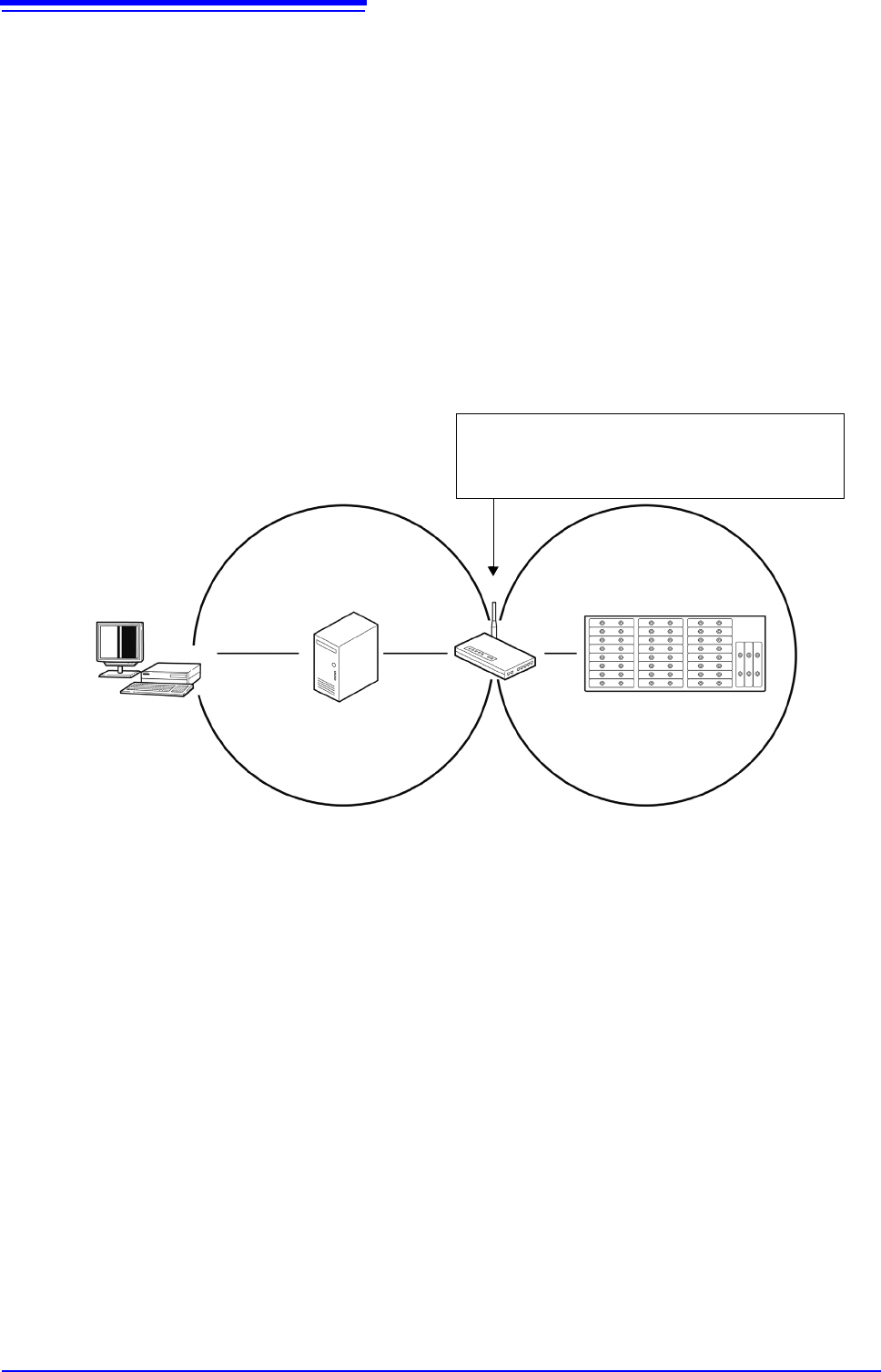
There are two methods to install the instrument (MR8740/MR8741) to a network
using a DHCP server to assign IP addresses.
(1) Ask your network system administrator to provide an available IP address,
which is out of the range of the IP addresses the DHCP server leases, and
assign it as the static IP address to the instrument.
(2) Forward incoming traffic addressed to the IP address assigned by the
DHCP server via a router.
It is recommended to employ the former method (1) to assign the static IP
address to the instrument because the latter method (2) will make the setting
configuration complicated and require additional work to verify the IP address
assigned by the DHCP server.
As the figure below indicates, install the router between the DHCP server and
the instrument. Contact your dealer or Hioki representative for more information.
Router installation
WAN port: IP address is automatically assigned by a DHCP server.
LAN port : Static IP address needs to be manually assigned.
Set up port forwarding to forward incoming traffic to this instrument
when the router receives it from PC.
Model MR8740
Model MR8741
Router
DHCP Server
PC
IP adress range assigned by DHCP server. Use static IP address.