MR8740、MR8741_user_manual_eng_20191016H.pdf - 第332页
15.2 Performing Remote Operations on the Instrument (Use an Internet Browser) 320 You can perform remote operations o n the instrument from a PC by using an In ternet browser. To use an Internet browser, the instrument m…
15.1 LAN Settings and Connection (Before Using FTP/Internet Browser/Command Communications)
319
12
Chapter 15 Connection to a Computer
14
15
You can monitor and control the instrument from a PC by connecting the instru-
ment to the PC with LAN cable (100BASE-TX cable)
This completes the connection procedure.
Files on the instrument can now be accessed from the PC.
See: "15.2 Performing Remote Operations on the Instrument (Use an Internet Browser)"
(p.320)
"15.3 Accessing the Files on the Instrument From a Computer (Using FTP)" (p.327)
"15.5 Controlling the Instrument with Command Communications (LAN)" (p.332)
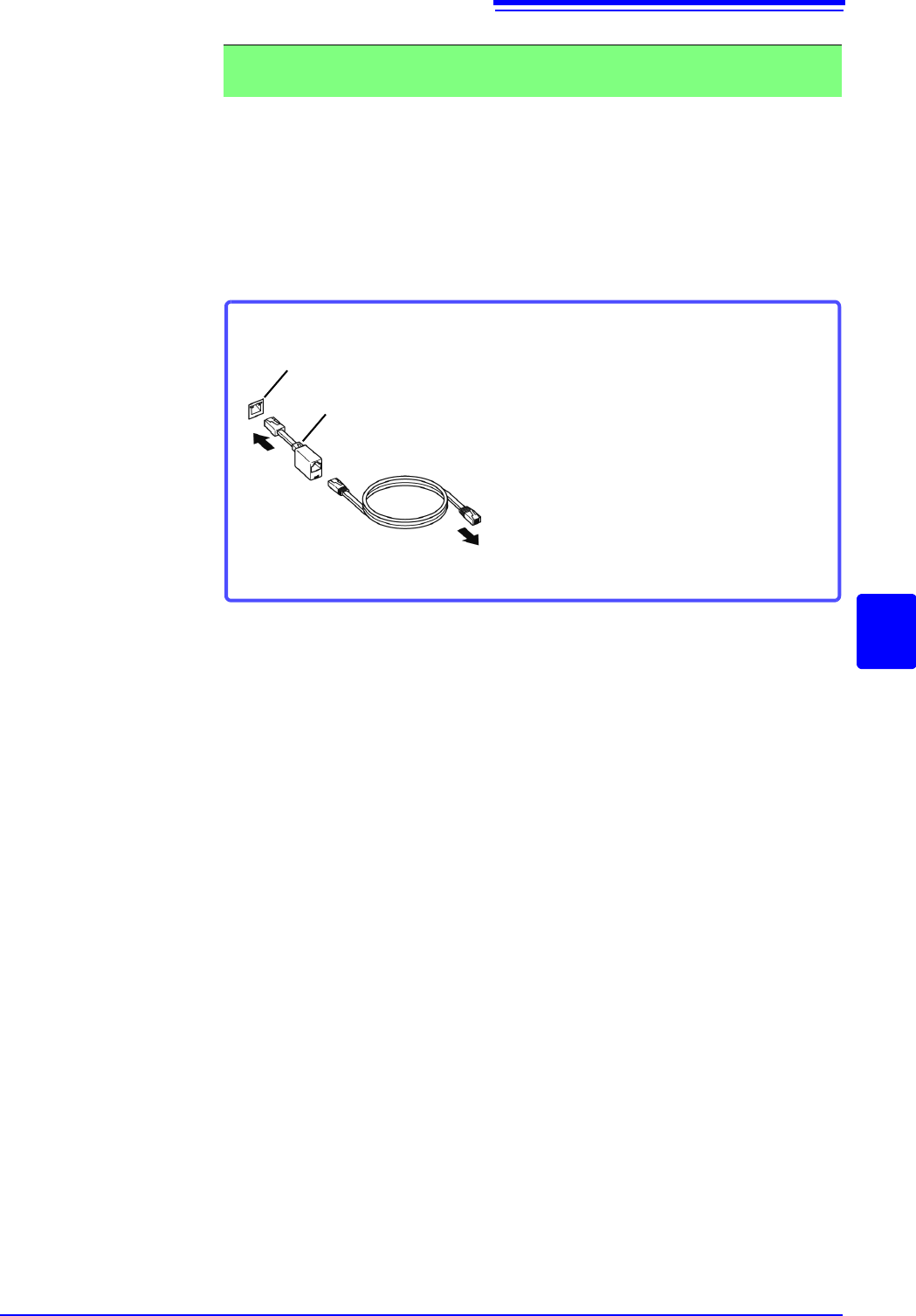
2. Making 1:1 Connections Between the Instrument and a PC (Connecting the
Instrument to a PC)
Connection cable: Use one of the following.
• 100BASE-TX crossover cable (maximum length 100 m)
• 100BASE-TX straight-through cable with crossover adapter (maximum length
100 m)
• 9642 LAN Cable (option, supplied with crossover adapter)
Connect to PC
100BASE-TX connector
Crossover adapter
Connecting with the 9642 LAN Cable and crossover adapter (supplied)
1 Connect the 9642 LAN Cable to the
supplied crossover adapter.
2 Connect the crossover adapter to the
100BASE-TX connector on the instru-
ment.
3 Connect the 9642 LAN Cable to the
100BASE-TX connector on the PC.
1
3
2
15.2 Performing Remote Operations on the Instrument (Use an Internet Browser)
320
You can perform remote operations on the instrument from a PC by using an Internet browser.
To use an Internet browser, the instrument must be properly set up and connected
via LAN cable to the PC. (p.314), (p.318)
Microsoft
Internet Explorer
8 or later is recommended as the browser.
Set the security level to "Medium". If [REMOTE CONTROL] and [MEMORY
DATA GET] do not work, install JRE from the application disc. And invalidate the
pop-up blok.
1. When you insert the supplied application disc (CD-R) into the CD-ROM drive of
the PC, the top page will automatically be displayed. If the page does not
appear, open the file "index.htm" with your web browser.
2. Select the display language to use. Click on the [English] icon.
3. Click on the [JRE installation] icon.
4. Click on the [Install] icon. Then follow the prompts that appear to complete the
installation.
15.2 Performing Remote Operations on the
Instrument (Use an Internet Browser)
Attempting to control the instrument simultaneously from multiple computers may
result in unintended operation. Use only one computer to perform remote operations.
Installing JRE
15.2.1 Making HTTP Settings on the Instrument
1
2
2
Procedure
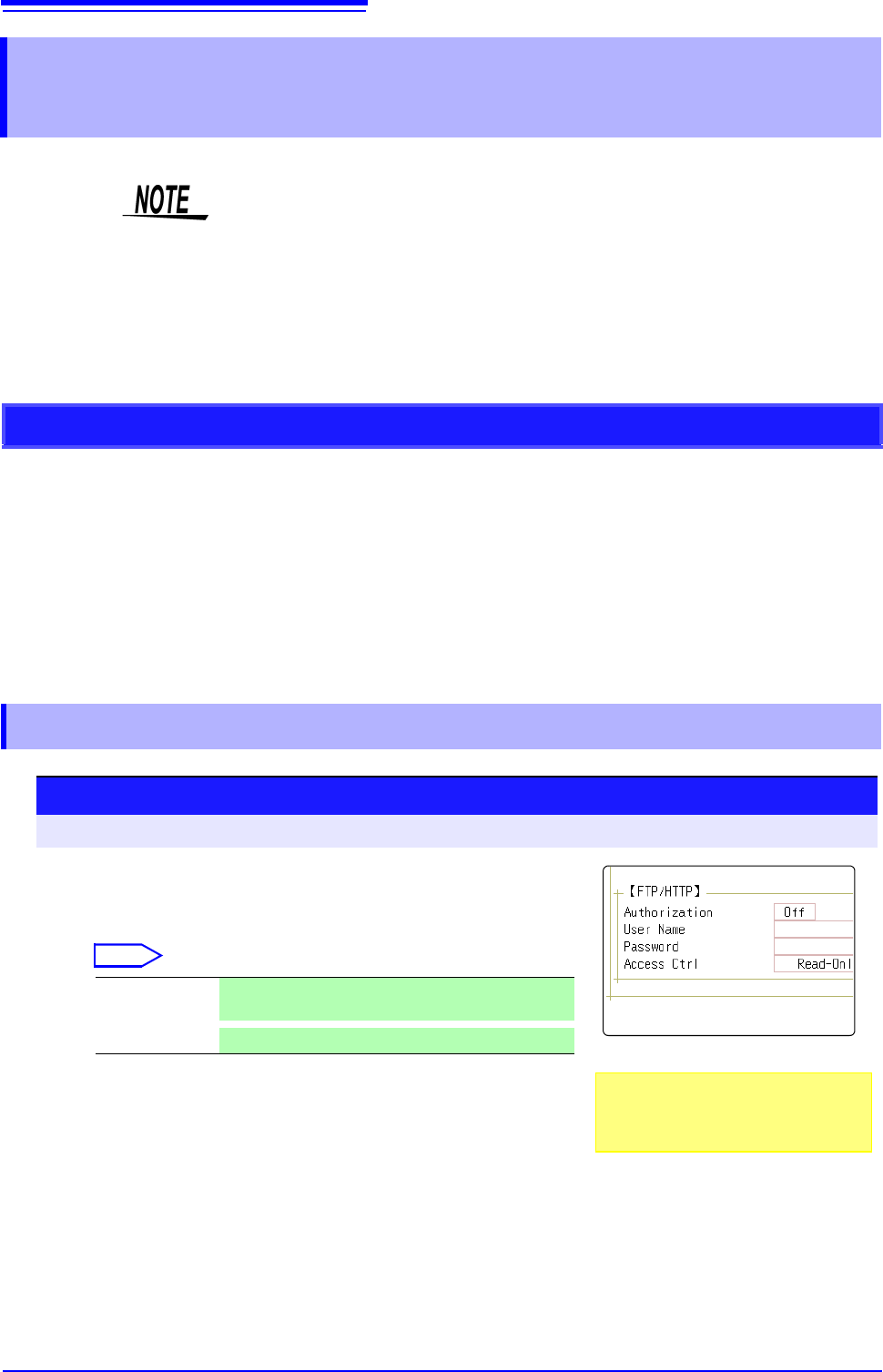
To open the screen: Right-click and select [SYSTEM] [Interface] sheet
1
Make authorization settings.
Move the flashing cursor to the [Authorization] item.
Select
2
(When [On] is selected)
Set the user name and password for authentication.
Move the flashing cursor to the [User Name] and [Pass-
word] items and enter suitable information.
See: "7.1.3 Alphanumeric Input" (p.141)
"Authorization User Name and Password" (p.315)
3
Apply the setting.
Move the flashing cursor to the [Reset] item.
Select [Reflect Set].
The indication "LAN was reconnected" appears at the bottom of the screen.
Off Use the Web server without authorization. (default
setting)
On
Use the Web server with authorization.
The user name and password for au-
thentication are used both for access via
an Internet browser and FTP.
15.2 Performing Remote Operations on the Instrument (Use an Internet Browser)
321
12
Chapter 15 Connection to a Computer
14
15
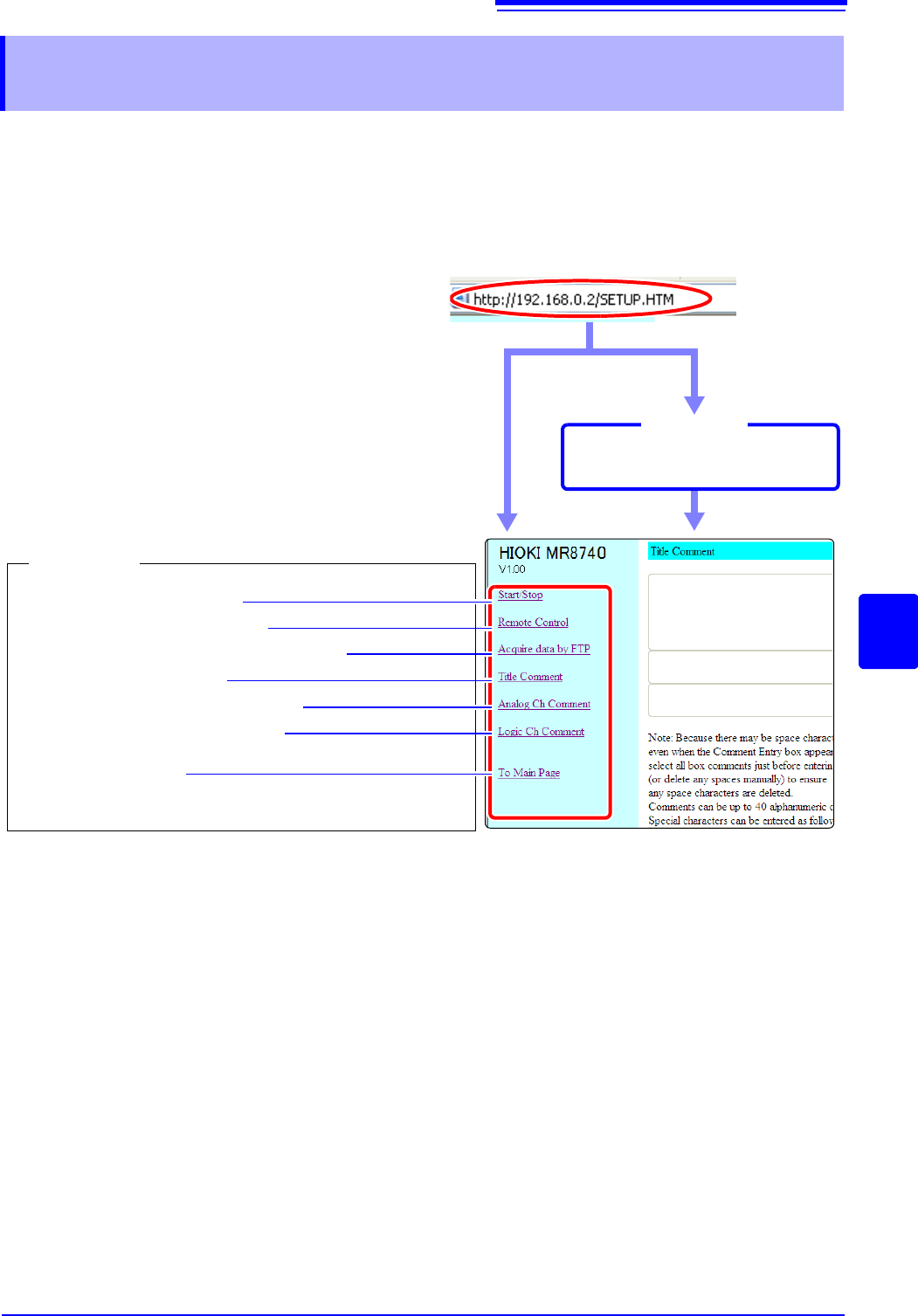
The following example shows how to use the Internet Explorer
browser on Windows 7.
Launch Internet Explorer
on the PC and enter "http://" plus the IP address of the instrument in the address
bar.
If the IP address of the instrument is "192.168.0.2"
*: When user name and password for authentication were set via System screen - [Inter-
face] sheet
See:"15.2.1 Making HTTP Settings on the Instrument" (p.320)
15.2.2 Connecting to the Instrument With an Internet
Browser
Start/stop measurement (p.322)
Show remote control screen (p.323)
Get data from USB memory stick via FTP (p.326)
Enter a title comment (p.326)
Enter an analog channel comment (p.326)
Enter a logic channel comment (p.326)
Return to the main screen
Login by entering a user name and
password.
Login screen
Operations
No authorization
setting
Authorization
required*
Connect