MR8740、MR8741_user_manual_eng_20191016H.pdf - 第335页
15.2 Performing Remote Operations on the Instrument (Use an Internet Browser) 323 12 Chapter 15 Connection to a Computer 14 15 The instrument can be controlled from a remote location. (This remote operation is mainly int…
15.2 Performing Remote Operations on the Instrument (Use an Internet Browser)
322
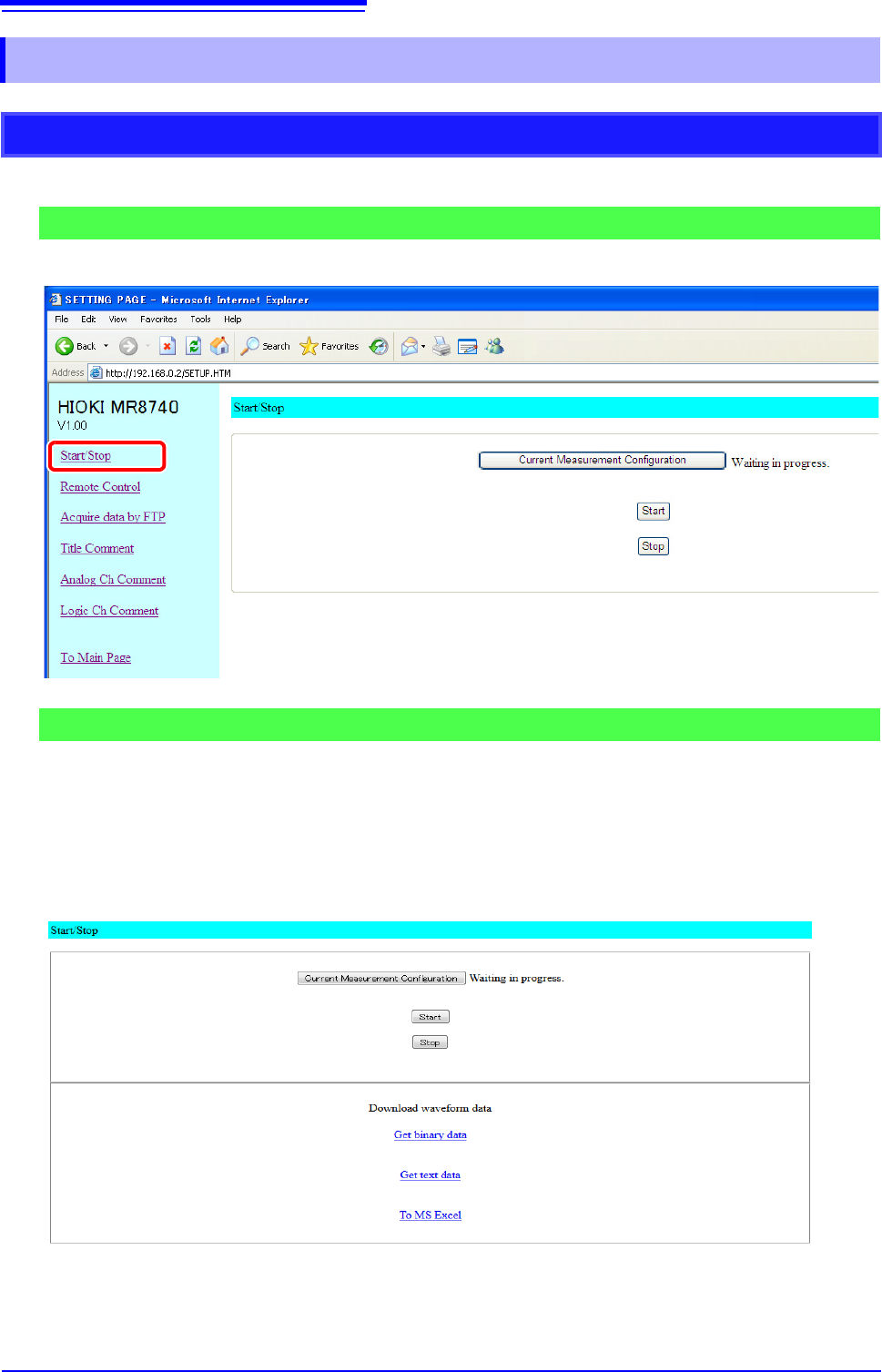
You can start and stop a measurement.
To open the screen: Click [Start/Stop] on list of operations.
Click [Start] to start the measurement.
Click [Stop] to stop the measurement.
Click [Current Measurement Configuration] to bring up information about the
current measurement configuration on the screen.
To acquire measure-
ment data:
Click on [Acquire binary], [Acquire text] or [To MSEXCEL] under [Acquire
Measurement Data].
Get binary data : Acquire data in binary format.
Get text data : Acquire data in text format.
To MS Excel : Forward data to Excel in MS-EXCEL. Able to create graphs, etc.
When there is no measurement data, [No measurement data] will be displayed.
15.2.3 Operating the Instrument With an Internet Browser
Start/Stop Measurement, acquire measurement data
Start/stop measurement, acquire measurement data screen
Procedure
15.2 Performing Remote Operations on the Instrument (Use an Internet Browser)
323
12
Chapter 15 Connection to a Computer
14
15
The instrument can be controlled from a remote location. (This remote operation is mainly intended for
monitoring the screen. If you want more nimble remote operation, use Model 9333 LAN Communicator.)
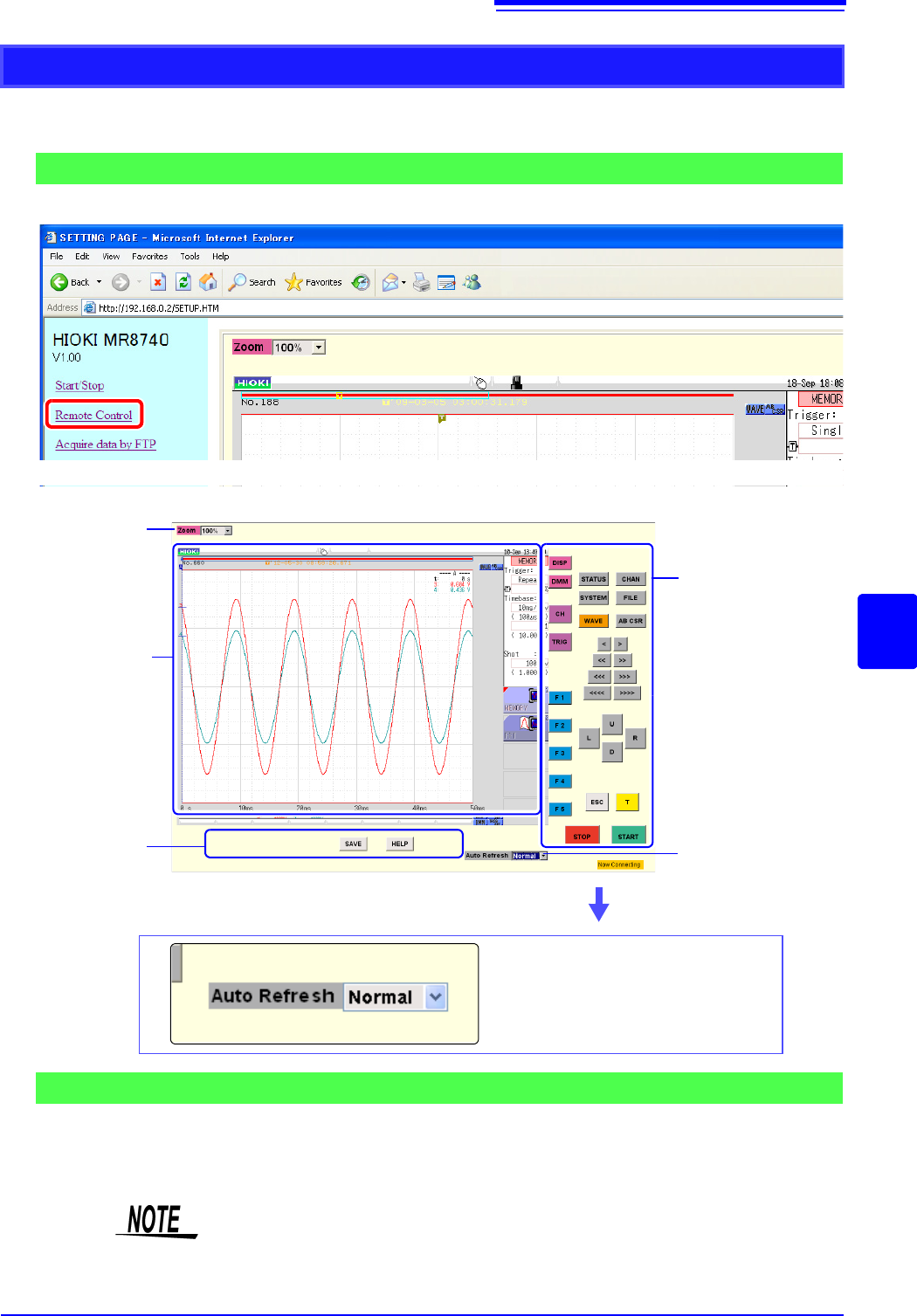
To open the screen: Click [Remote Control] on list of operations.
The remote control screen is divided into the instrument display section and operation panel.
When you click a button on the operation panel, MR8740/MR8741 Memory
HiCorder performs the same action is if the corresponding key on the unit was
pressed. However, simultaneously activating more than one button is not possible.
The keys and controls on the instrument are active also during remote operation.
Remote Operation
Remote Control Screen
Operation panel
Instrument display
screen
Operation panel
Update screen
Zoom in or out
Set display update speed.
Available settings:
Normal / Slow / Very Slow
When Auto Update is enabled, screen information is sent from the instrument to the
PC in regular intervals to keep the display updated.
Basic Operations
Remote control may not be possible when JRE has not been installed. ( p.320)
If you will be using key operation, we recommend setting the refresh speed to
[Slow] or [Very Slow].
15.2 Performing Remote Operations on the Instrument (Use an Internet Browser)
324
Use any of the following operating procedures to acquire the data.
• Use the FTP function
• Use communication commands
Acquiring data by FTP __________________________________________
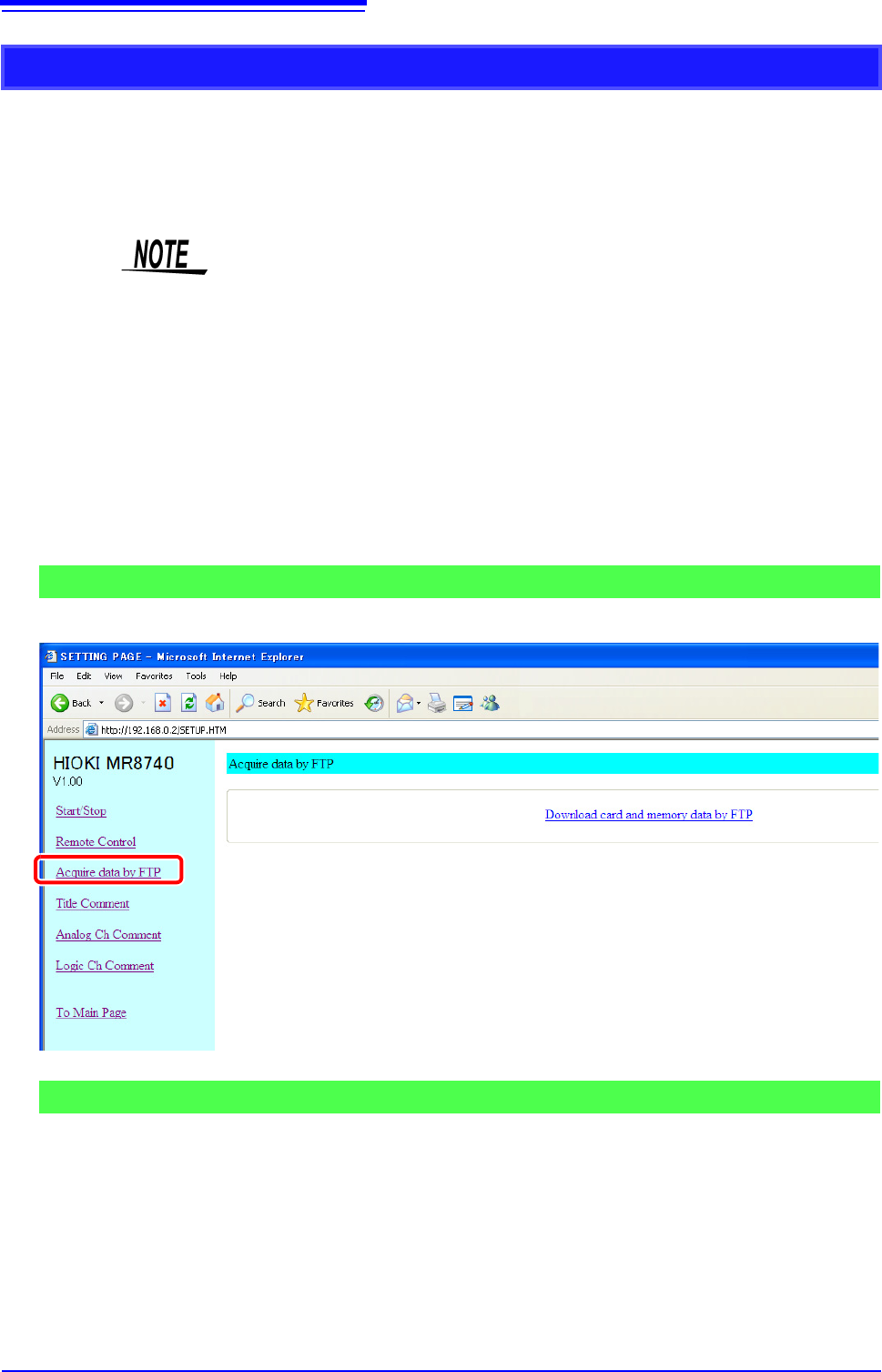
To open the screen: Click [Acquire data by FTP] in the list of operations.
Click [Download card and memory data by FTP].
A list of folders is displayed.
For details on how to perform file operations, see "15.3.3 Using FTP for File
Operations" (p.330).
Acquiring Instrument Memory Data from a Computer
For details on each of the commands, refer to the Instrument Communication
Command Instruction Manual on the application CD.
1
Save the data you want to acquire to a USB memory stick.
See: "4.2 Saving Data" (p.87)
2
Use the FTP function to move the saved data to a computer.
Screen for Acquiring Data by FTP
Procedure