MR8740、MR8741_user_manual_eng_20191016H.pdf - 第121页
109 6 Chapter 5 Printing 5 The [Printer] sheet lets you specify the print method and make other printing related settings. The data to be printed are transferred to the PC connected via LAN and printed by using the print…
4.4 Managing Files
108
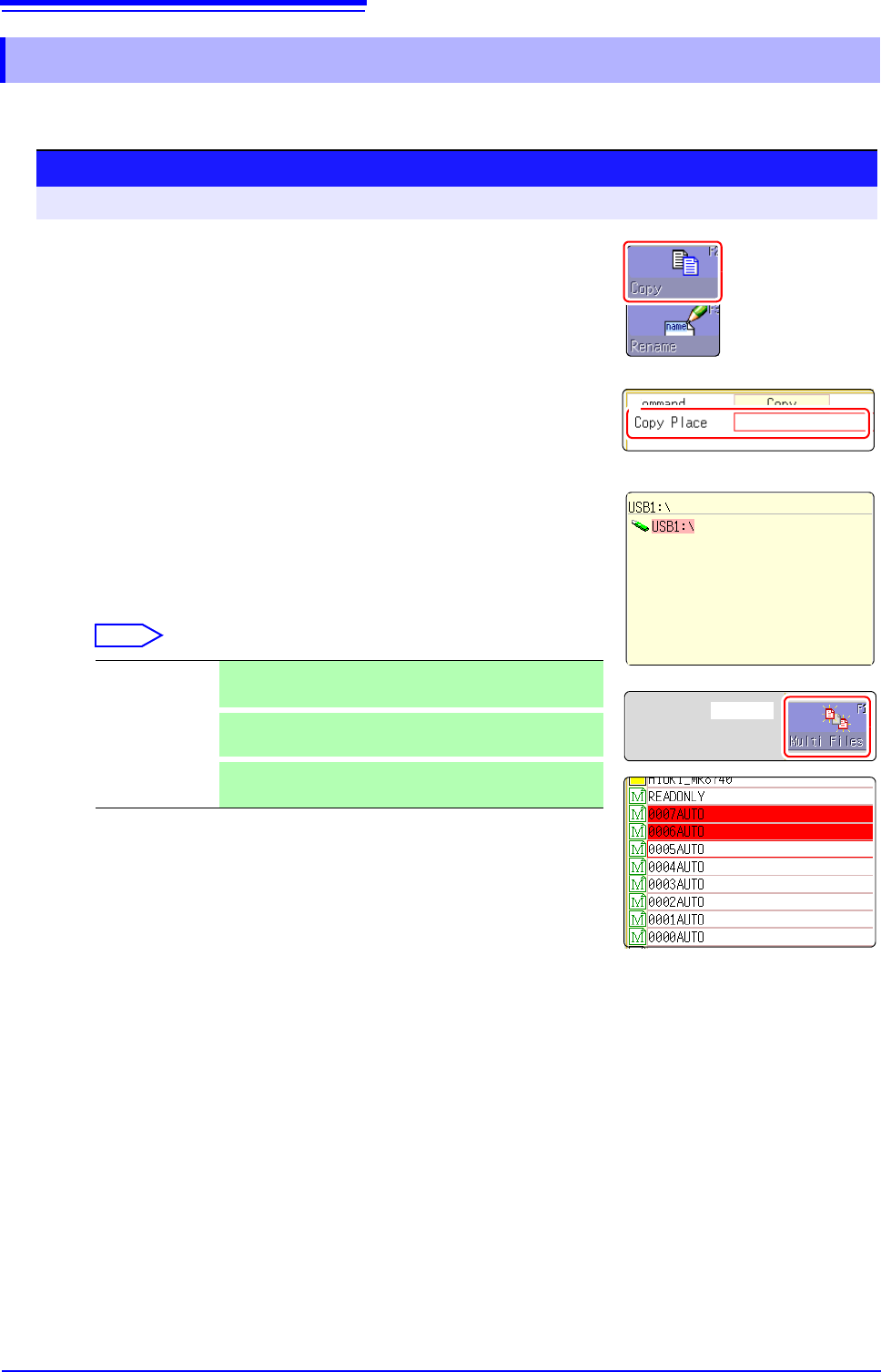
You can copy a file into a specified folder.
4.4.7 Copying a File Into a Specified Folder
Procedure
To open the screen: Right-click and select [FILE] File screen To change the media: (p.84)
2
1
Move the flashing cursor to the file you want to copy.
2
Select [Copy].
Move the flashing cursor to the [Copy Place] item.
3
Select [Edit].
The Browse folders dialog box appears (at bottom right).
4
Move the flashing cursor to the copy target folder and confirm
the setting with [Confirm].
5
(When there are multiple copy targets)
Select [Multi Files].
Select
Selected files or folders are shown in red (see illustration at right).
Select [Select End].
6
Select [Exec].
The file is copied to the specified target location.
To cancel copying:
Select [Cancel].
Slct/Deslct Select the individual file or folder at the cursor.
If something is currently selected, the selection is cleared.
Slct/Deslct All
Select all files or folders. If something is currently selected,
the selection is cleared.
Rev Slct
Currently selected files or folders are deselected, and cur-
rently not selected files or folders are selected.
2. Select
5. Select
109
6
Chapter 5 Printing
5
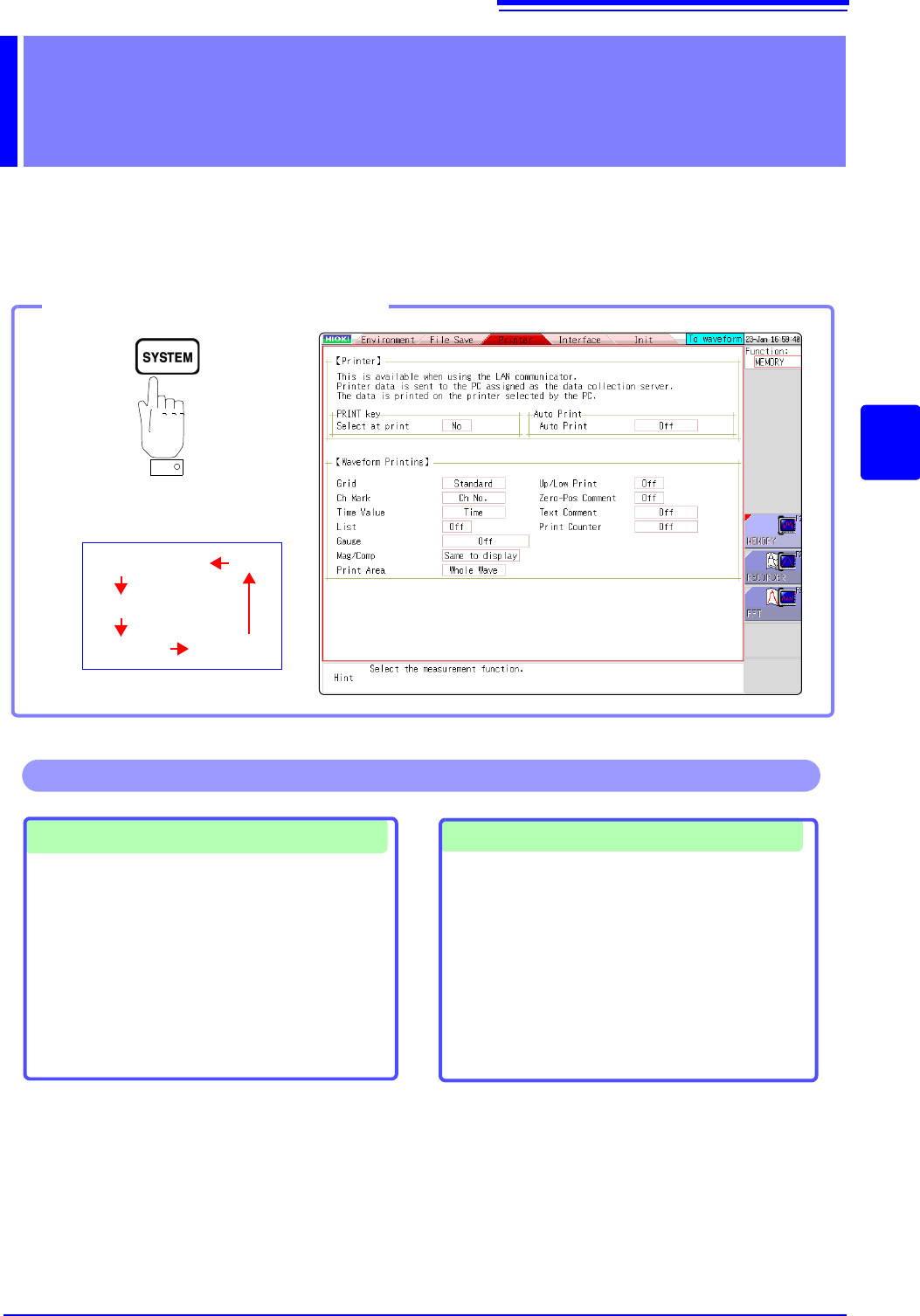
The [Printer] sheet lets you specify the print method and make other printing related settings. The
data to be printed are transferred to the PC connected via LAN and printed by using the printer con-
nected to the PC.
Printing Chapter 5
Opening the [Printer] sheet
Pressing this key repeatedly displays
the various sheets.
[Environment]
[File Save]
[Printer]
[Init]
[Interface]
Making printer settings
• Grid Type ( p.113)
• Channel Marker Type ( p.113)
• List ( p.114)
• Gauge ( p.114)
• Horizontal axis (Time axis) Zoom (Mag/Comp)
( p.114)
• Upper/Lower Limit Print ( p.115)
• Zero Position Comment Print ( p.115)
• Print Counter ( p.115)
Selecting the print method
See: "5.1 Printing Type and Workflow" ( p.110)
• Auto Print ( p.111)
• Manual Print ( p.112)
See: "5.5.1 Screen Hard Copy" ( p.116)
See: "5.5.2 Report Print (A4 Size Print)" ( p.116)
See: "5.5.3 List Print" ( p.117)
See: "5.5.4 Text Comment Printing" ( p.117)
Operations available from the [Printer] sheet
5.1 Printing Type and Workflow
110
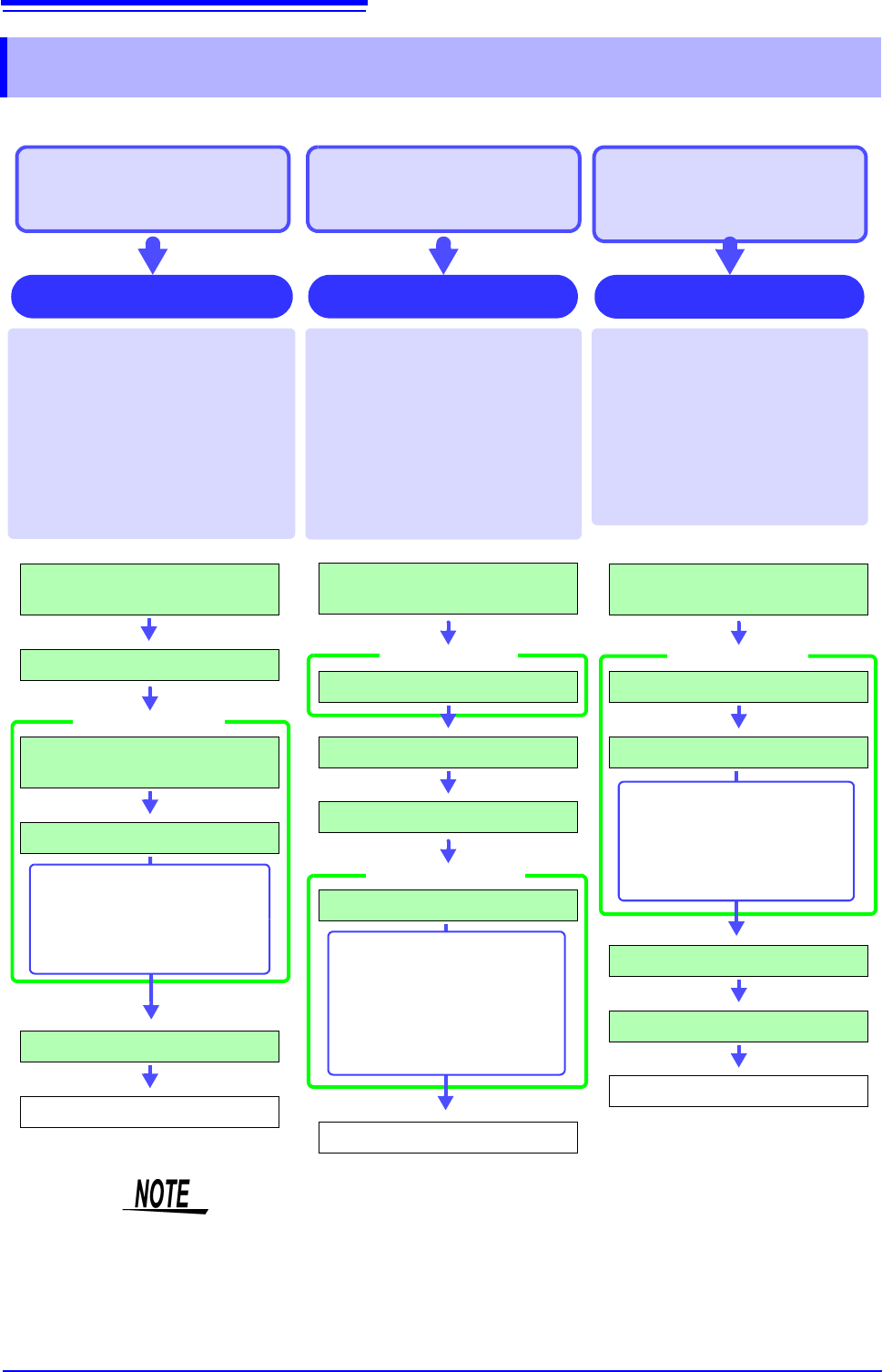
There are basically three types of printing operations.
5.1 Printing Type and Workflow
To print data automatically
during measurement
To selectively print data
after measurement
Auto Print
(default setting)
When the "Send Print Key" is exe-
cuted by using Model 9333, print
contents can be selected before
printing. This is convenient to print
different items each time.
At the File screen, the file list is print-
ed. At other screens, a list is printed.
Selection Print
When the Memory function is used,
data are acquired for the recording
length and then printed automatically.
When the FFT function is used, data is
printed automatically after FFT analy-
sis is exited.
In both cases, print contents are se-
lected before the measurement.
To print data immediately
when the "Send Print Key" is
executed by using Model
9333 after measurement
If the "Send Print Key" is executed
by using Model 9333, at Waveform
screen: Waveform
At File screen: File list
At other screen: List
During waveform printing, the range
specified with [Print Area] is print-
ed.
Quick Print
Prepare Model 9333 LAN
Communicator
Set measurement configuration
Set print target for
[Auto Print]
Set the print contents
Measurement
Print
[Printer] sheet
The followings can be print-
ed simultaneously.
• Waveform data
• Numeric value calculation
results
Prepare Model 9333 LAN
Communicator
Set [Print Select] to [Yes].
Start and Stop Measurement
Send Print Key
Select the print contents
Print
[Printer] sheet
Settings window
Either of the following can
be printed.
• Whole waveforms
• A-B waveforms
• Post-/Pre-Trigger waveforms
• Lists (Settings List)
• Report
Prepare Model 9333 LAN
Communicator
Set [Print Select] to [No].
Set the print area
Start and Stop Measurement
Send Print Key
Print
[Printer] sheet
During waveform printing,
either of the following can
be printed.
• Whole waveforms
• A-B waveforms
When both Auto Print and Auto Save are enabled, Auto Save is executed first.
However, when the Roll Mode function (default setting: Auto) is used with the
Memory function, Auto Print has priority.