MR8740、MR8741_user_manual_eng_20191016H.pdf - 第105页
4.2 Saving Data 93 4 Chapter 4 Saving/Loading Dat a & Managing Files To perform quick saving by clicking [SA VE] in the right-click menu, you need to set the saving con- ditions beforehand. The type of data to be sav…
4.2 Saving Data
92
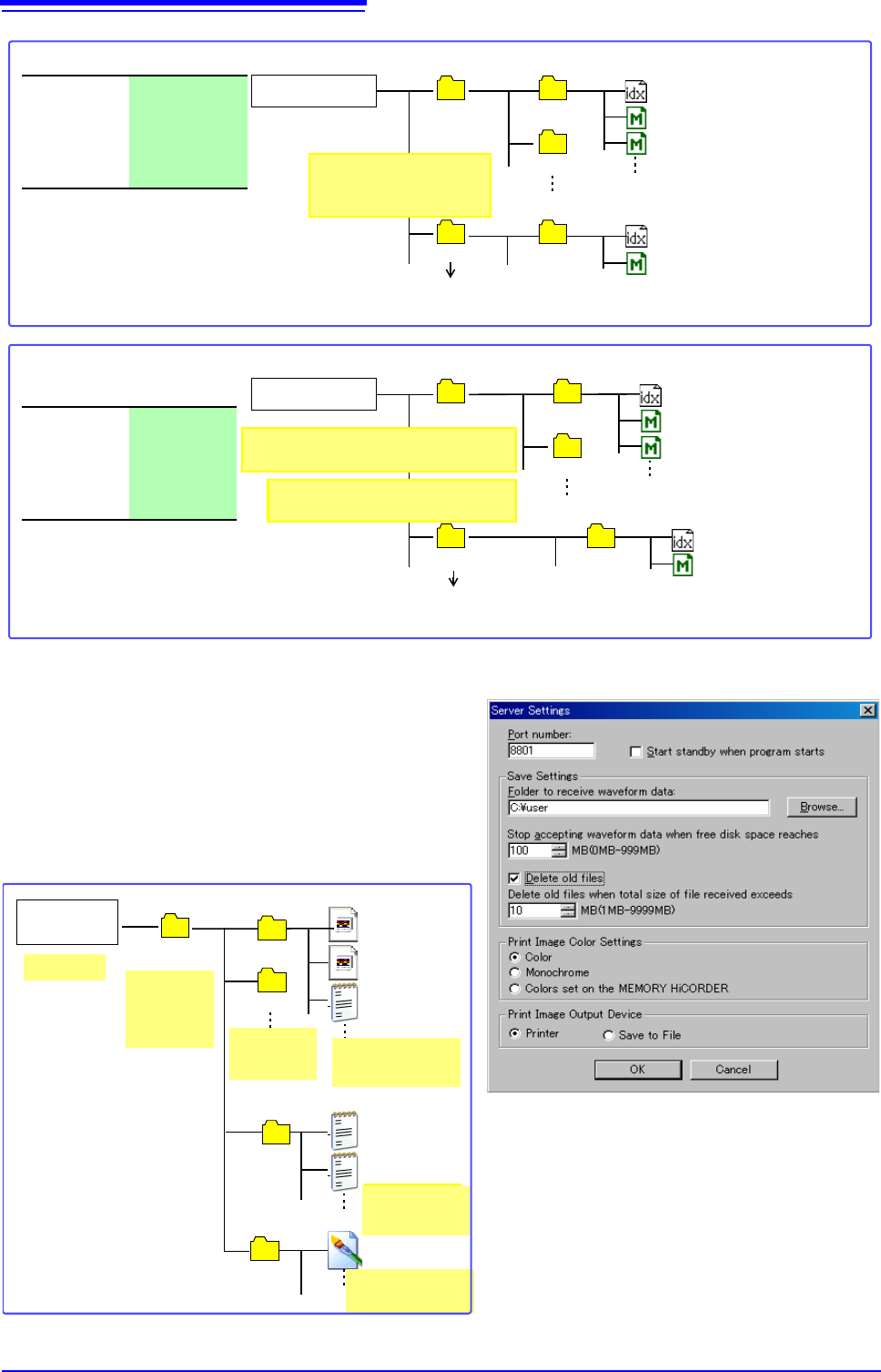
Save Operations (When setting the save destination to [LAN]) _________
The file is saved according to the method (on the right fig-
ure) specified under [Save Settings] by using Model 9333
LAN Communicator.
For more information about how to configure the save set-
tings, see the instruction manual of Model 9333 LAN Com-
municator.
The destination folders and files are named in the previ-
ously-determined formats as follows:
Create a folder named "TEST" on the
USB memory stick beforehand.)
Save To:
USB:\HIOKI_MR
8740\TEST
Save method:
Normal Save
Folder to
save:
No
HIOKI_MR8740
TEST
0000AUTO.IDX
0001AUTO.MEM
0001TEST
Up to 5,000 files
Example 5: Saving data in an existing folder on the media using divided saving
0000AUTO.IDX
When the storage media becomes full:
Automatic saving stops.
0000AUTO
0001AUTO
Up to 5,000 folders
0000AUTO.MEM
0000AUTO.MEM
Folder name created au-
tomatically will be "4-digit
number + folder name".
0000AUTO
(A new folder is created automatically when 5,000 folders have
been saved in the TEST folder.)
Save To:
USB:\HIOKI_M
R8740
Save method:
Normal Save
Folder to
save:
Yes
HIOKI_MR8740
AUTO014530
0000AUTO.IDX
0001AUTO.MEM
0001AUTO014530
(A new folder is created automatically when 5,000 folders have been
saved in the 0001AUTO folder.)
Up to 5,000 files
Example 6: Saving data in an automatically created folder on the media using divided saving
0000AUTO.IDX
When the storage media becomes full:
Automatic saving stop.
0000AUTO
0001AUTO
Up to 5,000 folders
0000AUTO.MEM
0000AUTO.MEM
"AUTO + hours/minutes/seconds" is
created automatically. (Example: 1:45:30)
Folder name created next will be "4-
digit number + folder name".
0000AUTO
192.168.1.1 14-01-10
14-01-11
HIOKI 9333
Folder name will be
"WAVE + hours/
minutes/seconds".
14-01-20
14-01-21
Folder name will be
"WAVE + hours/
minutes/seconds".
WAVE124012.BMP
Numerical calculation files
PARAMETER.TXT
PARAMETER_1.TX
WAVE123015.MEM
WAVE123245.MEM
WAVE123245.TXT
Specified
folder
Folder name
will be Model
MR9947 IP
address.
File names will be
"PRAMETER_ +
number".
Folder names
will be "YY-
MM-DD".
Waveform files
4.2 Saving Data
93
4
Chapter 4 Saving/Loading Data & Managing Files
To perform quick saving by clicking [SAVE] in the right-click menu, you need to set the saving con-
ditions beforehand. The type of data to be saved are as following. (Settings data, waveform data,
display screens, waveform screen, numerical calculation results)
4.2.3 Saving Data Selectively (SAVE)
Procedure
To open the screen: Right-click and select [SYSTEM] [File Save] sheet
1
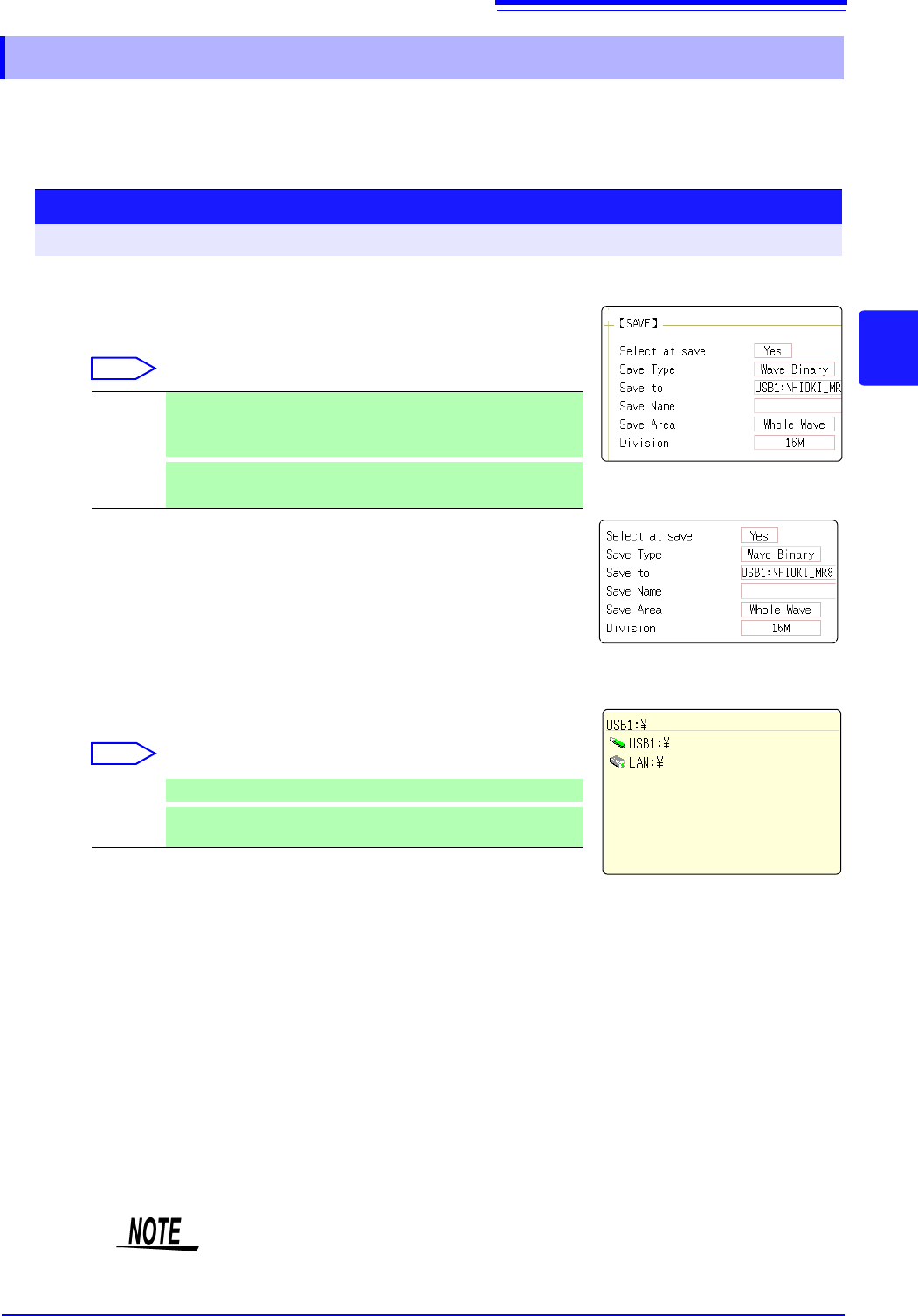
Set the save method for when [SAVE] is clicked.
Move the flashing cursor to the [Select at save] item, and select
[No].
Select
When [Yes] is selected, the following setting determines which dialog box appears
when clicking [SAVE]. (Middle screen at right)
However, this is not applicable when other dialogs such as “Folder Reference Di-
alog” are shown on the screen.
2
Set the save destination.
Move the flashing cursor to the [Save To], and select [Edit].
The Browse folders dialog box appears (at bottom right).
Move the flashing cursor to the save target media
*
and confirm
the setting with [Confirm].
Select
When the root directory (topmost folder on media) was selected, a folder named
"HIOKI_MR8740" or "HIOKI_MR8741" is created automatically. (If the media was
initialized in the instrument, the folder will already have been created.) This folder
is then used as save target.
To create a new folder, select [New Folder]. When [LAN] is set
as the save destination,
[New Folder] setting is ignored and the
folder named with the current date is created.
3
Set the file name.
Move the flashing cursor to the [Save Name], and enter a save
name.
See: "7.1.3 Alphanumeric Input" ( p.141)
When [LAN] is set as the save destination, [Save Name] setting is
ignored and the files to be saved are named in the previously-
determined format.
See:
"Save Operations (When setting the save destination to [LAN])"
(p.92)
Yes After clicking [SAVE], set the data to save in the dialog box, then
save the data. (default setting)
See: "Selection Save"(p.87)
No
The preset data is saved upon clicking [SAVE].
See: "Quick Save"(p.87)
USB1 Automatically save the waveform data on the USB memory stick.
LAN
Automatically save the waveform data on the PC connected via
LAN. Model 9333 LAN Communicator is required to be installed.
1
2
3
File Name
The maximum number of characters for the [Save Name] string is 123. The
maximum path length including file name is 255 characters.
4.2 Saving Data
94
4
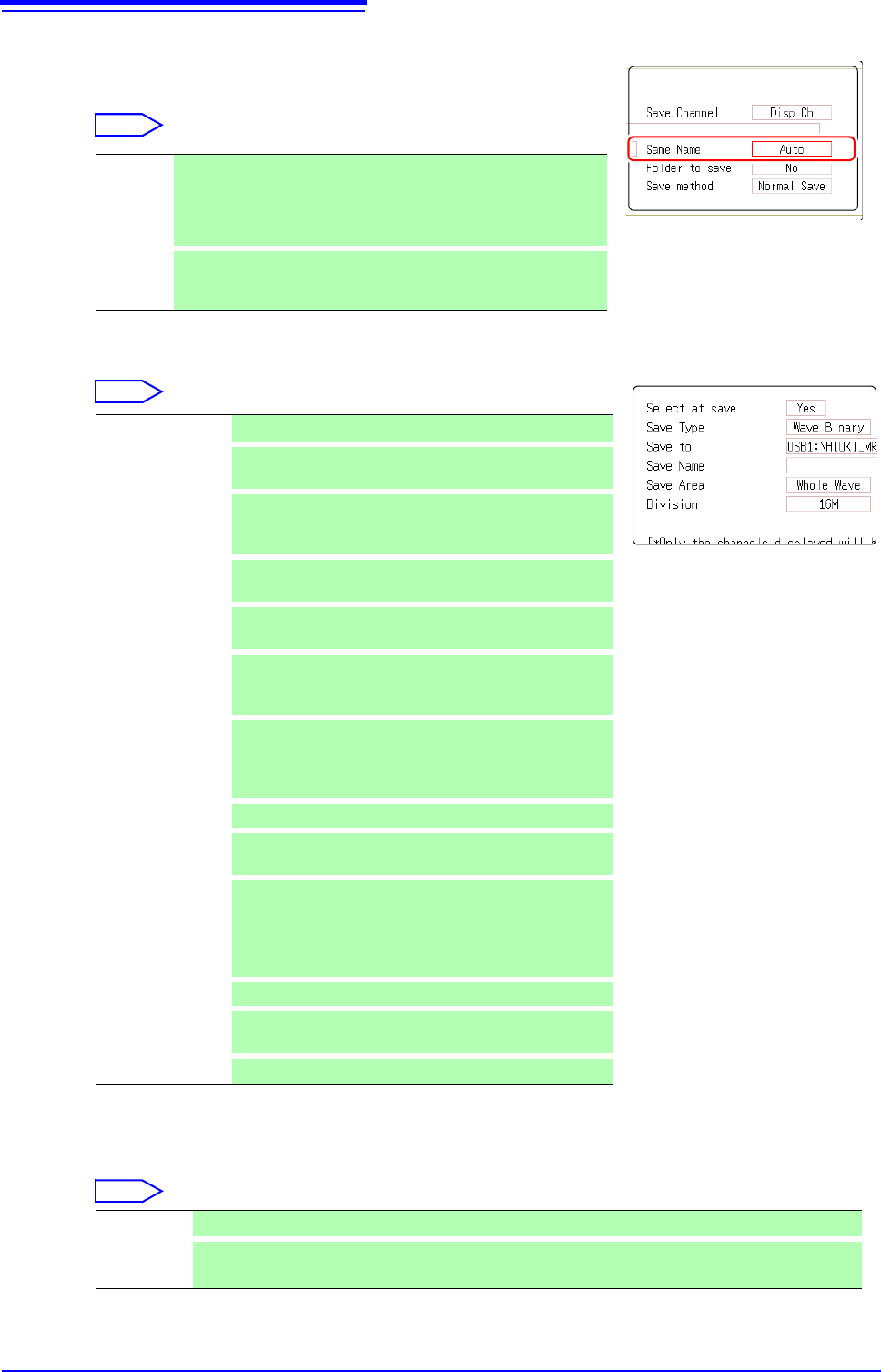
Specify the action if a file with the same name exists in the
target folder.
Move the cursor to [Same Name].
Select
5
Set the data to save.
Move the flashing cursor to the [Save Type]
item.
Select
6
(When Wave Binary or Wave Text was selected)
Set the save area.
Move the flashing cursor to the
[Save Area] item.
Select
The channel displayed on the screen will be saved.
Auto If no files with the same name exist, saves the file with the desig-
nated name. Otherwise, a 4-digit number is automatically added to
the beginning of the file name (default setting).
If the first character of the file name is a numeral, the added num-
ber will continue sequentially from that number.
Serial
Unconditionally, a 4-digit number is automatically added to the be-
ginning of the file name. If a file with the same name exists, saves
the file, adding the 4-digit number that is increased by 1.
Set Save the settings data.
Wave
Binary
Save waveform data in binary format.
Select this to reload the waveform into the instrument.
Wave Text
Save waveform data in text format.
Select this to use the waveform in a PC. (Memory/Record-
er/FFT Function only)
ALL-Wave Bin
Data of all blocks is saved in binary format. (Only when the
memory division setting is On.)
ALL-Wave Txt
Data of all blocks is saved in text format. (When the mem-
ory division setting is On)
Screen Copy
Save screen display data as a BMP file.
Data saved in BMP format can be displayed on a PC with
image viewing software.
Wave Image
Convert the waveform data to a paper image and save it
in BMP format.
Data saved in BMP format can be displayed on a PC with
image viewing software.
Calc Result
Save the numerical calculation results. (Memory Function only)
Waveform evalua-
tion setting
Save settings data and waveform evaluation areas.
(MR8741 only)
Waveform evalua-
tion area
Save evaluation areas created with the waveform evalua-
tion function as black-and-white BMP files. Saved data
can be edited on a computer and loaded back into the in-
strument. (MR8741 only)
Edit images in black and white only.
Pulse pattern
Saves pulse patterns registerd in the MR8791.
Arbitrary wave-
form
Saves arbitrary waveforms registered in the U8793.
Program
Saves program data registered in the U8793.
Whole Wave Save all recorded data.(default setting)
A-B Wave Data between the A/B cursor pair are saved. If only cursor A is used, all data after the cursor are saved.
(A/B Cursor Specification Method (p.124))
6
5