MR8740、MR8741_user_manual_eng_20191016H.pdf - 第243页
10.2 Settings for Waveform Calculation 231 9 Chapter 10 W aveform Calculation Functions 10 1 0 . 2 Settings for W aveform Calculation 1 Procedure To open th e screen : Right-clic k and select [ST A TUS] [Wave Calc] she…
10.1 Waveform Calculation Workflow
230
When specifying a waveform range for calculation:
Before executing a calculation, specify the calculation range using the A/B cursors
(div or Trace cursors) on the Waveform screen. Set the calculation range on the
[Wave Calc] sheet to [A-B Wave].
• Range cursors cannot be used to specify the range.
• When one cursor is used, the calculation range is from the cursor to the end of
the data.
Post-measurement waveform calculation cannot be performed for waveforms mea-
sured in excess of the maximum recording length, even if a range is specified with
the A and B cursors. To perform waveform calculation for a waveform with a longer
recording length, save a subset of the waveform that is shorter than the maximum
recording length to a separate file, load that file back into the instrument, and then
perform the calculation.
See: "6.2 Specifying a Waveform Range (A/B Cursor)" (p.124)
"10.2 Settings for Waveform Calculation" (p.231)
Changing calculation settings while measuring:
Changes made to calculation settings while measuring are applied after measure-
ment is finished.
To change calculation settings and recalculate:
Make changes to calculation contents on the [Wave Calc] sheet, and execute the
calculation.
See: "10.2 Settings for Waveform Calculation" (p.231)
To not display a calculation waveform, or to display only the desired waveform:
The displayed sheet and calculation waveform to be displayed can be selected on
the [Wave Calc] sheet.
See: "10.2.3 Changing the display method for calculated waveforms" (p.235)
10.2 Settings for Waveform Calculation
231
9
Chapter 10 Waveform Calculation Functions
10
10.2 Settings for Waveform Calculation
1
Procedure
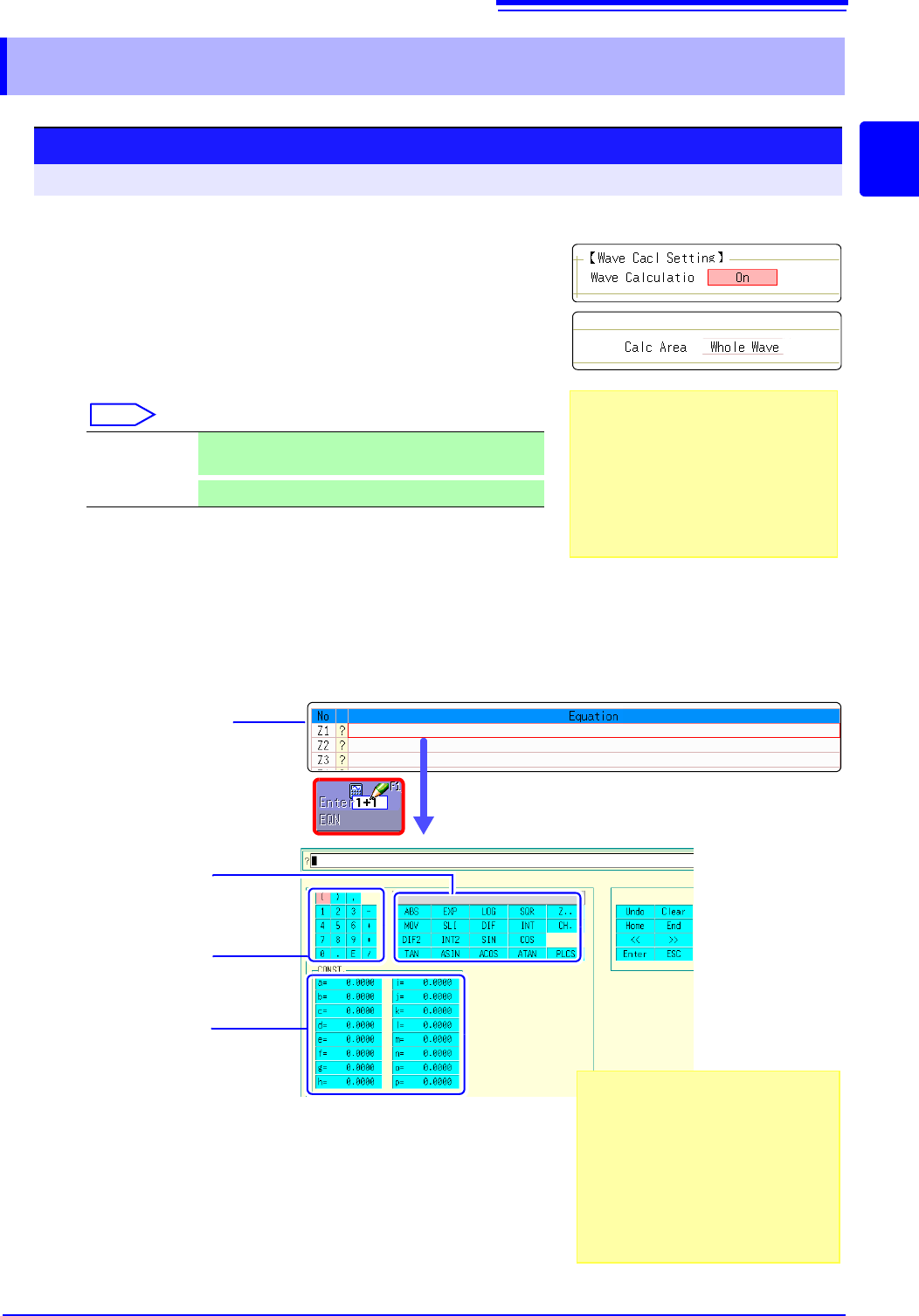
To open the screen: Right-click and select [STATUS] [Wave Calc] sheet
1
Enable the Waveform Calculation function.
Move the flashing cursor to the [Wave Calculation] item,
and select [On].
2
Specify the waveform calculation range.
Move the flashing cursor to the [Calc Area] item.
Select
See: "6.2 Specifying a Waveform Range (A/B Cursor)" (p.124)
3
Perform calculation settings.
Move the flashing cursor to the [Equation] column of the
calculation to be set and select [Enter EQN].
A dialog is displayed for entering a calculation equation.
4
Select a calculation equation.
See: "Waveform Calculation Example" (p.236)
Whole Wave Applies calculations to the whole waveform. (default
setting)
A-B Wave
Applies calculations to the data between A/B cursors.
.Calculation No.
Enter constants
Constants must have been previ-
ously entered on the [CONST.]
(
p.234)
Enter numerical
values and symbols
Enter calculation
operators
When selecting [A-B Wave], specify the
calculation range using the A/B cursors on
the Waveform screen.
If no measurement data has been ac-
quired by the instrument, first measure
once so that the range can be specified for
calculations to be applied to subsequent
measurements.
If "=" is displayed
The entered calculation equation is syn-
tactically correct.
If "?" is displayed
The equation has a syntax error.
The cursor is placed at the location of the
error to facilitate correction.
• Are parentheses correctly matched?
• Has a multiplication operator "
" been
omitted?
2
10.2 Settings for Waveform Calculation
232
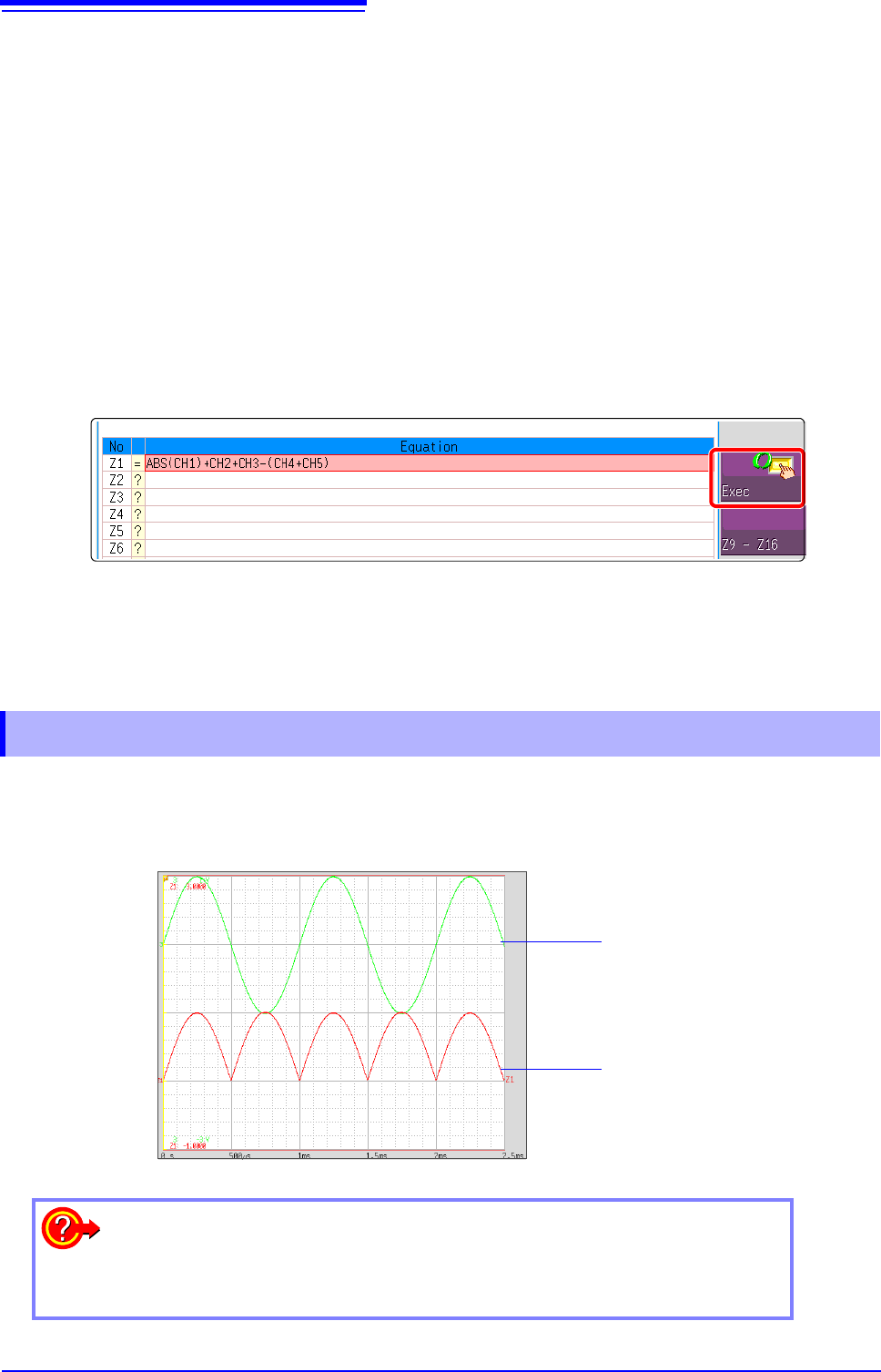
Waveform calculation results are displayed on the Waveform screen.
5
When finished entry, select [Confirm].
The entered equation is displayed in the [Equation] field.
The scale (maximum and minimum vales) of the calculation results
has a default setting of [Auto]. If you want to scale the results, set
the maximum and minimum values under [Manual].
See: "Changing the display method for calculated waveforms" (p.235)
6
(As occasion demands)
Set auto saving (p.88).
7
Execute the calculations.
Applying Calculations to Existing Data
At the [Wave Calc] sheet, select [Exec].
To calculate while measuring
Click [START] to start measurement.
Calculation waveforms are displayed after loading waveforms.
7
10.2.1 Displaying the waveform calculation results
Example: Waveform of the calculated absolute value of the waveform of CH1. Calcu-
lation equation = ABS(CH1)
CH1 Waveform
Absolute Value
Waveform
To copy settings from one calculation to another:
Settings can be copied at the [Wave Calc] sheet.
See: "7.8 Copying settings to other channels (calculation No.) (Copy function)" (p.160)