MR8740、MR8741_user_manual_eng_20191016H.pdf - 第309页
13.1 Waveform GO/NG Evaluation (MEM, FFT Funct ion) 297 11 Chapter 13 W aveform Evaluation Function (MR8741 Only) 12 13 W aveform evaluation mode and stop mode W aveform evaluation mode Stop m ode Return NG if any part o…

13.1 Waveform GO/NG Evaluation (MEM, FFT Function)
296
• Trigger mode: SINGLE Measurement continues until stop mode conditions
are fulfilled and then stops.
• Trigger mode REPEAT, AUTO Recording and waveform evaluation is carried
out continuously. Click [STOP] to terminate the measurement.
• When "auto save" is set to ON, data are stored on media when the stop condi-
tions are satisfied.
• When memory segmentation is ON, data is recorded to the memory block only
when the stop conditions are satisfied.
• During waveform evaluation, evaluation is performed concurrently with mea-
surement when the time axis range is 1 ms/div or less with the roll mode set-
ting ON or during automatic operation with the display at 100 ms/div or less as
a result of the time axis magnification factor. At all other times, evaluation is
performed after measurement is complete.
• When performing evaluation after measurement is complete, this sequence of
two alternating operations (capturing data and performing the evaluation) is
performed repeatedly, so that data is not captured while the evaluation is in
progress. Therefore data are not captured while the evaluation is in progress,
which means that the input signal is not being continuously monitored. The
time required for evaluation is on the order of 100 ms.
• When performing evaluation and measurement concurrently, the waveform is
displayed and evaluated while measurement continues. However, please note
that processing is not necessarily conducted in real time.
• If a high setting is chosen for recording length or if compression is used, the
evaluation cycle becomes slower.
• Waveform scrolling is not available while waveform evaluation is ON. To use
waveform scrolling, you should first turn waveform evaluation OFF.
• Although the waveform display will change if you change display-related set-
tings after measurement completes, the waveform evaluation results from
when the measurement was made are retained. To repeat the evaluation pro-
cess for the waveform after the new settings have been applied, perform
waveform evaluation on the Status basic settings screen.
See:"6.5.1 Magnifying and Compressing Horizontal Axis (Time Axis)" (p.129)
• When using the highlight function with the FFT function, only the highlighted
data is evaluated.
13.1 Waveform GO/NG Evaluation (MEM, FFT Function)
297
11
Chapter 13 Waveform Evaluation Function (MR8741 Only)
12
13
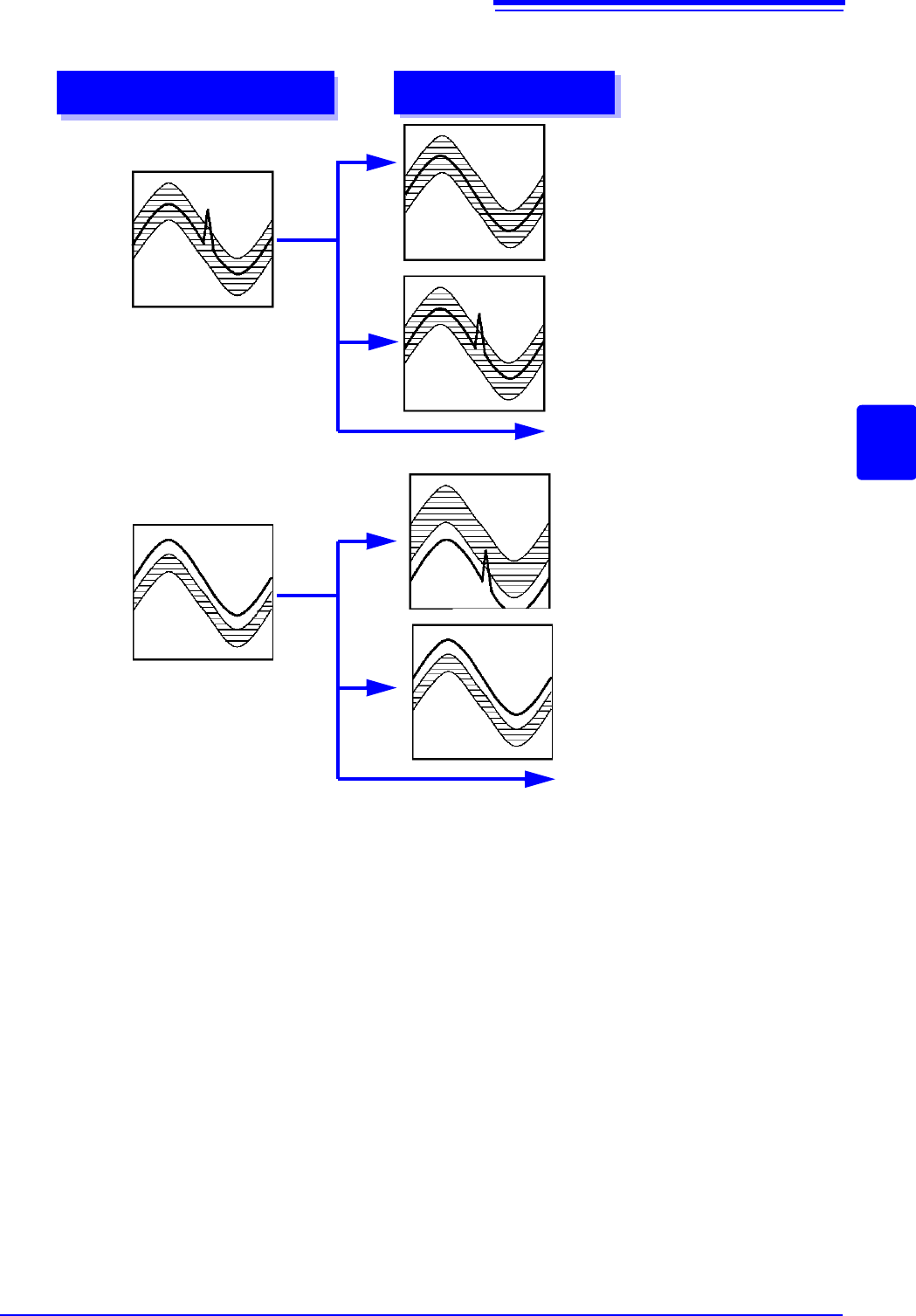
Waveform evaluation mode and stop mode
Waveform evaluation mode
Stop mode
Return NG if any part of
waveform leaves evalua-
tion area
GO
Stop on GO result
NG
Stop on NG result
GO & NG
Stop on GO or NG result
Return NG if entire wave-
form leaves evaluation
area
GO
Stop on GO result
NG
Stop on NG result
GO & NG
Stop on GO or NG result
13.2 Setting the Waveform Area
298
To evaluate the waveforms, a evaluation area is required. Two methods are available: one is to load the
already created evaluation area and settings, and the other is to create a new evaluation area.
Requirements for loading waveform evaluation area BMP files
Observe the following requirements when creating waveform evaluation areas on a computer and when load-
ing waveform evaluation areas created on other equipment:
Files that do not satisfy these requirements cannot be loaded properly.
13.2 Setting the Waveform Area
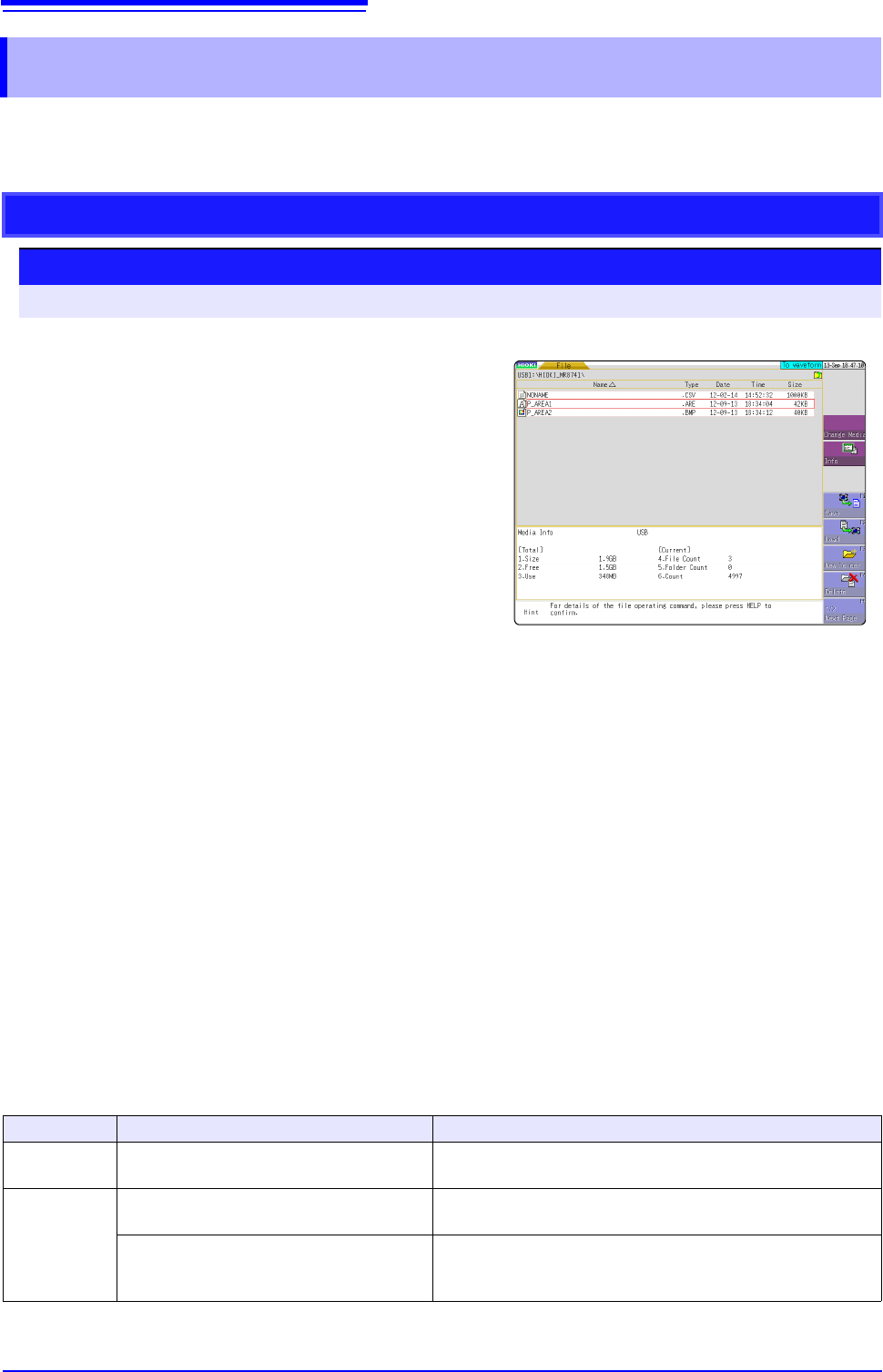
Loading the already created evaluation area
Setting method
Procedure Screen: FILE
1
Click [FILE] to call the File screen.
2
Select the media for loading.
3
Use the bar cursor to select the desired file.
4
Select [Load].
5
Select [Exec].
6
When no more changes need be made to the
loaded settings, press the DISP key to make the
Waveform screen appear, and then press the
START key to initiate measurement.
To change the settings, first change the contents,
then press the DISP key to make the Waveform
screen appear, and then press the START key to
initiate measurement.
See:"4.3 Loading Data" (p.99)
item
Condition Loading operation
Color
White and black
White pixels are treated as background, and black pixels are
treated as the evaluation area.
Size 501 horizontal pixels
× 626 vertical pixels The file will be used as the evaluation area for the Memory
Function 1 screen.
501 horizontal pixels
× 501 vertical pixels
When using the FFT function, the file will be used as the FFT
evaluation area. When using other functionality, the file will be
used as the memory function XY evaluation area.