MR8740、MR8741_user_manual_eng_20191016H.pdf - 第42页
1.5 Basic Operations 30 When settings are split into multiple pages, you can change the settings screen directly by clickin g the displayed tabs. With the tabs of the Waveform screen, clicking the currently selected tab …
1.5 Basic Operations
29
1
Chapter 1 Overview
You can select menus and confirm items by left-clicking with the mouse.
This section describes left-click operations for menu selection and settings.
1.5.3 Mouse Left-click Operations
Operations on a Settings Screen
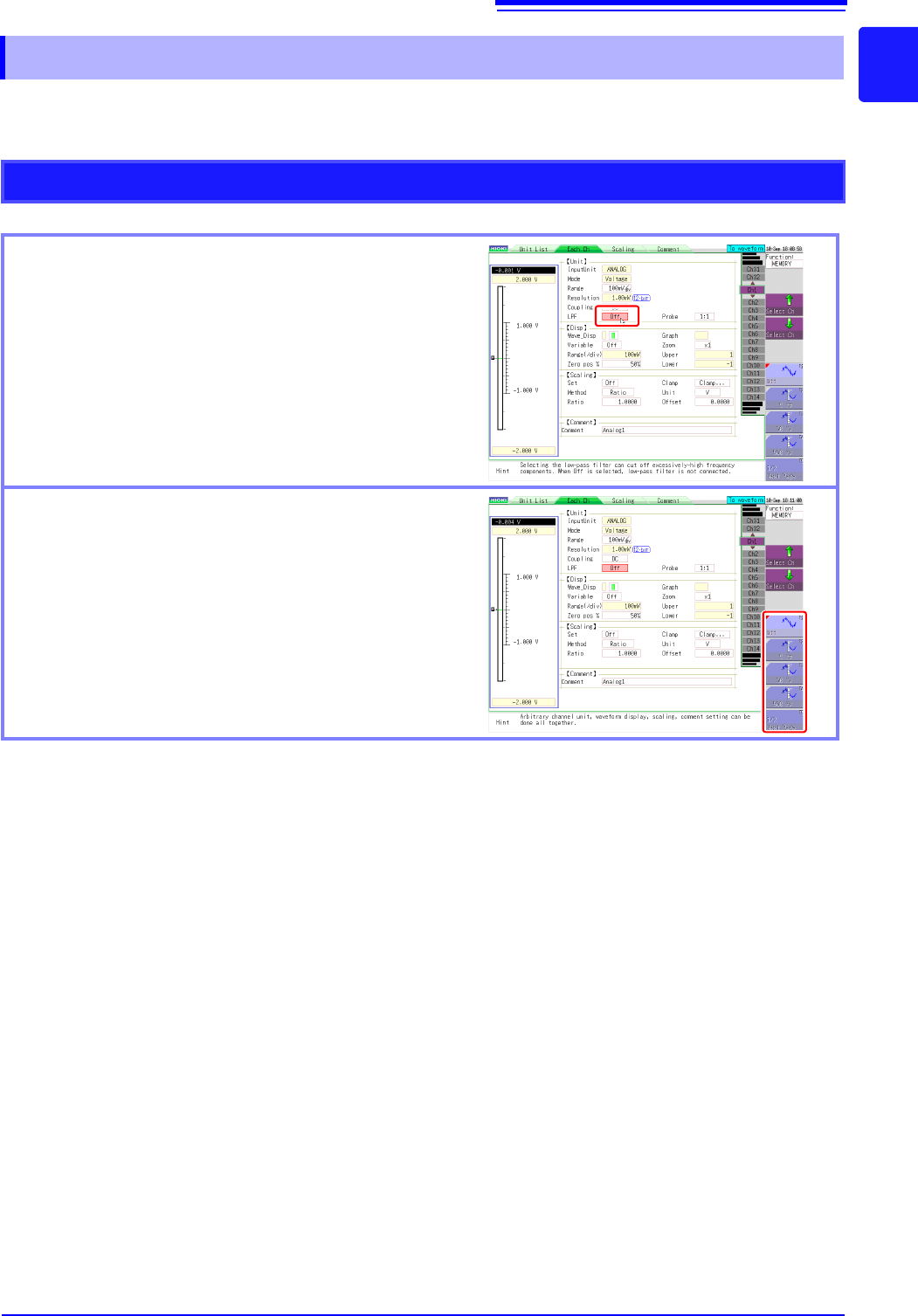
Clicking a setting
When clicked, the setting becomes selected, the frame
changes color, and the setting flashes.
Selecting a setting value from the GUI on the right of
the screen
You can change the setting by moving the mouse cursor
to a selection item on the right of the screen and then
clicking.
The number of selection items differs depending on the
setting.
1.5 Basic Operations
30
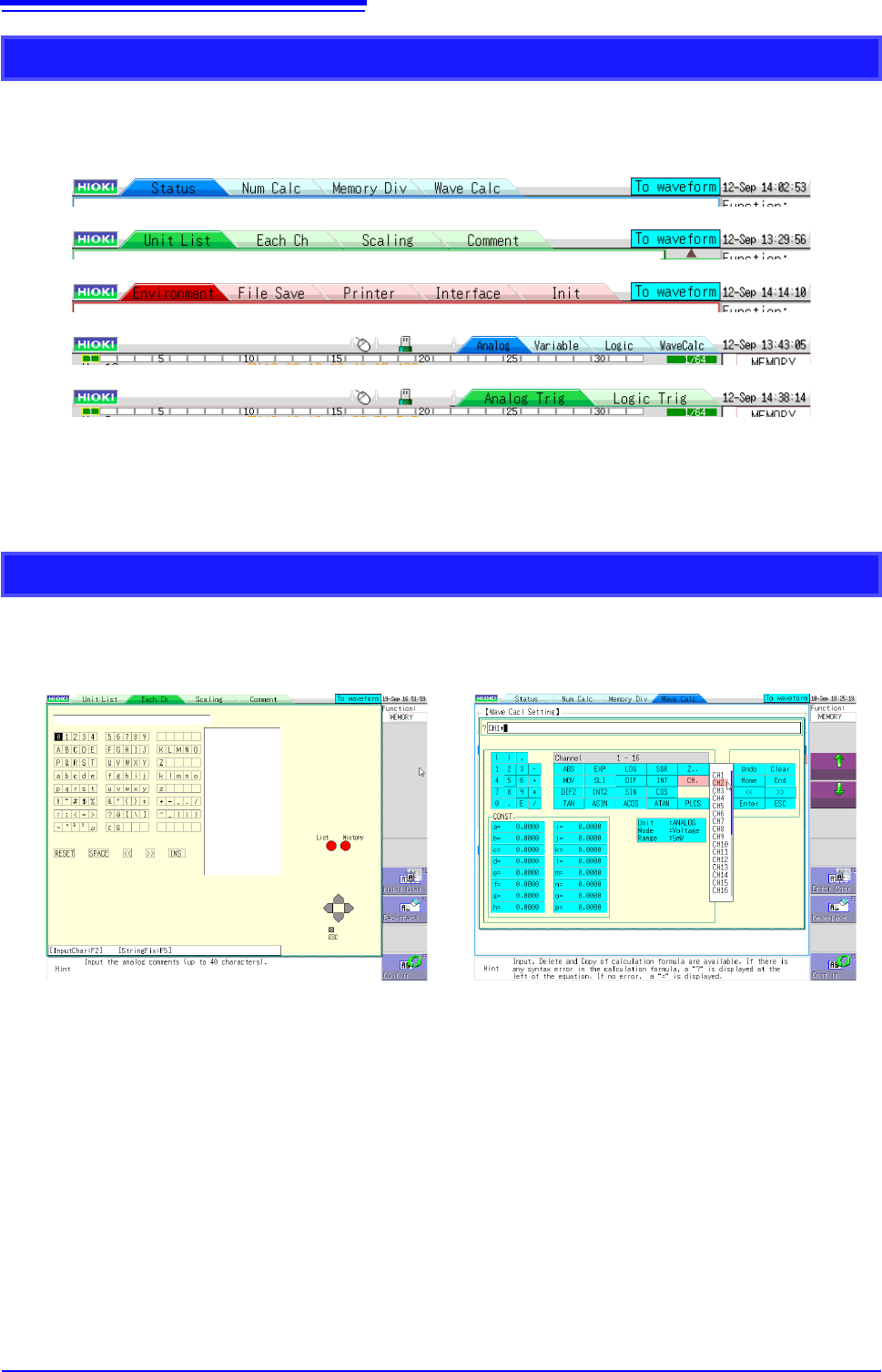
When settings are split into multiple pages, you can change the settings screen directly by clicking
the displayed tabs.
With the tabs of the Waveform screen, clicking the currently selected tab again changes the dis-
played channel.
The menus displayed when inputting comments and calculation equations allow direct character
input with click operations.
Changing Pages on a Settings Screen
Character Input
1.5 Basic Operations
31
1
Chapter 1 Overview
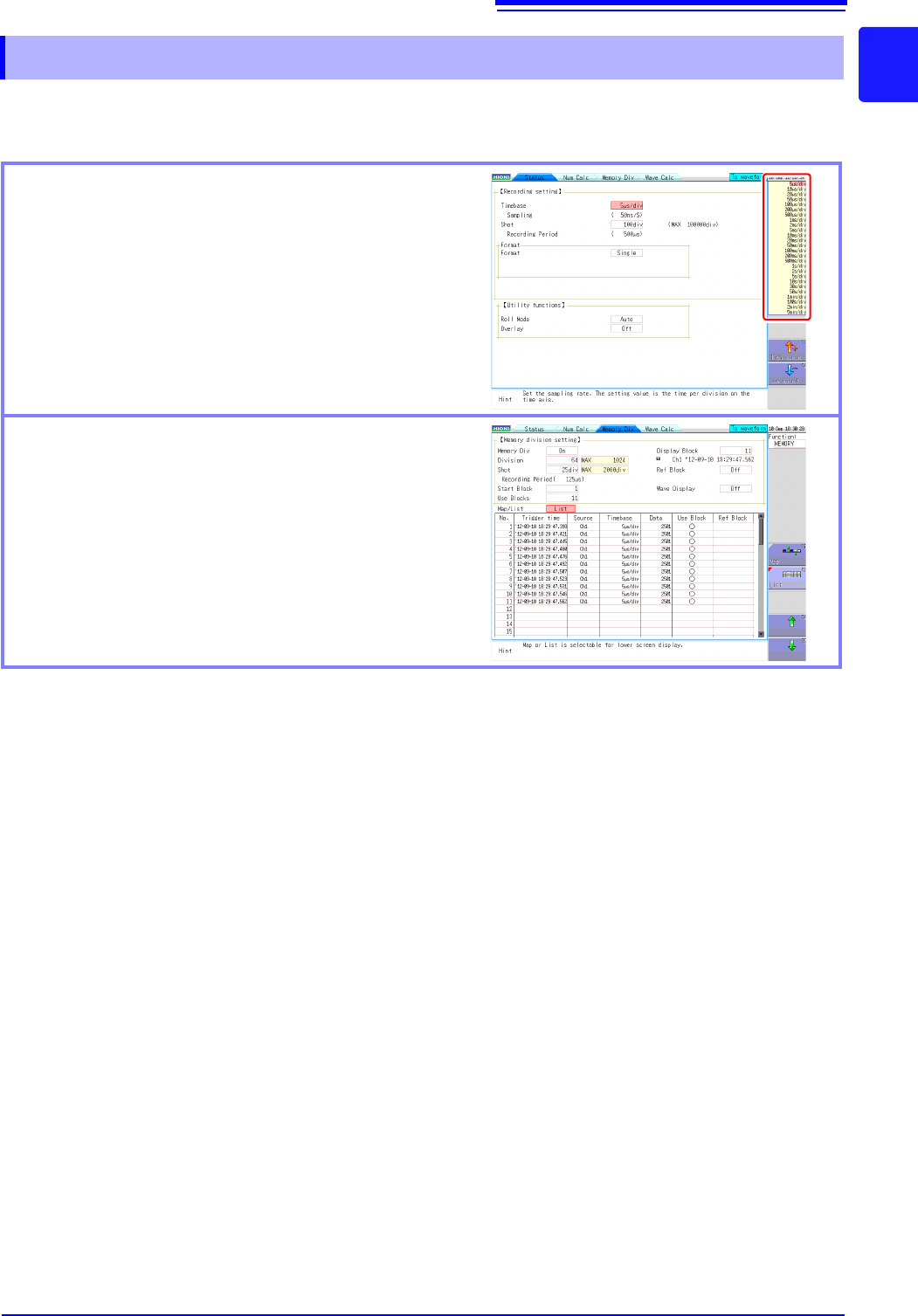
For an item with a list menu, you can change the setting item with the mouse wheel. You can also
use the mouse wheel to scroll the display of a menu that has a scroll bar displayed.
For details on wheel operation on the Waveform screen, refer to the next page.
1.5.4 Mouse Wheel Operations
Selecting from a list menu
For a setting with a selection item list displayed on the
top right of the screen, you can use the wheel to change
the setting item.
Scrolling a displayed list
You can use the wheel to scroll up and down a list.