MR8740、MR8741_user_manual_eng_20191016H.pdf - 第114页
4.4 Managing Files 102 Click [FILE] to display the File screen. Data saved to storage media can be manage d on the File screen. Select a file from the file list. 4.4 Managing Files Before performi ng an operation, insert…
4.3 Loading Data
101
4
Chapter 4 Saving/Loading Data & Managing Files
When the following index files are loaded, waveform data can be loaded as a batch. With the following
settings, index files are created along with waveform files.
Files with the following two extensions can be loaded:
You can load data for generated modules.
Data loading is performed on Signal generator sheet of Channel screen (
CHAN key) or FILE screen (FILE key).
For details, see the instruction manual of Models U8793, MR8790, and MR8791.
Batch load of waveform data
Extension Explanation
IDX
Divided files are loaded together.
(To create index files: Use [Division] at the [File Save] sheet of the System screen to set the dividing
size and then save. Note: If [Save type] is not [Wave Binary], index files are not created)
See: "4.2.2 Automatically Saving Waveforms" (p.88)
"4.2.3 Saving Data Selectively (SAVE)" (p.93)
SEQ
(When using the memory division function of the memory function)
Waveform data of all blocks is loaded together.
(To create index files: At the [Memory Div] sheet of the Status Screen, set [Memory Div] to [On].
At the [File Save] sheet of the System Screen, set [Save Type] to [ALL-Wave Bin].)
See: "11.1 Recording Settings" (p.243)
"4.2.3 Saving Data Selectively (SAVE)" (p.93)
Loading a waveform evaluation area (MR8741 only)
Extension Explanation
ARE
Loads waveform evaluation areas and settings data (files saved by selecting "Area settings"
when saving the data).
BMP
Loads waveform evaluation areas. (Files saved by selecting "Area image" when saving the
data can be edited on a computer and then loaded back into the instrument.)
Data Loading for Waveform Generation (Registration)
Extension Explanation
WFG,
TFG
The data for waveform generation is loaded in channels of a specified arbitrary waveform gener-
ator module. The waveform data loaded (registered) is output from Model U8793 Arbitrary Wave-
form Generator Unit.
Refer to"7.10 Register the Waveform in the U8793 Arbitrary Waveform Generator Unit" (p.184)
PLS
The data for pulse pattern generation is loaded in channels of a specified arbitrary wave gener-
ator module.
The pulse pattern waveform loaded (registered) is output from Model MR8791 Pulse Generator
Unit.
FGP
The waveform generation program file is loaded in channels of a specified arbitrary waveform
generator module.
4.4 Managing Files
102
Click [FILE] to display the File screen. Data saved to storage media can be managed on the File
screen.
Select a file from the file list.
4.4 Managing Files
Before performing an operation, insert the storage media. When no storage
media is inserted, "NO FILE" appears in the file list of the File screen.
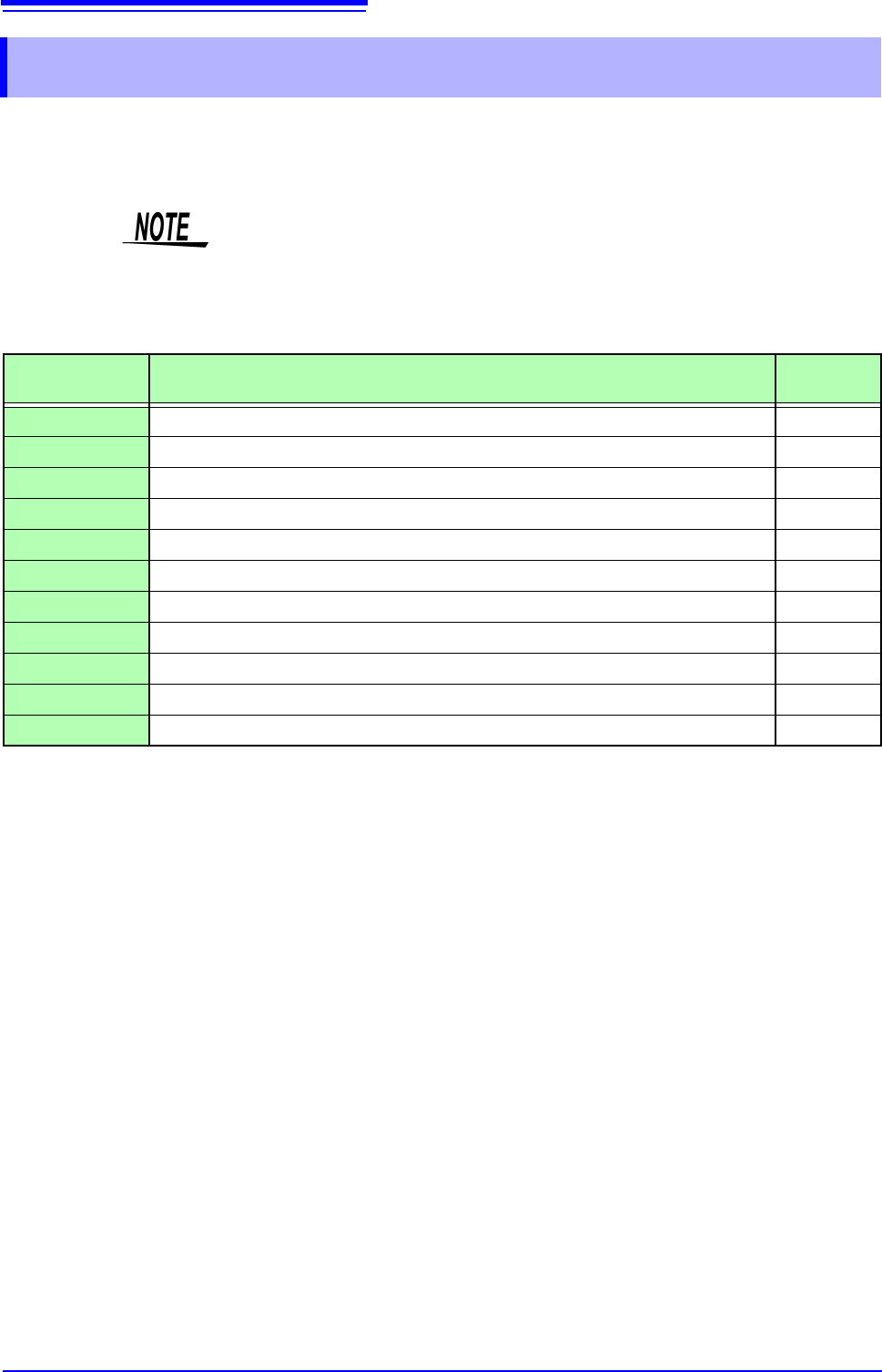
List of File Operations
Function indication
(GUI)
Description Reference
page
Media Change
Change media. (p.84)
Save
Select channels and save settings data and waveform data as files. (p.103)
Sort
Sort files on file list in selected order. (p.107)
Open Folder
Open the selected folder. (p.105)
Load
Load settings data or waveform data from a file. (p.99)
Copy
Copy a file to a specified folder. If selected item is a folder, move to that folder. (p.108)
New Folder
Create a new folder. (p.105)
Rename
Change a file name or folder name. (p.107)
Delete
Delete a file or folder. (p.106)
Format
Format selected storage media. (p.54)
Next Page
Switch operation indication (GUI).
4.4 Managing Files
103
4
Chapter 4 Saving/Loading Data & Managing Files
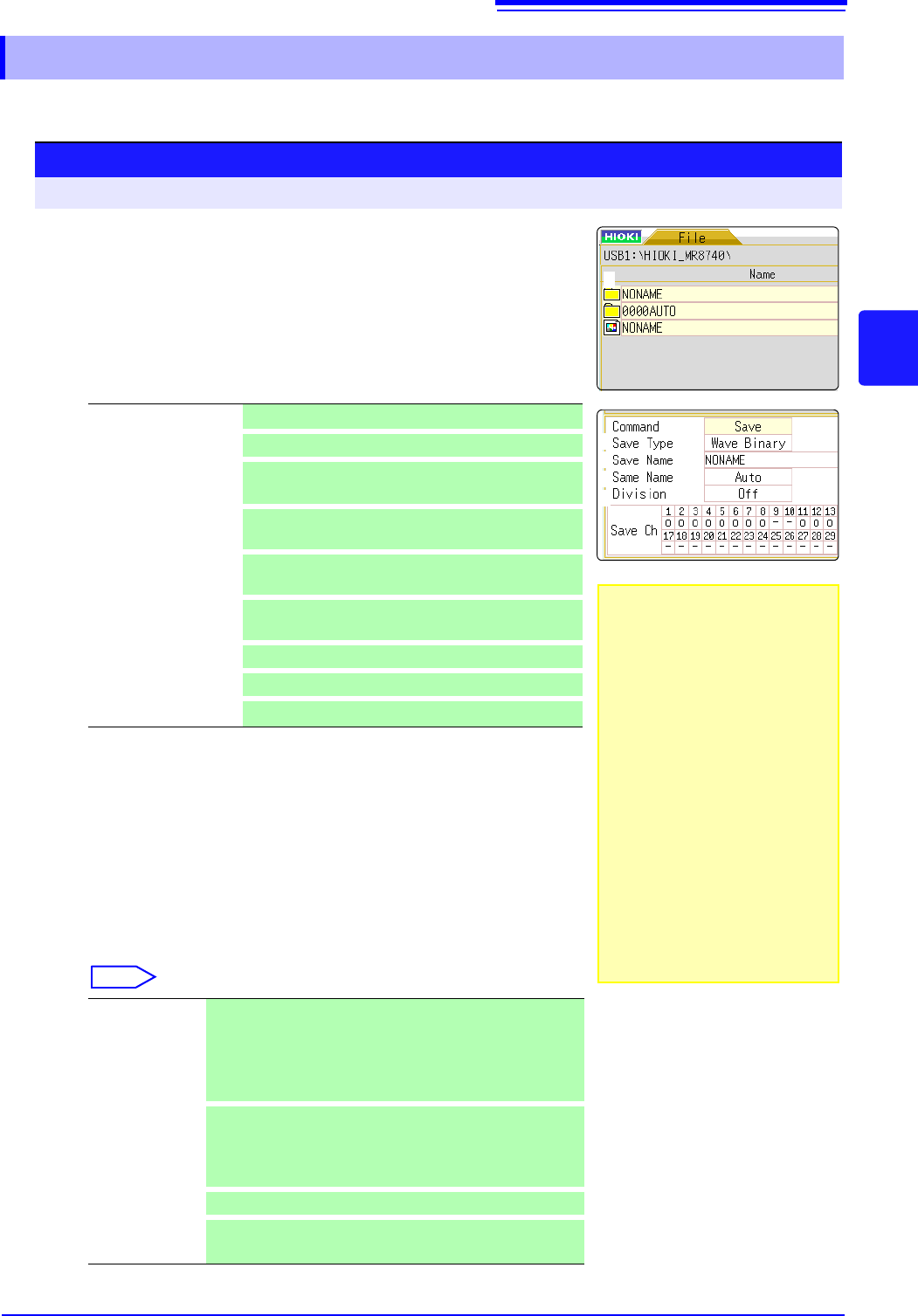
You can save settings data or waveform data on storage media. Data will be saved in the folder indi-
cated by the cursor. By using the A/B cursor pair, waveform data can be saved partially.
4.4.1 Saving
Procedure
To open the screen: Right-click and select [FILE] File screen To change the media: (p.84)
3
4
5
6
1
Select storage media for saving.
See: "To change the media"(p.84)
2
Move the flashing cursor into the folder to save.
3
Set the data to save.
Select [Save] and then select [Save Type].
4
Set the file name.
Move the flashing cursor to the [Save Name] item.
Enter the save name.
See: "7.1.3 Alphanumeric Input" (p.141)
5
Specify the action if a file with the same name exists in the
target folder.
Move the flashing cursor to the [Same Name] item.
Select
*Refer to Åg5. 2.4 Save Waveform Output Data to the MediaÅh
*Refer to"4.2.5 Save Waveform Output Data to the Media" (p.98) for more infor-
mation about how to save data.
Setting
Settings data
Wave Binary
Waveform data (Binary)
Wave Text
Waveform data (Text)
(Memory/FFT Function)
Numeric value calcu-
lation results
Numeric value calculation results (Text)
Waveform evaluation
settings
Settings data and evaluation area (MR8741 only)
Waveform evaluation
area
Evaluation area (MR8741 only)
Pulse pattern
Pulse pattern data registered in the MR8791*
Arbitrary waveform
Arbitrary waveform data registered in the U8793*
Program Program data registered in the U8793*
Auto If no files with the same name exist, saves the file with the des-
ignated name. Otherwise, a 4-digit number is automatically
added to the beginning of the file name (default setting).
If the first character of the file name is a numeral, the
added number will continue sequentially from that number.
Serial
Unconditionally, a 4-digit number is automatically added to
the beginning of the file name. If a file with the same name
exists, saves the file, adding the 4-digit number that is in-
creased by 1.
Overwrite
Saves the file with the designated name.
Error
If a file with the same name exists, an error message will be
displayed.
2
• Data saved with the "Text"
option is only for loading to a
PC and cannot be loaded
back into the instrument. To
reload the data later into the
instrument, use the "Binary"
option.
• When [Memory (Int)] is
selected as storage media,
only settings data can be
saved.
• The waveform evaluation
area you have created can
be saved as a black-and-
white BMP file. Saved data
can be edited on a computer
and loaded back into the
instrument. Edit images in
black and white only.