MR8740、MR8741_user_manual_eng_20191016H.pdf - 第392页
18.5 Updating the Instrument 380 Each of block I and block II need to be u pdated for MR8740. The version update file is the same f or both block I and block II. 18.5 Up dating the Instrument 1 Right-click to display the…
18.4 Self-Test (Self Diagnostics)
379
Chapter 18 Maintenance and Service
14
18
This check tests the condition of the display screen.
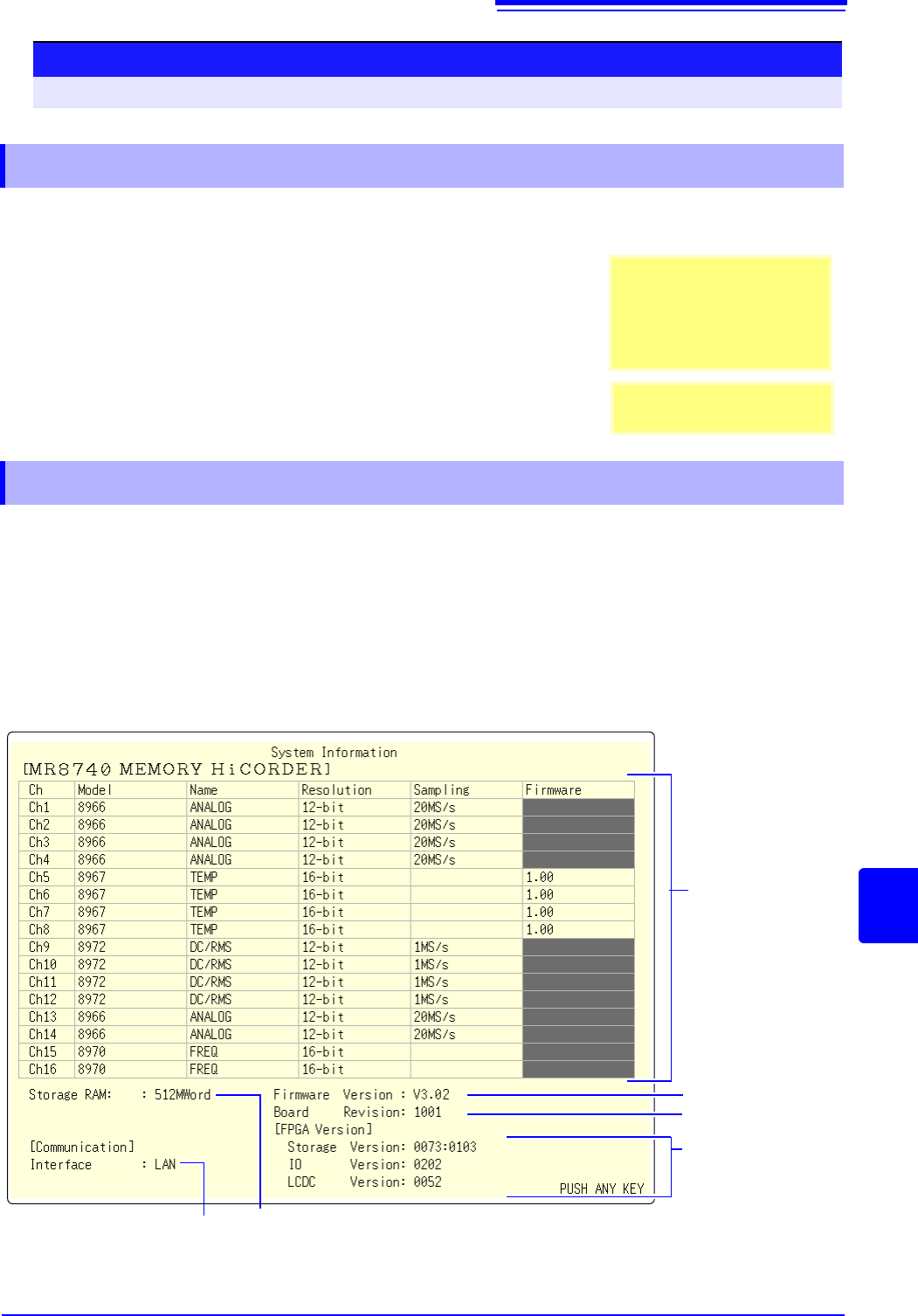
The list of installed options and other system information appears in a separate window.
Procedure (Common for Display Check, System Configuration Check)
To open the screen: Right-click and select [SYSTEM] [Init] sheet
18.4.2 Display Check
1
Move the flashing cursor to the [Display Check] item.
2
Select [Exec].
A red screen appears.
3
Check the condition of the display.
Left-click the mouse to change the screen.
The original screen reappears
If the display screen seems ab-
normal, request repairs.
Screen Changes
Color check (Red, Green, Blue,
Black, White) Gradiation
check (Red, Green, Blue, Black,
White) Color patternOriginal
screen.
18.4.3 System Configuration Check
Currently selected
interface
1
Move the flashing cursor to the [System Information] item.
2
Select [Exec].
The System Configuration List appears.
To reappear the original screen:
Left-click the mouse.
Model number, name,
resolution and sampling
rate of each installed
module (unit)
Firmware version no.
Board revision no.
FPGA version no.
Internal memory
capacity
18.5 Updating the Instrument
380
Each of block I and block II need to be updated for MR8740. The version update file is the same for
both block I and block II.
18.5 Updating the Instrument
1
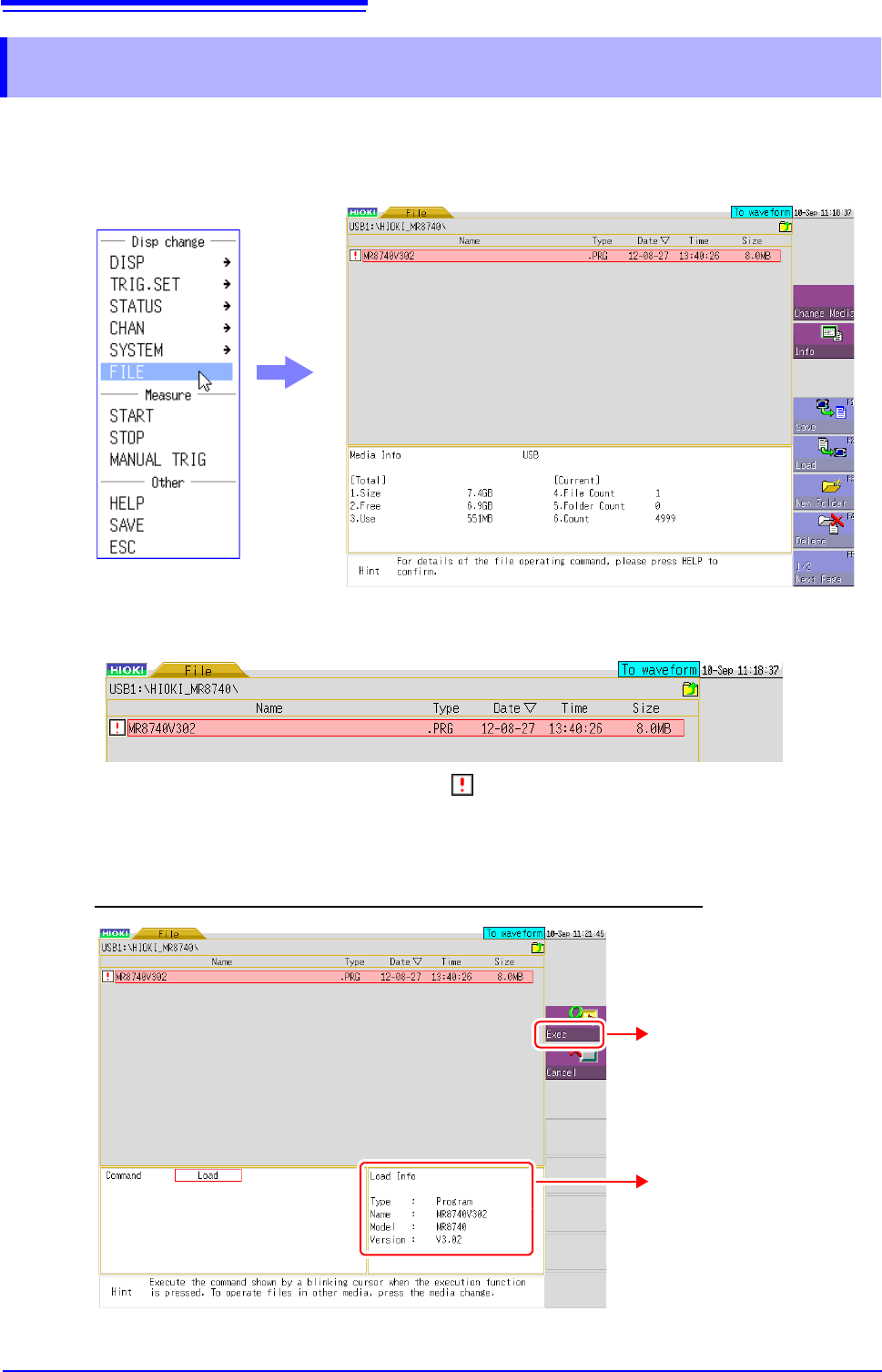
Right-click to display the list menu, and then click [FILE] to open the File screen.
2
Double-click the MR8740/MR8741 version update file in the list.
3
When the file information appears, check the information and then click [Exec] to start the
version update.
Once you start the update, do not turn the power off until it is finished.
* A version update file is indicated with the icon.
* If you cannot find a version update file, refer to the next page.
Click [Exec] to start the
version update.
File information
18.5 Updating the Instrument
381
Chapter 18 Maintenance and Service
14
18
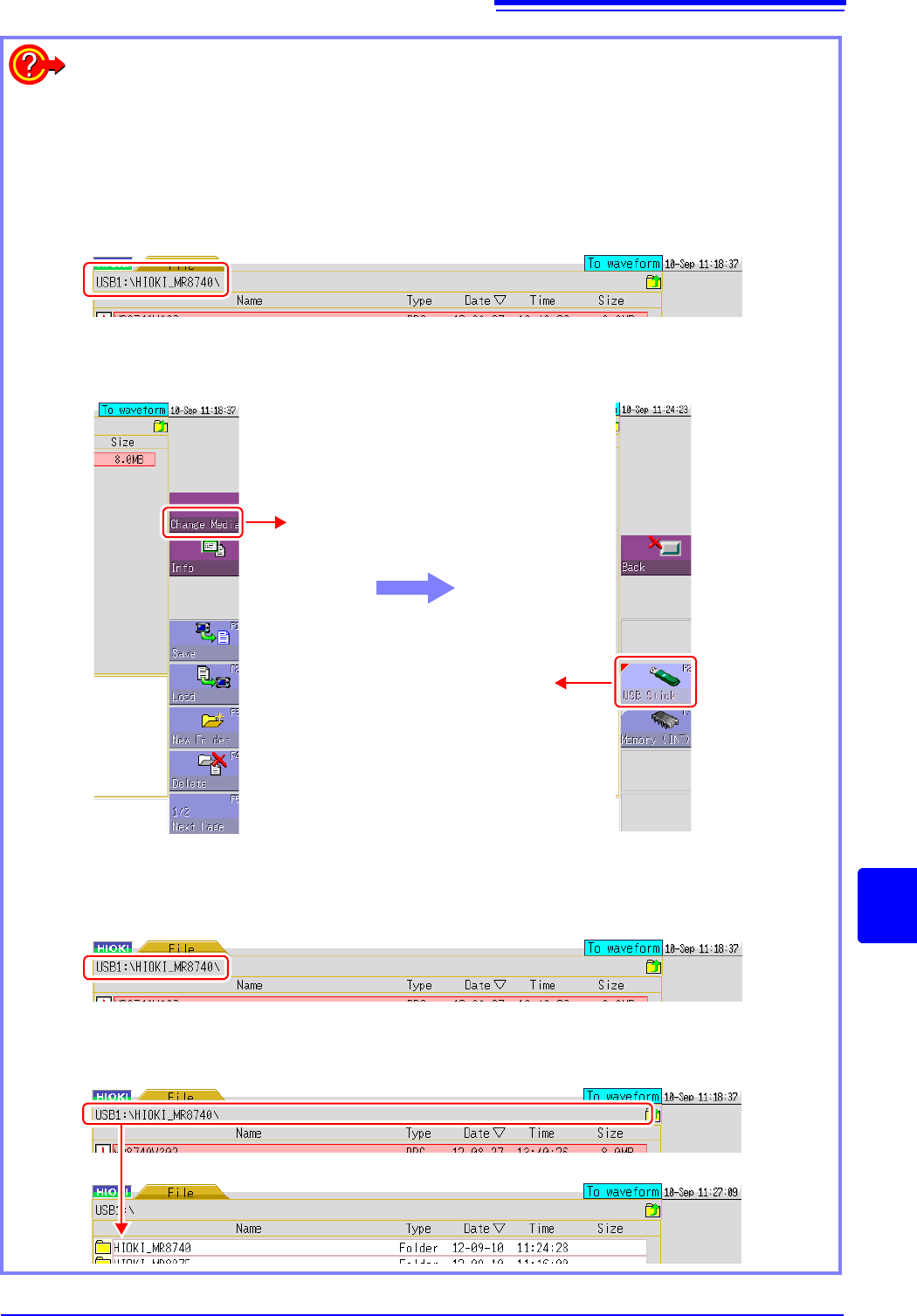
If the version update file is not displayed on the File screen
The possible causes are as follows.
(Example: When the version update file is saved in the "HIOKI_MR8740" folder of the USB mem-
ory stick)
Wrong media is selected
Check the address displayed at the top of the screen.There is no problem if the address begins
with "USB1".
• If the address does not begin with "USB1":
Click [Change Media] on the right of the File screen and then click [USB Stick] in the displayed
list.
Wrong folder is selected
Check the address displayed at the top of the screen. There is no problem if the address is
"USB1:\HIOKI_MR8740\".
• If the address does not begin with "USB1:\HIOKI_MR8740\":
Left-click the part enclosed by a red line in the figure below until "USB1:\" is displayed for the
address. When it is displayed, double-click the HIOKI_MR8740 folder in the list.
Click [Change Media].
Click [USB Stick] to switch to the
USB memory stick.
Click the part enclosed by a red line until "USB1:\" is displayed, and then double-click the