MR8740、MR8741_user_manual_eng_20191016H.pdf - 第43页
1.5 Basic Operations 31 1 Chapter 1 Overview For an item with a list menu, you ca n change the setting item with the m ouse wheel. You can also use the mouse wheel to scroll the display of a menu that has a scroll bar di…
1.5 Basic Operations
30
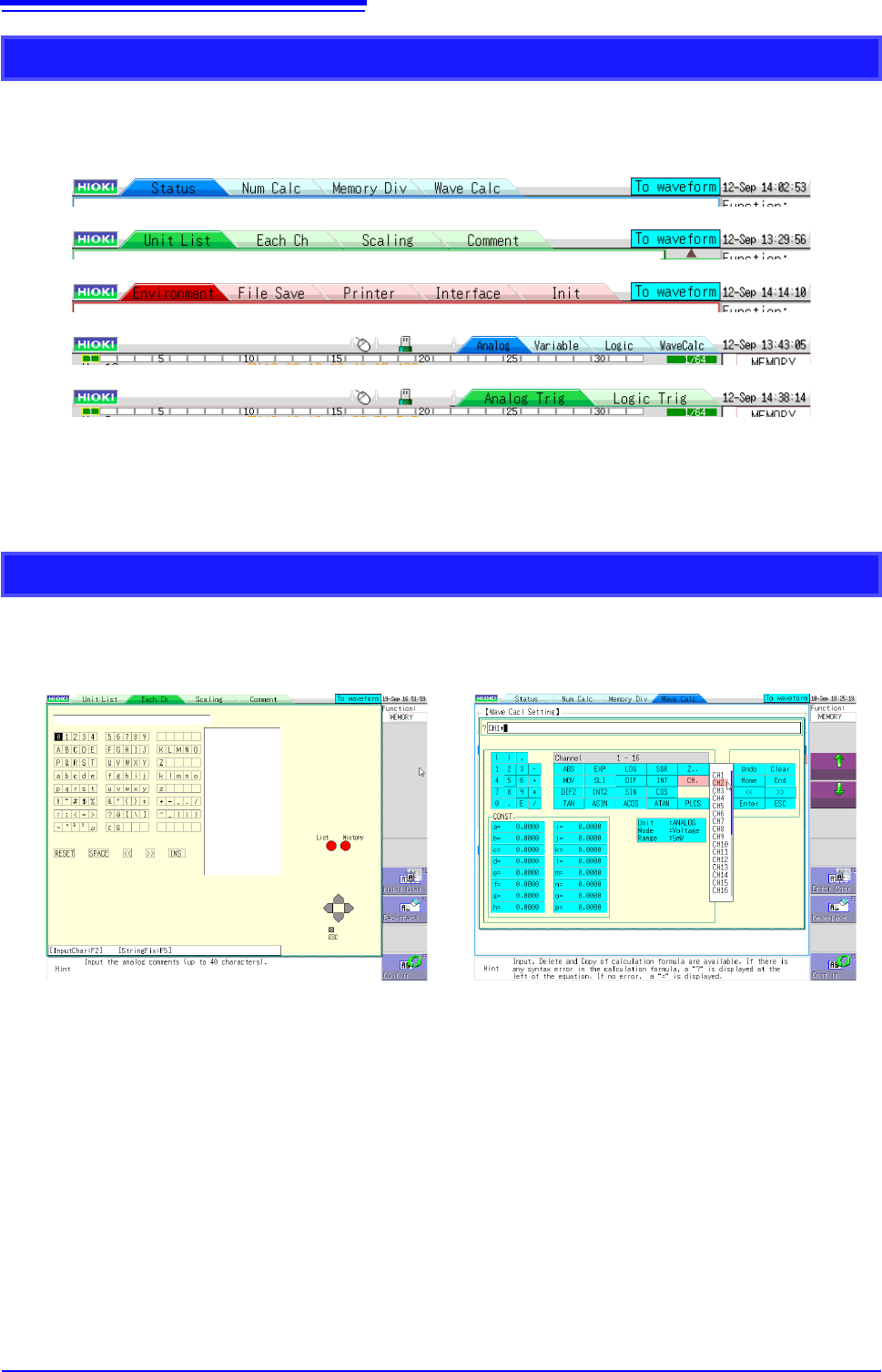
When settings are split into multiple pages, you can change the settings screen directly by clicking
the displayed tabs.
With the tabs of the Waveform screen, clicking the currently selected tab again changes the dis-
played channel.
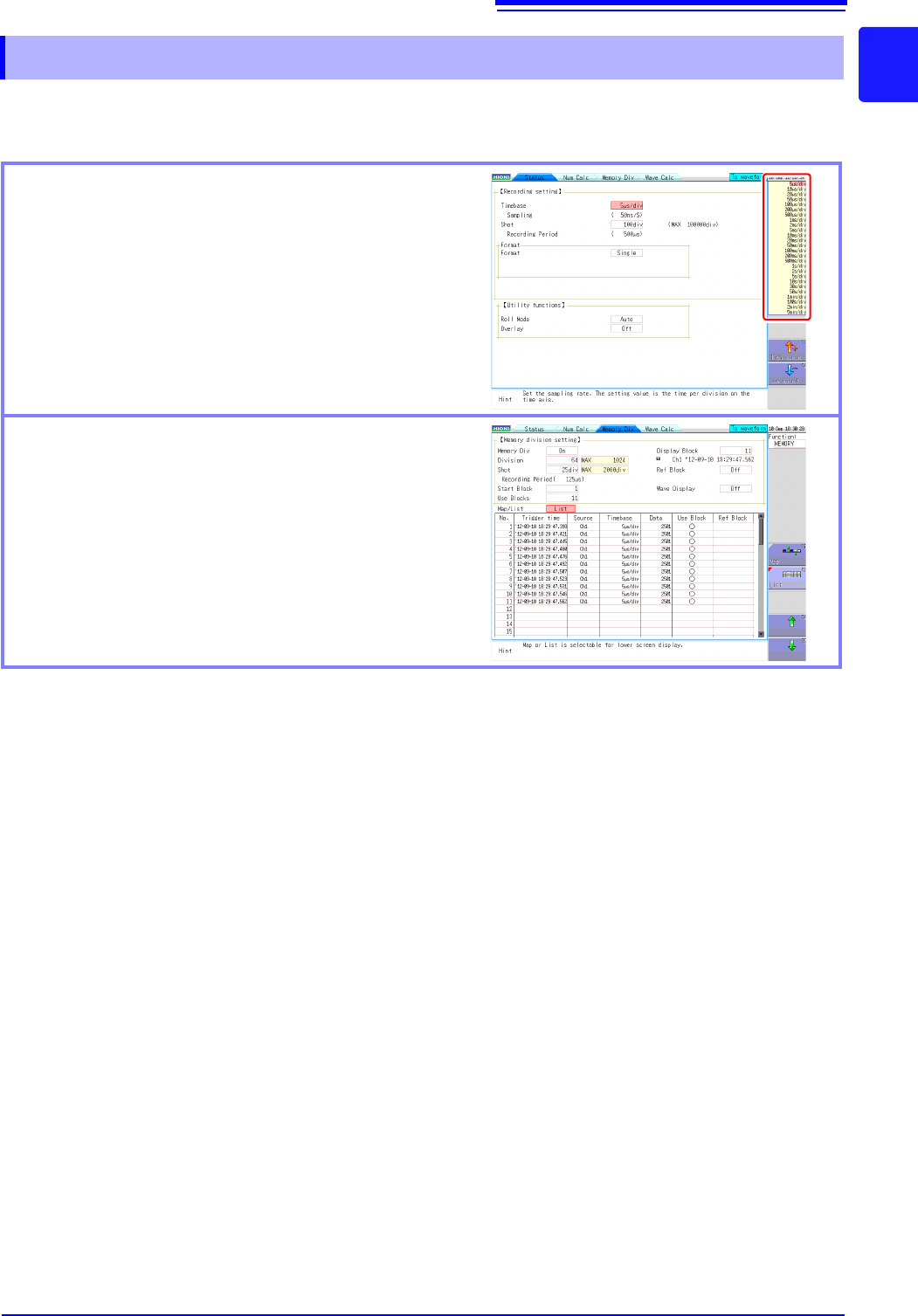
The menus displayed when inputting comments and calculation equations allow direct character
input with click operations.
Changing Pages on a Settings Screen
Character Input
1.5 Basic Operations
31
1
Chapter 1 Overview
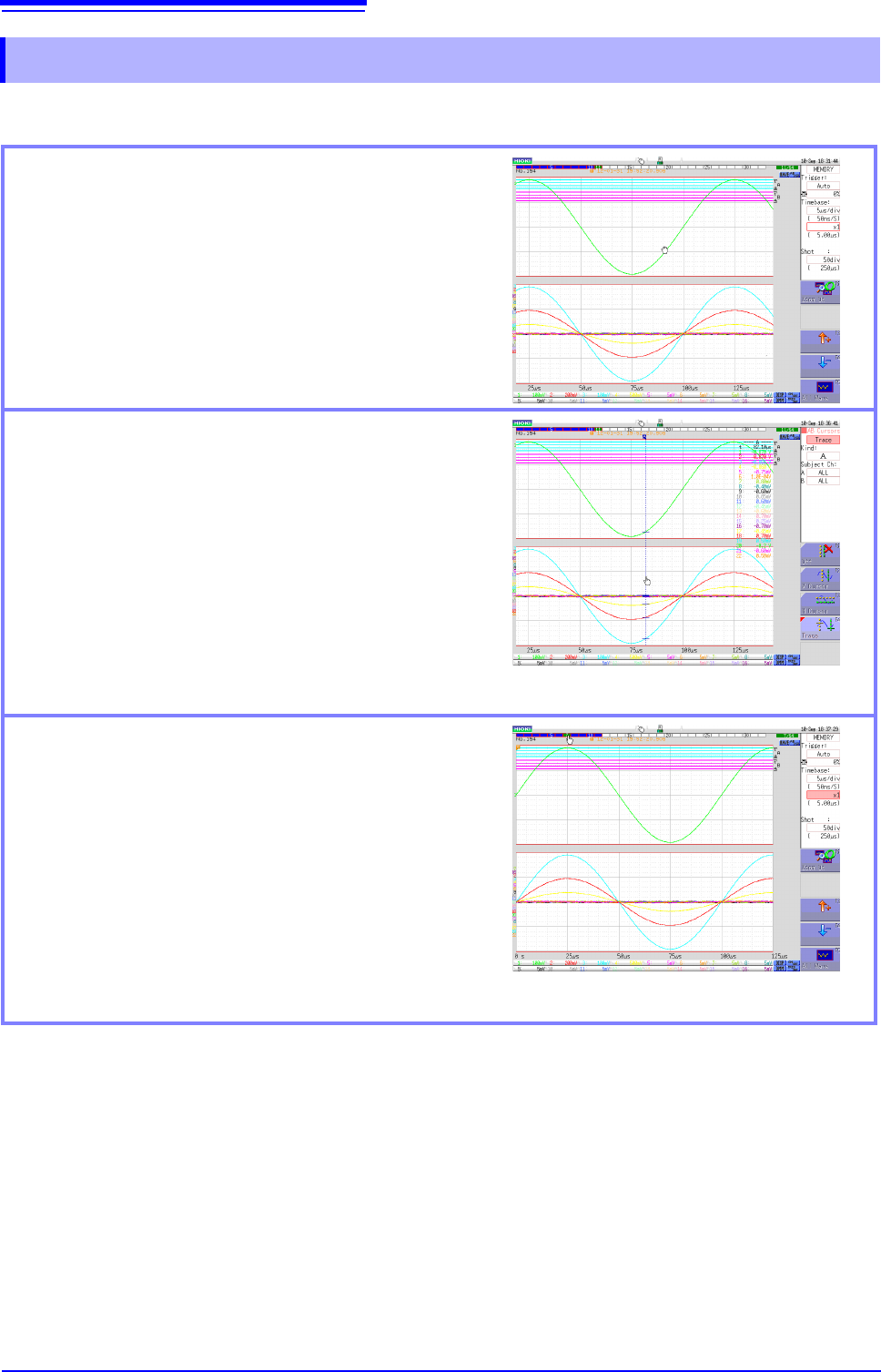
For an item with a list menu, you can change the setting item with the mouse wheel. You can also
use the mouse wheel to scroll the display of a menu that has a scroll bar displayed.
For details on wheel operation on the Waveform screen, refer to the next page.
1.5.4 Mouse Wheel Operations
Selecting from a list menu
For a setting with a selection item list displayed on the
top right of the screen, you can use the wheel to change
the setting item.
Scrolling a displayed list
You can use the wheel to scroll up and down a list.
1.5 Basic Operations
32
You can scroll a waveform and change the cursor position on the Waveform screen.
1.5.5 Waveform Operations
Scrolling measured waveforms left or right
When the mouse cursor is in the Waveform screen, you
can scroll the waveform by moving the mouse left or
right while holding down the left mouse button (drag-
ging).
You can rotate the wheel button forward or backward to
make fine scrolling adjustments.
(If the waveform is not scrollable, click the [WAVE] icon
on the top right of the Waveform display screen.)
Moving the A/B cursors
When the mouse cursor is in the Waveform screen, you
can move the cursors by moving the mouse left or right
while holding down the left mouse button (dragging).
You can rotate the wheel button forward or backward to
move the A/B cursors one sample at a time.
(Click the [AB CSR] icon on the top right of the Wave-
form display screen beforehand.)
When the A/B cursors are in the Waveform screen, you
can move the A or B cursor if you left-click the A or B
mark.
Changing the displayed block
When the memory is divided, you can change the mea-
surement block if you double-click the block number on
the top of the screen. When the mouse cursor is in the
block number, you can also change the measurement
block number by rotating the mouse wheel button for-
ward or backward.
(If the displayed block is not displayed on the Waveform
screen, click the [WAVE] icon on the top right of the
Waveform display screen, and click [posblock] from
the GUI menu on the right side of the screen.)