MR8740、MR8741_user_manual_eng_20191016H.pdf - 第139页
6.4 Performing Waveform X-Y Synthesis 127 5 Chapter 6 W aveform Screen Monitoring and Analysis 6 This applies to the Memory function. • To perform waveform X-Y synthesis , go to the Status screen, select the [Status] sh …
6.3 Moving the Waveform Display Position
126
You can display the waveform position you wish to view immediately by specifying it with the
mouse.
6.3.3 Moving the Position
Procedure
To open the screen: Right-click and select [DISP] Waveform screen Left-click the [WAVE] icon WAVE
settings GUI display
1
Left-click the [WAVE] icon.
Left-click the [WAVE] icon on the top right of the Waveform screen.
2
Use the mouse to specify a position on the scroll bar of the
screen.
3
Left-click the mouse.
The selected display position appears on the screen.
Moving the position when [Memory Div: On] with the Memory
function:
Click the [WAVE] icon. With no block displayed in the upper part of
the screen, move the position.
(When a block is displayed in the upper part of the screen, the
desired block can be selected and the recorded waveform can be
displayed. (p.136)
6.4 Performing Waveform X-Y Synthesis
127
5
Chapter 6 Waveform Screen Monitoring and Analysis
6
This applies to the Memory function.
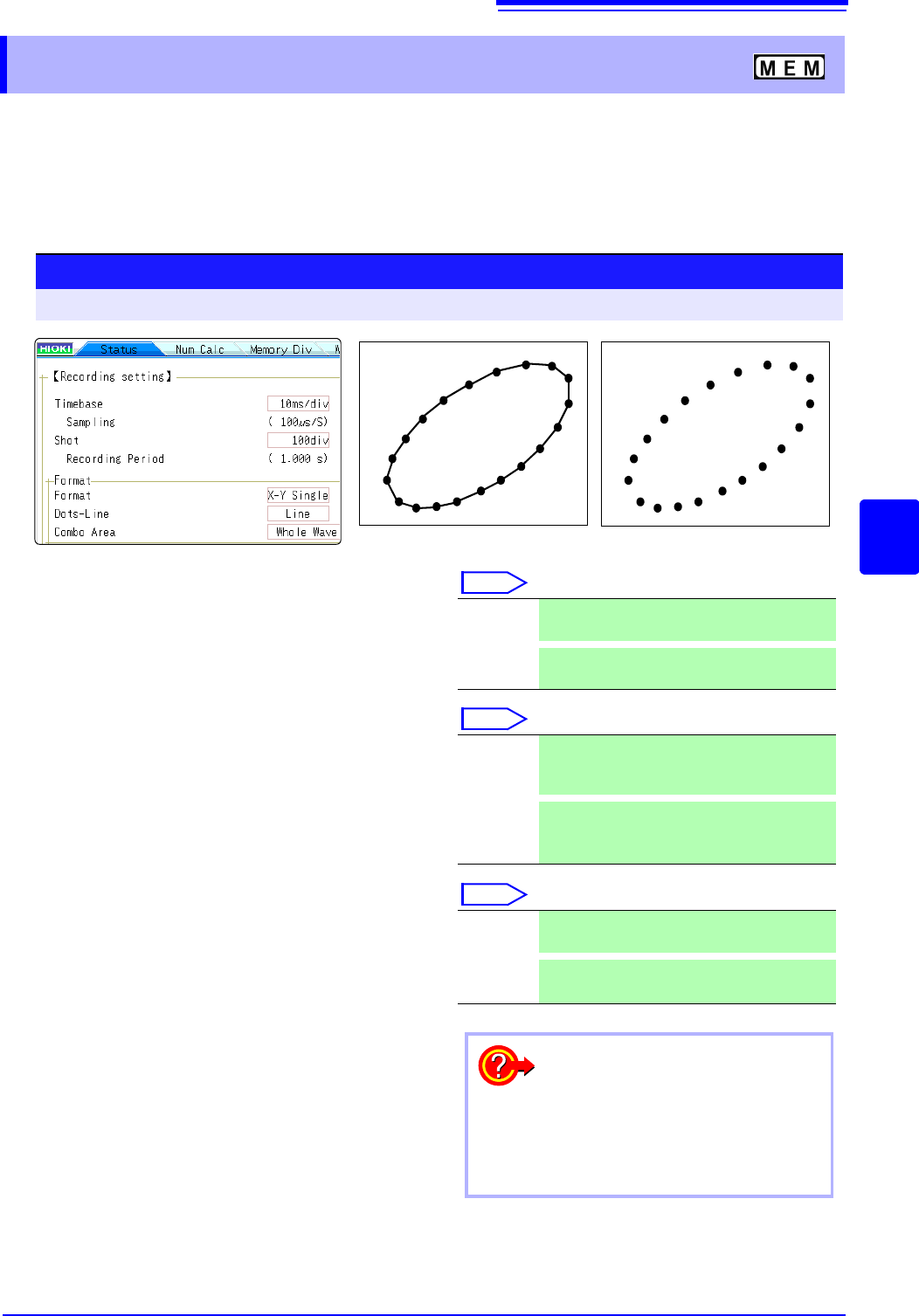
• To perform waveform X-Y synthesis, go to the Status screen, select the [Status] sheet, and set
[Format] to X-Y1 screen or X-Y4 screen. By assigning any analog channel to the X axis and Y
axis, up to 8 X-Y combo displays can be generated.
• Vertical axis (voltage axis) zoom also applies to X-Y synthesis.
6.4 Performing Waveform X-Y Synthesis
1
2
3
1
Move the flashing cursor to the [Format] item,
and then click.
Select
2
Move the flashing cursor to the [Dots-Line] item,
and then click.
Select
3
Move the flashing cursor to the [Combo Area]
item, and then click.
See: "6.2 Specifying a Waveform Range (A/B Cursor)"
(p.124)
Select
X-Y Single The waveforms of graphs 1 - 8 are shown and
recorded on a single screen.
X-Y Quad
The waveforms of graphs 1 - 8 are shown and
recorded on a quadruplet screens.
Dots Measurement data only are shown as dots.
Order stored in memory will no longer be
known.
Line
Measurement data are linked by a line in the
order stored in memory and shown as a wave-
form. (default setting)
Whole
Wave
All data are used for X-Y synthesis.
A-B Wave
Only data range marked by A/B cursors is used
for X-Y synthesis.
• When [Dots] is selected for the Dot-Line inter-
polation setting, the waveform will be displayed
faster.
• Specify a range using the A/B cursors. (Memory
Function only)
To speed up the time between mea-
surement and waveform display
Procedure
To open the screen: Right-click and select [STATUS] [Status] sheet
Line
Dot
6.4 Performing Waveform X-Y Synthesis
128
Procedure
To open the screen: Right-click and select [DISP] Waveform screen Right-click and select [CH.SET]
X-Y settings window
4
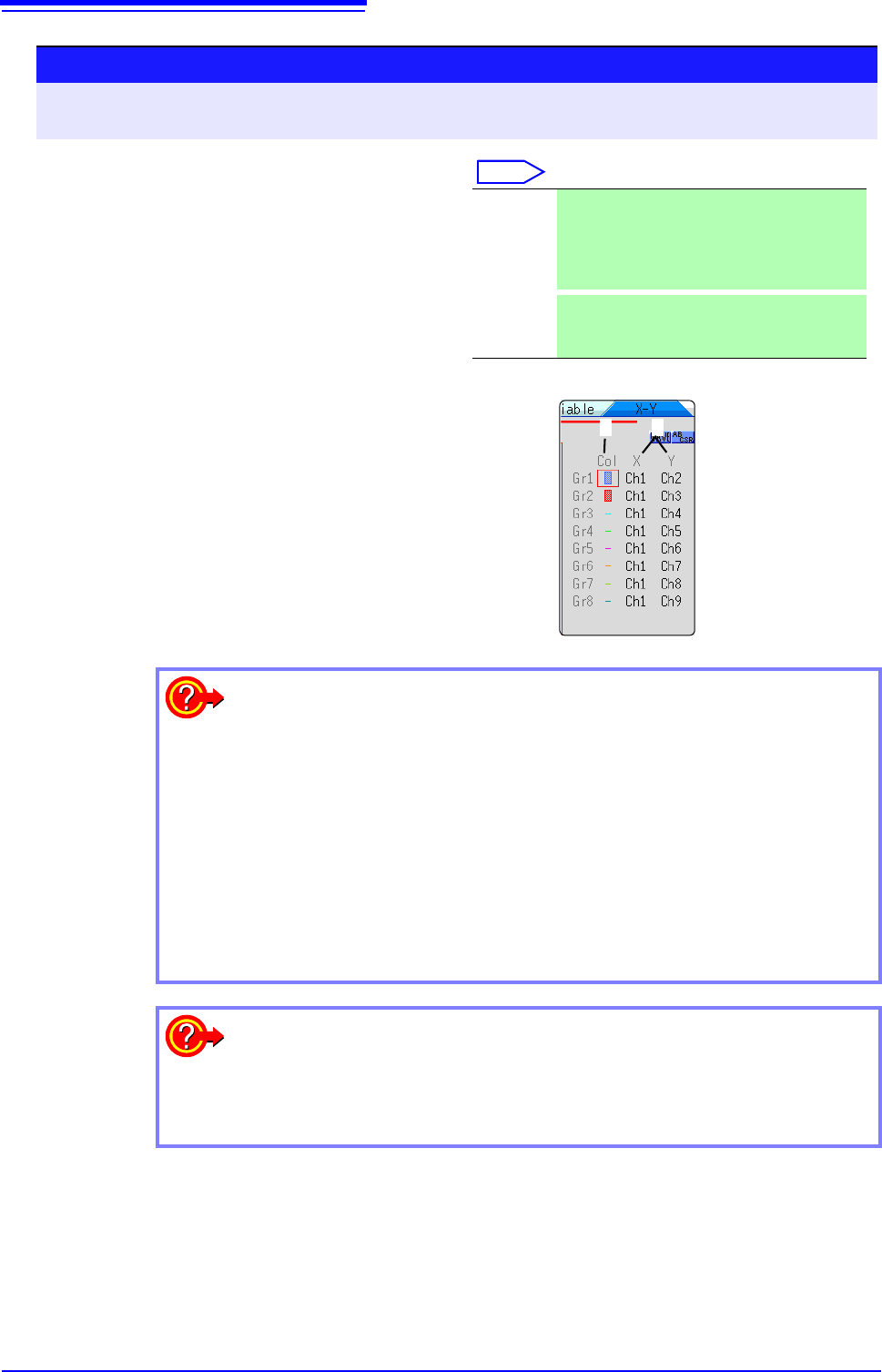
Set the waveform color in the graph display.
Select
Move the flashing cursor to the graph color item to set,
and click it.
Set the waveform display color.
You can also select the same color as for another channel.
5
Select the channels for X-Y synthesis.
Move the flashing cursor to the items for the X (time
axis) and Y (voltage axis) and assign a channel.
The same channel can also be assigned multiple times.
Off Waveform display is off. If [Save Channel] is
set to [Disp Ch] in the Auto Save settings, the
data will not be saved.
See: "Select the channels to save." (p. 104)
On
The waveform is displayed. Set the display col-
or by clicking [] or [].
4 5
Synthesis for A/B section of a waveform
Perform the following steps.
1. Right-click and select [STATUS] to bring up the Status screen, and select
the [Status] sheet.
2. Select 1, 2, 4, 8 or 16 screens as [Format].
3. Right-click and select [DISP] to display the waveform.
4. Use the A/B cursors to specify the range for synthesis. See the following
pages. (p.120), (p.124)
5. Right-click and select [STATUS] to bring up the Status screen, and select
the [Status] sheet.
6. Select [X-Y Single] or [X-Y Quad] for [Format].
To move pen on synthesized waveform
You can move the pen over the entire waveform by rotating the mouse wheel
button.(Click the [WAVE] icon while AB CSR is displayed.)
The time at the pen position is shown at the top right of the screen.