MR8740、MR8741_user_manual_eng_20191016H.pdf - 第167页
7.5 Variable Function (Setting the Wavefo rm Display Freely) 155 6 Chapter 7 Utility Functions 7 The waveform height a nd display position can be arbitrarily set al ong the vert ical axis (voltage axis) . The following t…
7.4 Converting Input Values (Scaling Function)
154
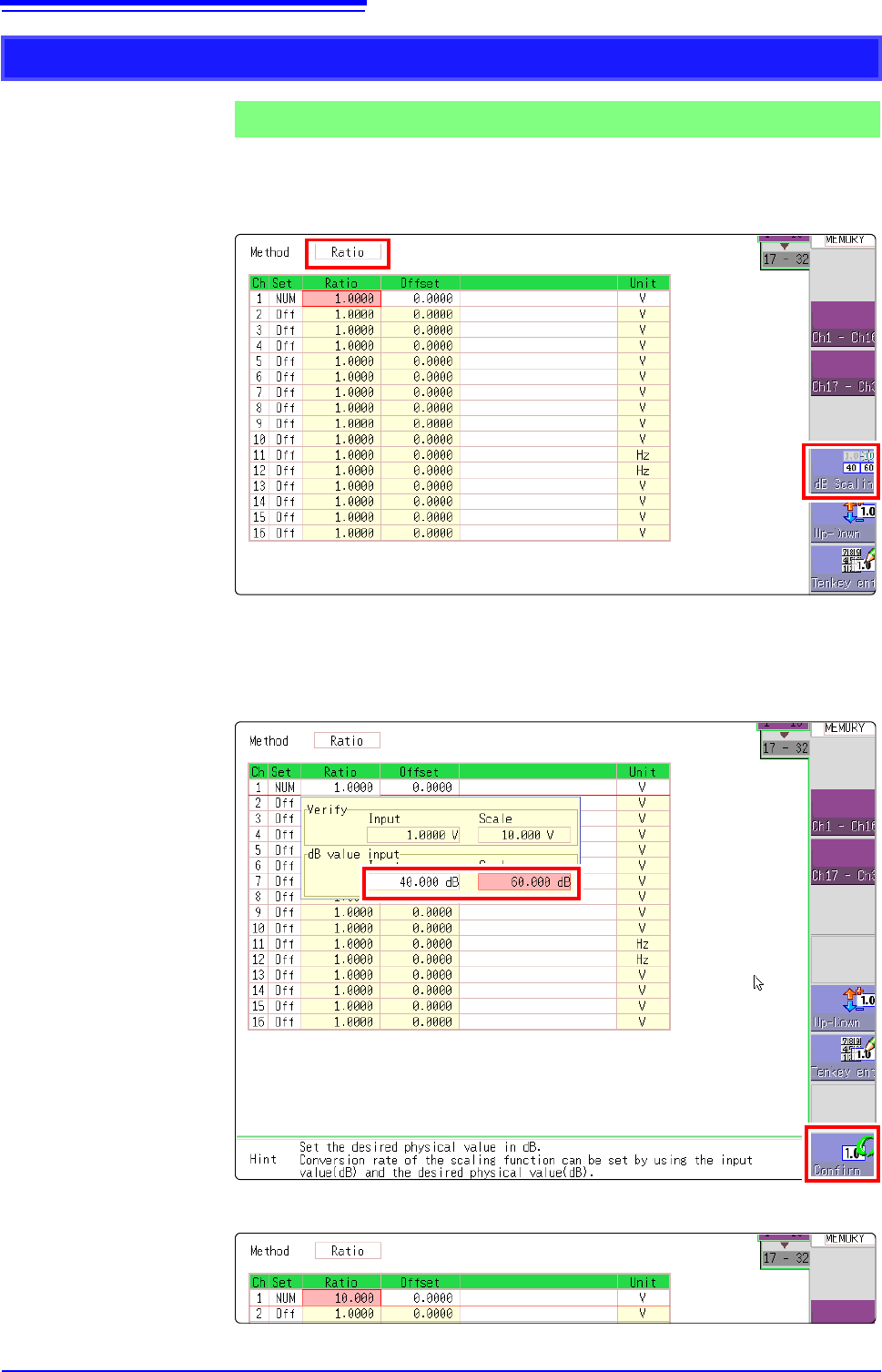
1. For scaling, set the [Method] to [Ratio].
2. Point the flashing cursor to the conversion rate setting and select [dB Scal-
ing].
3. In the displayed entry field and physical quantity field, enter 40 dB and 60 dB,
respectively.
After entering the values, select [Confirm].
See: "7.1.3 Alphanumeric Input" (p.141)
The conversion rate for the entered dB value is entered. (The offset becomes 0.)
Using the dB value
Example 5
Acquiring the conversion rate to convert 40 dB input to 60 dB
1
2
2
7.5 Variable Function (Setting the Waveform Display Freely)
155
6
Chapter 7 Utility Functions
7
The waveform height and display position can be arbitrarily set along the vertical axis (voltage axis).
The following two setting methods are available:
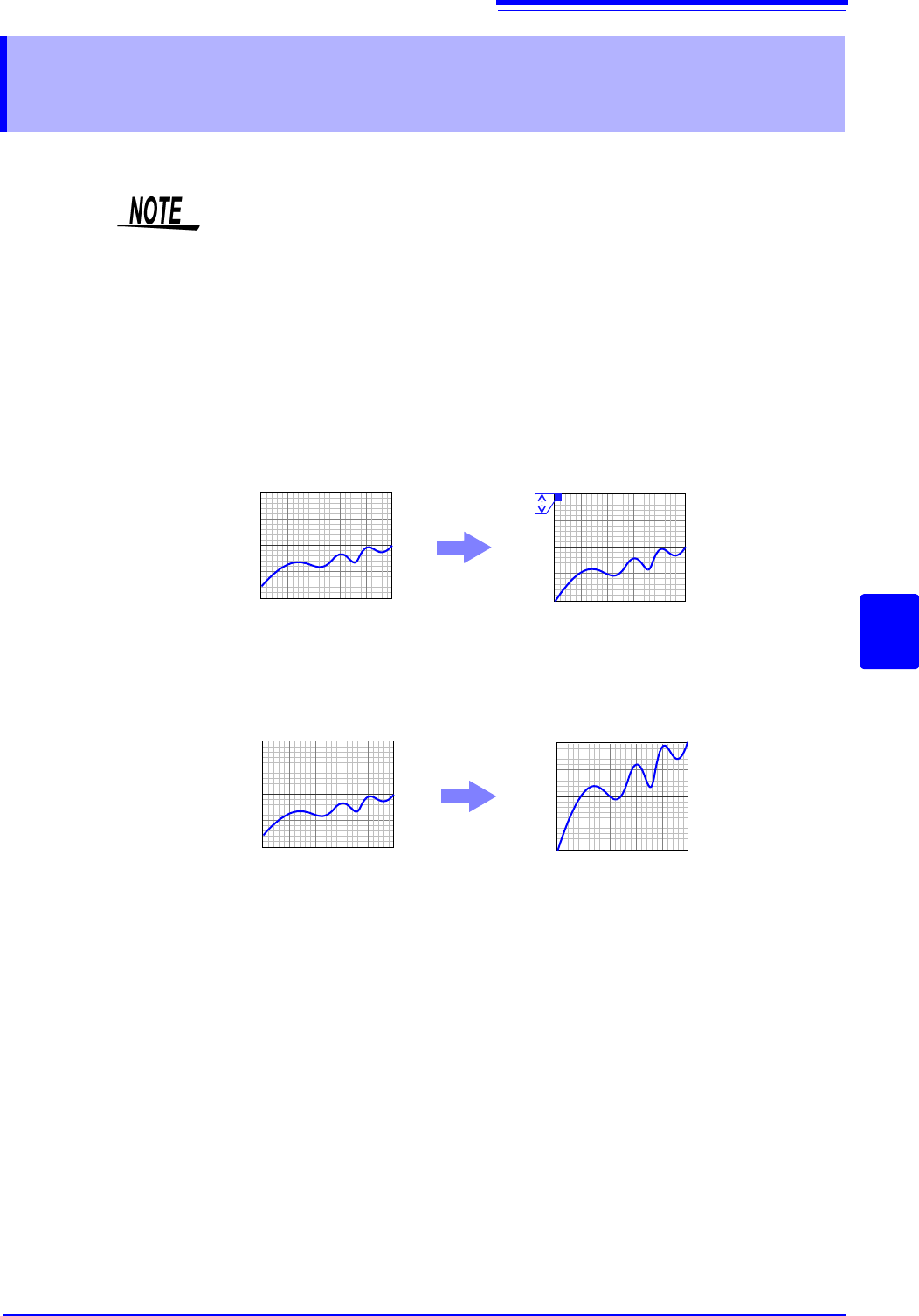
• Set the displayed amplitude per division (1div setting)
Set the amplitude to be displayed per vertical division and the zero position of
the waveform on the vertical axis (voltage axis).
• Set the Upper and Lower Limits (Upper-Lower setting)
The upper and lower limits on the vertical axis (voltage axis) can be set to dis-
play the waveform amplitude full-screen.
Settings for the Variable function can be made for each individual channel, using
the [Each Ch] sheet accessed from the Channel screen (p.156), or for all chan-
nels using the Display range window (p.157).
7.5 Variable Function (Setting the Waveform Dis-
play Freely)
Precautions for using the Variable Function
• Verify that the vertical axis (voltage axis) range is set properly for the input sig-
nal.
• The vertical axis (voltage axis) range is unaffected by changes to the upper
and lower limits made by the Variable setting.
Normal Waveform
Variable Function (Per-Division setting)
0V
10V
0V
1V
Per Division: 1 V
Zero Position: 0%
Normal Waveform Variable Function (Set Upper/Lower Limits)
0V
10V
0V
10V
Upper Limit: 10 V
Lower Limit: 0 V
7.5 Variable Function (Setting the Waveform Display Freely)
156
Make the Valiable Function Setting per channel _____________________
Procedure
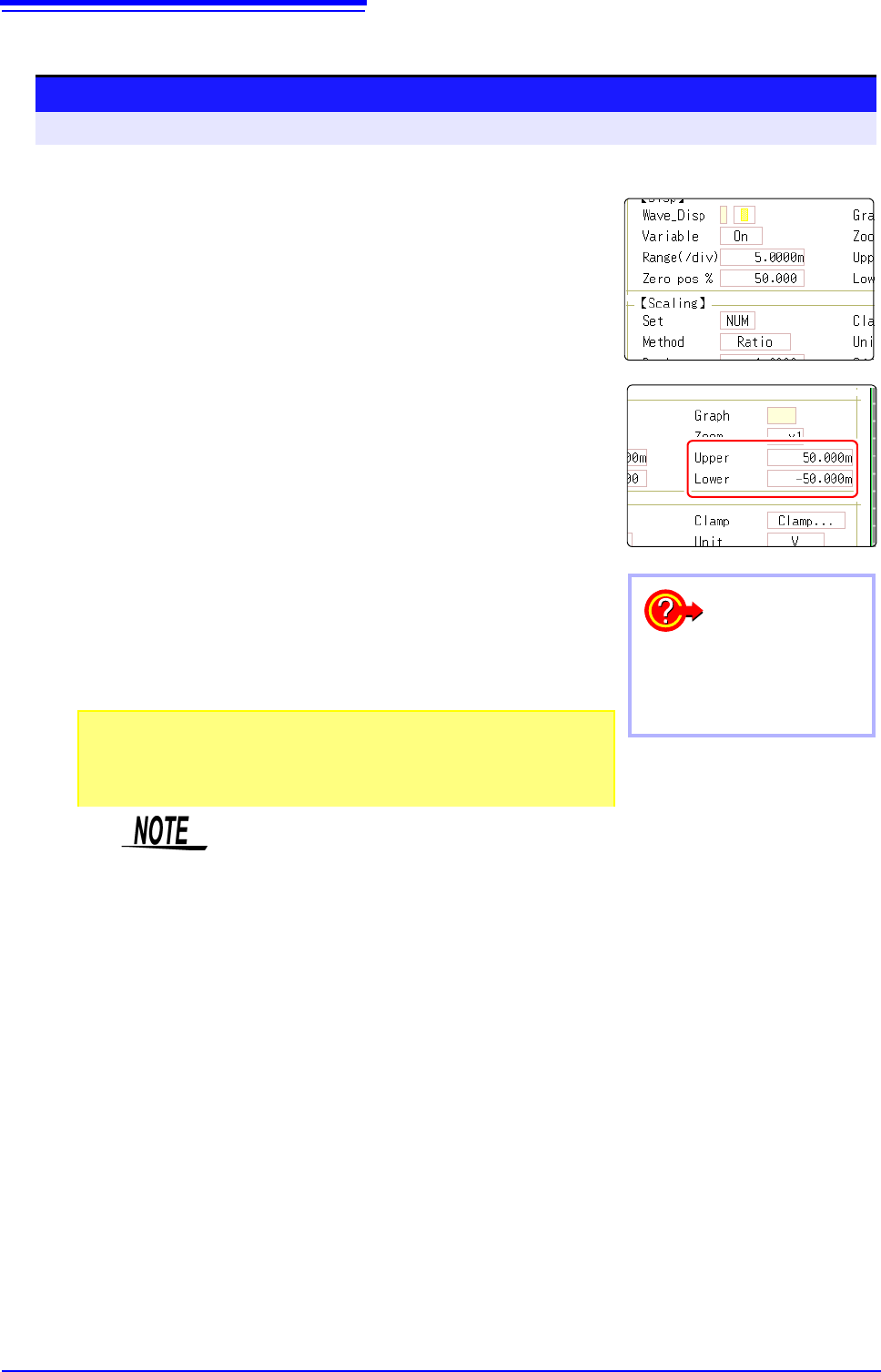
To open the screen: Right-click and select [CHAN] [Each Ch] sheet
1
2
3
1
Enable the Variable function.
Move the flashing cursor to the [Variable], and select [On].
2
Set the display range per division
Move the flashing cursor to the [Range(div)], and enter numeri-
cal value.
(Measurement units depend on the measurement mode of the module.)
(When this is changed, the upper/lower limit values for the display also change ac-
cordingly.)
3
Set the waveform zero position to display on the vertical
axis (vertical axis).
Move the flashing cursor to the [Zero pos%], and enter numeri-
cal % value.
(When this is changed, the upper/lower limit values for the display also change ac-
cordingly.)
4
(When setting upper and lower values)
Move the flashing cursor to the [Upper] and [Lower], and specify the
values.
(When this is changed, the display range and zero position values also change ac-
cordingly.)
4
To reset the settings
Select [Reset] to return the set-
tings to the default values.
• When upper and lower values are set, waveforms can be displayed at full
span on the screen.
• Depending on the scaling setting, the upper and lower display values may be less
than 1. In such cases, set [Variable] to [On] and then select [Auto Set]. Easy-
to-read upper and lower limit values are set based on the currently set values.
• For information on numeric input, see "7.1.3 Alphanumeric Input" (p.141).
•The [Unit List] sheet accessed from the Channel screen also lets you turn the
Variable function On or Off individually for each channel.
• By using the Scaling and Variable functions together, the full span of a sen-
sor's output can be displayed. (p.157)
• When Scaling is enabled, values are displayed in scaling units. When these
settings are changed, the numerical values indicating the display range on the
level monitor are changed accordingly.