MR8740、MR8741_user_manual_eng_20191016H.pdf - 第98页
4.1 Data capable of Being Saved & Loaded 86 Dat a Not Loadable on the In strument _________ _____________________ • Data saved on devices other than the MR8740/MR8741 Memory HiCorder, MR8847s Memory HiCorder , and MR…
4.1 Data capable of Being Saved & Loaded
85
4
Chapter 4 Saving/Loading Data & Managing Files
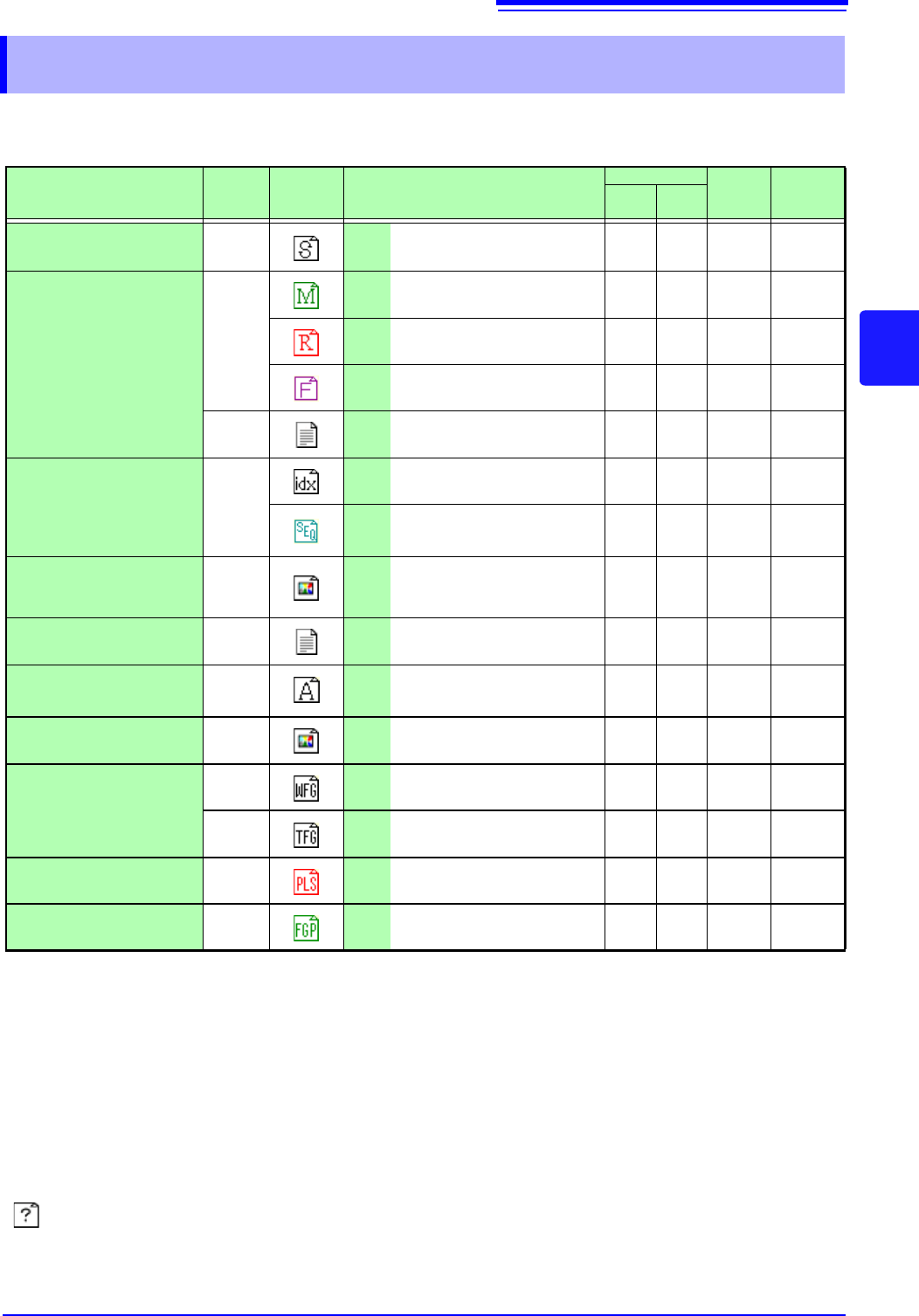
The following kinds of data can be saved by and loaded into the instrument.
4.1 Data capable of Being Saved & Loaded
Data the Instrument Can Save & Load O: Possible/ -: Not Possible
File Type
File
Format
Indica-
tion
File Extension & Description
Save
Load
PC
Readable
Auto
Man-
ual
Settings Data
*1
Binary SET
Settings data
(Measurement Configuration)
-O O -
Waveform Data
*2
Whole of the waveform ac-
quired by the instrument or a
section of the waveform spec-
ified with the A and B
cursors.
Binary
MEM
Memory Function
waveform data
OO O -
*4
REC
Recorder Function
waveform data
OO O -
*4
FFT FFT Function data O O O -
Tex t
CSV Text Data O O - O
Waveform
Management Data
*3
(Divided Saving)
(Index
file)
IDX Index data for divided saving O O O -
SEQ
Index data for memory divi-
sion (automatically created
during batch saving)
OO O -
Captured Screen Image
(Display/Waveform
screens)
BMP
*5
BMP Image Data - O - O
Numerical Calculation
Results
Tex t CSV Text Data O O - O
Waveform evaluation
settings Data
Binary ARE
Settings data (MR8741 only)
(measurement conditions +
waveform evaluation areas)
-O O -
Waveform evaluation
area
BMP BMP
Waveform evaluation area
image data (MR8741 only)
-O O O
Arbitrary
waveform data
Binary WFG
Arbitrary waveform data
(For U8793)
-O O -
Tex t
TFG
Arbitrary waveform data
(For U8793)
-- O O
Arbitrary
waveform data
Binary PLS
Pulse pattern data
(For MR8791)
-O O -
Generation
program data
Pro-
gram
FGP
Generation program data
(For U8793)
-O O -
*1: Multiple data can be saved in the instrument, and loaded selectively. Automatic loading at power-on is also possible.
*2: When the data is to be reloaded on the instrument, save it in binary format. Waveforms and some measurement set-
tings are saved.
When the data is to be loaded on a PC, save it in text format. (p.87)
When saving a section of a waveform, use the A and B cursors to set the section. (p.120), (p.124)
*3: When you want to use memory division and load all blocks at the same time:
Save measurement data using [All blocks]. A directory is automatically created and waveform data for each block
and index data (SEQ) is created. When loading, load this index data.
When loading waveform data of divided saving: Import the IDX index data.
*4: Loading is possible with the Wave Viewer (Wv).
*5: This is a standard Windows
®
graphics format. File in this format can be handled by many graphics programs.
: File type cannot be handled by MR8740/MR8741.

4.1 Data capable of Being Saved & Loaded
86
Data Not Loadable on the Instrument______________________________
• Data saved on devices other than the MR8740/MR8741 Memory HiCorder,
MR8847s Memory HiCorder, and MR8827 Memory HiCorder.
• Image files other than waveform evaluation areas (
)
• file
Files larger than 2 GB cannot be saved.
4.2 Saving Data
87
4
Chapter 4 Saving/Loading Data & Managing Files
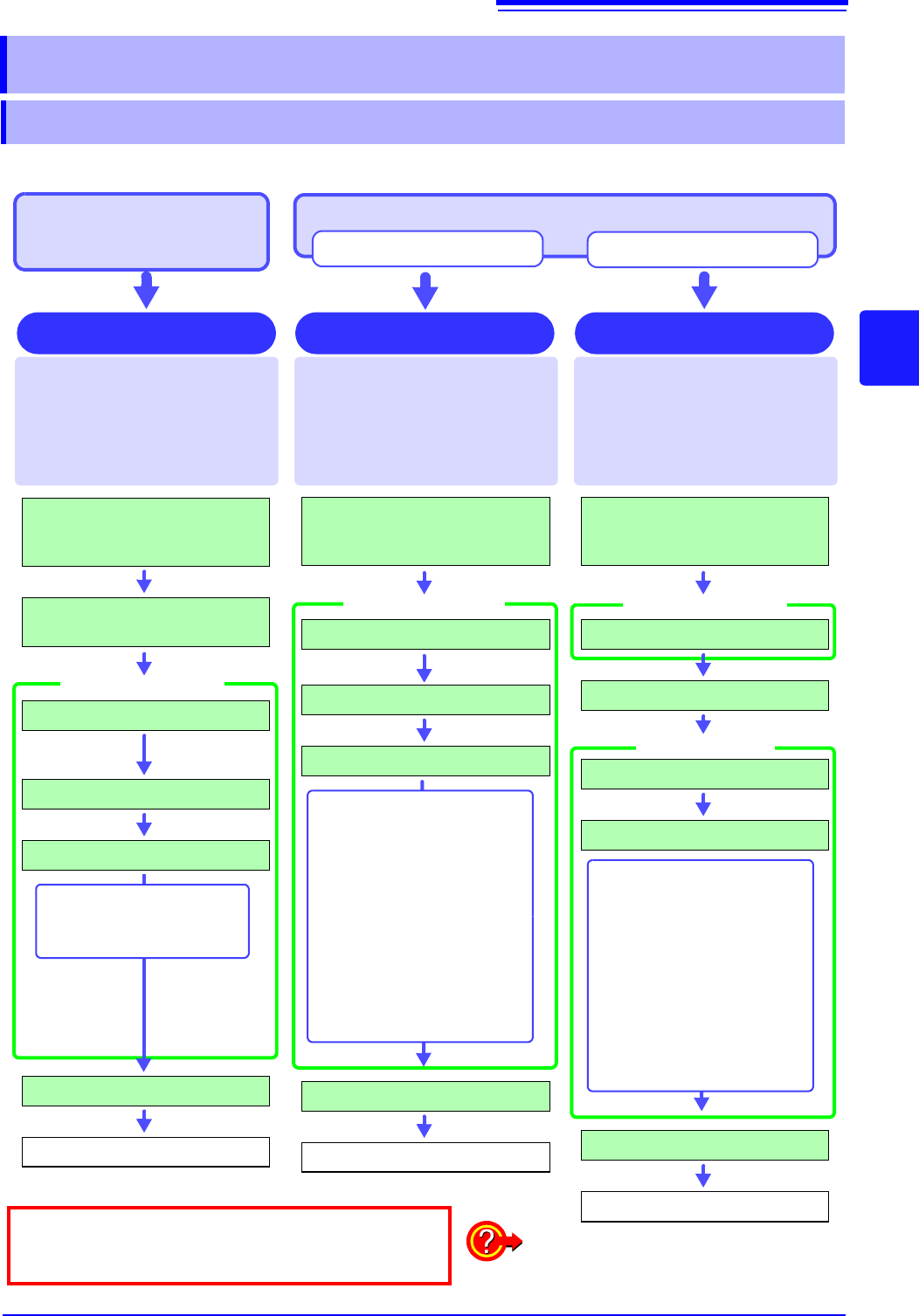
There are basically three types of save operations.
4.2 Saving Data
4.2.1 Save Types and Workflow
To save data automatically
during measurement
(p.88)
To save data manually with [SAVE] (p.93)
Auto Save
This is convenient for saving multi-
ple times and for quick saving of
data during monitoring. Before click-
ing [SAVE], the data content is
specified. (p.93)
(default setting)
Click [SAVE] and then specify the
data content for saving. Because no
settings on the [File Save] sheet are
necessary, save settings can be
made from any screen. (p.93)
Quick Save Selection Save
Measurement data are acquired for
the recording length and then saved
automatically each time. Save loca-
tion and data type are selected be-
fore the measurement. (p.88) Data
are saved on USB memory stick.
Save data straight away
Select data and save
After installation and connection,
turn the power on.
Insert the storage media.
Set the measurement configura-
tion.
Set [Auto Save] to [On].
Select the save destination.
Select the data to save.
Measure
Auto Save
[File Save] sheet
• Waveform data
• Numerical calculation
results*
After installation and connection,
turn the power on.
Insert the storage media.
Set [Select at save] to [No].
Select the save destination.
Select the data to save.
Click [SAVE]
Save
[File Save] sheet
Any of the following can be
saved:
• Setting data
• Waveform data
• Display screen
• Waveform screen
• Numerical calculation results
• Waveform evaluation
setting data
• Waveform evaluation area
• Pulse pattern data
• Arbitrary waveform data
• Program data
After installation and connection,
turn the power on.
Insert the storage media.
Set [Select at save] to [Yes].
Click [SAVE]
Select the save destination.
Select the data to save.
Select [Exec]
Save
[File Save] sheet
Dialogue
Any of the following can be saved:
• Setting data
• Waveform data
• Display screen
• Waveform screen
• Numerical calculation results
• Waveform evaluation
setting data
• Waveform evaluation area area
• Pulse pattern data
• Arbitrary waveform data
• Program data
Check points before saving:
• Media inserted and initialized? (p.53), (p.54)
• Save target specified correctly?
• Auto Save set to [On]? (For auto-saving)
*: To save numerical calculation results
See: "9.4 Saving Numerical Calculation
Results" (p.221)