MR8740、MR8741_user_manual_eng_20191016H.pdf - 第116页
4.4 Managing Files 104 6 (When [W ave Binary] is the selected save typ e) Select whe ther to save divid ed files. Move the flashing cursor to the [Division] item. Select See: "About divided savi ng"(p.104) (Whe…
4.4 Managing Files
103
4
Chapter 4 Saving/Loading Data & Managing Files
You can save settings data or waveform data on storage media. Data will be saved in the folder indi-
cated by the cursor. By using the A/B cursor pair, waveform data can be saved partially.
4.4.1 Saving
Procedure
To open the screen: Right-click and select [FILE] File screen To change the media: (p.84)
3
4
5
6
1
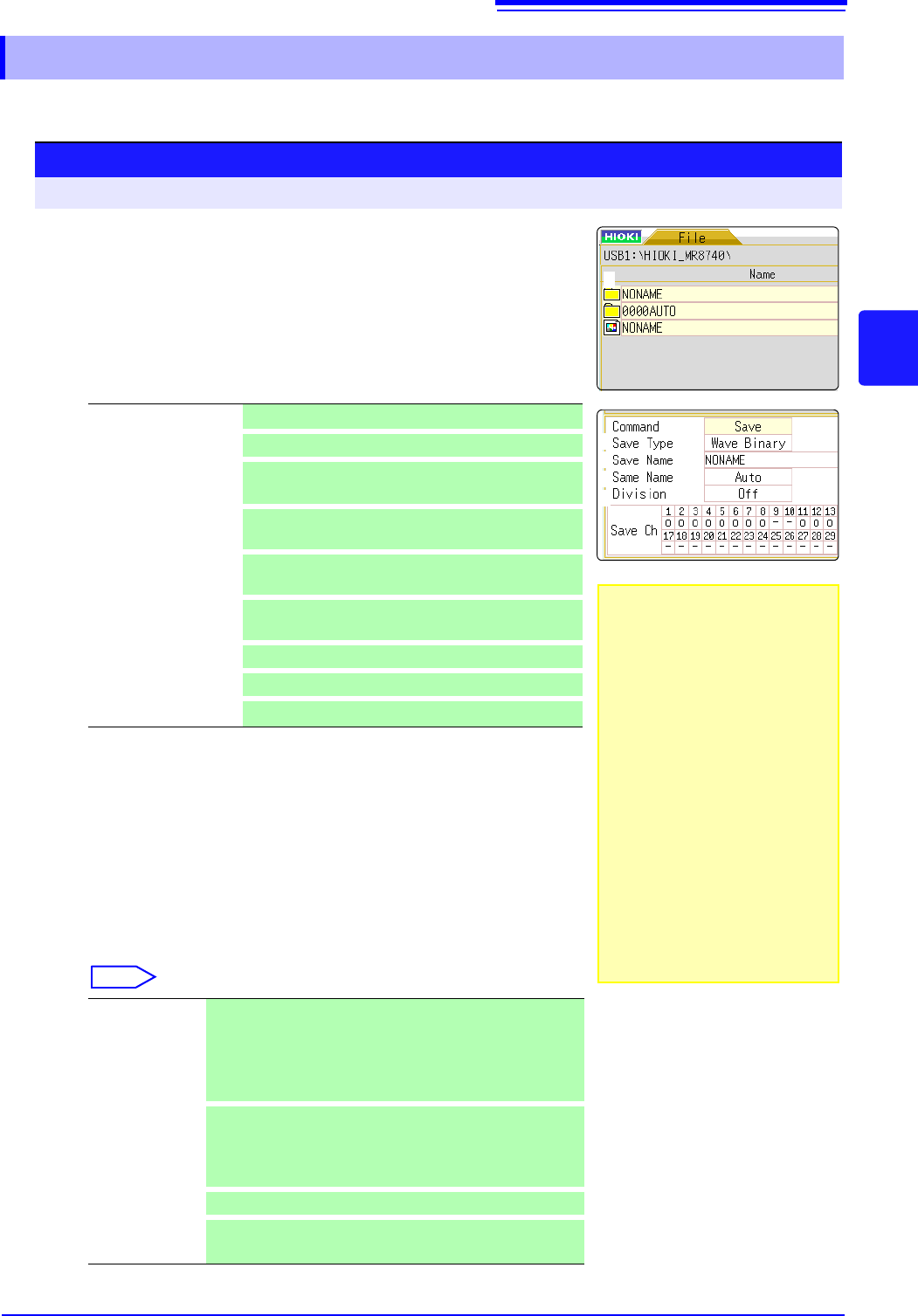
Select storage media for saving.
See: "To change the media"(p.84)
2
Move the flashing cursor into the folder to save.
3
Set the data to save.
Select [Save] and then select [Save Type].
4
Set the file name.
Move the flashing cursor to the [Save Name] item.
Enter the save name.
See: "7.1.3 Alphanumeric Input" (p.141)
5
Specify the action if a file with the same name exists in the
target folder.
Move the flashing cursor to the [Same Name] item.
Select
*Refer to Åg5. 2.4 Save Waveform Output Data to the MediaÅh
*Refer to"4.2.5 Save Waveform Output Data to the Media" (p.98) for more infor-
mation about how to save data.
Setting
Settings data
Wave Binary
Waveform data (Binary)
Wave Text
Waveform data (Text)
(Memory/FFT Function)
Numeric value calcu-
lation results
Numeric value calculation results (Text)
Waveform evaluation
settings
Settings data and evaluation area (MR8741 only)
Waveform evaluation
area
Evaluation area (MR8741 only)
Pulse pattern
Pulse pattern data registered in the MR8791*
Arbitrary waveform
Arbitrary waveform data registered in the U8793*
Program Program data registered in the U8793*
Auto If no files with the same name exist, saves the file with the des-
ignated name. Otherwise, a 4-digit number is automatically
added to the beginning of the file name (default setting).
If the first character of the file name is a numeral, the
added number will continue sequentially from that number.
Serial
Unconditionally, a 4-digit number is automatically added to
the beginning of the file name. If a file with the same name
exists, saves the file, adding the 4-digit number that is in-
creased by 1.
Overwrite
Saves the file with the designated name.
Error
If a file with the same name exists, an error message will be
displayed.
2
• Data saved with the "Text"
option is only for loading to a
PC and cannot be loaded
back into the instrument. To
reload the data later into the
instrument, use the "Binary"
option.
• When [Memory (Int)] is
selected as storage media,
only settings data can be
saved.
• The waveform evaluation
area you have created can
be saved as a black-and-
white BMP file. Saved data
can be edited on a computer
and loaded back into the
instrument. Edit images in
black and white only.
4.4 Managing Files
104
6
(When [Wave Binary] is the selected save type)
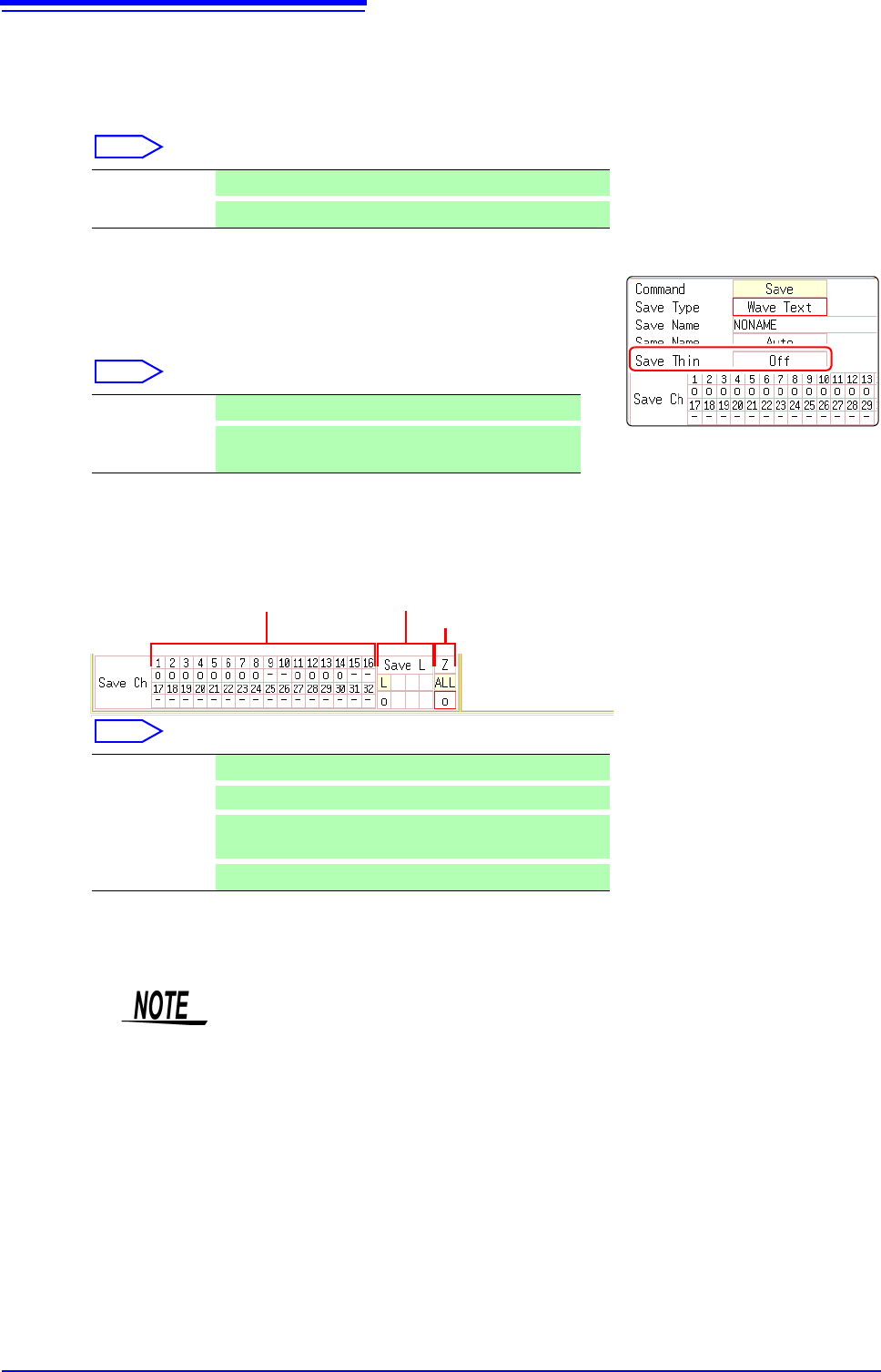
Select whether to save divided files.
Move the flashing cursor to the [Division] item.
Select
See: "About divided saving"(p.104)
(When [Text] is the selected save type)
Set the data thinning number.
Move the flashing cursor to the [Save Thin] item.
Select
7
Select the channels to save.
Move the flashing cursor to the save channel item.
Select
8
Execute the save operation.
Select [Exec].
Off Files are not divided when saved.
16M, 32M, 64M
Select the size for Divided Save.
Off Data thinning (sub-sampling) is not carried out.
1/2 to 1/1000
Set the thinning number (out of how many data items to
leave one data item remaining).
- Channel will not be saved.
o
Channel will be saved.
All Ch
Saves waveforms acquired across all channels
(analog, logic, calculated waveforms).
Reset
Return to previous settings.
Analog
Channels
Logic
Channels
Waveform Calculation
(When [Wave Calculation]
is [On])
File name
The maximum number of characters for the [Save Name] string is 123. The
maximum path length including file name is 255 characters.
About divided saving
Large quantities of waveform data can be divided and saved as multiple files.
Saving divided data creates one or more waveform files and an index (IDX) file.
Then by loading the IDX file, the data in the waveform file(s) is loaded as a
batch.
See: "Batch load of waveform data"(p.101)
Other limitations
Text format data cannot be loaded into the instrument.
4.4 Managing Files
105
4
Chapter 4 Saving/Loading Data & Managing Files
See the contents of a selected folder (by opening that folder).
You can create a new folder in the currently displayed folder level.
4.4.2 Checking the Contents of a Folder
(Open a Folder)
Procedure
To open the screen: Right-click and select [FILE]File screen To change the media: (p.84)
1
Move the flashing cursor to the folder whose contents you want
to see.
2
Click [Open Folder].
A list with the folder contents appears.
4.4.3 Creating New Folders
Procedure
To open the screen: Right-click and select [FILE] File screen To change the media: (p.84)
3
1
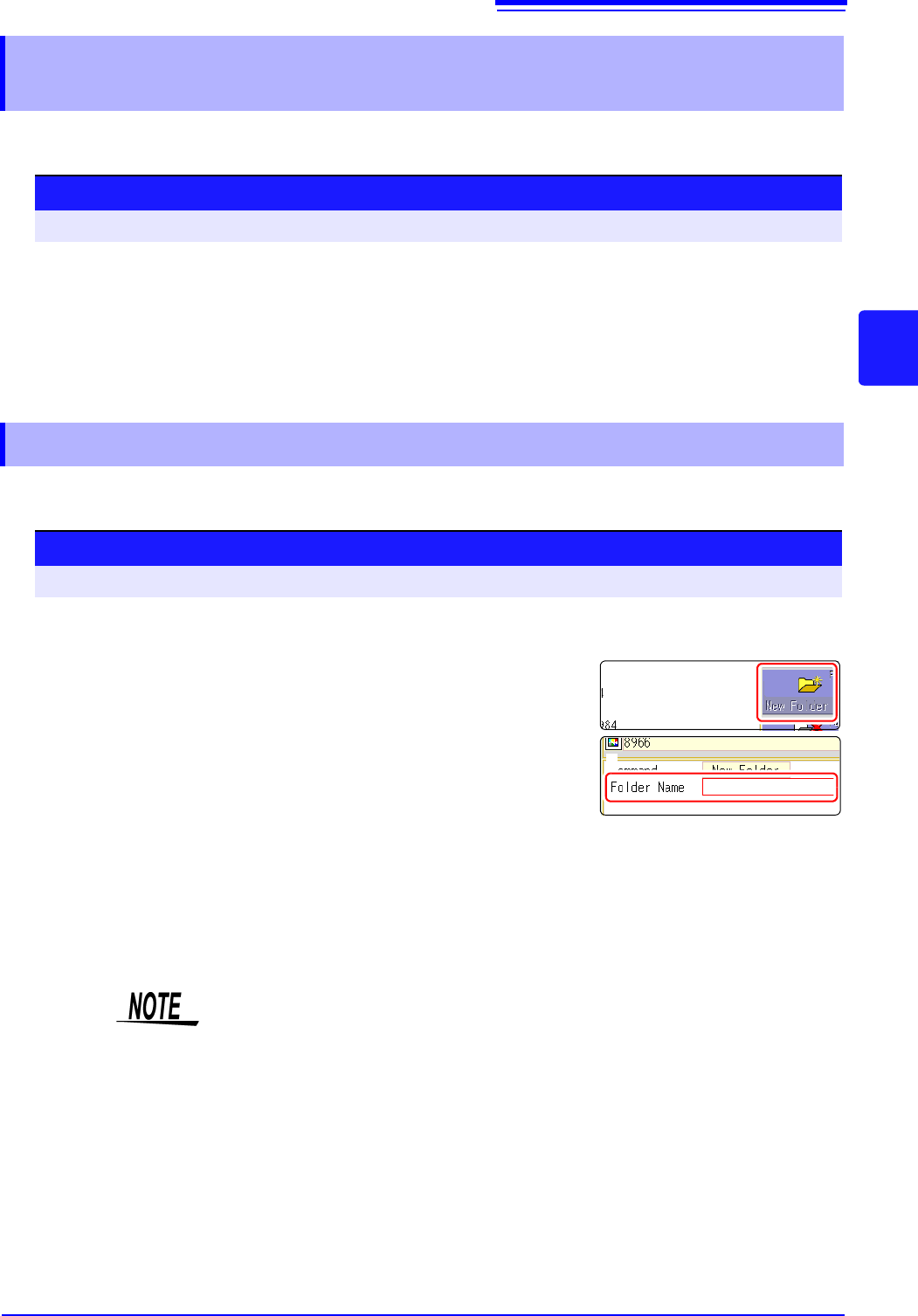
Display a screen with the folder level where you want to create a
new folder.
2
Select [New Folder].
3
Enter [Folder Name].
See: "7.1 Adding Comments" (p.138)
4
Select [Exec].
A new folder is created.
To cancel creating:
Select [Cancel].
2 Select
Folder name
The maximum number of characters for the [Save Name] string is 127. The
maximum path length including folder name is 255 characters.