MR8740、MR8741_user_manual_eng_20191016H.pdf - 第234页
9.4 Saving Numerical Calcu lation Results 222 Example for saving numerical cal culation result s ___________________ If you save numeri cal calculation results, characters or display items used on the instrument are co n…
9.4 Saving Numerical Calculation Results
221
Chapter 9 Numerical Calculation Functions
8
9
Calculate and automatically save during data acquisition. Before measurement begins, the calcula-
tion settings need to be set.
9.4 Saving Numerical Calculation Results
When using auto save during measurement, do not remove the storage media
specified as the save destination until the measurement operation is completely
finished. Doing so may damage data on the storage media.
Procedure
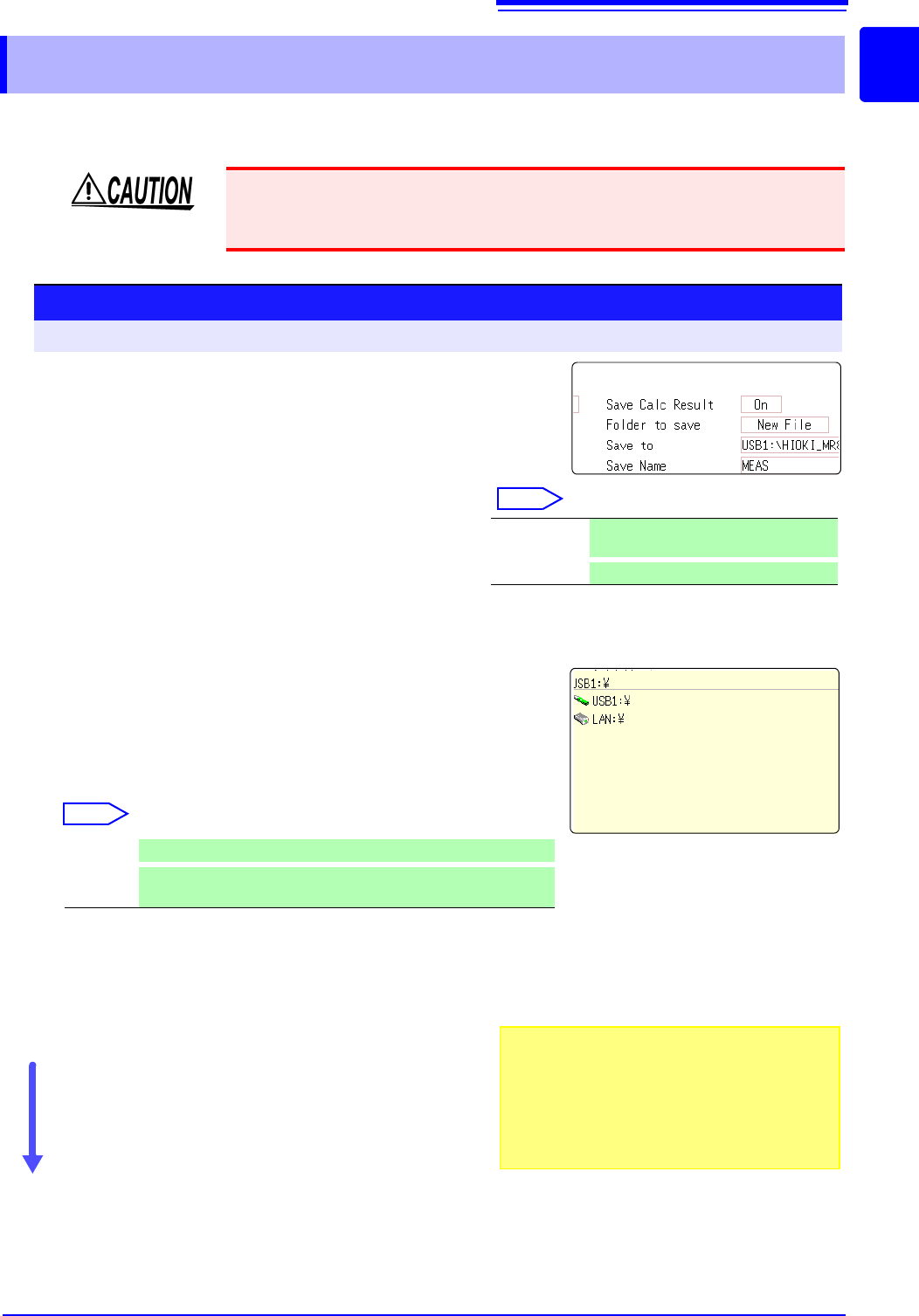
To open the screen: Right-click and select [STATUS] [Num Calc] sheet
1
Enable the saving of numerical calculation results.
Move the flashing cursor to the [Save Calc Result]
item.
Select [On]. (default setting: Off)
2
Select the file creation method.
Select
Move the flashing cursor to the [Folder to save] item.
3
Set the save target
Move the flashing cursor to the [Save To] item.
Select [Edit].
The Browse folders dialog box appears. (See illustration at right.)
Move the flashing cursor to the save target media.
Select [Confirm] to confirm the selection.
Select
To create a new folder to use as target, select [New
Folder]. When [LAN] is set as the save destination,
[New Folder]
setting is ignored and the folder named
with the current date is created.
4
Enter a save name (if you want to use a different
name).
Move the flashing cursor to the [Save Name] item.
Enter the save name. (default setting: MEAS)
See: "7.1 Adding Comments" (p.138)
When [LAN] is set as the save destination, [Save
Name] setting is ignored and the files to be saved are
named in the previously-determined format.
See:
"Save Operations (When setting the save destination to [LAN])" (
p.92)
Confirm the measurement configuration and numerical
calculation result settings, then start measurement.
New File Creates a new file for each measure-
ment.
Existing File
Adds calculation results to one file.
USB1 Automatically save the waveform data on the USB memory stick.
LAN
Automatically save the waveform data on the PC connected via
LAN. Model 9333 LAN Communicator is required to be installed.
1
2
3
4
Save Name
• The maximum length of the Save Name string
is 123 characters. The maximum path length is
255 characters.
• A sequential number starting from 0001 is auto-
matically appended to the Save Name (when
[New File] is selected).
9.4 Saving Numerical Calculation Results
222
Example for saving numerical calculation results ___________________
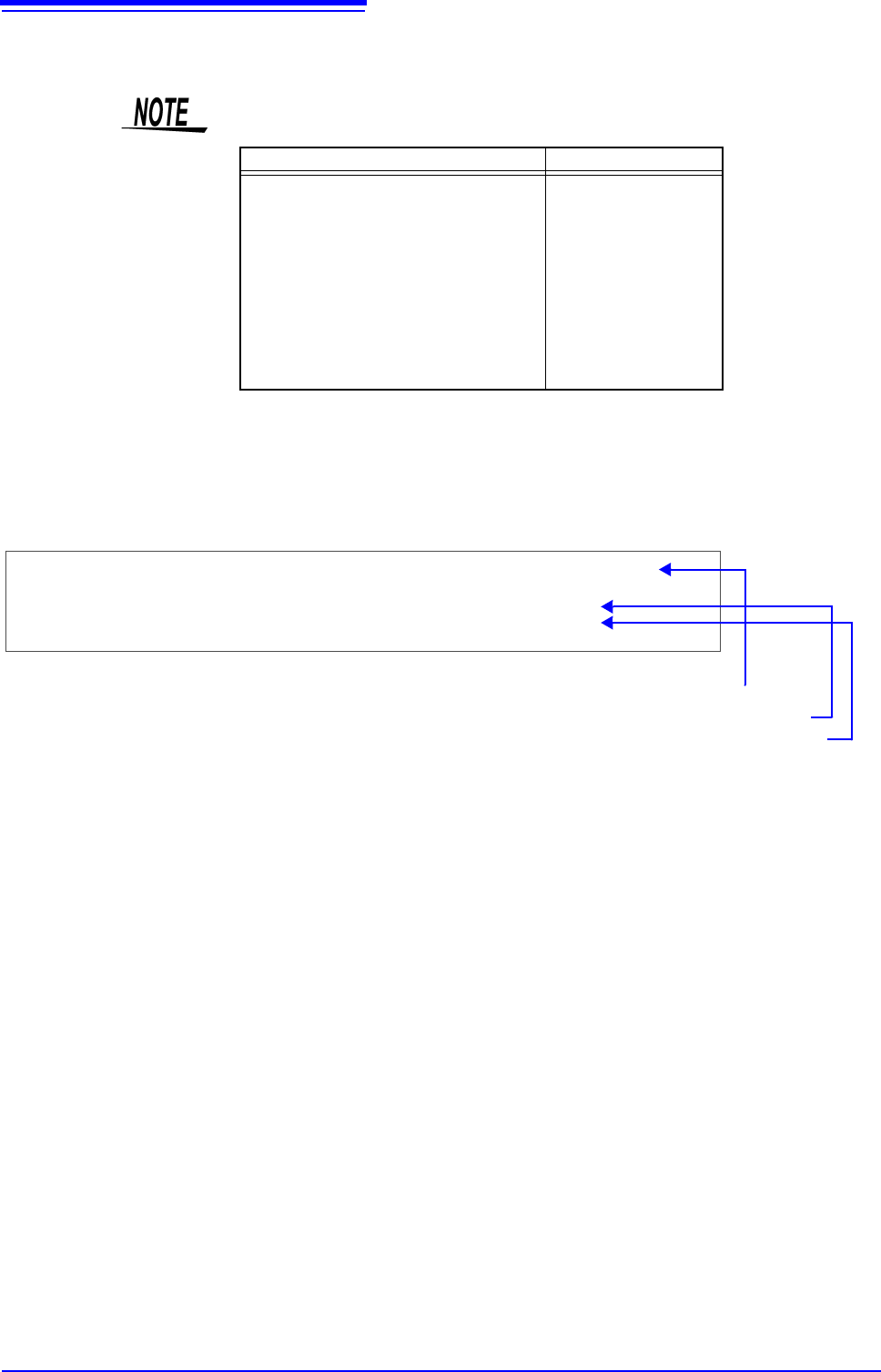
If you save numerical calculation results, characters or display items used on the
instrument are converted as shown below.
Characters used on the instrument Saved characters
2
^2
3
^3
~u
~o
e~e
°~c
±~+
(display only)
uE
°C (
display only)
C
"Trig Time" ,"No1 Maximum Ch1" ,"No2 Minimum Ch1" ,"No3 Maximum Ch2" ,"No4 Minimum Ch2"
"","V","V","V","V"
"08-04-11 17:40:33.351","+3.00078E-05","+2.12000E-04","+2.00000E-03","+1.30000E-03"
"08-04-11 17:44:25.976","+3.06078E-05","+2.39996E-04","+2.00000E-03","+1.10000E-03"
<When calculation settings are as follows>
Calculation No. 1: Maximum value of analog channel 1
Calculation No. 2: Maximum value of analog channel 1
Calculation No. 3: Maximum value of analog channel 2
Calculation No. 4: Maximum value of analog channel 2
Line 1: Calculation Settings
Line 2: Calculation Result Unit
From Line 3: Calculation Results
Recorded in the order of the calculation settings of line 1.
9.5 Numerical Calculation Type and Description
223
Chapter 9 Numerical Calculation Functions
8
9
9.5 Numerical Calculation Type and Description
Numerical Calculation
Type
Description
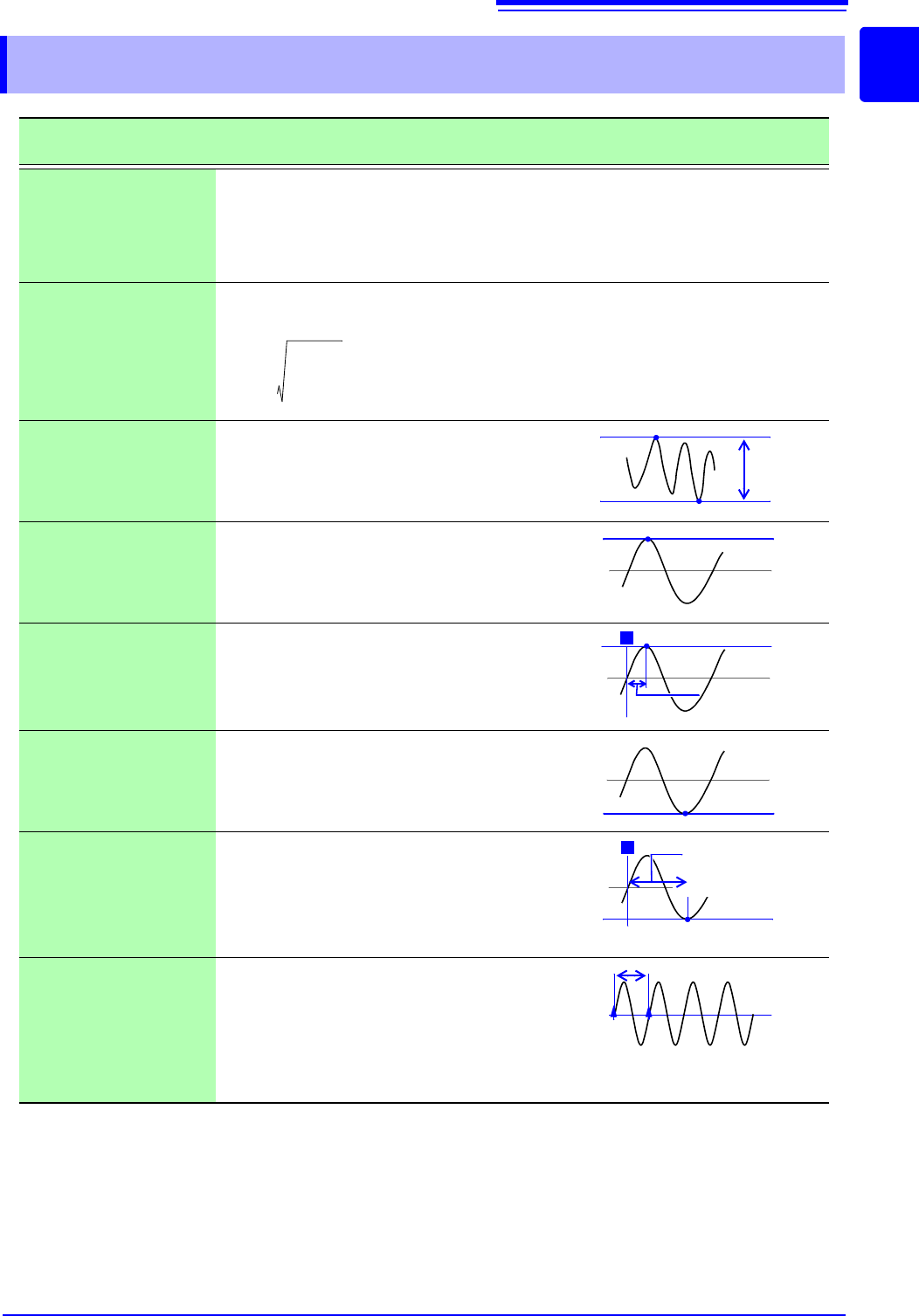
Average
Obtains the average value of waveform data.
RMS
(Root-Mean-Square)
value
(Rms)
Obtains the RMS value of waveform data. If Scaling is enabled, calculations are applied
to the waveform after scaling.
Peak-to-Peak value
(Peak-Peak)
Obtains the value of the difference (peak-to-
peak value) between maximum and mini-
mum values of waveform data.
Maximum Value
(Maximum)
Obtains the maximum value of waveform
data.
Time to Maximum
Value (Max-Time)
Obtains the time (in seconds) from the last
trigger point to the maximum value.
If the maximum value occurs in two or more
instances, the first instance is treated as the
maximum value.
Minimum Value
(Minimum)
Obtains the minimum value of waveform
data.
Time to Minimum
Value (Min-Time)
Obtains the time (s) from the trigger point to
the minimum value.
When there are two or more minimum val-
ue points, the first point of the first wave-
form for which calculation was carried out is
taken as the minimum value.
Period/Frequency
Obtains the time (in seconds) from the last
trigger point to the minimum value.
Calculates the period/frequency based on
the time difference from the point when a
specified level is crossed in the rising or
falling direction to the point when it is next
crossed.
AVE
1
n
---
di
i1=
n
=
AVE: Average value
n: Data count
di: Data on channel number i
RMS
1
n
---
di
2
i1=
n
=
RMS: RMS value
n: Data count
di: Data on channel number i
Maximum
value
Minimum
value
P-P value
Maximum
value
Maximum
value
T
Time to Maximum
Value
Minimum
value
T
Time to Minimum
Value
Minimum
value
Level